


Gaming Setup at Home: Building a more stable Gaming network
A great gaming setup isn’t just about having a powerful PC, console, monitor, or graphics card. Your home network can also have a significant impact on how smooth, responsive, and reliable your gaming experience feels.
A fast internet connection is useful, but maximum download speed isn't the only factor that matters for online gaming. Low latency, connection stability, and effective network management can be just as important, and sometimes even more important, than raw internet speed.
Whether you are lining up a critical play in a fast-paced action game, hitting corners in a racing game, navigating intense team fights in a Multiplayer Online Battle Arena (MOBA), or teaming up in a co-op campaign, a properly optimized network ensures your connection stays rock-solid when the action peaks.
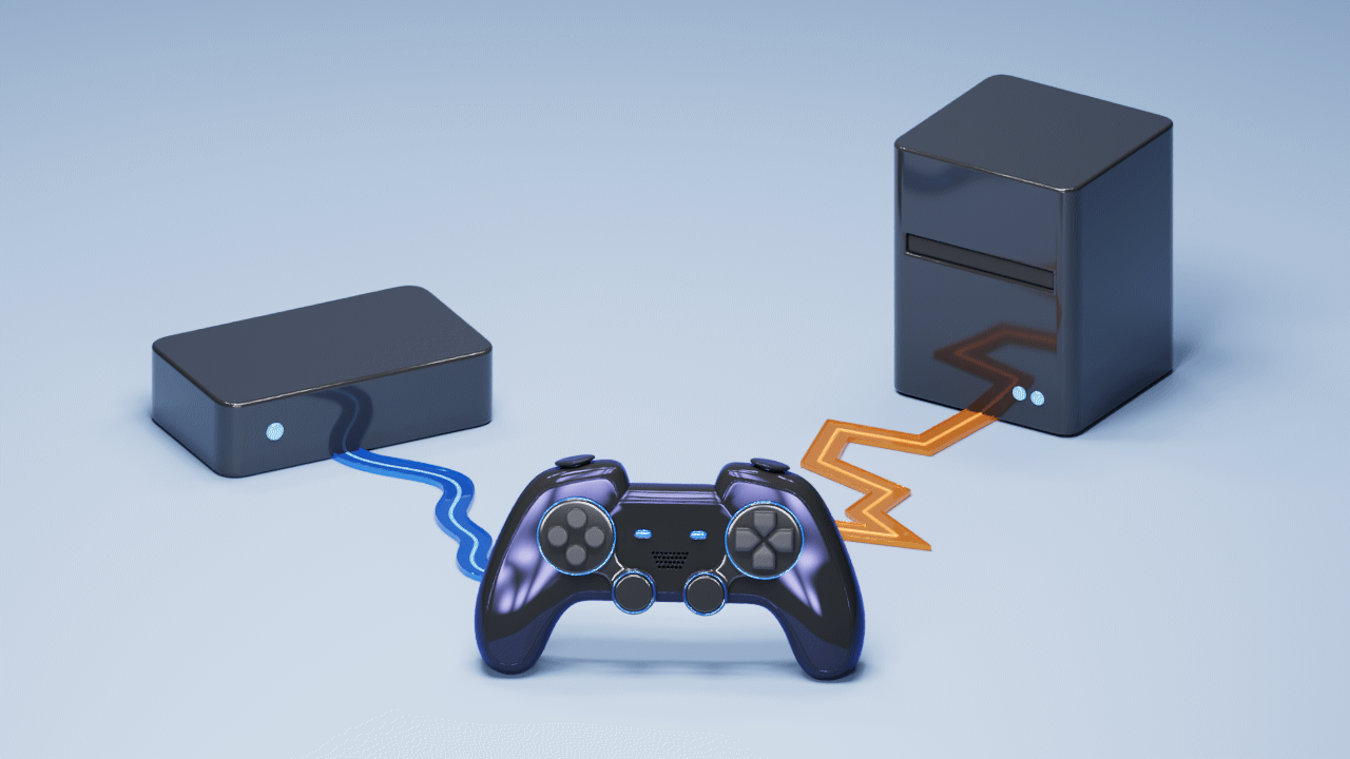
Here are ways to build a solid gaming connection:
Choose an internet plan that provides enough bandwidth for everyone in your home. For many households, 50 to 100 Mbps is enough for gaming, but households with heavier use may need more.
Supplemental reading: Exploring the different types of internet connections
If you have the option, Ethernet is generally the simpler choice for a stationary gaming PC or console because it avoids many sources of wireless interference and signal-quality issues.
Look into this reference: WiFi or Ethernet? Choosing the best connection for you
If Ethernet isn't an option, place your router in an open, central location and keep it reasonably close to your gaming device. Avoid physical obstructions and sources of wireless interference.
Should I use 2.4 GHz, 5 GHz, or 6 GHz WiFi for gaming?
The best wireless frequency for gaming depends on your home layout, wireless environment, and device capabilities:
- 2.4 GHz: Useful for range and compatibility, but not necessarily the best choice for latency-sensitive gaming in a congested environment.
- 5 GHz: A good wireless option when the device has a strong signal and is reasonably close to the router.
- 6 GHz: Worth considering when both the router and gaming device support it, and the signal remains strong.
Does Wi-Fi® 6 or Wi-Fi® 7 improve gaming?
Newer Wi-Fi standards can improve wireless efficiency and capacity, particularly in homes with many connected devices. However, the actual benefit depends on your router, gaming device, network conditions, and internet connection. While utilizing the 6 GHz band can provide high throughput and reduced interference in suitable environments, a wired Ethernet connection remains the preferred option for minimizing wireless variability on stationary gaming devices.
Look into these references:
Where you place your router matters more than you think
WiFi basics: What it is and how it works
Large downloads, streaming, cloud backups, and software updates can compete with your game for bandwidth and increase latency.
Schedule heavy downloads when you aren’t playing, or use your router’s traffic management features to control them.
If your router supports Quality of Service (QoS) or Smart Queue Management (SQM), configuring these features can significantly reduce latency during periods of heavy network congestion. However, simply enabling them doesn't guarantee a perfect fix, as their effectiveness depends heavily on your router’s hardware and your overall internet bandwidth.
Mitigating Bufferbloat
The primary gaming benefit of advanced traffic management is its ability to mitigate a common networking phenomenon known as Bufferbloat.
The problem: Bufferbloat occurs when an application, such as a large file upload or a 4K video stream, overwhelms your router with a massive burst of data. To handle this influx, the router creates a data queue. While this prevents data loss, it temporarily delays time-sensitive packets, causing your in-game ping to spike dramatically.
How QoS/SQM fixes it: When properly configured, these tools prioritize latency-sensitive traffic like gaming packets over bulk data transfers. Advanced algorithms like SQM actively manage the router's internal queues to prevent them from filling up entirely. This keeps the network data highway flowing smoothly and reduces the frequency of severe lag spikes when multiple devices are active simultaneously.
Packet loss can cause freezing, delayed actions, sudden position changes, and disconnections. If it happens frequently, check your home network, router, WiFi connection, and ISP.
If only one game has high ping while other games work normally, the issue may involve the game’s server or the network router between your ISP and that server.
Network Address Translation (NAT) allows multiple devices in your home to share an internet connection. Gaming platforms commonly describe NAT as Open, Moderate, or Strict, although the terminology varies.
A more restrictive NAT type can sometimes cause problems with:
- Matchmaking
- Joining other players
- Hosting multiplayer sessions
- Voice Chat
- Peer-to-peer connections
If your game reports a strict or restrictive NAT type, check your router and network configuration before changing random settings.
Avoid Double NAT
Double NAT occurs when two routers are both performing NAT on the same network.
For example: ISP Gateway → Your router → gaming PC or console.
If both devices are operating as routers, gaming services may have difficulty establishing certain connections. A common solution is to put the ISP gateway into bridge mode and let your own router handle routing and NAT. Another solution is to use your own router as an access point if you do not need its routing features. The correct solution depends on how your ISP equipment and home network are configured.
Watch out for CGNAT (Carrier-Grade NAT)
Sometimes, a Double NAT issue does not originate inside your home. Instead, it occurs at the Internet Service Provider (ISP) level. To conserve limited IPv4 addresses, many ISPs utilize CGNAT to share a single public IP address among hundreds or thousands of different households.
The problem: If your ISP uses CGNAT, your connection will likely be stuck on a "Strict" or "Moderate" NAT type. Traditional home network troubleshooting, such as configuring port forwarding or setting up a DMZ on your router, will fail to resolve the issue because you do not have control over the upstream routing infrastructure managed by your ISP.
How to identify it: To check for this restriction, log into your router's administrative dashboard and locate its WAN IPv4 address. Next, visit a public address verification website to check your public IPv4 address.
- Shared-Address Infrastructure: If your router's WAN IPv4 address falls anywhere within the 100.64.0.0/10 range (specifically from 100.64.0.0 to 100.127.255.255), it is a strong indicator that your ISP is utilizing CGNAT.
- Upstream Router or Local NAT: If the WAN address does not match your public address and falls into a standard private range (such as 192.168.x.x, 10.x.x.x, or 172.16.x.x through 172.31.x.x), this typically indicates an upstream gateway, a separate modem/router combo device, or another form of local Network Address Translation.
The fix: If you discover a discrepancy between your WAN and public IP addresses, confirm your network setup with your ISP before changing any complex configurations on your equipment. If they confirm that you are behind CGNAT, you will generally need to request a dedicated public IPv4 address from them. Depending on your service provider, they may offer this option for free or charge an additional fee.
Port forwarding tells your router to send specific incoming network traffic directly to a particular device on your home network.
When to use it: Use port forwarding if you host multiplayer lobbies, set up a home server, or experience strict NAT issues that block matchmaking, voice chat, or peer-to-peer connections.
What to watch out for: It does not automatically lower your ping or increase internet speeds. Only open the specific ports listed in your game's official documentation, and avoid opening unnecessary ports, as doing so can expose your network to security vulnerabilities.
Look into this reference: Port Forwarding Made Simple
Changing your DNS server can sometimes improve how quickly domain names are resolved, but it generally does not reduce your in-game ping once you’re connected to a server.
Use a reliable DNS provider, but don’t expect a DNS change to fix normal gameplay latency.
Avoid turning off your firewall, router security features, or other protections simply because a game has connection problems. Instead, identify specific networking requirements and create the smallest necessary configuration change.
Update your router firmware, gaming device, network drivers, and other relevant software. Updates can improve stability, compatibility, and security.
Unexplained connection drops or sudden performance dips are often unrelated to network configurations. Instead, they frequently stem from physical hardware constraints, thermal issues, or outdated system software struggling to manage sustained and modern data loads.
- Ventilation and thermal management: Routers operate as specialized computers equipped with their own processors and memory. When enclosed in tight spaces or buried under dust, they can quickly overheat, leading to thermal throttling, dropped packets, and severe latency spikes. Keep your router in an open, well-ventilated area, and clear the vents of dust regularly to ensure stable performance under heavy load.
- Firmware updates: Manufacturers frequently release firmware patches to resolve memory leaks, optimize hardware efficiency, and fix stability bugs that cause performance degradation over time. Always ensure your router is running the latest official firmware. Checking for updates is a critical first step when troubleshooting a network that exhibits unprovoked slowdowns.
- Evidence-based troubleshooting: If your network performance deteriorates gradually, use a systematic diagnostic approach rather than guessing at settings. Perform isolated ping tests and check your router's built-in resource monitor, if available, to pinpoint memory or CPU exhaustion.
- Rebooting as a diagnostic step: While it is a popular trend to schedule automatic weekly reboots as a generic performance boost, doing so often masks deeper underlying problems like a faulty firmware version, hardware failure, or severe Bufferbloat. Instead, use a manual reboot as a targeted diagnostic step to clear the system state and verify if the performance issue immediately returns under identical traffic conditions.
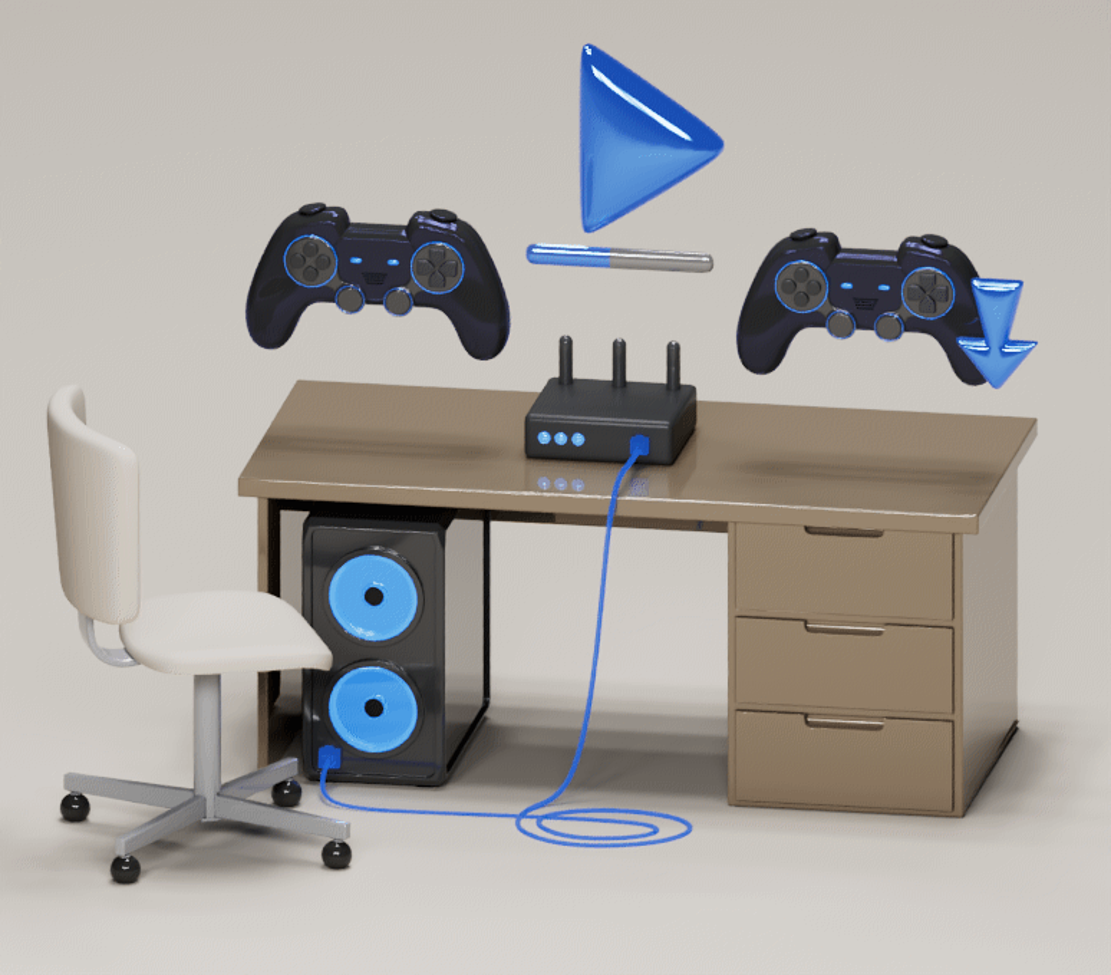
One of the most common questions gamers ask is, “How many Mbps do I need for online gaming?”
The answer depends largely on how many people and devices are sharing your connection.
Online games generally don't require enormous amounts of bandwidth. Activities such as 4K video streaming, cloud backups, and downloading large game files can consume considerably more bandwidth than playing an online game.
For one or two gamers, 50 to 100 Mbps can often be enough for online gaming, provided the connection has good latency and remains stable.
Higher speeds become more useful when several people are gaming, streaming video, downloading games, attending video calls, or using multiple connected devices at the same time.
*Please note that the following are general estimates and do not represent absolute requirements or guaranteed outcomes.
| Estimated Internet Speed | Typical Gaming Use |
|---|---|
| 25 to 50 Mbps | Suitable for basic online gaming when household network activity is limited. |
| 50 to 100 Mbps | Accommodates gaming alongside everyday, moderate home internet use. |
| 100 to 300 Mbps | Supports consistent gaming across several active and connected devices. |
| 300 Mbps+ | Optimized for busy households handling large game downloads, 4K streaming, and multiple simultaneous users. |
Keep in mind that faster internet doesn't automatically mean lower ping.
You could have a 500 Mbps or 1 Gbps connection and still experience lag if your network has high latency, packet loss, WiFi interference, or congestion.
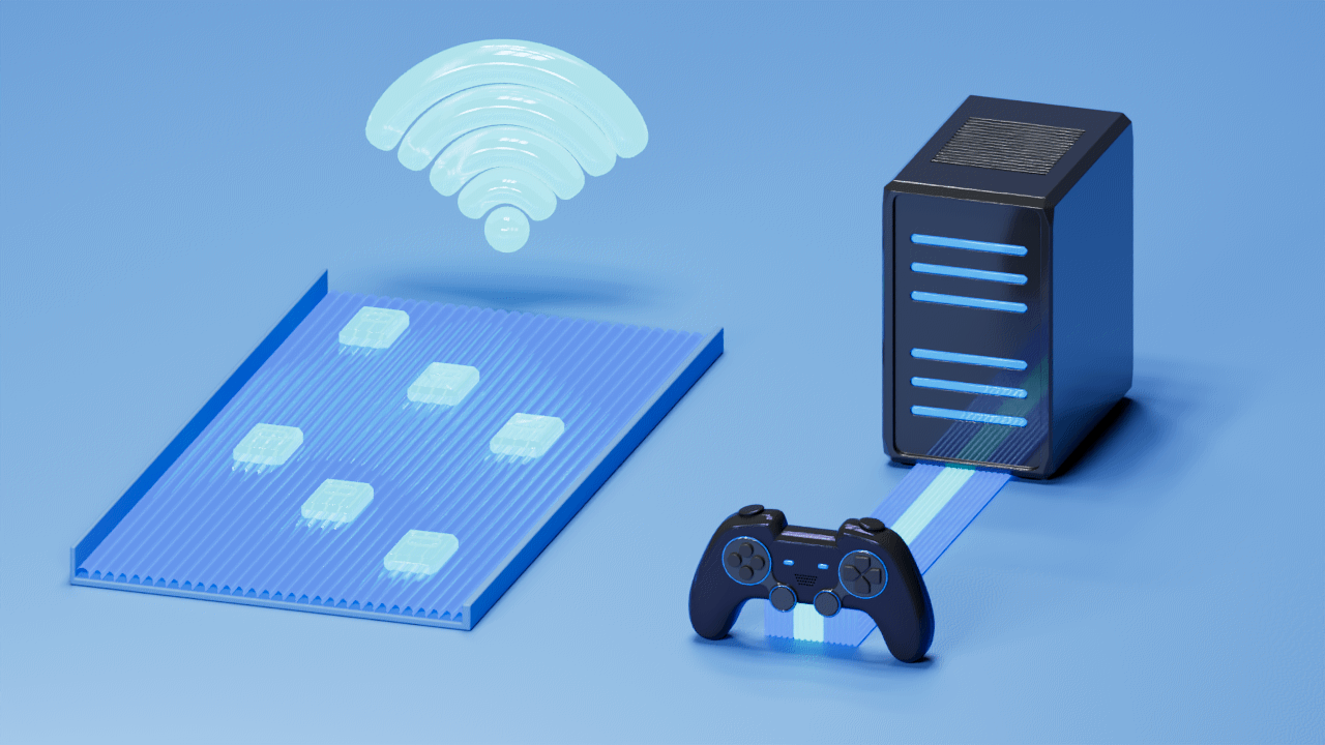
When it comes to online gaming, it's easy to assume that more Mbps automatically means better performance.
That's not necessarily the case.
Internet Speed
Internet Speed describes how quickly data can be transferred through your connection. It is usually measured in Mbps (megabits per second) or Gbps (gigabits per second).
Higher speeds are particularly useful for:
- Downloading games and updates
- Supporting multiple users
- Cloud gaming
- Streaming gameplay
- Watching video while gaming
- Uploading or broadcasting gameplay
- Connecting many devices at the same time
Latency
Latency measures how long it takes data to travel between your device and another destination, such as a game server. Latency is measured in milliseconds (ms).
For real-time multiplayer games, low and consistent latency is important because your actions need to reach the server quickly.
When you move, aim, turn, or press a button, you want that information to travel between your device and the game server with as little delay as possible.
This is why a connection with moderate download speeds and stable latency can sometimes provide a better gaming experience than an extremely fast connection with inconsistent performance.
Ping is commonly used as an indicator of network latency.
A lower ping generally means there is less communication delay between your gaming device and the game server. However, you shouldn't judge your connection based on a single ping number. For example, a connection that repeatedly jumps between low and very high latency can feel less consistent than one with a slightly higher but stable ping. These sudden increases are often referred to as ping spikes or latency spikes. For online gaming, consistency is key.
Monitor and Minimize Jitter
When troubleshooting real-time online gaming performance, maintaining a stable connection is often more critical than chasing the absolute lowest possible ping. Sudden disruptions are frequently tied to fluctuations in your network's responsiveness.
What is Jitter?
Jitter is formally defined as the variation in packet delay over time. For example, if your connection takes a steady 40 milliseconds to send data back and forth, your gameplay will feel smooth. However, if the time it takes for consecutive data packets to arrive fluctuates wildly, you have high jitter.
The root of Ping spikes: While high jitter directly causes unpredictable gameplay, sudden ping spikes are not always caused by jitter alone. Severe spikes, stuttering, and rubber-banding can result from a combination of network congestion, high jitter, packet loss, or underlying hardware constraints.
The ideal setup: A reliable gaming network prioritizes structural stability. Experiencing a slightly higher but entirely consistent ping is vastly superior to a low ping that constantly bounces around, as consistency prevents sudden, game-breaking interruptions.
Not necessarily.
The goal is not to buy the most expensive router. The goal is to choose networking equipment that addresses the problems you’re actually experiencing. For larger homes, consider using mesh nodes to improve coverage and reduce weak-signal areas.
What product does Linksys recommend?
| Page | Linksys Velop Micro 6 (LN1100 and LN1200) |
Linksys Velop Micro 7 (LN1600) |
Linksys Velop Pro 7 (MBE7000) |
|---|---|---|---|
| Feature | 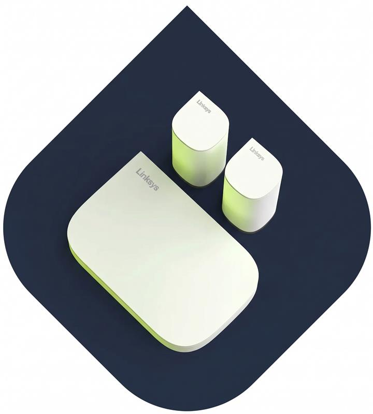 |
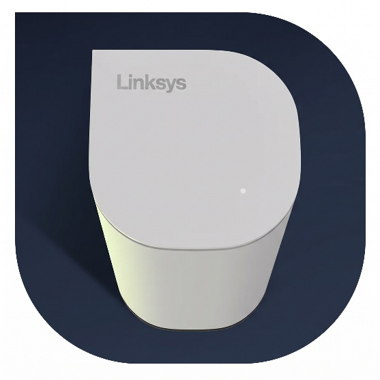 |
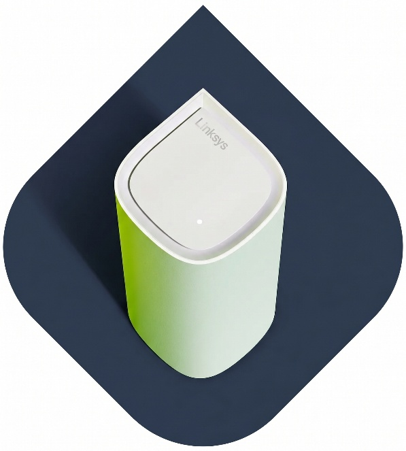 |
| WiFi Technology | WiFi 6 (802.11ax) | WiFi 7 (802.11be) | WiFi 7 Tri-band (802.11be) |
| Number of Bands | Dual band | Dual band | True Tri-band |
| Spatial Streams | LN1100 and LN1200 (2x2) |
4 WiFi streams (2x2) |
6 WiFi streams (2x2x2) |
| WiFi Speed | AX3000 | BE5000 | BE11000 |
| Channel Selection | Automatic Channel Selection | Automatic Channel Selection | Automatic Channel Selection |
| Channel Width | 20 and 40 | 20, 40, and 80 | 20, 40, 80, and 160 |
| Warranty and Support | 1-year Warranty (US only) |
1-year Warranty (Middle East and AH) 2-year Warranty (EU) |
3-year Warranty |
| Other WiFi Features | OFDMA, Beamforming, Band Steering | MLO (Multi-Link Operation), 4K QAM, OFDMA, Beamforming, Band Steering | MLO (Multi-Link Operation), 4096 QAM, OFDMA, Beamforming, Band Steering |
| Ethernet Ports | 1x 2.5 Gigabit Internet/WAN port 4x 1 Gigabit LAN ports |
1 Pack: 1x 2.5 Gigabit WAN/LAN port | 1x 2.5 Gigabit Internet/WAN port 1 Pack: 4x 1 Gigabit LAN ports |
| Wireless Security |
WPA2/WPA3 Mixed Personal WPA3 Personal WPA2 Personal |
WPA2/WPA3 Mixed Personal WPA3 Personal WPA2 Personal |
WPA2/WPA3 Mixed Personal WPA3 Personal WPA2 Personal |
| Processor | Dual-core Processor | Quad-core Processor | Quad-core Processor |
| Guest Network | Separate and secure network for guests | Separate and secure network for guests | Separate and secure network for guests |
| Firmware Update | Automatic security updates | Automatic security updates | Automatic security updates |
A reliable gaming network is about more than having the fastest internet plan or the most expensive gaming router. What matters is how consistently your network performs when you are actually playing.
Also, identify the source of the problem before upgrading your equipment or internet plan. A stable connection, consistent latency, minimal packet loss, and a properly configured network can make a bigger difference to your gaming experience than a higher Mbps number alone.

