


When Bridge Mode is enabled, which is commonly used when you have an existing upstream network, your Linksys Mesh system will see the two networks as a single entity. Any node or client device connected to your WiFi or pre-existing modem router (gateway) will be on the same network and be able to communicate with other devices within that network.
Before you begin:
- Some features are not supported in Bridge mode and will be disabled. These include Parental Controls, Safe Browsing, Priority, custom internal IP addresses, and other advanced features.
- Your device (e.g., a computer or laptop) must be connected to your WiFi, which you will be changing to bridge mode.
- After you switch to bridge mode, all other connected child nodes will also work in bridge mode.
1. Open a web browser to access your router's web interface.
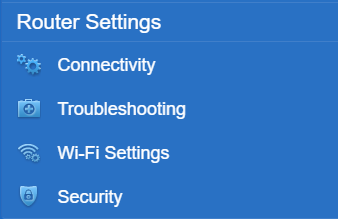
2. Click Connectivity under Router Settings.
3. Go to the Internet Settings tab and then click on Edit.
4. Select Bridge Mode.
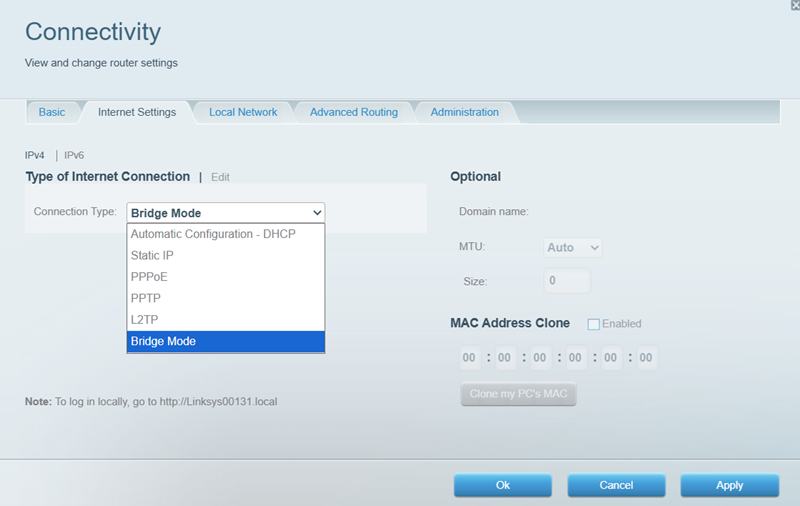
5. Click on Apply and Ok.
To access your router’s web interface, use http://linksysxxxxx.local/, where xxxxx is the last five digits of your router’s serial number, located at the bottom of the router.
Find out more:
How to turn OFF my router’s or gateway’s Wi-Fi

