


Using the Check for Updates button
Enabling Automatic update
Alternatively, you can do a manual firmware update by downloading the firmware and uploading it to the router. Click the link below to learn how to manually upgrade your Linksys Smart Wi-Fi Router's firmware:
Manually upgrading a Linksys Smart Wi-Fi Router's firmware
Using the Check for Updates button
1. Log in to your router's web interface. Once it opens, click Connectivity.
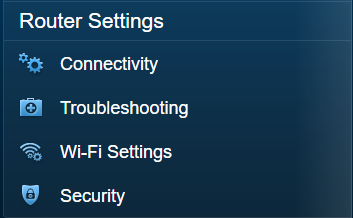
2. Under the Firmware Update section under the Basic tab, click Check for Updates.


3. Once the router detects a firmware update, you will be able to download and install the firmware on your device. Select the Click here link to upgrade.

NOTE: If the No updates found message is displayed, it means that your router has the latest firmware version.

4. On the Update firmware pop-up box, click Yes.

Your router will start updating the firmware.
IMPORTANT: During this process, do not power OFF the router or close the browser window to avoid corrupting the firmware of your router.

QUICK TIP: In case you see a prompt to try again later, the server may be slow or not available for the moment. Try to upgrade the router again at a later time to resolve the issue.
5. A Router Reboot screen will pop up. Click Ok to continue.

NOTE: The router reboot process usually takes a few minutes.
6. Once the firmware upgrade is complete, click Ok on the Firmware update complete screen.

1. Log in to your router's web interface. Once it opens, click Connectivity.

2. Under the Firmware Update section, check the box to enable the Automatic firmware update option. Once done, click Apply to save the changes.
NOTE: On the Linksys Smart Wi-Fi Routers, the automatic firmware update feature is disabled by default.

When online, the router will be able to detect available updates for you to apply to your device.

3. On the Update firmware pop-up box, click Yes.

Your router will start updating the firmware.
IMPORTANT: During this process, do not power OFF the router or close the browser window to avoid corrupting the firmware of your router.

4. A Router Reboot screen will pop up. Click Ok to continue.
Wait while the router reboots. This usually takes a few minutes.
5. Once the firmware upgrade is complete, click Ok on the Firmware update complete screen.

You should now have an updated firmware on your Linksys Smart Wi-Fi Router.
QUICK TIP: For information regarding updated drivers for a particular operating system, you may refer to the Release Notes found in the Downloads tab of your Linksys device's product page.
Find out more:
How to turn OFF my router’s or gateway’s Wi-Fi

