


Wireless connectivity is one of today’s emerging technical innovations and is becoming a vital part of a home WiFi. This feature allows you to seamlessly connect your wireless devices to the internet without the hassle of plugging cables into your devices.
Wireless devices that are capable of connecting to a router, such as smartphones, tablets, gaming consoles, cameras, and wireless printers, will be able to utilize the internet connection through your Linksys Smart Wi-Fi Router.
To connect a device, refer to its user manual for information on how to connect it to a WiFi. Each device has its own way of connecting to the WiFi, but the common method is to select the network to connect to and enter a security key or password.
Follow the procedure below to know how to connect your wireless device to your home network:
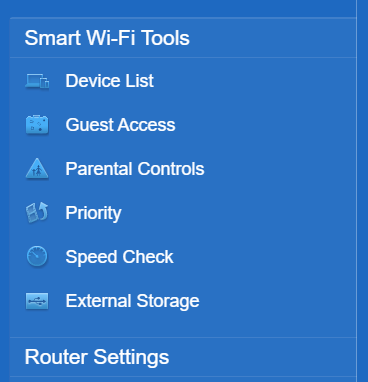
3. Click on the Add a Device button.
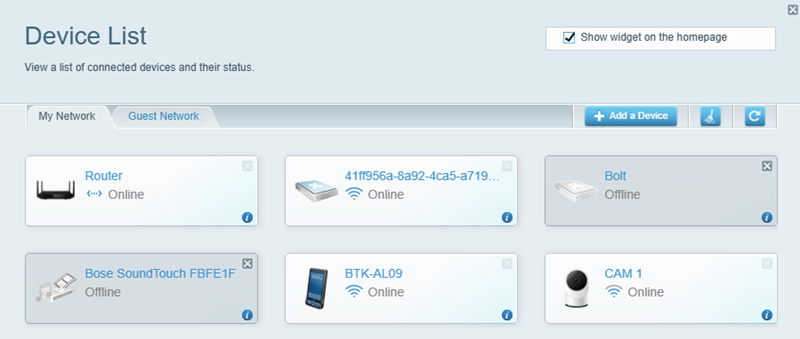
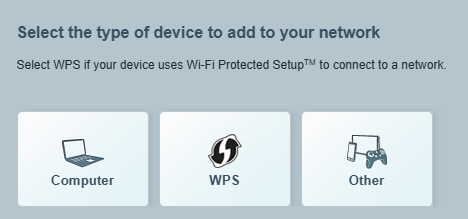
4. In the Select the type of device to add to your network page, select Other.
5. Take note of the Network Name (SSID), Password, and Security Type on the Add a wireless device page.
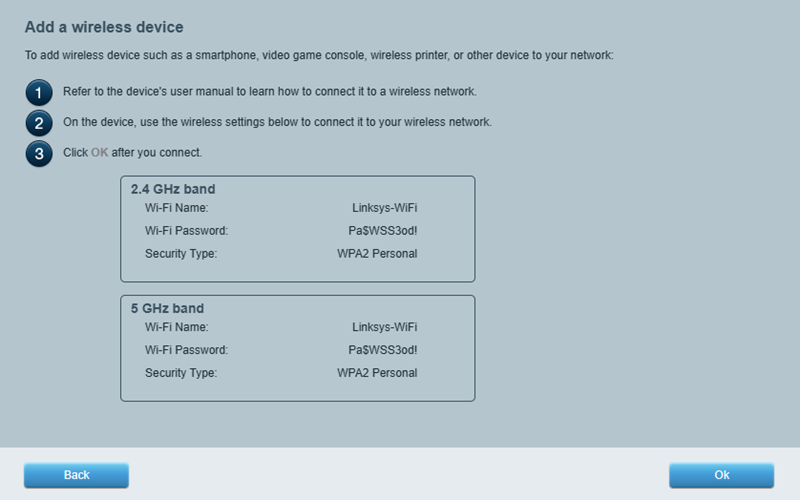
6. Enter the Password or Security Key and the Security Type, if prompted.
The device you've just connected should now be displayed on the Device List / Network Map page. You can change the name and icon of this device. You can also maximize your WiFi by changing the basic WiFi settings of your router.
Some Linksys Smart Wi-Fi Routers support only the more secure Wi-Fi Protected Access® (WPA™/WPA2™) as the Security Type for your WiFi. If you're having trouble connecting a device or gaming system such as PlayStation® Portable (PSP), Nintendo DS™, TiVo®, wireless printer, or other devices, it may be using an older security method called Wired Equivalent Privacy (WEP).
To connect an older device that uses WEP security to your Linksys Smart Wi-Fi Router, refer to the device's documentation to see if you can change its WiFi security setting from WEP to WPA™. If you can't change your device's security setting to WPA, you will not be able to connect the device to your router.
If you’re having issues adding a device to your WiFi, make sure that you are connected to the correct WiFi name. Furthermore, if your device is connected to the correct WiFi and connectivity issues persist, make sure to check if your router’s firmware version is up-to-date.
Enabling your Guest Network
The secure Guest Access requires fewer configurations from your guests’ devices. It is the best way for easy yet reliable access to the internet. Learn more.

