


Parental Controls allows you to restrict internet access for users within your network, giving you control over which of your children’s gadgets are allowed to access the internet at specific times.
This article will guide you on how to restrict internet access at specific times in your network.
If you would like to restrict internet access to specific devices, follow these instructions.
1. Log in to the router's web interface.
2. Click Parental Controls on the left panel.
3. Toggle the slider switch to the ON position, then select the device that you want to restrict access from the Restrict Internet access on list. Make sure that Parental Controls is enabled. If it is disabled, the list of devices will be grayed out.

4. Select Specific Times in the Block Internet access box and click Edit.

5. Click the squares that represent the times you want to restrict internet access. To select multiple hours or days, hold down the left mouse button and drag the cursor across the grid. A red line will appear while dragging, which turns into solid blue squares once you release the mouse button.
NOTES:
- Blue boxes denote that internet access is restricted at that time.
- Verify that the Router Time is correct. If it is incorrect, click Edit next to the time to change it before moving to the next step.
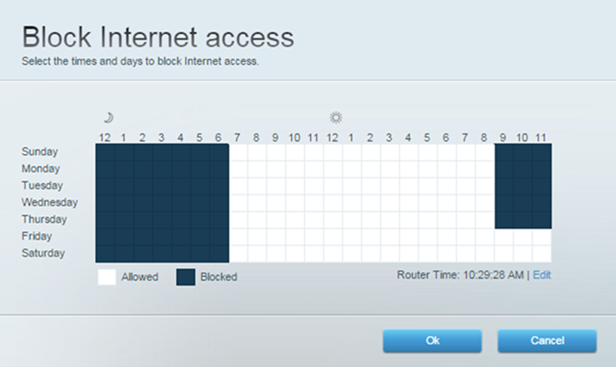
6. Once done, click Ok to set the times and days you want the internet access to be blocked.
7. Click Ok to save your changes.
You have successfully set the internet access restrictions on your router. The device you selected for this restriction will now be listed on the Parental Controls widget.

Find out more:
Overview of the Parental Controls feature
How to manage the Guest Access feature using the router's web interface

