


How to manage the Guest Access feature using the router's web interface
The Guest Access feature gives you an alternative internet connection for your guests without compromising the confidentiality of your main WiFi.
The guest SSID is the same as the main WiFi name, followed by a -guest suffix. It is a separate network that prevents guest users from accessing any devices/clients on the main network.
1. Log in to the router's web interface.
2. Click Guest Access.

3. Toggle the ON/OFF switch to disable or enable the feature. Guest Access is disabled by default.
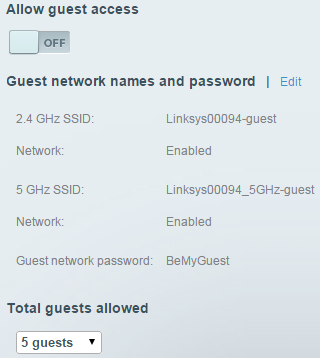
Some Linksys routers only support Guest Access on the 2.4 GHz band. For tri-band routers such as the Linksys EA9200, EA9400, and EA9500, 5 GHz guest clients connect only to the 5 GHz1 network.
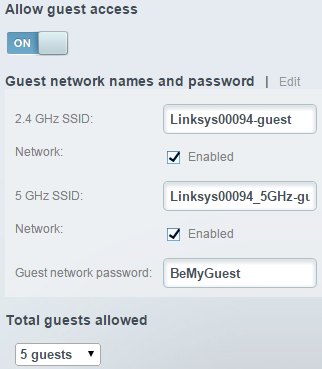
4. Click Edit. Enter your desired settings in the appropriate fields. Keeping the suffix –guest at the end of the name is recommended.
4. Click Edit. Enter your desired settings in the appropriate fields. Keeping the suffix –guest at the end of the name is recommended.
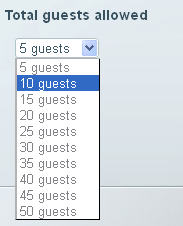
5. Specify the total number of guests you want to allow access. You can connect up to 50 guests to the network simultaneously.
6. Click Ok to save your settings.
7. Have your guests connect their devices to the guest WiFi.
Find out more:

