


How to configure VLAN on your Linksys router

To establish an internet connection, some Internet Service Providers (ISPs) require a Virtual LAN (VLAN) to be enabled on your router’s WAN connection. This allows the router to work with specific services like IPTV and VoIP.
While Linksys routers are designed to work seamlessly with default ISP settings, please note that WAN VLAN tagging is generally supported only when using a Point-to-Point Protocol over Ethernet (PPPoE) connection.
Before you begin
- Check compatibility: WAN VLAN configuration is model-specific; ensure your router supports this feature before proceeding.
- Interface variations: The tools and options in your web interface may vary depending on your specific Linksys model and firmware version.
- ISP requirements: Confirm your required VLAN ID and connection type with your ISP.
2. Click the Connectivity under Router Settings.
3. Click the VLAN tab.
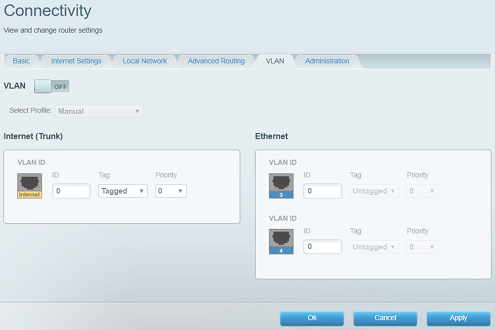
4. Toggle the VLAN button to ON.

| VLAN | OFF by Default |
| Select Profile | Select a pre-configured profile for your ISP's required VLAN settings. If your ISP is not on the list, select Manual and enter the VLAN information provided by your ISP. |
| Ethernet | Some ISP profiles dedicate Port 3 for Voice and Port 4 for Video. If this is necessary, a VoIP device must be connected directly to Port 3, and a Video device (such as an IPTV) must be connected to Port 4. The other ports (1 and 2) are treated as Data traffic, and devices will still get online, but treated as Data traffic. |
5. In the list, there are several pre-set ISP configuration files. Select the profile for your ISP.
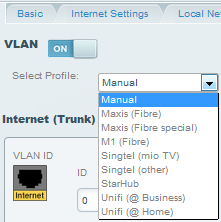
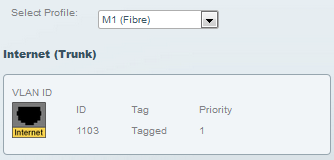
In this example, M1 (Fibre) is used.
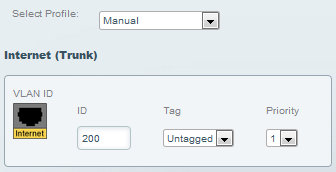
If your ISP is not listed, select Manual. Enter the VLAN ID supplied by your ISP in the ID box, then select the appropriate Tag and Priority.
6. Click Apply > Ok to save the changes.
You have now successfully configured the VLAN of your Linksys router.
Find out more:
Disabling the VLAN tagging on the Linksys LN1400YZ for Yayzi ISP

