


How to check the DHCP Client Table on the Linksys Dual-Band WiFi Router

The DHCP Client Table allows you to check the devices that are connected to your network. This router feature lists all wired and wireless computers and devices connected to the 2.4 GHz band, 5 GHz band (for dual-band routers) and the Guest network.
2. Click the System Status tab.
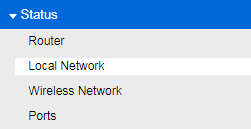
3. Click on Status.
4. Click on Local Network.
3. Click on Status.
4. Click on Local Network.
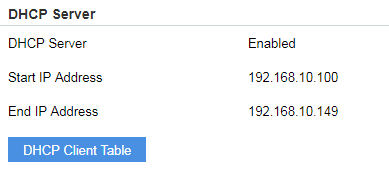
5. In the DHCP Server section, click the DHCP Client Table. This should bring up a list of the clients that are currently connected to your network. The child nodes will also appear on the table.
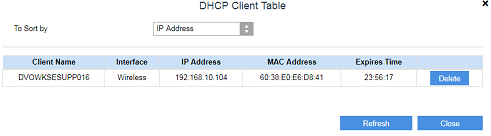
The DHCP Client Table provides the Client Name, Interface, IP Address, MAC Address and Expires Time. You can sort the table by IP Address, MAC Address, Interface and Client Name.
Learn how to select clients from the DHCP Tables or manually add clients and provide a list of clients already reserved.
You have now successfully checked the DHCP Client Table of your router.
3547

