


Upgrading the firmware of the Linksys RE7350, RE7310, and RE7000
Updating the firmware fixes bugs and enhances the functionality for the Linksys RE7350, RE7310, and RE7000. There are two methods for upgrading the range extender’s firmware. Click on the options below:
NOTE: This article uses a Linksys RE7000 that has been set up as an example.
Automatic update
Manual update
The Linksys RE7350, RE7310, and RE7000 have an Auto Firmware Update feature that automatically updates the device whenever there is new firmware available. To enable this, follow the steps provided.
To upgrade your range extender's firmware, follow the steps below:
1. Access your range extender’s web-based setup page.
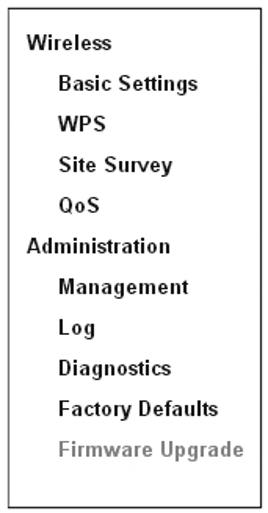
2. On the web-based setup page, click Firmware Upgrade under Administration.

3. Check the Auto update range extender when improvements are available box, then click the Save button.
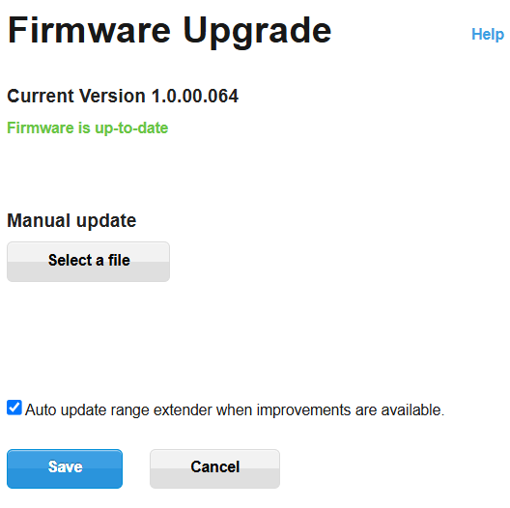
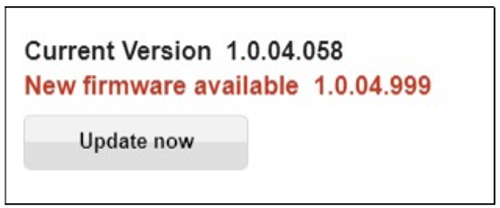
The range extender will now automatically detect if there is new firmware available and update itself. However, you can also log in and go to the Firmware Upgrade page, which will force a firmware checkup. If there is a new version available, it will display the new firmware version number. Click the Update now button to start the upgrade process.
IMPORTANT: Wait for the upgrade to finish. DO NOT power cycle the range extender while it is performing the upgrade.
Before you proceed with manually upgrading the range extender's firmware, ensure you first download the latest firmware file from the Linksys Support Site. Follow these instructions to learn how. Once done, follow the steps below.
1. Access your range extender’s web-based setup page.
2. On the web-based setup page, click Firmware Upgrade under Administration.
3. Click Select a file and look for the firmware that you have downloaded earlier, then click Open.
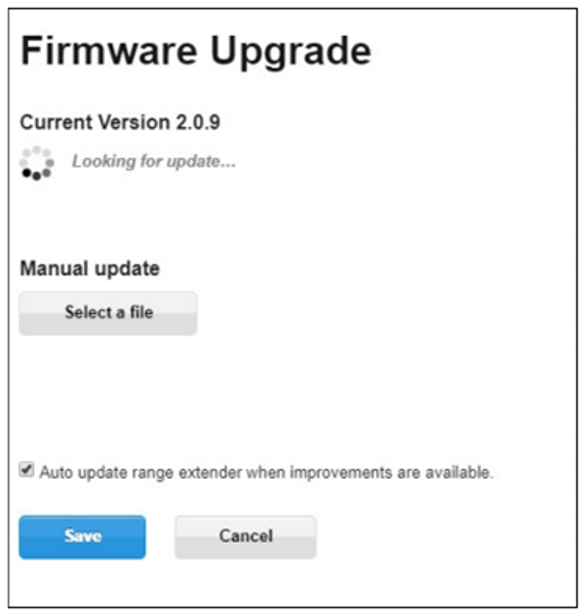
4. Click Save.
5. Click the  button and wait for the upgrade to finish. DO NOT powercycle the range extender while it is performing the upgrade.

