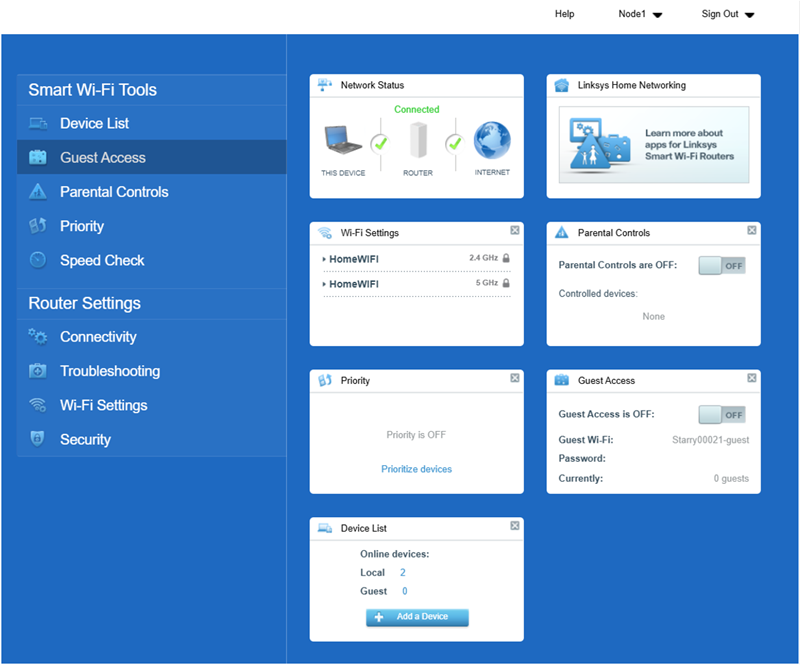
Under normal operation, your Starry ISP router utilizes Automatic Configuration Server (ACS) support for a seamless, automated setup. Once connected, the solid purple light will flash white to indicate it is configuring itself.
If you do not see the light flashing white, the router may be running on older firmware. Firmware version 1.1.8.216775 is a custom firmware version provided exclusively for Starry ISP devices, and it is no longer under active development.
You can convert your current router into a standard retail model to use with any internet provider. To get started, you just need a firmware update. Please contact Linksys Support, and we will help you push the update to your device.
Once the firmware is updated, follow the instructions below to learn how to set up your Linksys MX5501ST router.
Before you begin
- You will need a computer.
- Parent router – The Linksys node that will be connected to your modem.
- Child node – An additional node used to extend your WiFi. The child node can be wireless or wired.
- Write down the default WiFi name, password, and key located on the bottom of the parent node.
Setup requirements
- An active internet connection
- A desktop computer to set up the router
- The latest desktop browser to set up and manage the router settings
1. Gather all your equipment in the same area as your modem.
2. Remove any existing router.
- Disconnect your existing router.
- Power cycle your modem.
- Wait until your modem has rebooted, and go to the next step.
b. I have a WiFi router and modem combined in one device, or I do not have any existing routers in my home.
- Go to the next step.
3. Connect your modem with an Ethernet cable to the Internet port on the parent router and power it ON.
4. All your nodes should be in setup mode with a solid purple light.
If any of the nodes do not have a solid purple light, reset them by holding down the reset button for about 15 seconds, then wait until the light becomes solid purple.
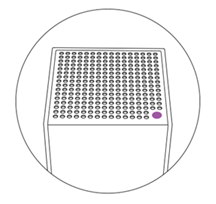
Purple light - Ready for setup
5. Connect your computer to the default WiFi name of the parent router. The credentials are located on the product label.
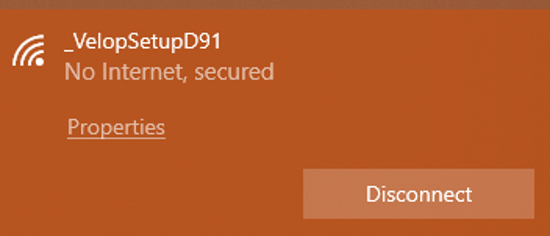
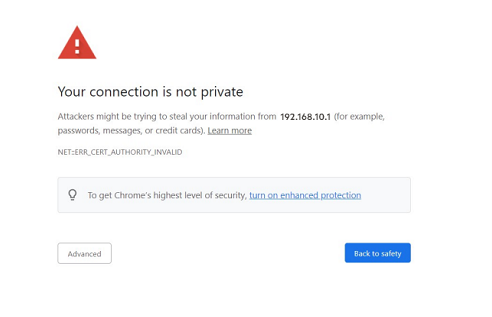
6. Open a desktop browser and go to “https://192.168.1.1” or myrouter.local.
If you get the following browser error, follow these instructions to learn how to bypass this message.
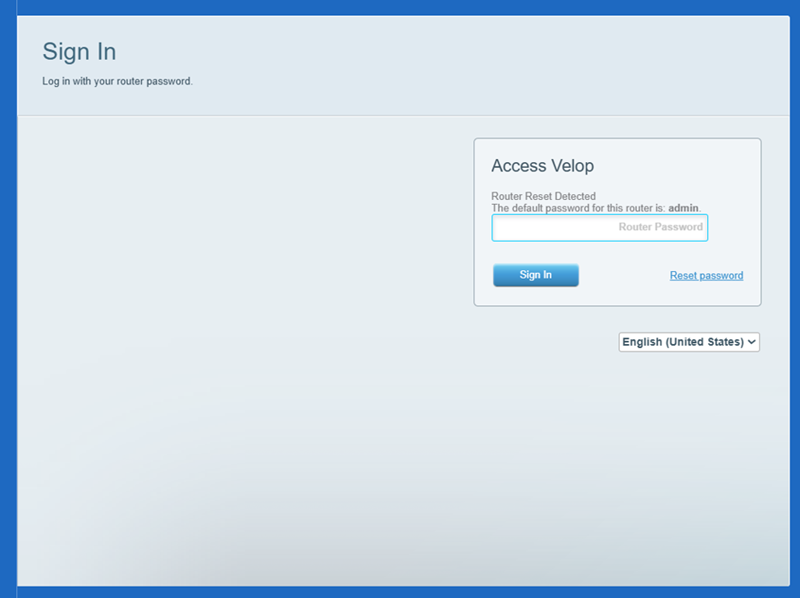
7. Enter admin on the local login page.
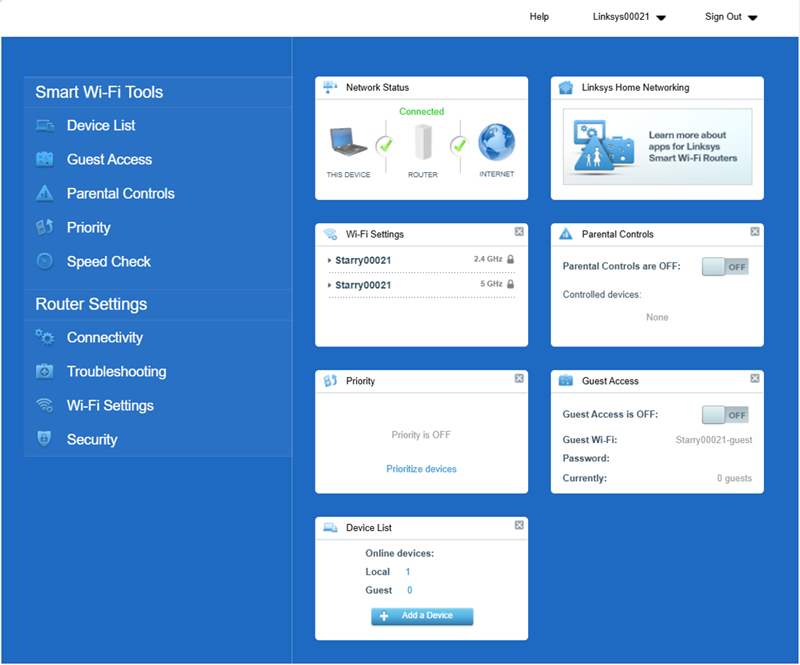
You will then land on the router’s dashboard.
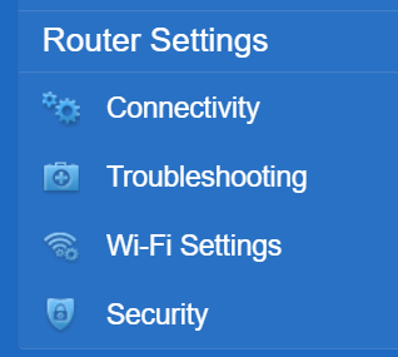
8. Click on Connectivity.
9. Navigate to the CA Router Setup tab.
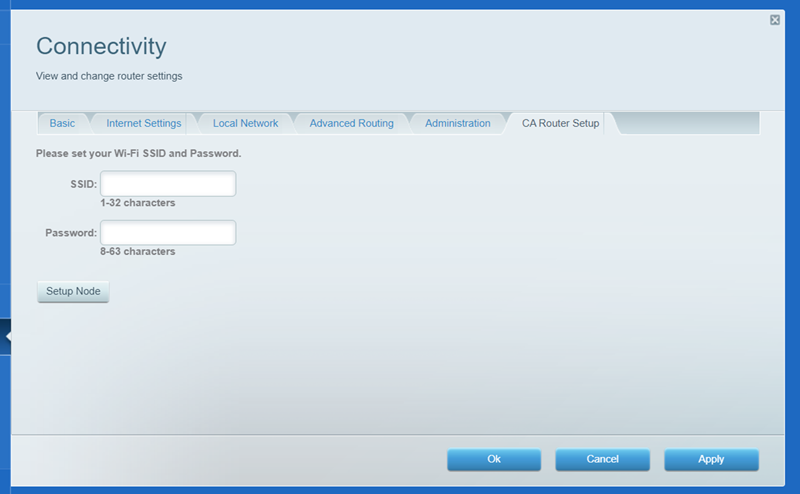
10. Customize your Wi-Fi name (SSID) and Wi-Fi password (case-sensitive), then click on Setup node.
Write down your new settings. You will temporarily lose connection while the settings are being saved. Keep the page open.
11. Once the light on top of the router turns solid blue, connect to your new WiFi name to resume setup.
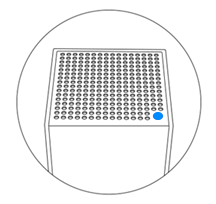
Parent router - Online and connected
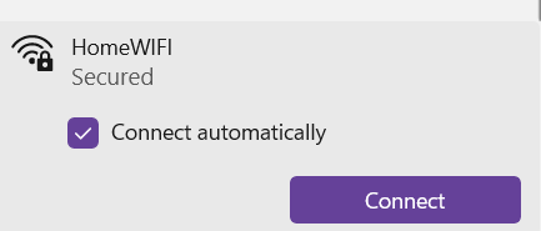
Light did not turn solid blue?
This indicates that an internet connection was not detected. Try the following:
- Make sure the modem is plugged into the Internet port of the Linksys router.
- Power cycle the modem and router, and wait until the modem comes back online. Then wait an additional 2 minutes and check the router’s light status.
- If your ISP requires manual Internet configuration settings. Go to Connectivity > Internet Settings > click Edit and enter your settings, then click Save.
12. You will now see the Your Master Node is now Configured message. Click Ok to close the page.
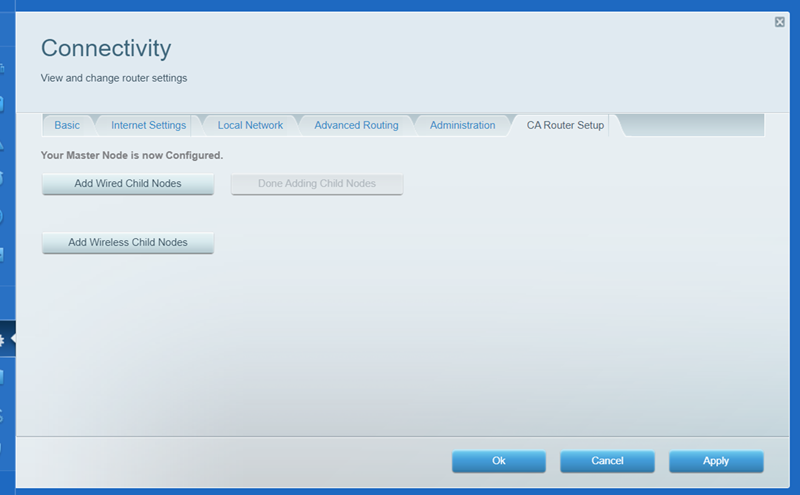
13. Refresh the page on the dashboard to see your new settings. Your router is now set up.