


How to check and update the router password using your web interface
Also known as the administrator password, the router password grants access to your router's web interface. While the default password for all Linksys Smart WiFi Routers is admin, it is recommended to change it immediately to secure your network against unauthorized access.
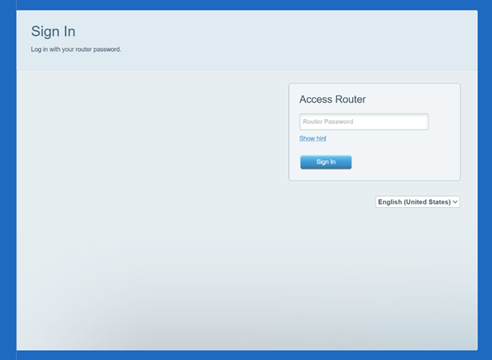
NOTES:
- The router password is NOT the WiFi password. For instructions on changing the basic WiFi settings, follow these instructions.
- Images of the web interface may differ depending on your router's model number.
- Forgot your router password? You can perform a hardware reset to restore your router to factory default settings. However, this also means that your router will need to go through the reconfiguration process. To learn how to set up your router, follow these instructions.
Updating the router password through the web interface
1. Access your router's web interface.
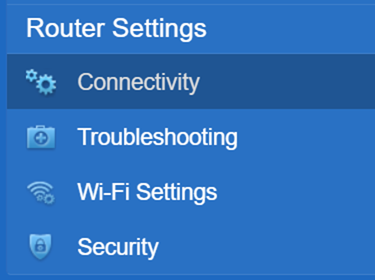
2. Click Connectivity.
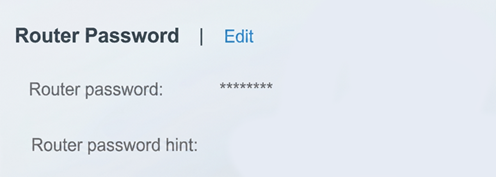
3. Under the Basic tab, click Edit beside Router Password.
4. Enter your router’s Current password. Then, enter the New password you want for your router and re-enter it in the Confirm new password field.
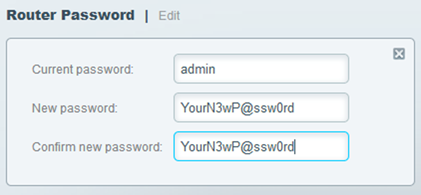
On some Linksys Smart WiFi Routers, you only need to enter the New password. You can also enter an optional Password hint.
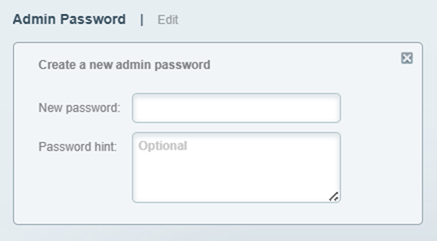
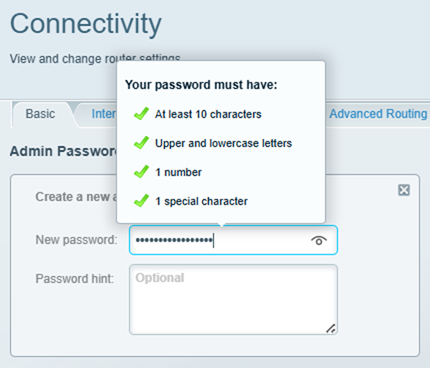
Furthermore, your router admin password must contain at least 10 characters, including uppercase and lowercase letters, a number, and a special character.
5. Click the  button.
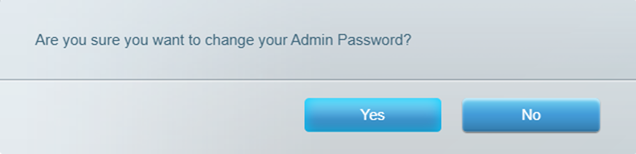
6. In the pop-up box, click Yes. Then click Ok.
Use your new password to access your router's settings, such as the Guest Access and Parental Controls.
Find out more:
How to automatically update the firmware of the Linksys Smart Wi-Fi Routers
Changing the Wi-Fi settings using the router's web interface

