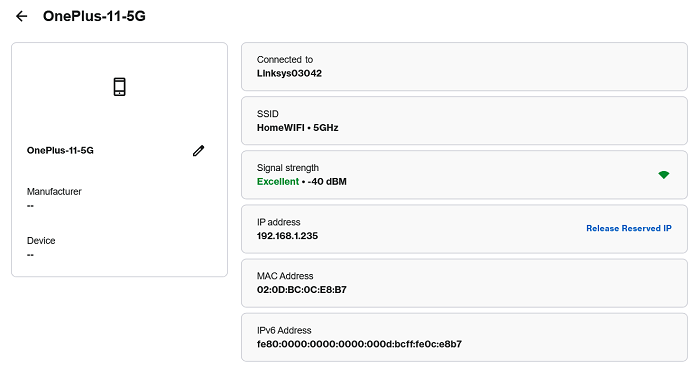
In the Instant-Devices section of LinksysNOW, you can see all your devices connected to the network.
To access this section, follow these steps:
1. Log in to the web interface.
2. Click on Menu.
3. Click on Instant-Devices.

Use the filters on the left-hand side to display devices by connection, node, or radio.
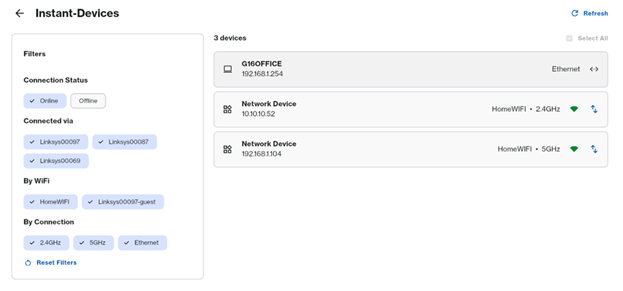
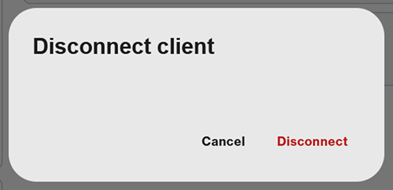
Clicking on the arrows  icon will steer the client to a better radio if available. For example, if you see a client with a low signal, click on the arrows icon to disconnect it, and the client will connect to the node with the strongest signal.
To see details about a specific device, click on it. To rename a device, click on the  icon to better identify it in the network.
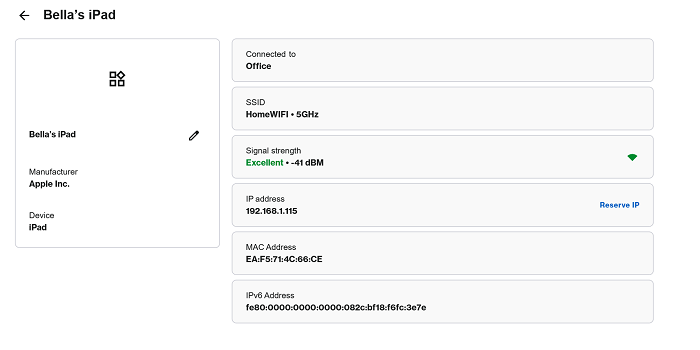
When MLO is enabled and an MLO client is connected, you will see the following tag.
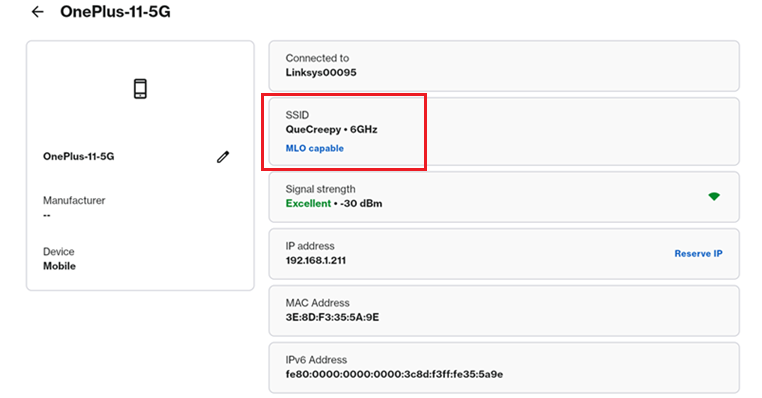
To reserve an IP address for a client, click on the device and then click on Reserve IP. To remove the DHCP reservation, click Release Reserved IP.
To assign a specific IP address, write down the MAC address of the client, then go to Advanced Settings.