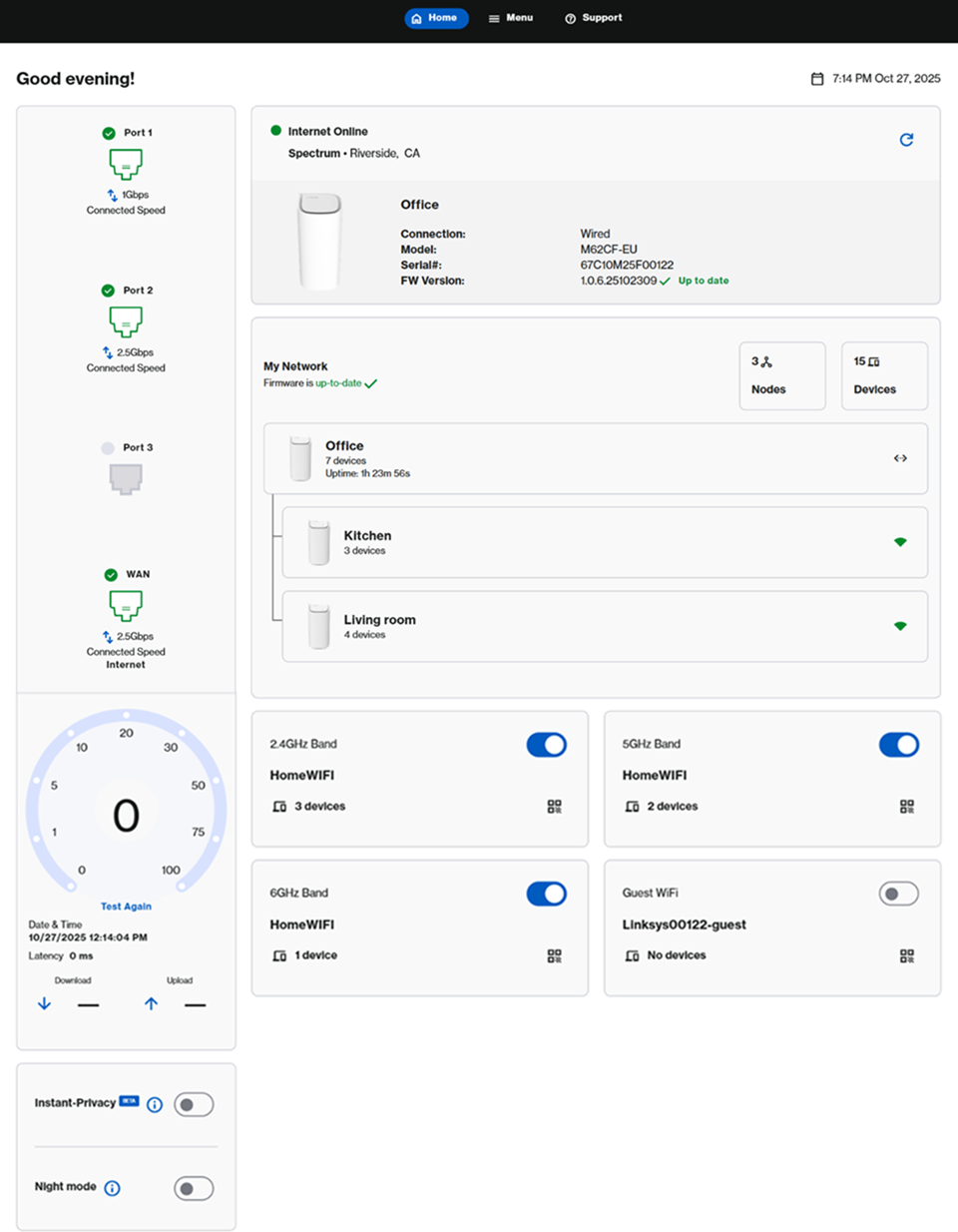
The dashboard is the landing page of the LinksysNOW web interface after you have logged in to the router. It will provide a quick summary of your current network.
Supported models:
- Linksys LN1600 series (LN1601, LN1602, and LN1603)
- Linksys SPNM60
- Linksys SPNM62
LN1600
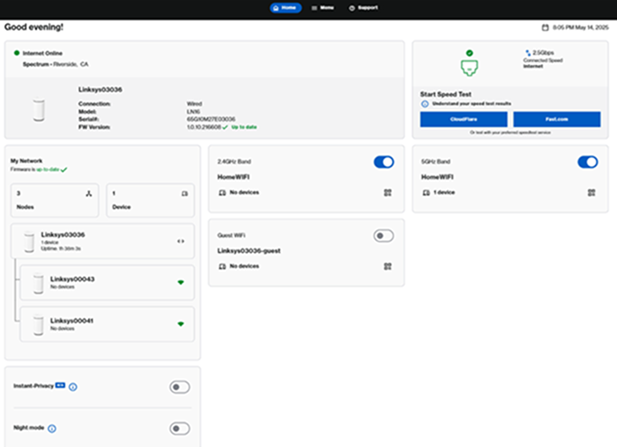
SPNM60CF
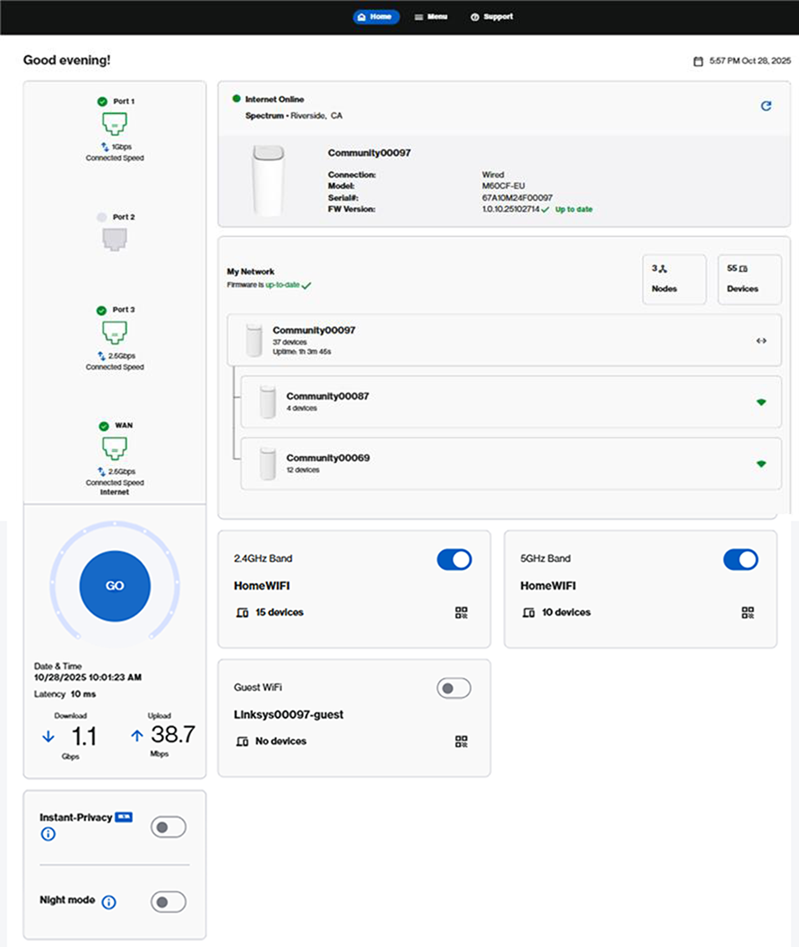
SPNM60TB
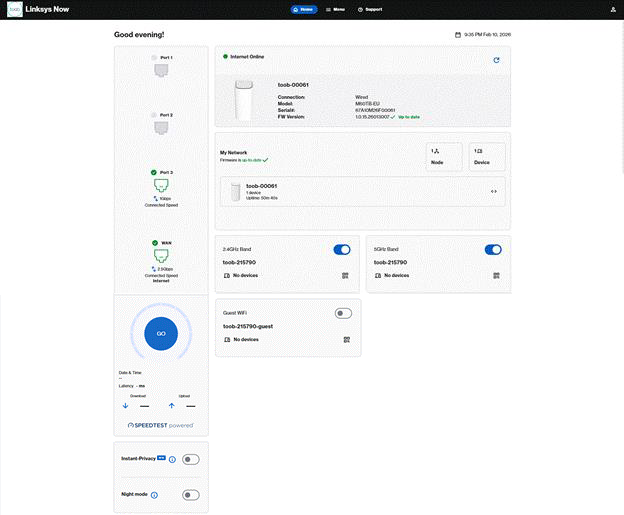
SPNM62CF
|
Feature |
Description |
|---|---|
|
There are three options at the top of the page:
|
|
|
The Account
|
|
|
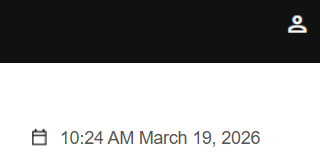
On the upper-right-hand side of your dashboard, you will see your router's current date and time. To adjust this setting, click on it or go to Menu > Instant-Admin. Learn more.
|
|
|
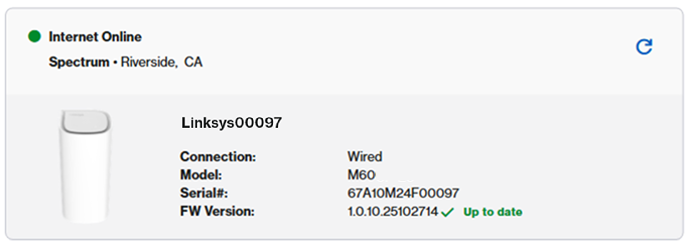
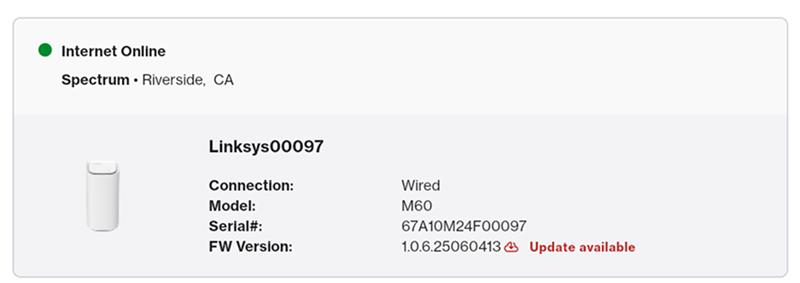
In this section, you will see your online status, model, serial number, and current firmware of the parent router.
The router automatically updates overnight by default. No manual steps are necessary.
However, if you are logged in during the day and see an 'Update available' notification, you can manually start the update by navigating to Menu > Instant-Admin.
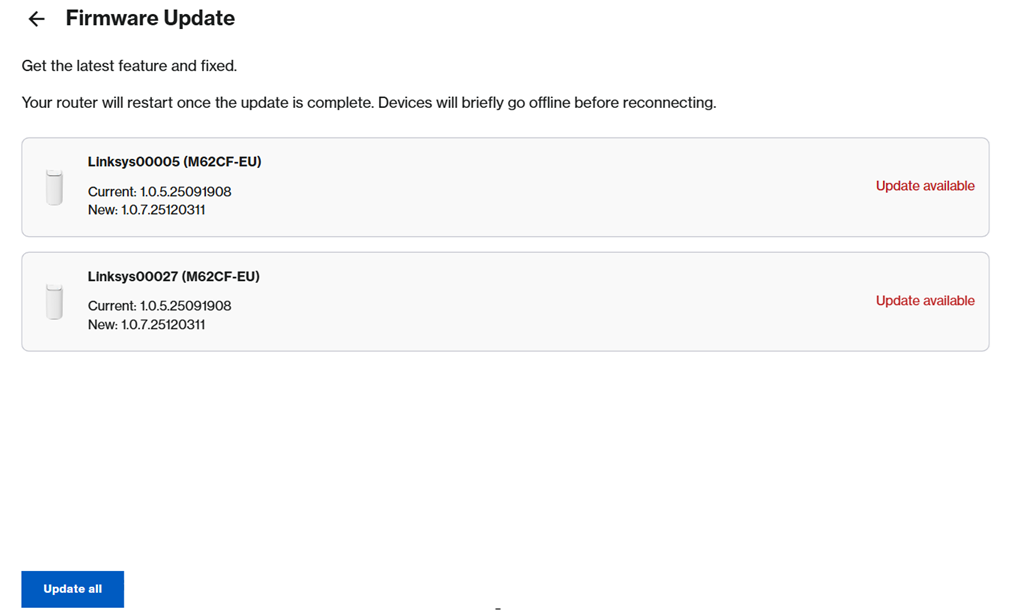
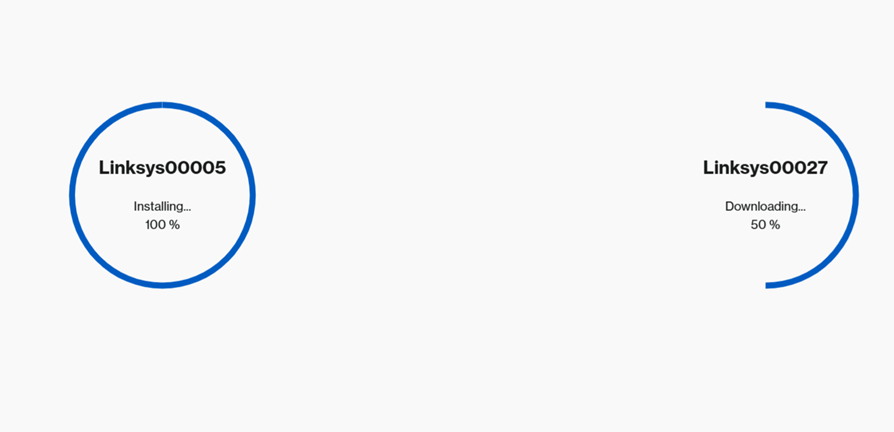
If multiple Linksys routers in your network have firmware updates available, you will see a list of those nodes. Click Update all.
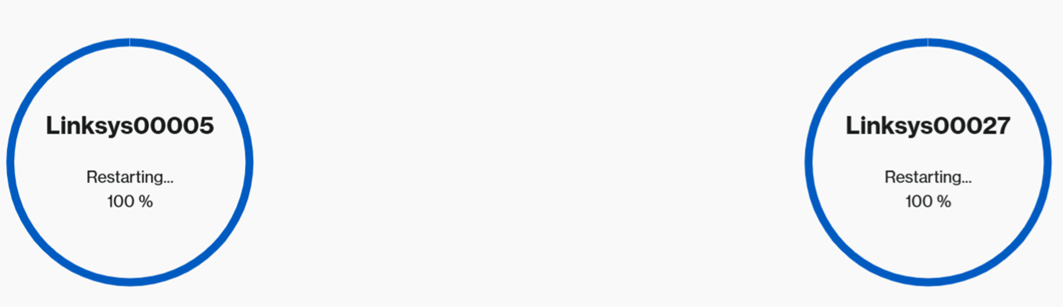
When the Restarting message appears, your nodes will reboot automatically. Wait until all routers show a solid white light, indicating they are online and ready to use.
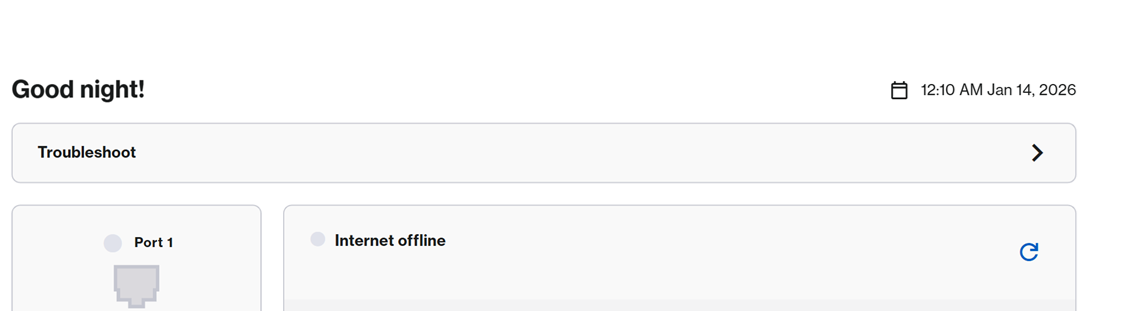
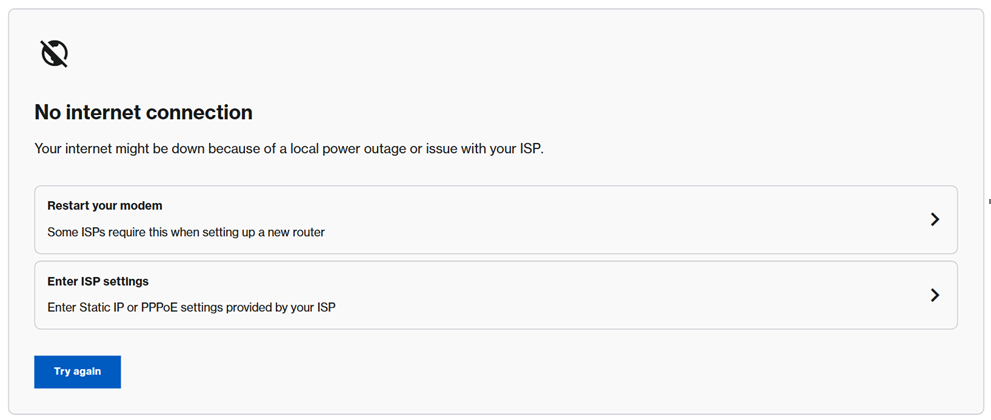
If the router is offline, you will see a Troubleshoot option. Click it to follow the recommended steps to restore your connection. Once the router’s light turns solid white, indicating it's back online, refresh the page or log in again to continue using your network.
|
|
|
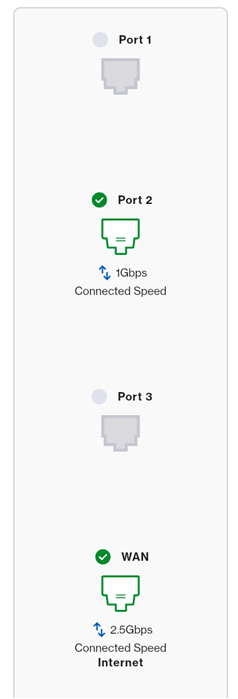
Port images may vary depending on your model's supported features.
Linksys SPNM62:
Linksys SPNM60:
Linksys LN1600:
|
|
|
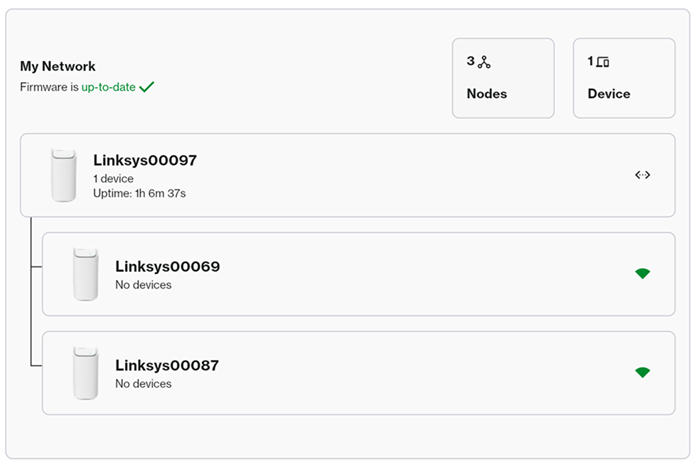
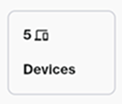
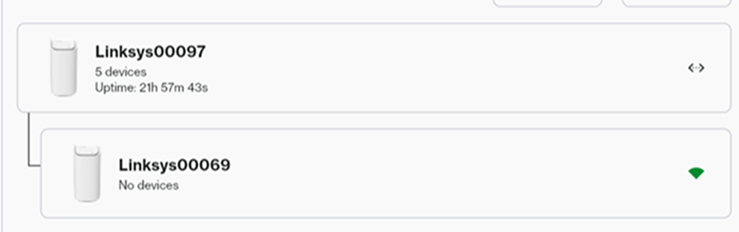
In the My Network tile, you will see a quick summary of your network.
|
|
|
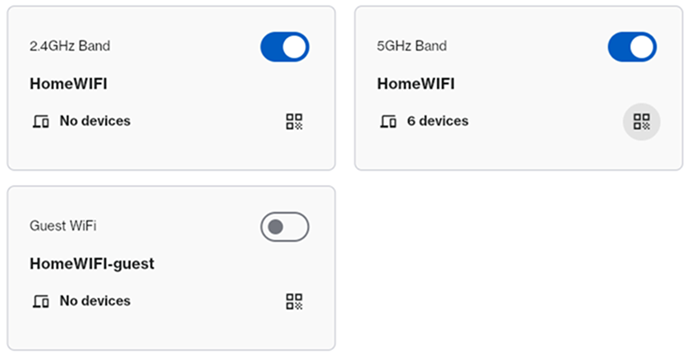
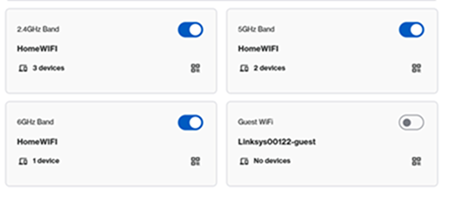
Settings vary by model.
To view more information or change the WiFi settings, click on the tile or go to Menu > Incredible-WiFi.
SPNM62
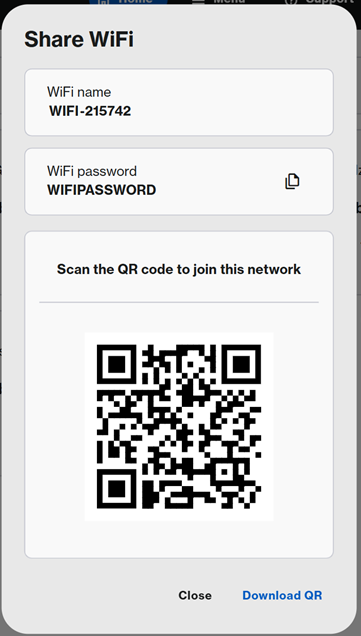
Click the QR code
|
|
|
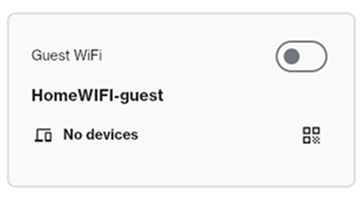
You can share your Guest WiFi with visitors without revealing your main network credentials.
The Guest Network is turned OFF by default, but you can click to enable it. To customize the network name and password, click on the tile and make sure to choose a name that is different from your main WiFi.
|
|
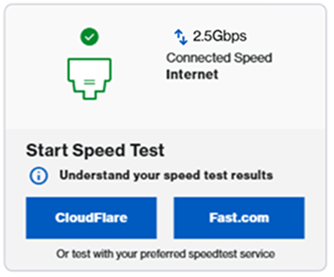
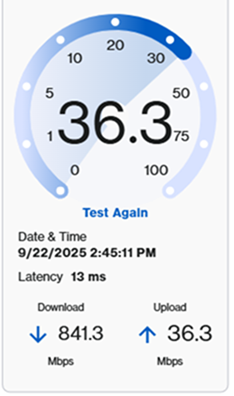
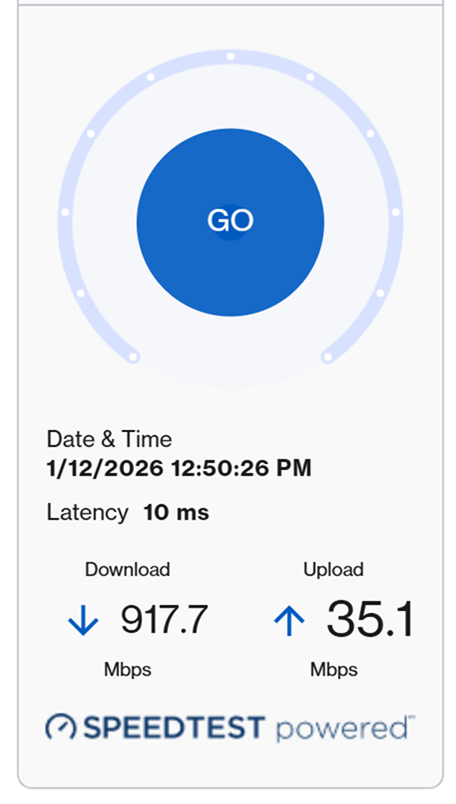
| Speed Test |
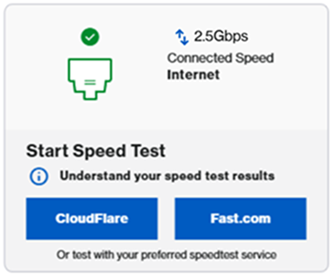
Speed test settings may vary by model.
LN1600: To run a speed test, click a service (either CloudFlare or Fast.com) to run a speed test.
SPNM60CF and SPNM62CF: To run a speed test, click on Go or Test Again.
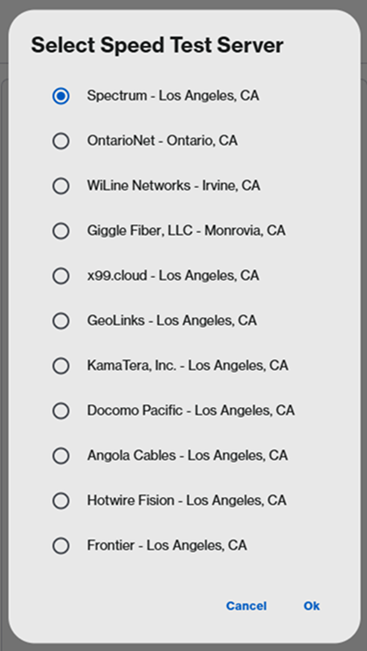
SPNM60TB: Click on GO, select a server, and click on Ok.
|
|
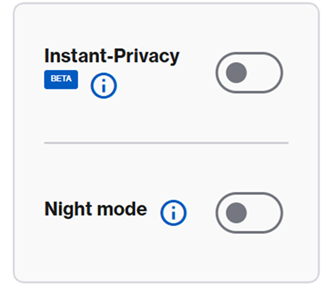
Instant-Privacy
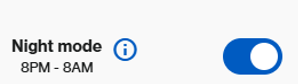
Night mode
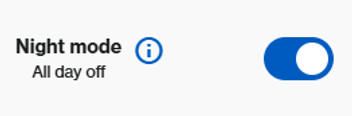
The Night mode feature automatically turns off the light on all supported Linksys Mesh nodes on your network between 8 AM and 8 PM. By default, this feature is turned OFF.
If you choose to turn off the lights 24/7, you will see the following message. To turn off the lights 24/7, go to Menu > Instant-Topology > click on the first router > then scroll to the bottom where the Node light setting appears.
Depending on your hardware model, your device may feature a physical Night Mode button for quick access. Simply toggle the switch to the On position to enable it. Learn more. |

 icon is located in the upper-right-hand corner. In this section, you can change your language, select a theme (System, Dark, or Light mode), view additional documentation, and log out of the router.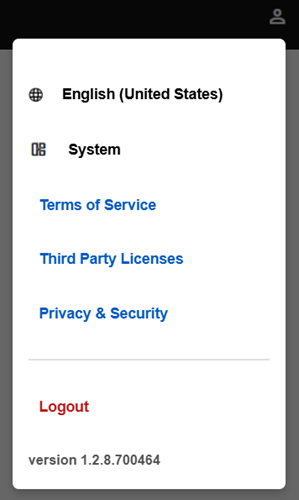
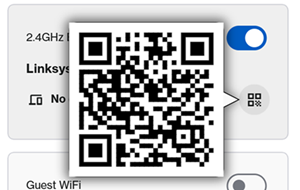
 icon to share the WiFi credentials with devices in your home. You can copy the credentials to the clipboard, scan the QR code to join the network, or download it for later use.