


The Instant-Privacy feature prevents any new wireless devices from joining the network. This feature is turned OFF by default. There are two methods to enable this feature: if your router supports an external Privacy toggle switch, or through the web interface.
- Before you enable this option, make sure that all your devices that you want on the network have connected to WIFI first. Then you can turn the feature ON. Please note the feature applies to wireless devices only.
IMPORTANT: If your device has a Private WiFi Address or Random MAC address enabled, your device that was previously connected will not reconnect to the network the next time it attempts to connect due to the new random MAC address that it’s using. You can change this option on an iOS or Android™ device. Then turn Instant-Privacy OFF, allow your devices to join again, then turn it back ON.
- If you add new child nodes, be sure to turn OFF the feature first. Once the child node connects to your network, you can turn the feature back ON.
- If you have MAC Filtering enabled on the Linksys router, it will be turned off when Instant-Privacy is enabled.
Through the Instant-Privacy feature in the web interface
1. Log in to the web interface.
2. Once you land on the Home page, scroll down to find the Instant-Privacy feature, or you can click on Menu and then click on Instant-Privacy.
The tile from the Menu option, which provides additional settings, is shown in the example below.
 |
 |
| Home page | Menu page |
3. Once you have read the Before you begin section and you are ready to proceed, turn ON the Instant-Privacy feature.
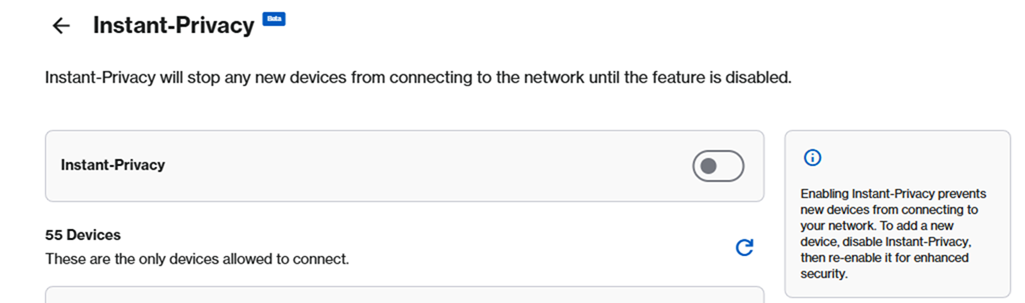

As a friendly reminder for the Linksys model SPNM60, when Instant-Privacy is enabled via the web interface, the external toggle switch will remain in the OFF position. If you notice that new client devices are unable to connect, always check the web interface for their true status.
4. Once you enable this option, you will have a delete icon next to each client. If you want to block this client from the network, simply click on it. To add it back, you will have to turn OFF Instant-Privacy, add the client back, and then turn Instant-Privacy back ON.

Through the external Privacy toggle switch
For routers that support an external Privacy toggle switch, such as the Linksys SPNM60 and SPNM62.

On the side panel of the parent router, you’ll find several buttons and toggle switches. To enable or disable Instant-Privacy, simply toggle the Privacy switch to the locked position.
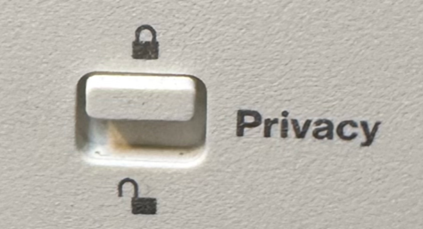
When the switch is set to ON or OFF, the web interface will reflect the same status.
If you have child nodes in the network that support external buttons, these side buttons and toggle switches are only functional on the parent router.

