


The Instant-Verify page of the LinksysNOW interface provides an overview of your network status.
Settings may vary by model.
The Instant-Info tab will provide you with a quick summary of the router.
Settings may vary depending on the model number of your device.
Log in to the router’s web interface and click on Menu > Instant-Verify > Instant-Info.
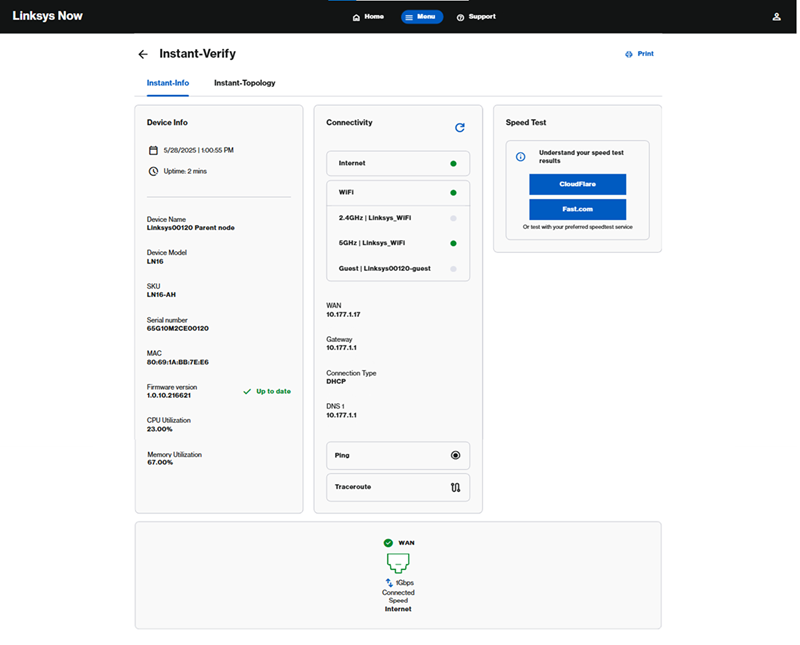
LN1600
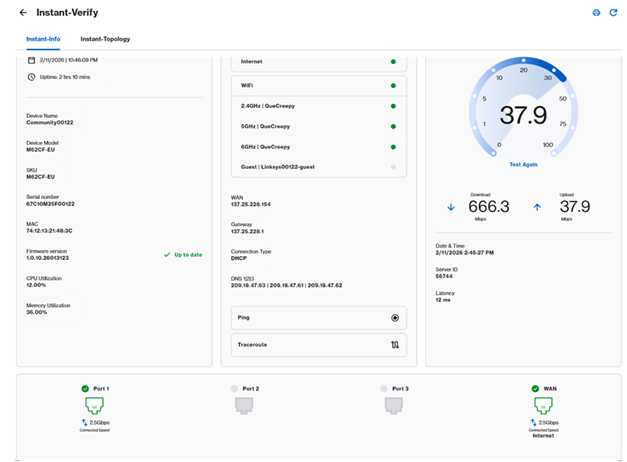
SPNM60CF and SPNM62CF
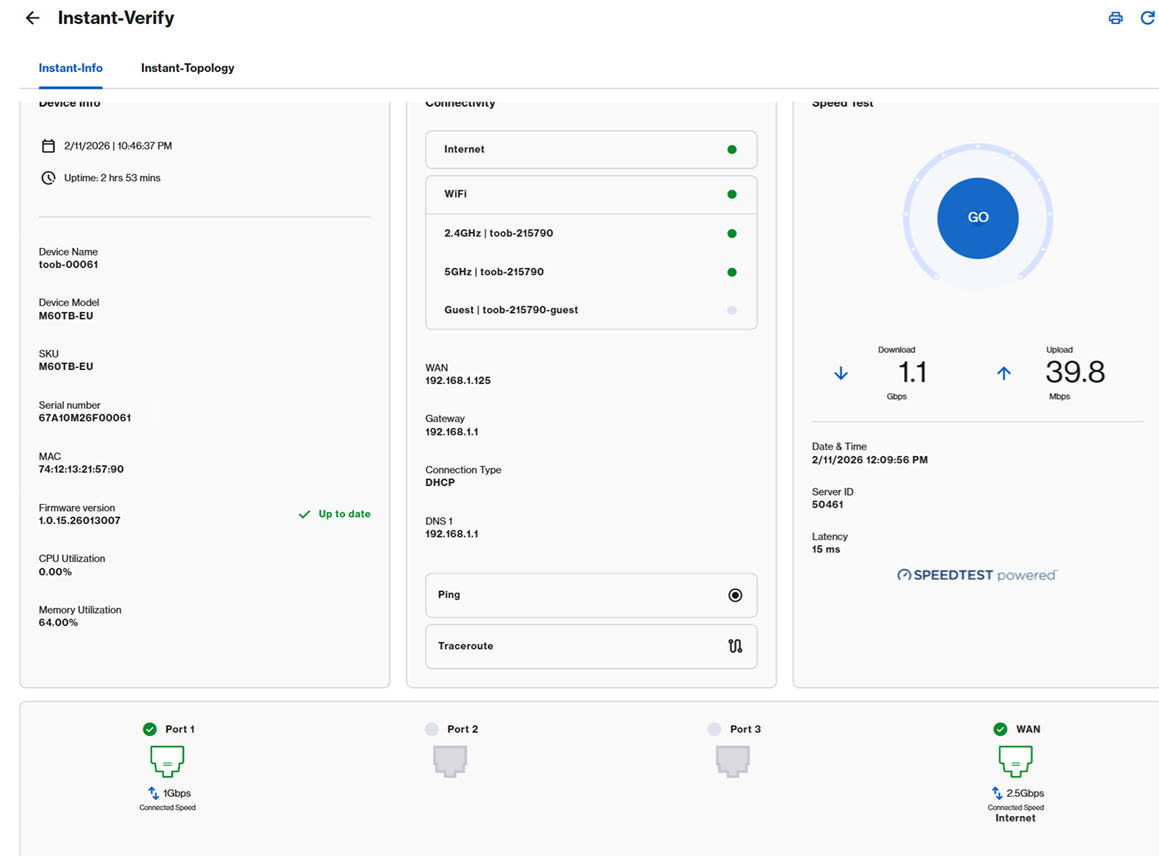
SPNM60TB
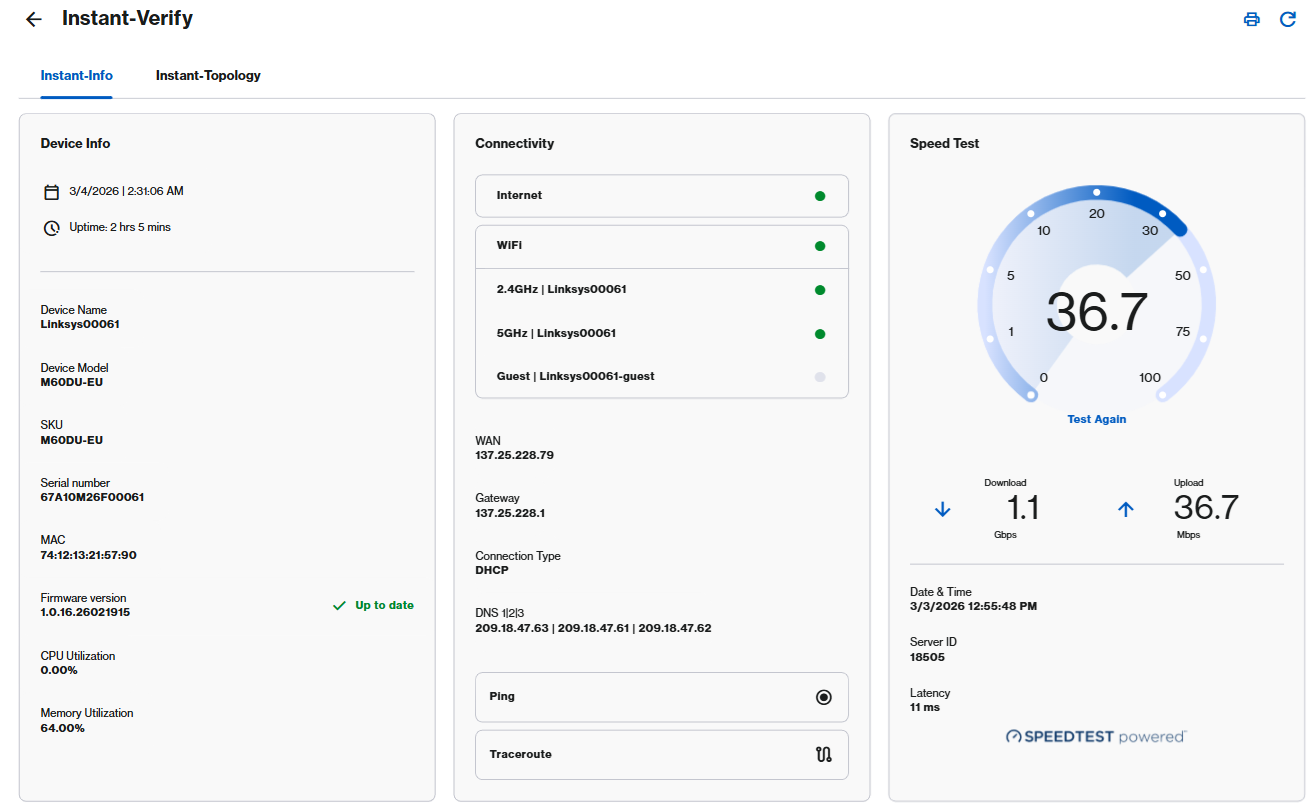
SPNM60DU
Device Info
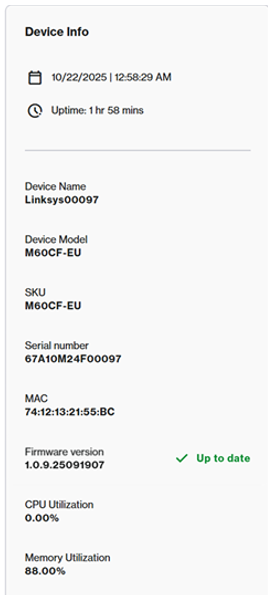
The Device Info tile displays the following information:
- Current time and date, and uptime
- Device name with the last five digits of the router’s serial number (Linksysxxxxx)
- Model series, SKU, serial number, and MAC address
- CPU and Memory Utilization
- Current firmware version
Connectivity
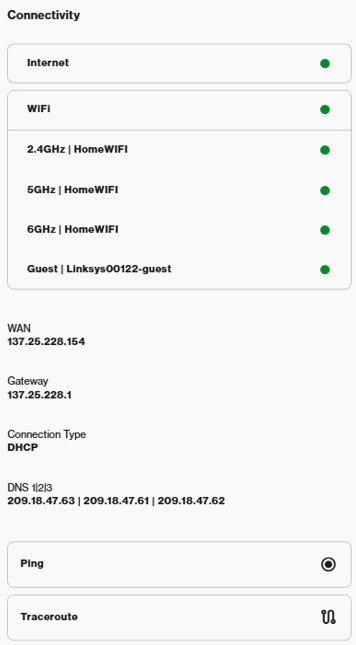
The Connectivity tile displays the following settings:
- Internet status
- WiFi status - Go to the Incredible WiFi tile to configure the WiFi settings.
- WAN IP address and connection settings - To configure the internet settings, DHCP server, or DNS settings, go to Advanced Settings.
- Ping and Traceroute diagnostics
Speed Test
Speed Test services may vary by model.
LN1600 series - Offers third-party speed test services, such as CloudFlare or Fast.com. Select a service to run a test.
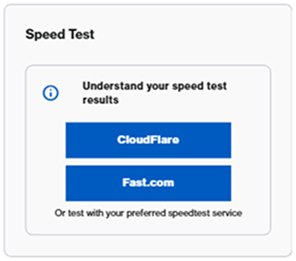
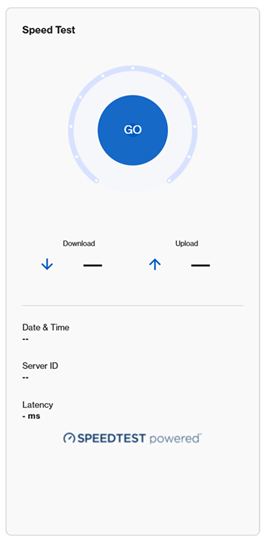
SPNM60CF/SPNM62CF - To run a speed test, click the Go button or Test Again.
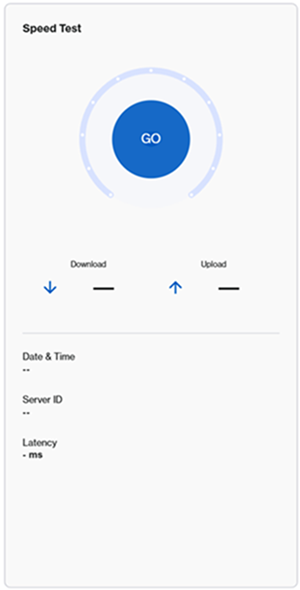
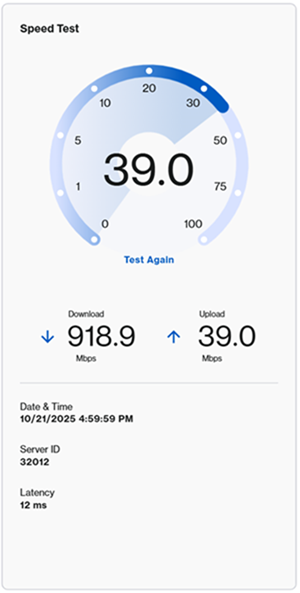
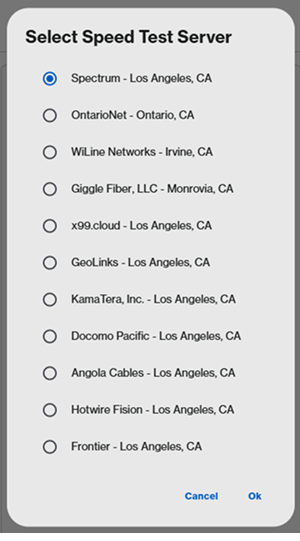
SPNM60TB/SPNM60DU: These nodes have a server selection option. When you click on GO, choose a server, then click Ok.
Internet and LAN ports
Port layout description varies by model.
LN1600 series
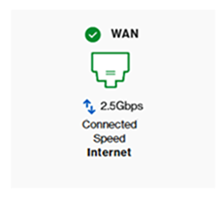
The Linksys LN1600 supports one multi-link ethernet port, up to 2.5 Gbps. Scroll to the bottom of the page to check the current port in use and current speed. The connection speed will depend on the device that is connected to it.
SPNM60/SPNM62
The Linksys SPNM60 and SPNM62 support three LAN ports and one Internet port. All ports are multi-link.
Scroll to the bottom of the page to check the current port in use and current speed. The connection speed will depend on the device that is connected to it.

SPNM60
- One 2.5 Gbps Internet port
- LAN ports 1 to 3 support up to 2.5 Gbps
SPNM62
- One 10 Gbps Internet port
- Ports 1 and 2 support up to 2.5 Gbps
- Port 3 supports up to 10 Gbps
In the Instant-Topology tile, you can view detailed information about the arrangement of the nodes and how they are connected to your network. Learn more.

