Informazioni sulla pagina iniziale dell'interfaccia web di LinksysNOW

Il pannello di controllo è la pagina iniziale dell'interfaccia web LinksysNOW dopo aver effettuato l'accesso al router. Fornirà un riepilogo rapido della rete attuale.
Modelli compatibili:
- Serie Linksys LN1600 (LN1601, LN1602 e LN1603)
- Linksys SPNM60
- Linksys SPNM62
- Linksys SPNM62
LN1600
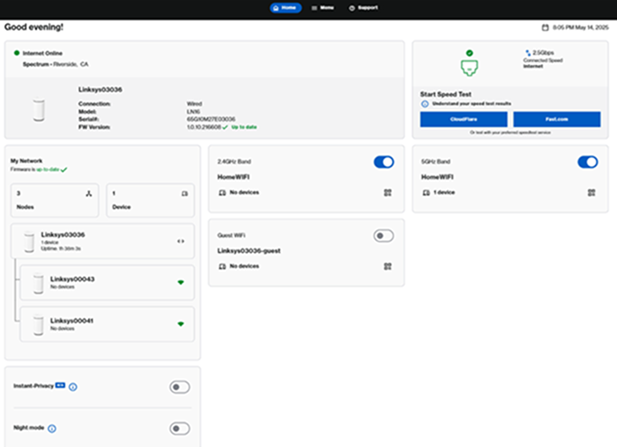
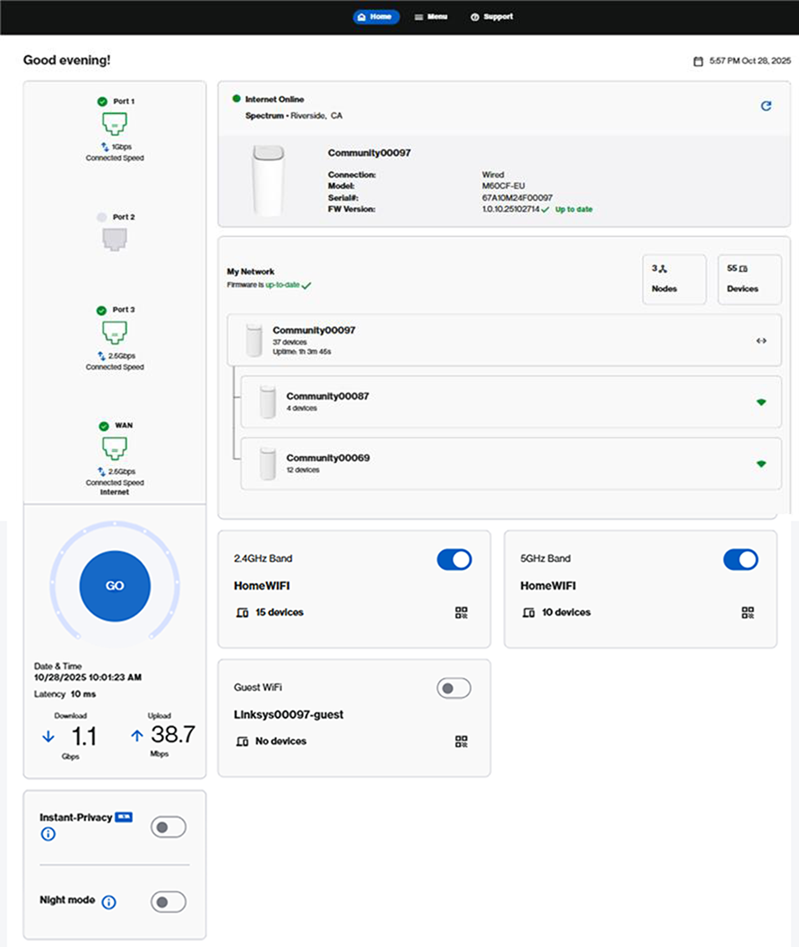
SPNM60CF
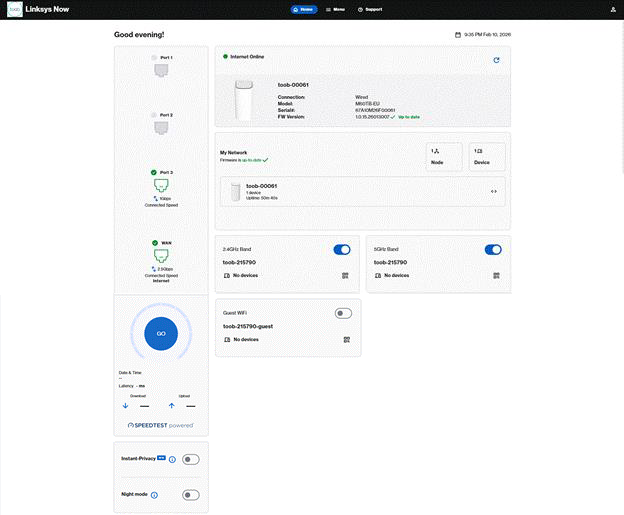
SPNM60TB
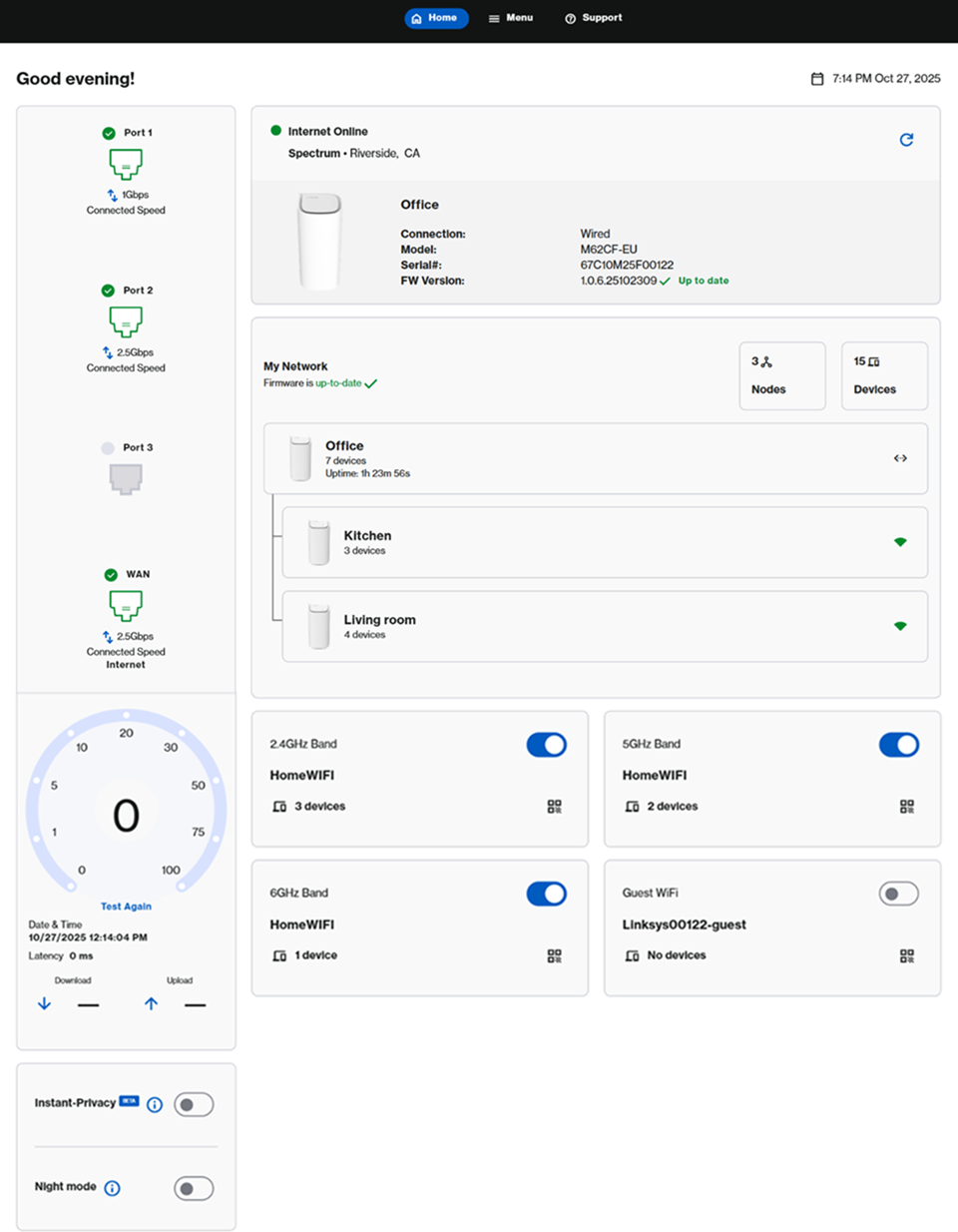
SPNM62CF
|
Funzione
|
Descrizione
|
|---|---|
 Nella parte superiore della pagina sono presenti tre pulsanti/tabelle:
|
|
|
L'icona Account
 si trova nell'angolo in alto a destra. In questa sezione è possibile cambiare la lingua, selezionare un tema (modalità Sistema, Scuro o Chiaro), visualizzare ulteriore documentazione e disconnettersi dal router. si trova nell'angolo in alto a destra. In questa sezione è possibile cambiare la lingua, selezionare un tema (modalità Sistema, Scuro o Chiaro), visualizzare ulteriore documentazione e disconnettersi dal router.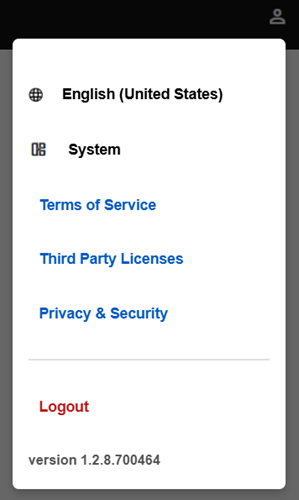 |
|
|
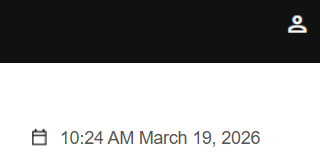
Nell'angolo in alto a destra del pannello di controllo, vedrai la data e l'ora correnti del router. Per regolare questa impostazione, Fare clic su di essa o vai su Menu > Instant-Admin (Menu > Instant-Amministrazione). Ulteriori informazioni
 |
|
|
In questa sezione, vedrai lo stato online, il modello, il numero di serie e il firmware attuale del router principale.
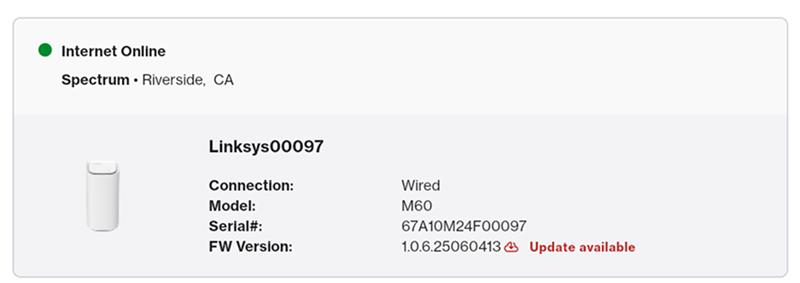
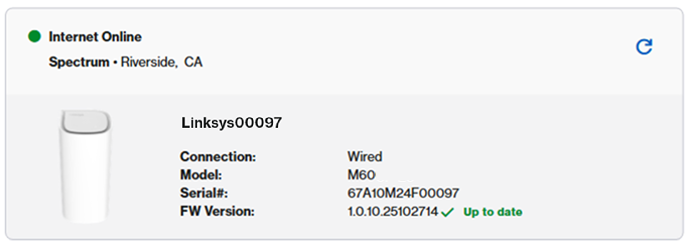 Se è disponibile un firmware, verrà visualizzato il seguente messaggio. Fare clic su di esso per procedere con l'aggiornamento.
Tuttavia, se hai effettuato l'accesso durante il giorno e in questa sezione viene visualizzata una notifica Update available (Aggiornamento disponibile), puoi avviare l'aggiornamento manualmente accedendo a Menu > Instant-Admin (Menu > Amministrazione istantanea).
 Se nella rete sono presenti più router Linksys per i quali sono disponibili aggiornamenti del firmware, verrà visualizzato un elenco di tali dispositivi. Fare clic su Update all (Aggiorna tutto).
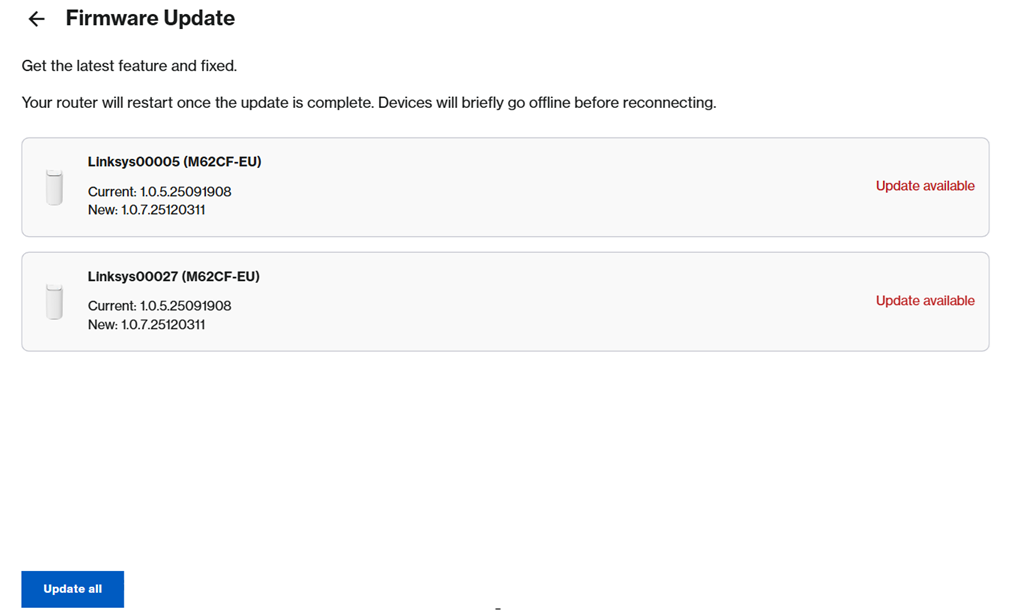 A questo punto vedrai un indicatore di avanzamento per ogni nodo. La connessione Wi-Fi verrà temporaneamente interrotta fino a quando tutti i router non saranno stati aggiornati e si saranno ricollegati alla rete. Durante l'aggiornamento, le spie inizieranno a lampeggiare.
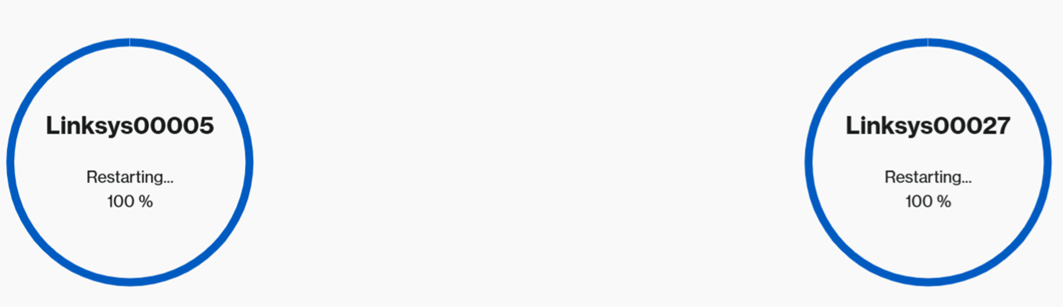
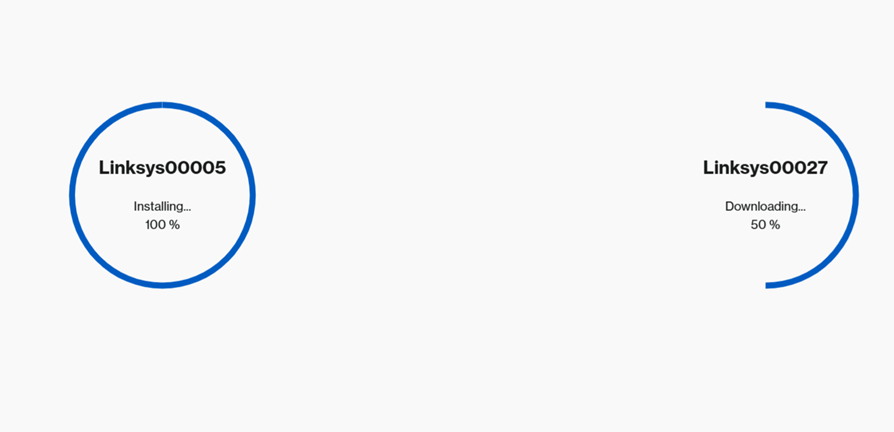 Quando compare il messaggio Restarting (Riavvio), i nodi si riavvieranno automaticamente. Attendere finché tutti i router non presentino una luce bianca fissa, a indicare che sono online e pronti all'uso.
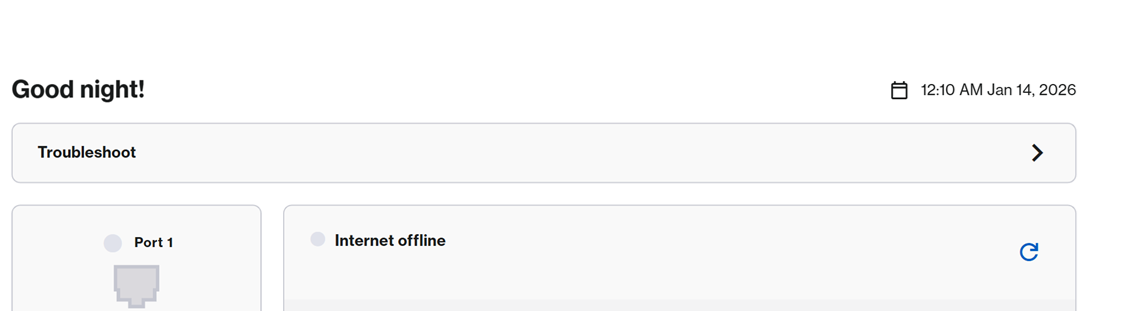
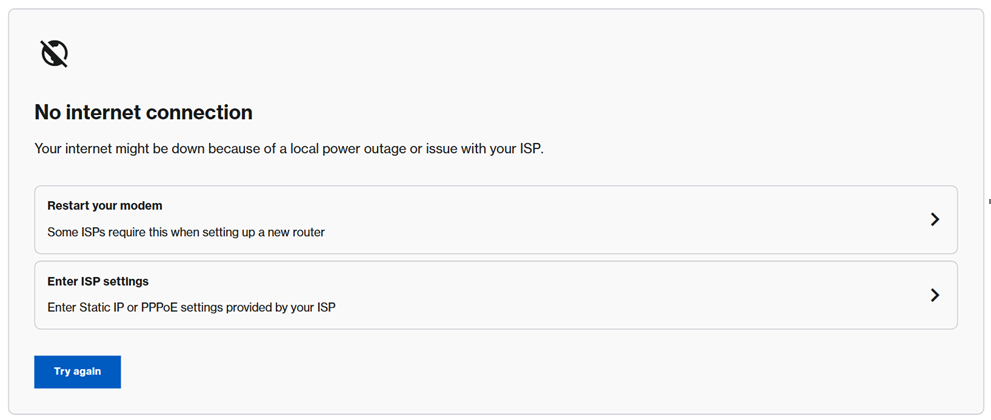
 Se il router è disconnesso, vedrai l'opzione Troubleshoot (Risoluzione problemi). Cliccaci sopra per seguire i passaggi consigliati e ripristinare la connessione. Una volta che la spia del router diventa bianca fissa, a indicare che è nuovamente online, aggiorna la pagina o effettua nuovamente l'accesso per continuare a utilizzare la tua rete.
  |
|
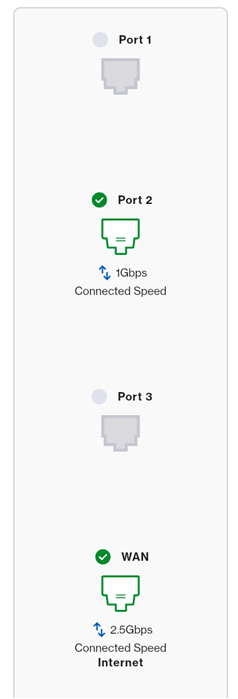
| Le immagini delle porte possono variare a seconda delle caratteristiche supportate dal proprio modello.
Nei modelli Linksys SPNM60 e SPNM62, la colonna A mostra le porte attualmente in uso.
 Linksys SPNM62:
Linksys SPNM60:
Linksys LN1600:
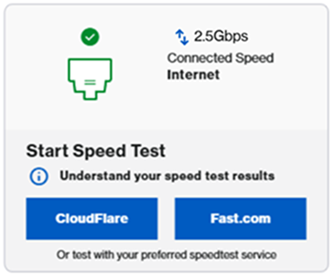
Lo stato della porta viene visualizzato nel riquadro seguente nella pagina iniziale.
 |
|
|
Nel riquadro My Network (La mia rete), vedrai un riassunto rapido della tua rete.
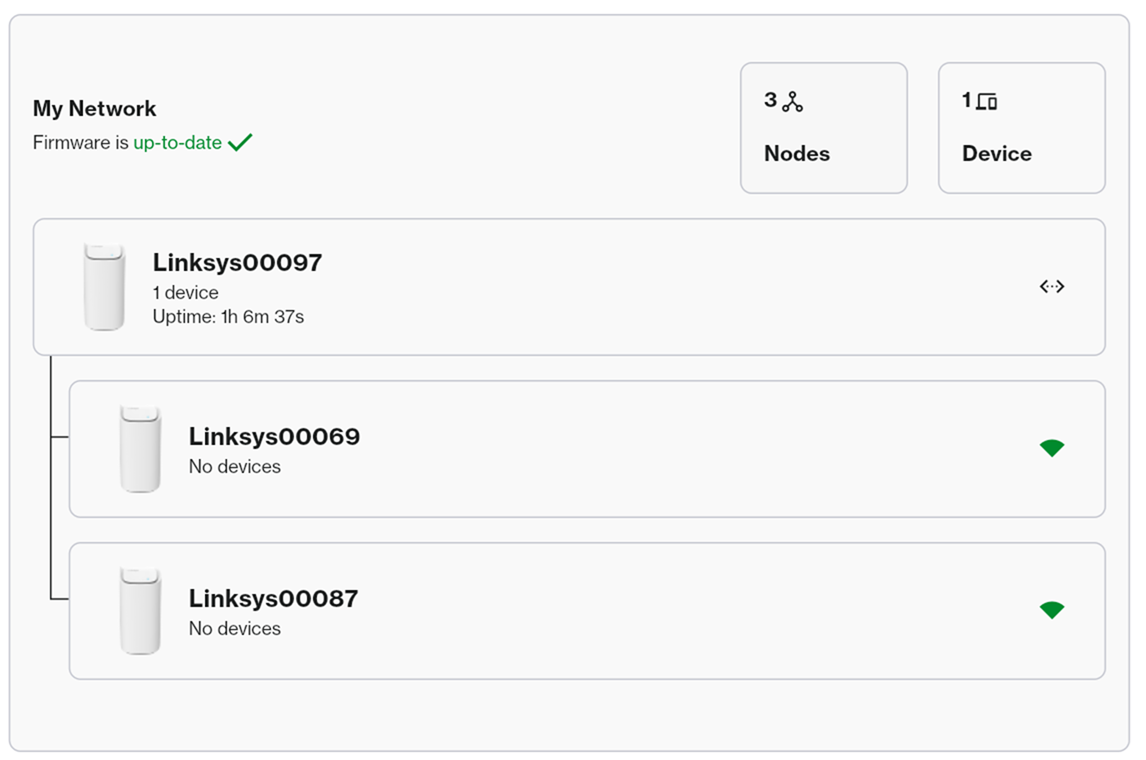
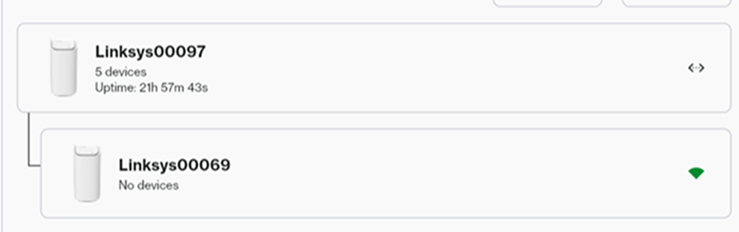 Per ulteriori informazioni su ciascun nodo, è sufficiente cliccarci sopra.
|
|
|
La configurazione varia a seconda del modello.
Per ulteriori informazioni o per modificare le impostazioni WiFi, clicca sul riquadro o vai su Menu > Incredible-WiFi (Menu > Incredibile-WiFi).
LN1600 e SPNM60 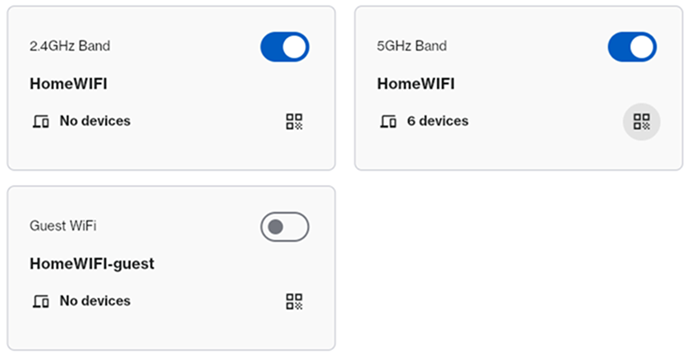 SPNM62
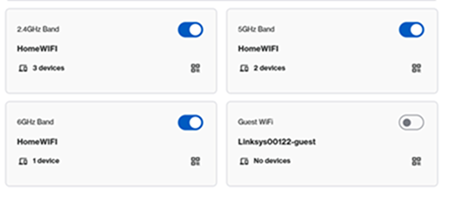 Passa il cursore sull'icona del codice QR per visualizzare il codice QR e scansionarlo con un dispositivo mobile. 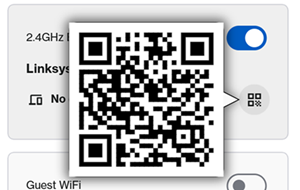 Clicca sull'icona QR
 per condividere le credenziali WiFi con i dispositivi della tua casa. Puoi copiare le credenziali negli appunti, scansionare il codice QR per collegarti alla rete o scaricarlo per utilizzarlo in un secondo momento. per condividere le credenziali WiFi con i dispositivi della tua casa. Puoi copiare le credenziali negli appunti, scansionare il codice QR per collegarti alla rete o scaricarlo per utilizzarlo in un secondo momento.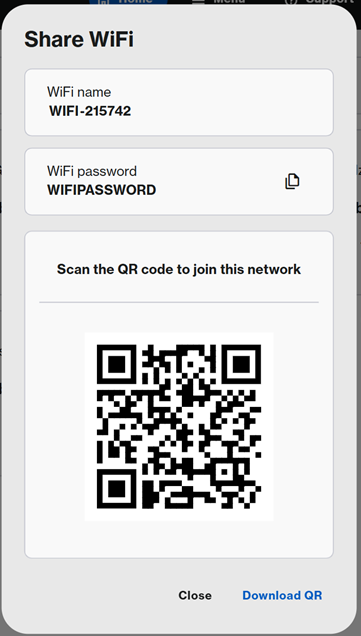 |
|
|
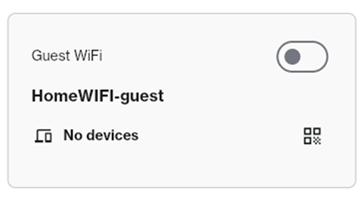
Puoi condividere il tuo Guest WiFi (WiFi per gli ospiti) con i visitatori senza rivelare le credenziali della tua rete principale.
La rete per gli ospiti è disattivata per impostazione predefinita, ma puoi cliccare per attivarla. Per personalizzare il nome e la password della rete, clicca sul riquadro e assicurati di scegliere un nome diverso da quello del tuo WiFi principale.
 |
|
| Test di velocità |
La configurazione del test di velocità può variare a seconda del modello.
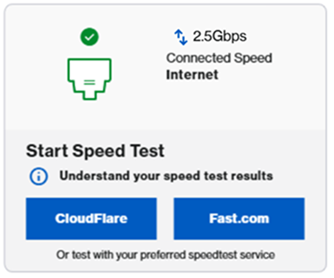
LN1600: per eseguire un test di velocità, fare clic su un servizio (CloudFlare o Fast.com) per eseguire un test di velocità.
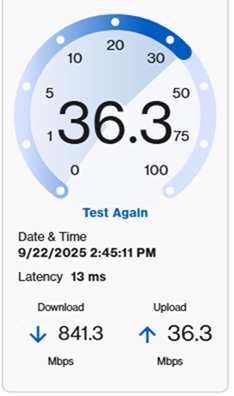
 SPNM60CF e SPNM62CF: per eseguire un test di velocità, fare clic su Go (Vai) o Test Again (Riprova).
 SPNM60TB: Fare clic su Go (Vai), selezionare un server e fare clic su Ok.
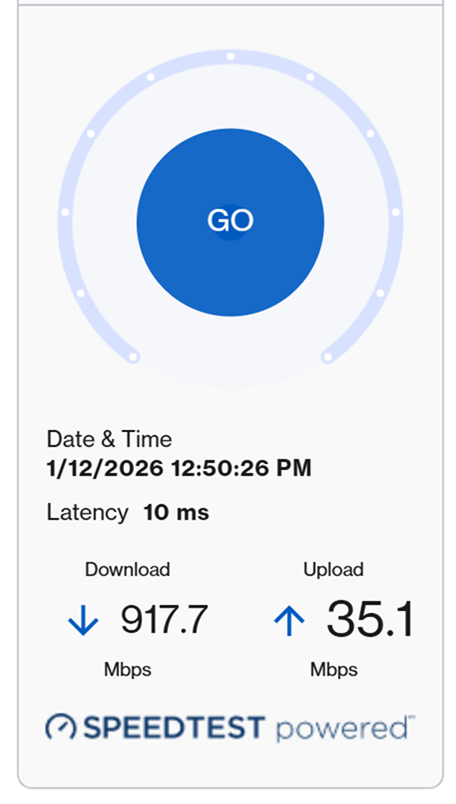 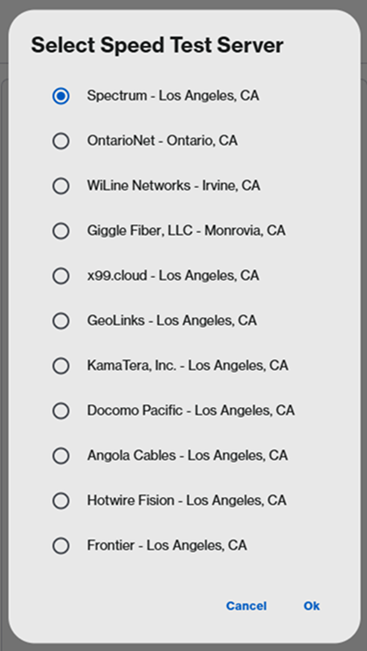 |
|
Instant-Privacy
Questa funzione impedirà a qualsiasi nuovo dispositivo Wi-Fi di connettersi alla rete. Per impostazione predefinita, questa funzione è disattivata. Una volta che tutti i dispositivi Wi-Fi conosciuti sono stati connessi alla rete Linksys e sono stati aggiunti tutti i nodi secondari, attiva Instant-Privacy. Se devi aggiungere un nuovo dispositivo Wi-Fi, disattiva la funzione, consenti al dispositivo di connettersi alla rete, quindi riattivalo. Ulteriori informazioni. Night mode (Modo notturno)
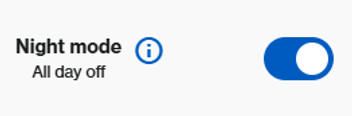
La funzione Modalità notturna spegne automaticamente le luci di tutti i nodi Linksys Mesh compatibili della rete tra le 8:00 e le 20:00. Per impostazione predefinita, questa funzione è disattivata.
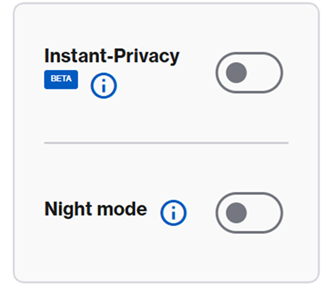 Se la modalità notturna è attiva, verrà visualizzato il seguente messaggio:
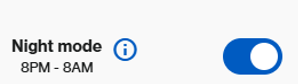 Se decidi di spegnere le luci 24 ore su 24, 7 giorni su 7, vedrai il seguente messaggio. Per spegnere le luci 24 ore su 24, 7 giorni su 7, vai su Menu > Instant-Topology (Menu > Topologia istantanea) > clicca sul primo router > e poi scorri fino in fondo, dove sono visibili le impostazioni della luce del nodo.
 A seconda del modello di hardware, il tuo dispositivo potrebbe disporre di un pulsante fisico “Modalità notturna” per un accesso rapido. Basta portare l'interruttore in posizione On (Attivato) per attivarla. Ulteriori informazioni.
|