


There are a few ways to add child nodes to a Linksys Mesh router that supports the new LinksysNOW web interface, such as the following models:
- Linksys LN1600 series (LN1601, LN1602, LN1603)
- Linksys SPNM60
- Linksys SPNM62
Before you begin:
- Parent router - It is the Linksys Mesh router that will be connected to your modem. Parent router must be set up and online.
- Child node - An additional node to extend your WiFi network.
- Unable to add a child node?
- Bring the child node closer to the parent router, if possible, and place it in the same room.
- Do you have the Instant-Privacy feature turned ON? If so, turn it OFF, try adding your child node again, and then turn it back ON once the setup is complete.
- If you have the DFS feature turned ON, try turning it OFF first. Then, add the child node and turn the feature back ON.
Using the Pair button (Quick and Easy)
An easy and quick method to add wired and wireless child nodes. Before you begin, make sure your parent router is set up and online.
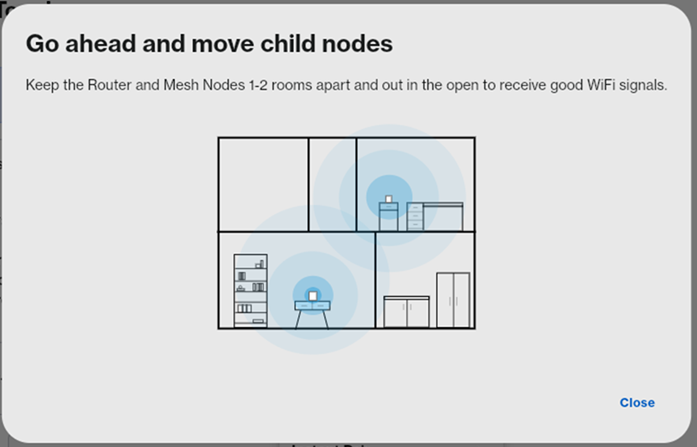
1. Power ON the new child node near the parent router. You can move the child node after setup is complete.
2. Wait for the child to show a solid blue light.

Solid Blue - Ready for setup
If the child node has a red light, hold down the reset button for about 20 seconds and wait for it to have a solid blue light.
3. Press the Pair button on the bottom of the parent router connected to your modem for at least 1 second. The router will begin scanning for unconfigured nodes.

4. The child node’s light will turn solid white once it has successfully connected; this may take a few seconds. Once the light is solid white, you can now move your child node.

Solid white light: The child node is connected and ready.
Using the web interface (My Network)
1. Connect your computer or mobile device to the Linksys WiFi network.
2. Power ON the child node near the parent router during setup. After the child has been added, you can move it. Wait for the light to turn solid blue on the new child node.

Red light? Hold down the reset button for about 15 seconds to restore the router to factory defaults.
3. Open a web browser and log in to the router's web interface.
4. Click on Menu, then click on Setup a New Product in the My Network tile.

5. Make sure your new child node has a solid blue light. Click Next.

The router will begin to scan for unconfigured nodes. Please wait. This can take a few minutes.
Once the child has a solid white light, this means it has successfully been added to your network.

6. Your new child node will be displayed in the list. Click Next.

Not seeing the new child node?
- Click Refresh.
- If the light on the new node is still blinking white, just click Next. Sometimes it may take a bit longer to appear on the list. Once the light turns solid white, it is now ready. You can view all your connected nodes on the LinksysNOW Home page.
- If the light on the new child node is still solid blue, this means the router did not detect it. Bring the child node closer to the parent node and click on Try again or try using the Pair button method.
7. You can now relocate the child node. Click Close.

Using the web interface (Instant-Topology)
1. Connect your computer or mobile device to the Linksys WiFi network.
2. Power ON the child node near the parent router during setup. After the child node has been added, you can move it to your desired location. Wait for the light on the new child node to turn solid blue.

Solid Blue - Ready for setup
Red light? Hold down the reset button for about 15 seconds to restore the router to factory defaults.
3. Open a desktop browser and log in to the router's web interface.
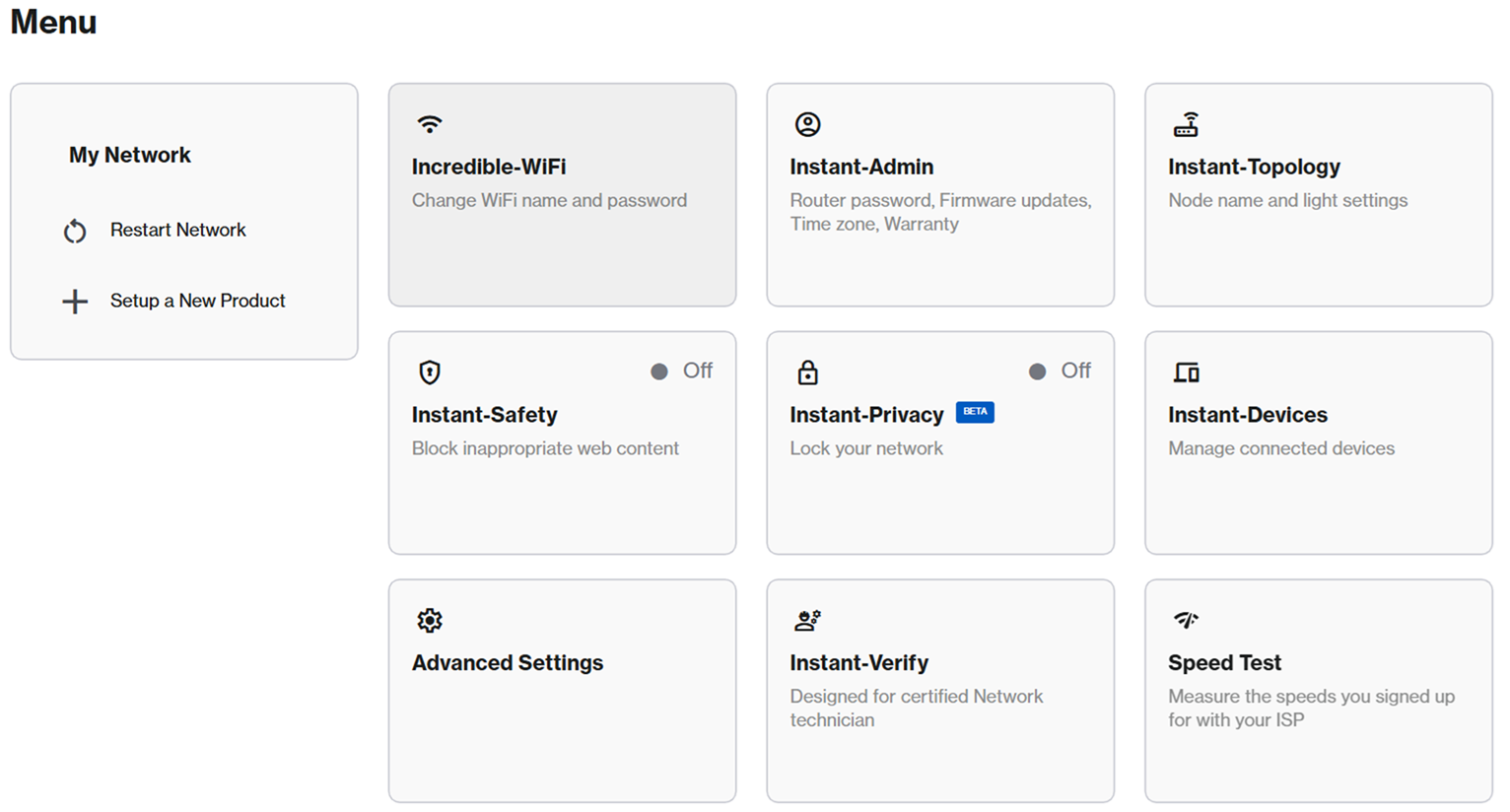
4. Click on Menu, then click on the Instant-Topology tile.
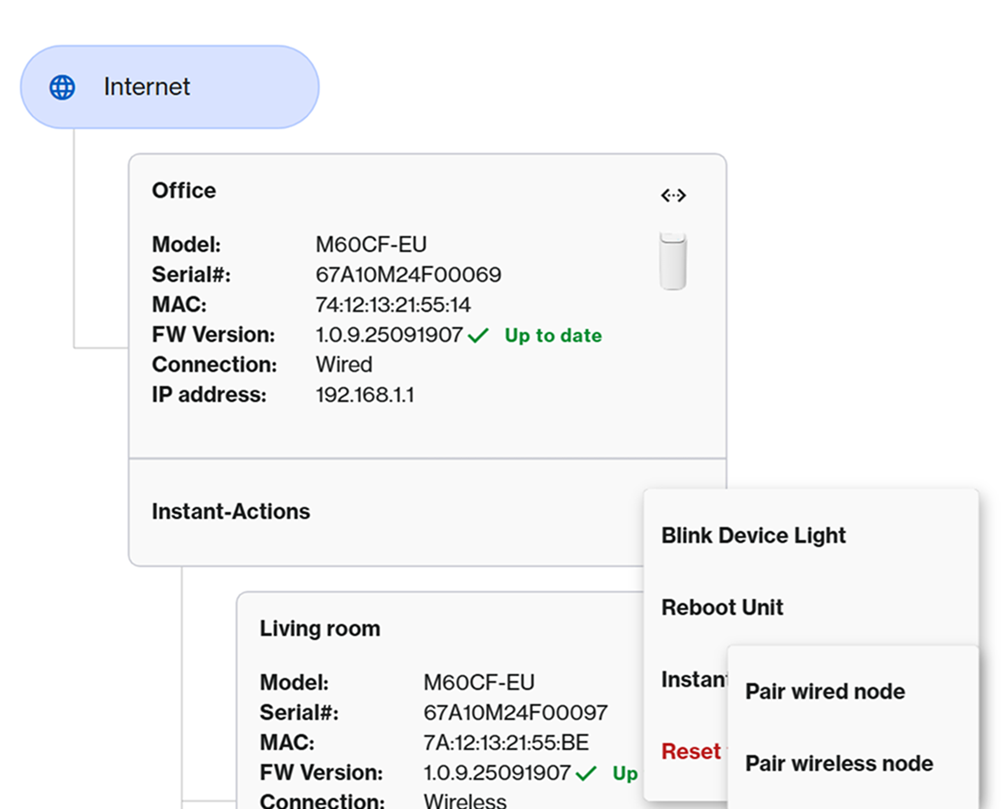
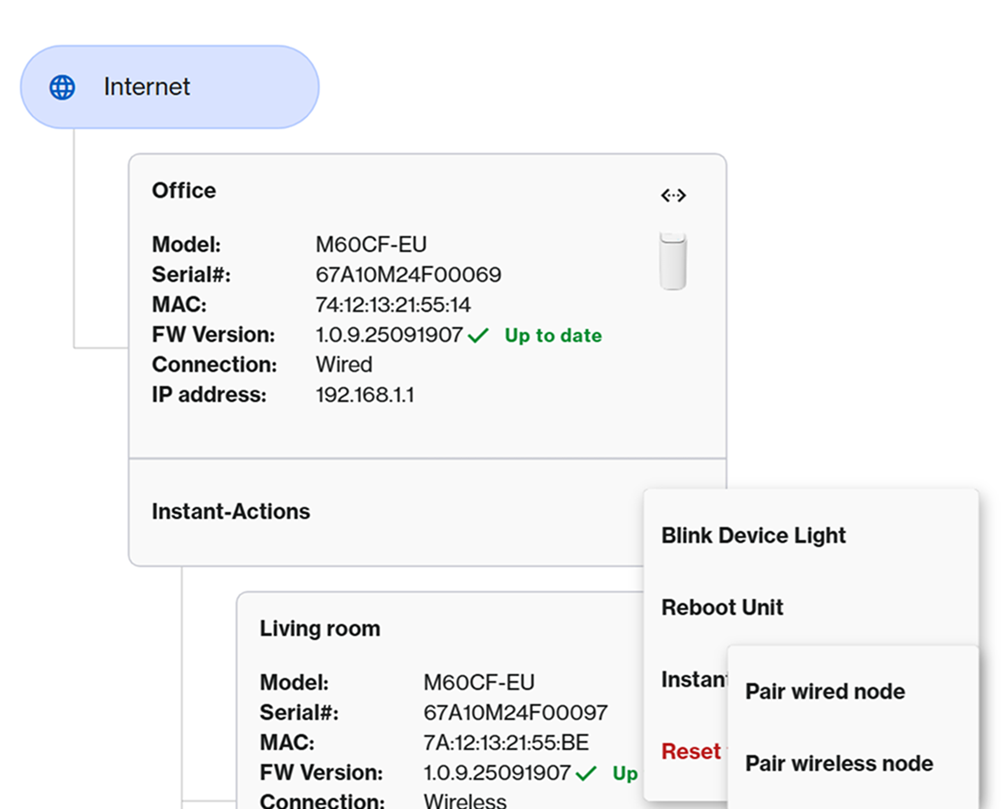
5. The first router on the list is your parent node. Click on its  icon to access Instant-Actions, then click on Instant Pair.

For models SPNM60 and SPNM62, click Instant Pair > Pair wireless node.
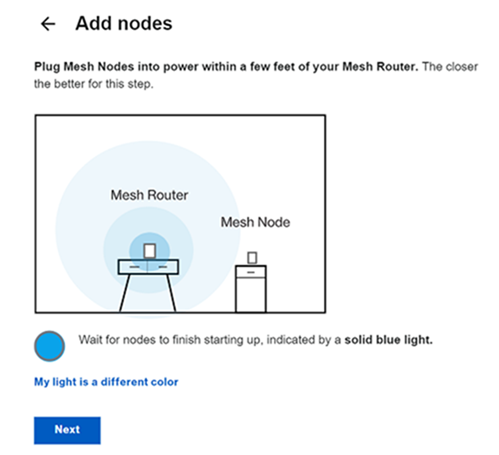
6. Once your new child node has a solid blue light, click Next.
7. The router will begin to scan for unconfigured nodes. Please wait. This can take a few minutes.
8. Once the child has a solid white light, this means it has successfully been added to your network.
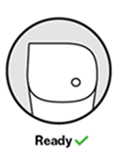
Your new node will be displayed in the list. Click Next.

Not seeing the new child node?
- Click Refresh.
- If the light on the new child node is still blinking white, just click Next; sometimes it may take a bit longer to appear in the list. Once the light turns solid white, it is now ready. You can view all your connected nodes on the Home page.
- If the light on the new child node is still solid blue, this means the router did not detect it. Bring the child node closer and click on Try again, or try using the Pair button method.
9. You can now relocate the child node. Click Close.
Using an ethernet cable (Adding a wired child node)
Adding wired child nodes is easy. You can do it in two ways, depending on the current status of the child node.
Before you begin:
- Make sure that the parent router is set up and online.
A. Quick and simple method
This method works for:
a. A new child node (factory default)
b. An existing wireless child node (will be converted to wired)
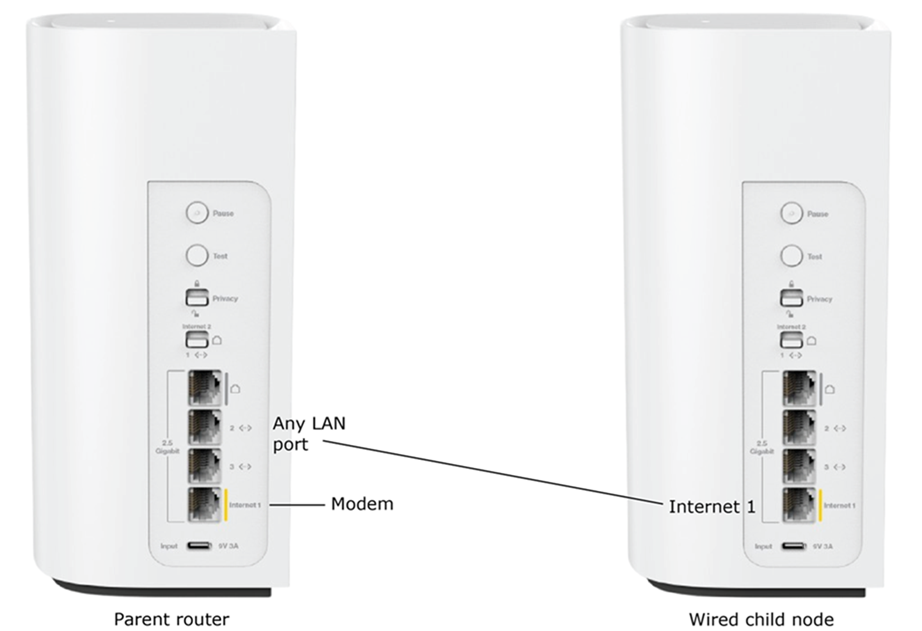
- Connect an ethernet cable from the Internet 1 port of the child node to a LAN port on the parent router.
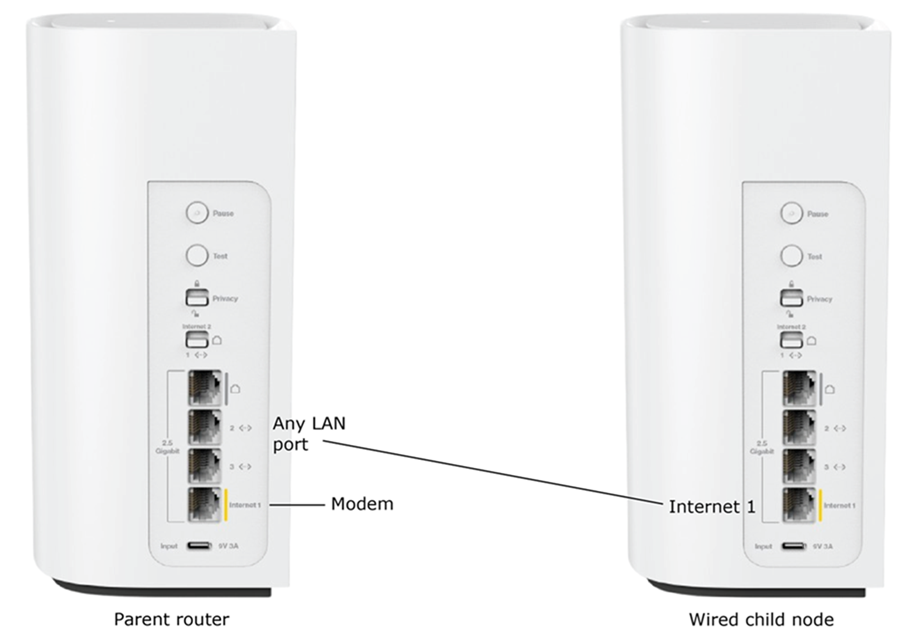
The child node’s light will start blinking.
- When the light turns solid white, the node has been successfully added as a wired child node.
B. Using the web interface
1. Power ON the new child node.
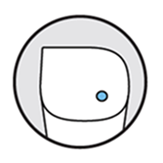
Wait for the light to turn solid blue, which indicates it’s ready for setup.
2. Open a desktop browser and log in to the router's web interface.
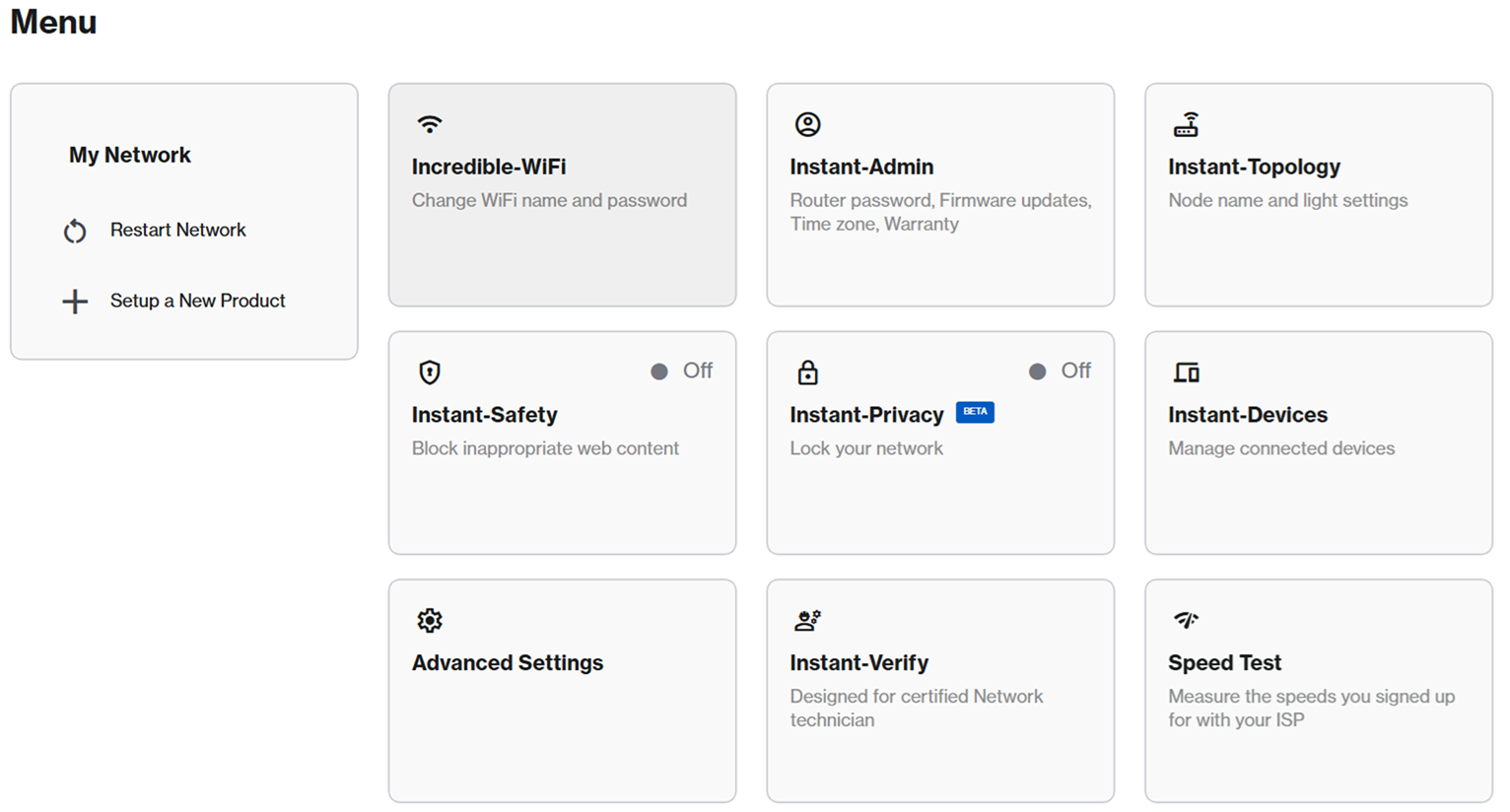
3. Click on Menu, then click on the Instant-Topology tile.
4. The first router on the list is your parent node. Click on its  icon to access Instant-Actions, then click on Instant Pair > Pair wired node.
5. Connect an ethernet cable from the child node’s Internet port to any LAN port on the parent router. Then click Done pairing.
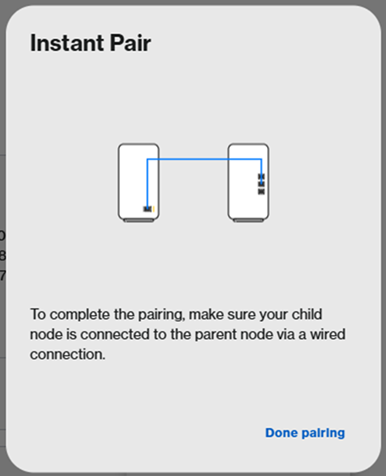
6. The child node’s light will start blinking white (pairing in progress). This may take a few minutes.

7. Once the light turns solid white, the setup is complete.


