You are using an unsupported browser. Please update your browser to the latest version on or before July 31, 2020.
close
You are viewing the article in preview mode. It is not live at the moment.
Home > Product Overviews > Using LinksysNOW > Understanding the Home page of the LinksysNOW web interface
Understanding the Home page of the LinksysNOW web interface
print icon

The dashboard is the landing page of the LinksysNOW web interface after you have logged in to the router. It will provide a quick summary of your current network.


Supported models:


  • Linksys LN1600 series (LN1601, LN1602, and LN1603)
  • Linksys SPNM60
  • Linksys SPNM62


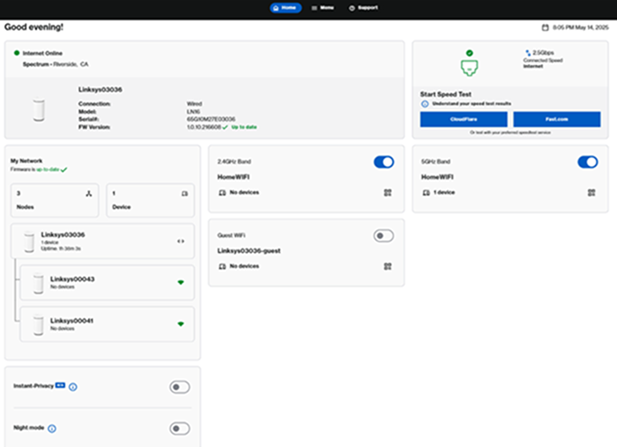
LN1600


Linksys Now Home section of the page for LN1600


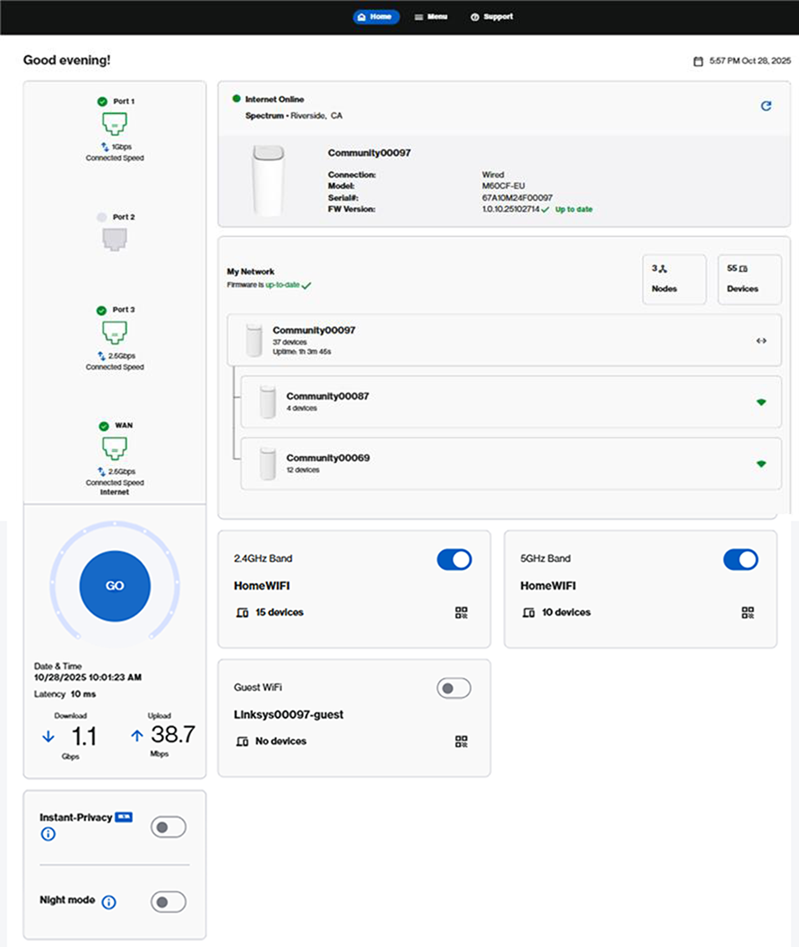
SPNM60CF


Linksys Now Home section of the page for SPNM60CF


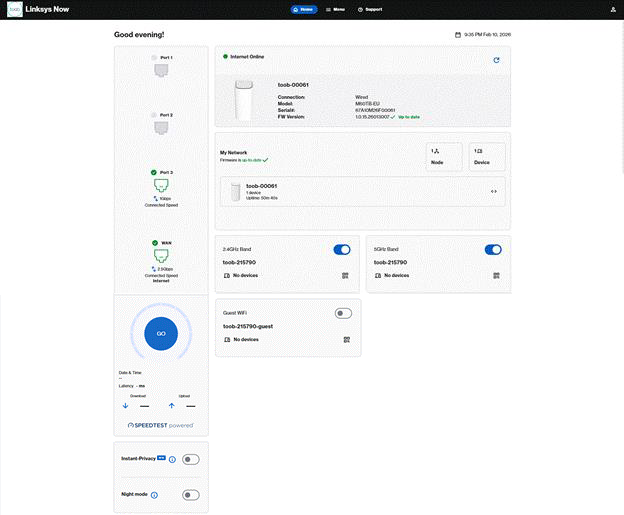
SPNM60TB


Linksys Now Home section of the page for SPNM60TB


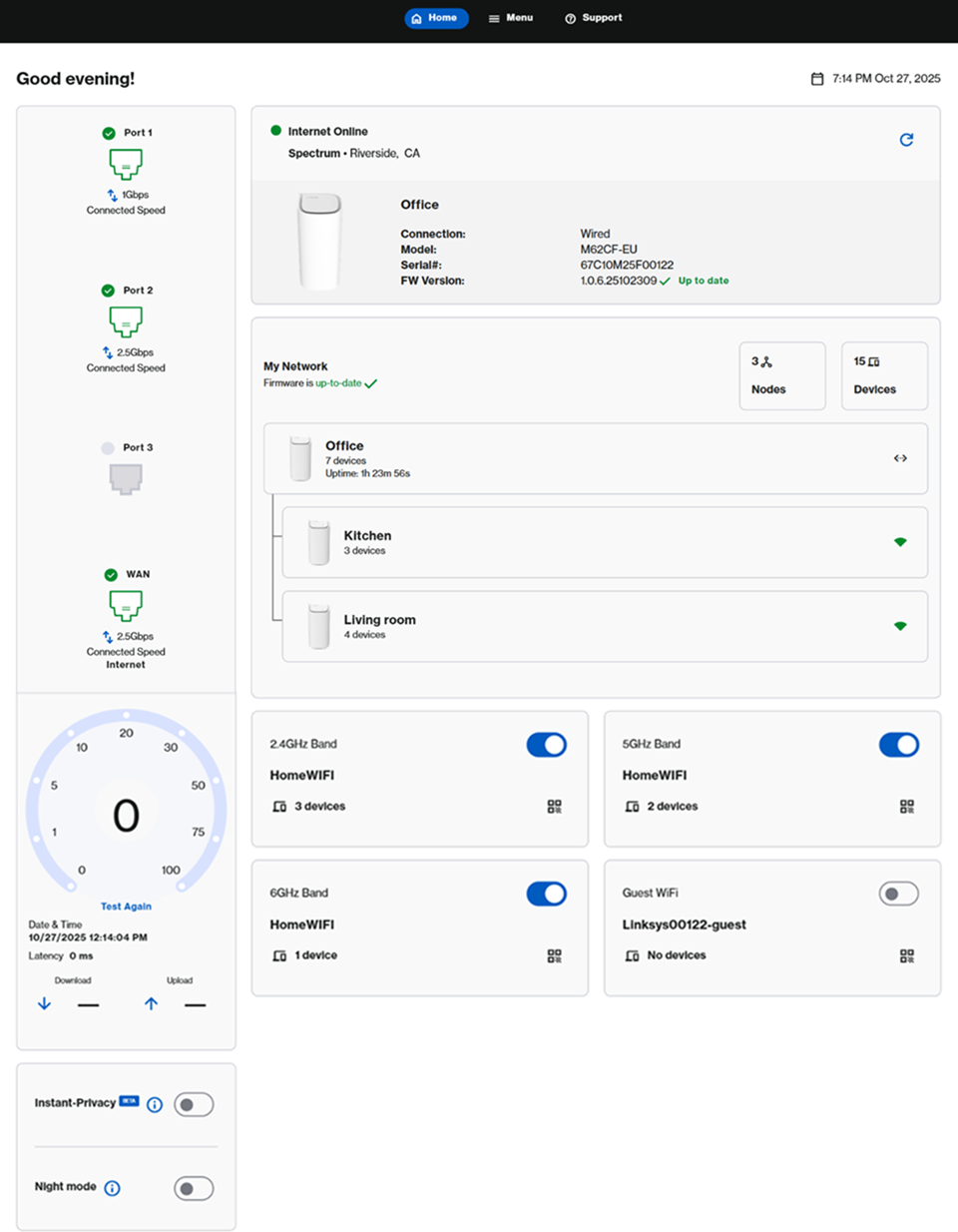
SPNM62CF


Linksys Now Home section of the page for SPNM62CF


Feature

Description

Home, Menu, and Support


A close up image of Home, Menu, and Support


There are three options at the top of the page:


  • Home - Select the Home button to return to the main dashboard.
  • Menu - Click to view all the network settings.
  • Support - Click to view FAQs on the router.


Account icon

The Account An image of the account icon icon is located in the upper-right-hand corner. In this section, you can change your language, select a theme (System, Dark, or Light mode), view additional documentation, and log out of the router.
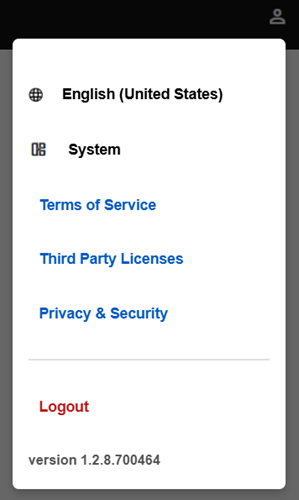
 

A section that shows the Language, System, Terms of Service, Third Party Licenses, Privacy & security, the version of the interface, and an option to log out


Router date/time

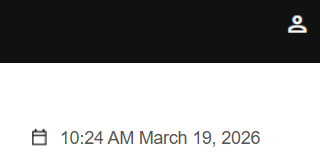
On the upper-right-hand side of your dashboard, you will see your router's current date and time. To adjust this setting, click on it or go to Menu > Instant-AdminLearn more.


An image of the router's date and time


Online status

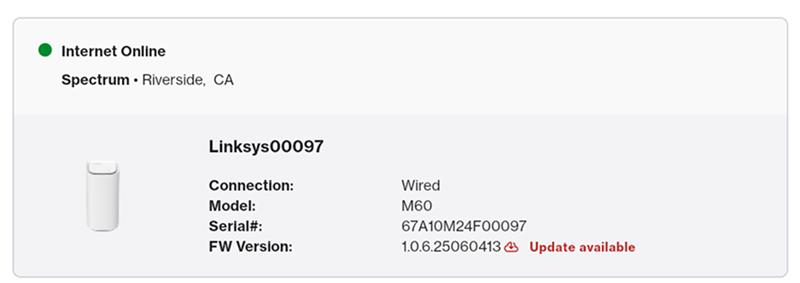
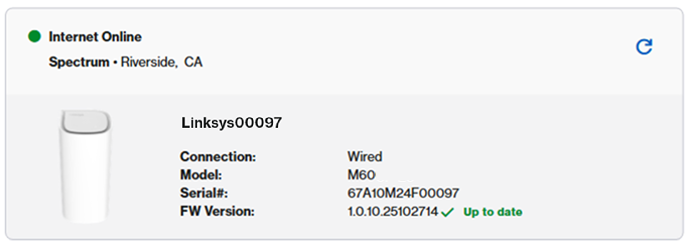
In this section, you will see your online status, model, serial number, and current firmware of the parent router.


A section showing the online status, model, serial number, and firmware status (Up to date) of the parent router
 

The router automatically updates overnight by default. No manual steps are necessary.


However, if you are logged in during the day and see an 'Update available' notification, you can manually start the update by navigating to Menu > Instant-Admin.
 

A section showing the online status, model, serial number, and firmware status (update available) of the parent router


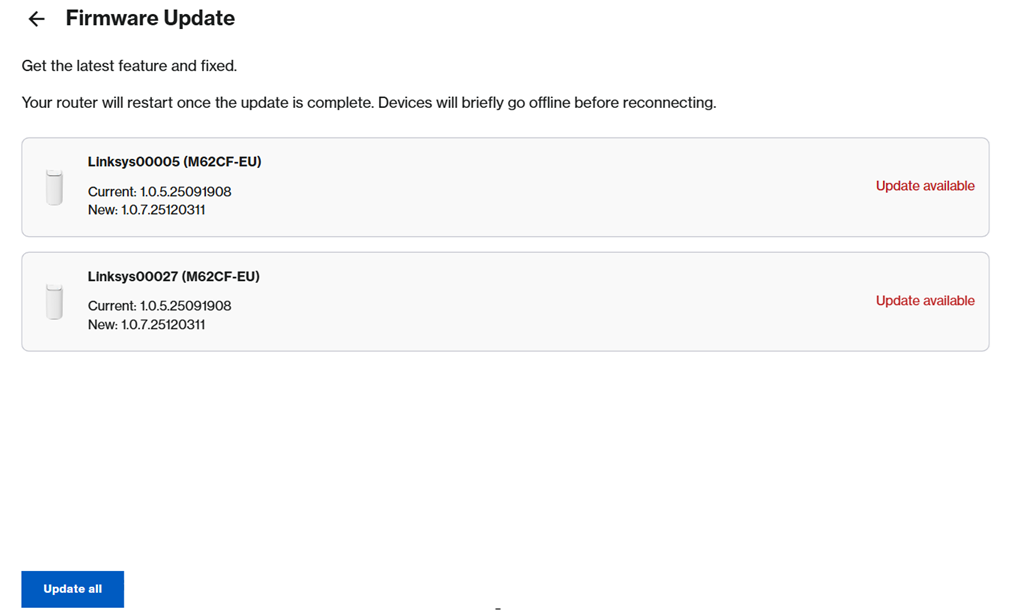
If multiple Linksys routers in your network have firmware updates available, you will see a list of those nodes. Click Update all.


Update all option for firmware upgrade

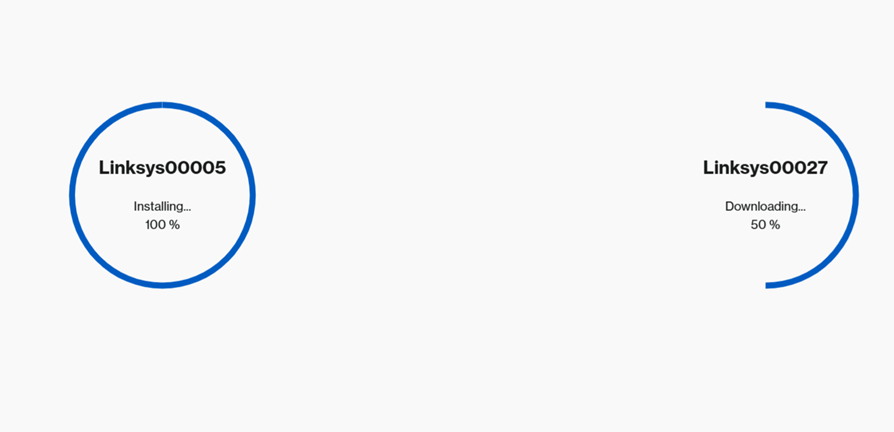
You will then see a progress circle for each node. You will lose WiFi temporarily until all routers have updated and reconnected to the network. During the upgrade, the lights will begin blinking.
 

Firmware Installing


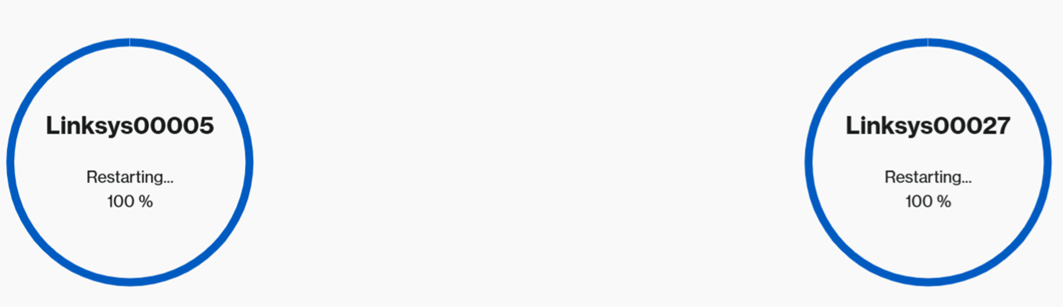
When the Restarting message appears, your nodes will reboot automatically. Wait until all routers show a solid white light, indicating they are online and ready to use.


Router restarting


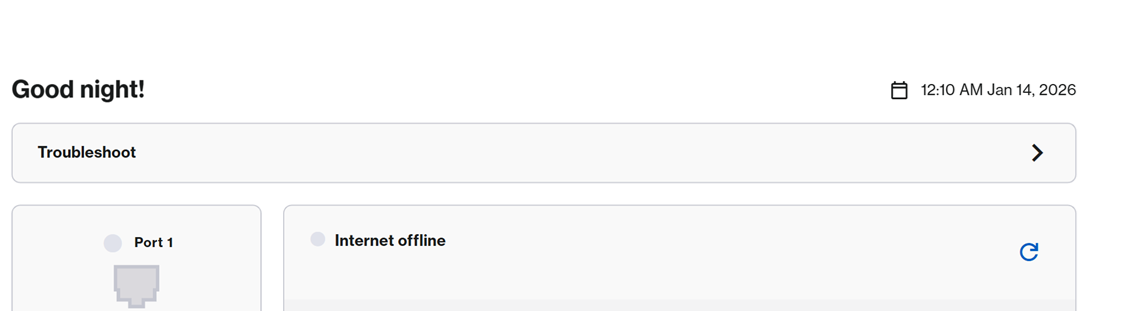
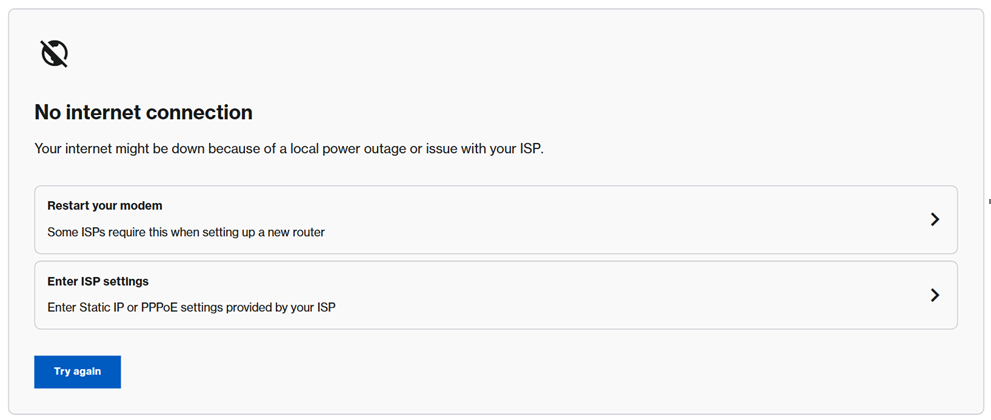
If the router is offline, you will see a Troubleshoot option. Click it to follow the recommended steps to restore your connection. Once the router’s light turns solid white, indicating it's back online, refresh the page or log in again to continue using your network. 

An image of the Troubleshoot section when the router goes offline


An image of the Troubleshoot section where you can "Restart your modem", "Enter ISP settings" (for PPPoE connection), or simply select "Try again".


Ports

Port images may vary depending on your model's supported features.


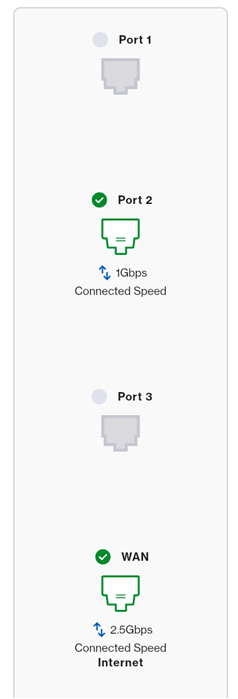
For Linksys SPNM60 and SPNM62, A column will display current ports in use. 


Port section in the LinksysNOW web interface


Linksys SPNM62:
 

  • Port 1- supports up to 2.5Gbps
  • Port 2- supports up to 2.5Gbps
  • Port 3- supports up to 10Gbps
  • Internet 1 – supports up to 10Gbps 


Linksys SPNM60:
 

  • All ports support up to 2.5Gbps


Linksys LN1600:


  • Supports one WAN/LAN port, up to 2.5Gbps


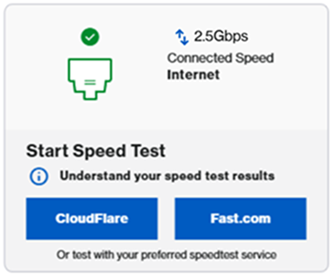
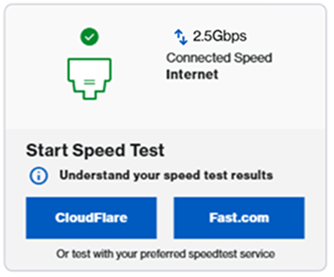
The status of the port is displayed in the following tile on the Home page. 


A section that shows the connected internet speed of the port, and an option to start a speed test with either CloudFlare or Fast.com

My Network

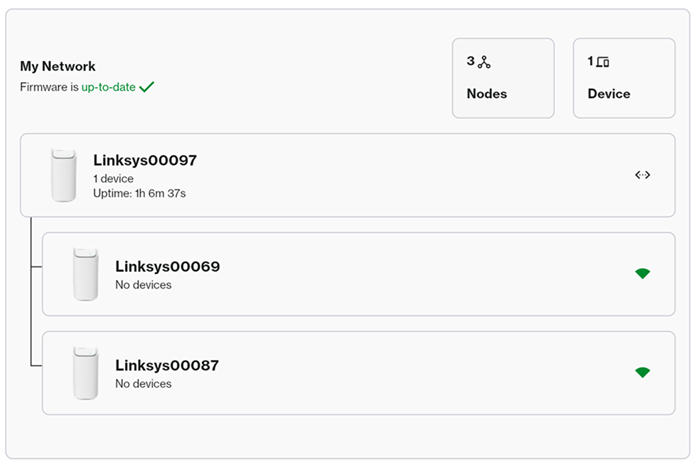
In the My Network tile, you will see a quick summary of your network.


My Network tile of the Linksys Now web interface


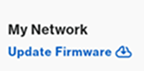
  • Update Firmware prompt Auto updates are turned ON automatically and update overnight. However, if you ever log in and see the following prompt, you can click on it to proceed with the update.
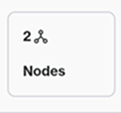
  • Node section of the My Network tile Nodes - Total number of Linksys Mesh nodes in the network. Clicking on this tile will take you to the Instant-Topology settings.
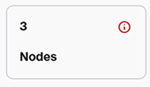
  • Node section of the My Network tile Offline node - A red exclamation mark in the Nodes tile means a child node is offline. Click on it to see which node is offline.
  • Devices section of the My Network tileDevices - Total clients that are currently connected. To view more information on these devices, click on this tile.
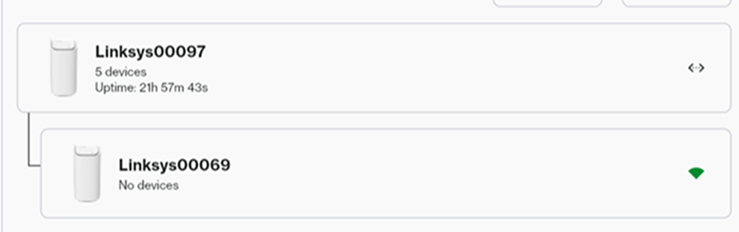
  • In this section, you will see a list of your connected nodes, starting with the parent router, followed by child nodes. This section will display:
    • Total devices connected to each node
    • Wired or wireless connection status of a node


Devices section of the My Network tile

For more information on each node, simply click on it.


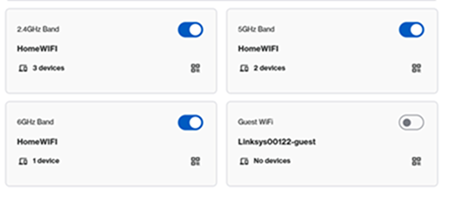
WiFi radio tiles

Settings vary by model.


To view more information or change the WiFi settings, click on the tile or go to Menu > Incredible-WiFi.

LN1600 and SPNM60

2.4 and 5 GHz tiles for LN1600 and SPNM60


SPNM62


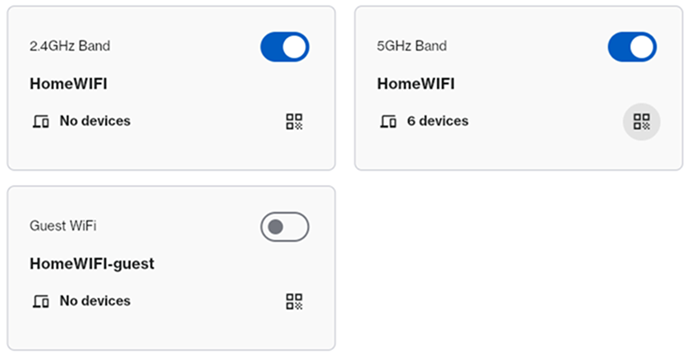
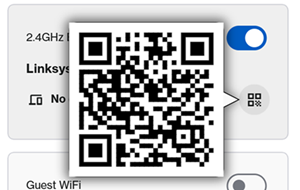
An image of the 2.4 GHz and 5 GHz bands with hoverable QR code icons, showing their status and device connections. SPNM62 SKU

Hover over the QR code icon to show the QR code to scan it with a mobile device.


QR code to scan with a mobile device


Click the QR code An image of the QR code that displays when you hover over the QR icons for 2.4 or 5 GHz icon to share the WiFi credentials with devices in your home. You can copy the credentials to the clipboard, scan the QR code to join the network, or download it for later use.
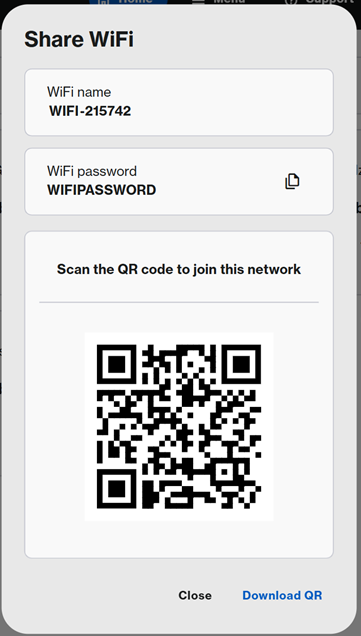
 

An image of the Share WiFi section that appears upon clicking the QR icon, displaying the WiFi name, options to copy the password, scan or download the QR code, and close the page.


Guest WiFi

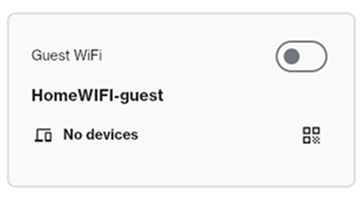
You can share your Guest WiFi with visitors without revealing your main network credentials. 


The Guest Network is turned OFF by default, but you can click to enable it. To customize the network name and password, click on the tile and make sure to choose a name that is different from your main WiFi. 
 

An image showing the Guest WiFi tile


Speed Test

Speed test settings may vary by model.


LN1600: To run a speed test, click a service (either CloudFlare or Fast.com) to run a speed test.


An image showing the Speed Test tile for LN1600


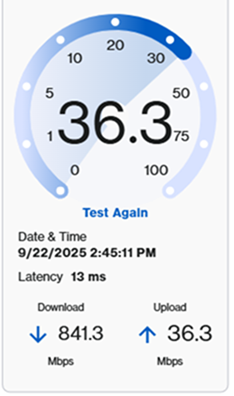
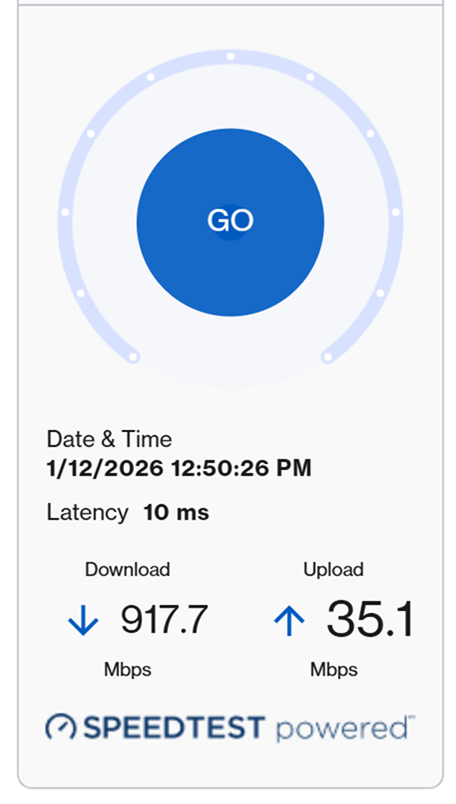
SPNM60CF and SPNM62CF: To run a speed test, click on Go or Test Again.


An image showing the Speed Test tile for SPNM60 and SPNM62


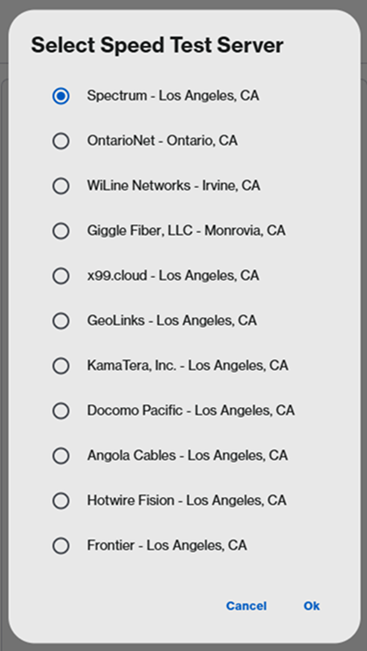
SPNM60TB: Click on GO, select a server, and click on Ok.

An image showing the Speed Test tile for SPNM60TBAn image showing the Speed Test option to select a server (for SPNM60TB only)


Instant-Privacy


Night mode

Instant-Privacy

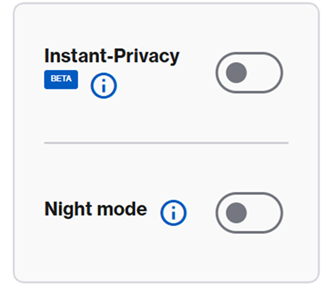
This feature will prevent any new WiFi device from connecting to your network. This feature is disabled by default. After you connected all your known WiFi devices to the Linksys network and added all your child nodes, turn on Instant-Privacy. If you need to add any new WiFi device, turn it off, allow your client to connect to the network, then turn it back on. 
Learn more.


Night mode


The Night mode feature automatically turns off the light on all supported Linksys Mesh nodes on your network between 8 AM and 8 PM. By default, this feature is turned OFF.


An image showing the Instant-Privacy and Night mode sections


If Night mode is enabled, you will see the following message:
 

Night mode 8pm to 8am


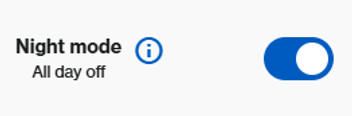
If you choose to turn off the lights 24/7, you will see the following message. To turn off the lights 24/7, go to Menu > Instant-Topology > click on the first router > then scroll to the bottom where the Node light setting appears.


Night mode (All day off)
 

Depending on your hardware model, your device may feature a physical Night Mode button for quick access. Simply toggle the switch to the On position to enable it. Learn more.
 

Was this support article helpful?
0 out of 1 found this helpful

Contact Us:
Call Us Access our list of global support numbers
Reddit Join and subscribe to our Official Reddit Community
Chat Us We are here to help you with all the questions you have

Linksys
Now
Support
scroll to top icon