In the LinksysNOW web interface, you can view detailed information for each of your nodes in the Instant-Topology tile and configure the Night mode feature.
Settings may vary by model.
Parent router description settings
Child router description settings
How to access Instant-Topology
1. Log in to the web interface.
2. Click on Menu.

3. Click on Instant-Topology.
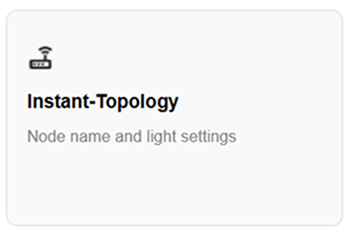
4. Depending on how many nodes are in your network, you will see a hierarchy of all your nodes.
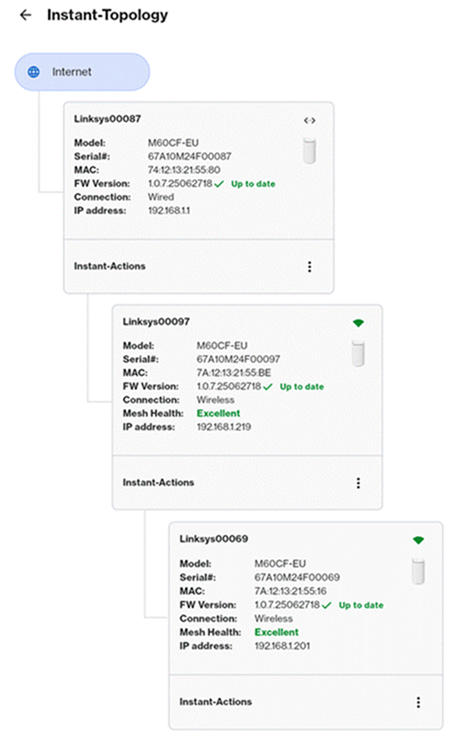
Parent router description settings
The first node showing connected to the Internet is the parent router, which is the router that is connected to your modem or internet source.
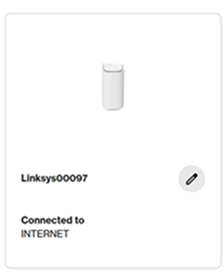
- Displays the name of the parent router (Linksysxxxxx)
- Displays the model number, serial number, MAC address, firmware version, connection, and IP address of the parent router
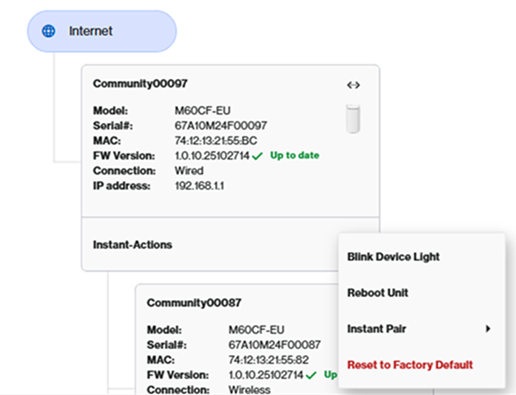
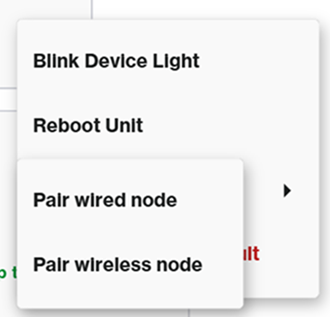
For SPNM60 and SPNM62 models:
Click on the  icon (next to Instant-Actions) to access additional settings on the parent router.
Instant-Actions of a parent router
- Blink Device Light - This feature can help you identify the node in your network. The light will blink for about 30 seconds.
- Reboot Unit - Restarts the entire network.
- Instant Pair - To add wireless child nodes to your network, click this option. To add wired or wireless child nodes on the Linksys SPNM60 and SPNM62 models, select the type of node you want to add. This option is only present on the parent router. Learn more about adding child nodes.
- Reset to Factory Default - This option RESETS ALL NODES to factory default settings within the network, including the parent router.
To view more settings and clients connected to the parent router, just click on the parent router tile.
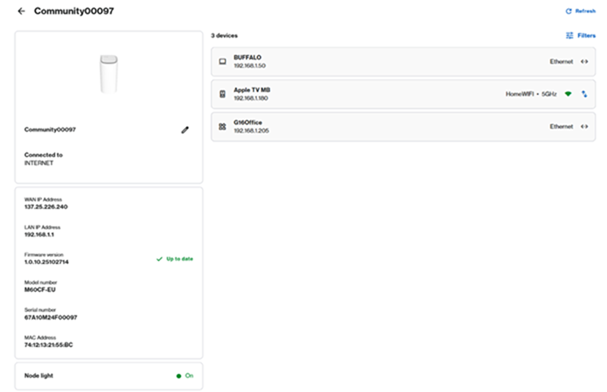
| Menu | Description |
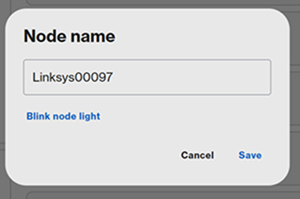
| Node name |
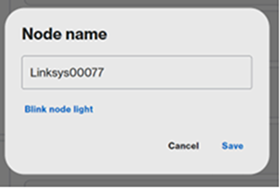
To change the name of the parent router, click on the pencil icon, enter a new name, and then click Save.
To identify a node, click on the Blink node light link. Learn more. |
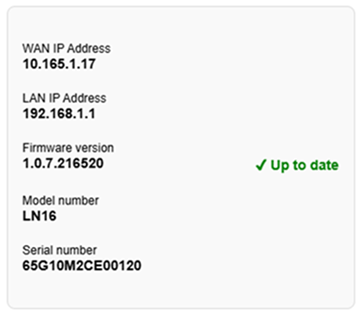
| Parent router details |
This section displays the WAN (internet) IP address, LAN IP address, current firmware version, model number, and serial number.
|
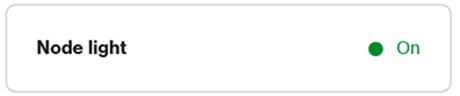
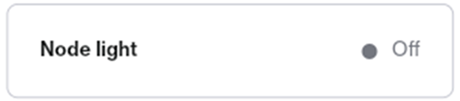
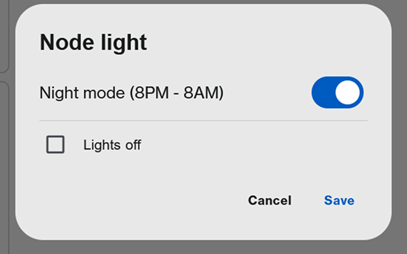
| Node light |
The Night mode feature turns OFF the light on all supported nodes between 8 pm and 8 am. This feature is only shown on the parent router. Learn more.
|
| Devices |
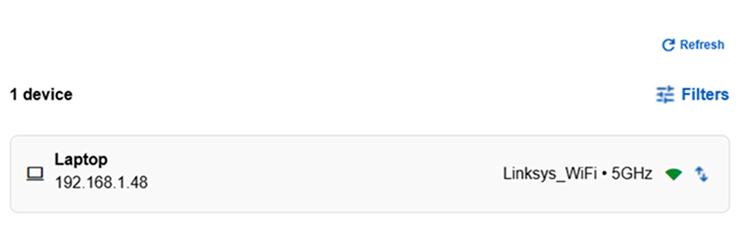
On the right-hand side, you will see a list of devices that are connected to the parent router. Learn more.
|

Child router description settings
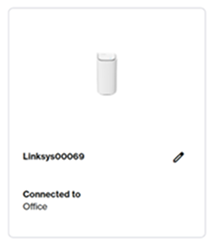
All other nodes that are being used to extend the WiFi are child nodes.
- Displays the name of the child node (Linksysxxxxx)
- Displays the model number, Serial number, MAC address, firmware version, Connection, signal strength, and IP address of the child node
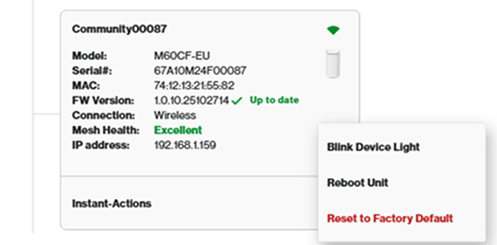
Click on the  icon (next to Instant-Actions) of any child node.
Instant-Actions of a Child node
- Blink Device Light - This feature can help you identify a child node in your network. The light will blink for about 30 seconds.
- Reboot Unit - Reboots only the child node.
- Reset to Factory Default - Resets only the child node. If another child node was wirelessly connected to this one, it would momentarily disconnect and automatically reconnect to the next closest node.
To view more settings and clients connected to the child node, just click on a child node tile.
| Menu | Description |
| Node name |
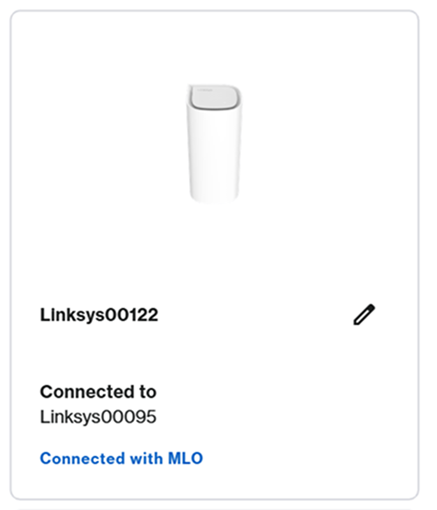
To change the name of the child node, click on the pencil icon, enter a new name, and then click Save.
To identify a node, click on the Blink node light link. The node's light will begin flashing white for 20 seconds.
You can also check which node your child node is connected to in the Connected to section. |
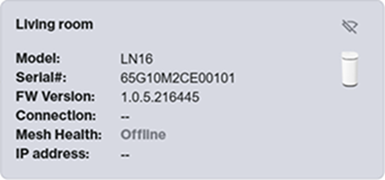
| Offline node |
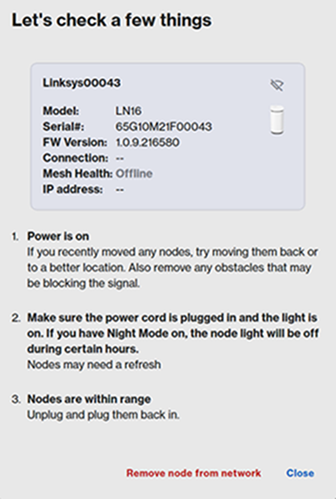
If you see an offline node, such as the one below, and all other nodes are online. Click on it to try some troubleshooting steps. If the node is no longer part of your network, you can click Remove node from network.
|
| Child node details |
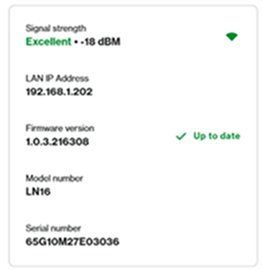
This section displays the WAN (internet) IP address, LAN IP address, current firmware version, model number, and serial number. Child nodes will display the signal strength if they are wireless nodes. However, the child nodes' connection type can be wired or wireless.
Mesh Health for wireless nodes:
|
| Devices |
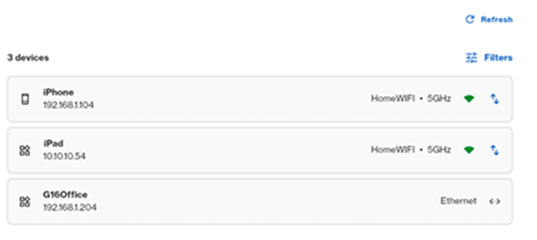
On the right-hand side, you will see a list of devices that are connected to the child node. Learn more.
Click Refresh to refresh the list. And go to Filters to customize filter settings.
|