


The Instant-Verify page of the LinksysNOW interface provides an overview of your network status.
Settings may vary by model.
Instant-Info
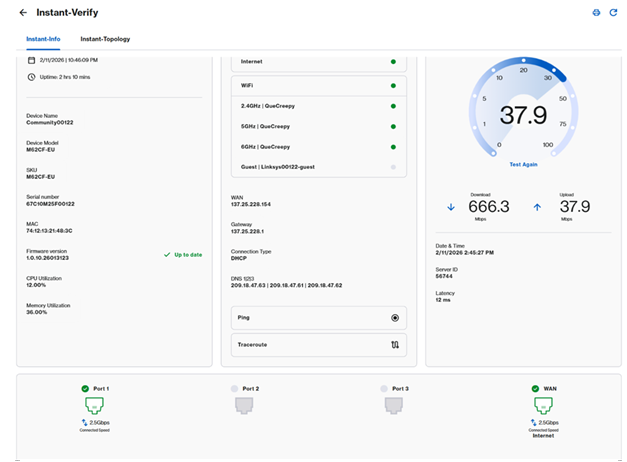
The Instant-Info tab provides a quick summary of the router. Settings may vary depending on your device’s model number.
Log in to the router’s web interface and click on Menu > Instant-Verify > Instant-Info.
SPNM60 and SPNM62
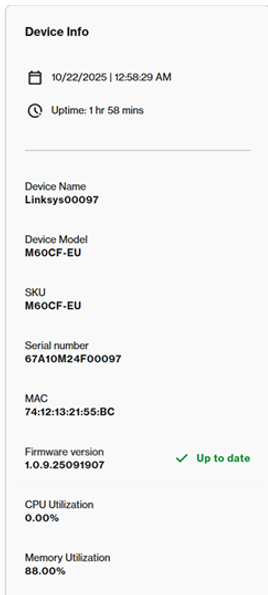
Device Info
The Device Info tile displays the following information:
- Current time and date, and uptime
- Device name
- Model series, SKU, serial number, and MAC address
- CPU and Memory Utilization
- Current firmware version
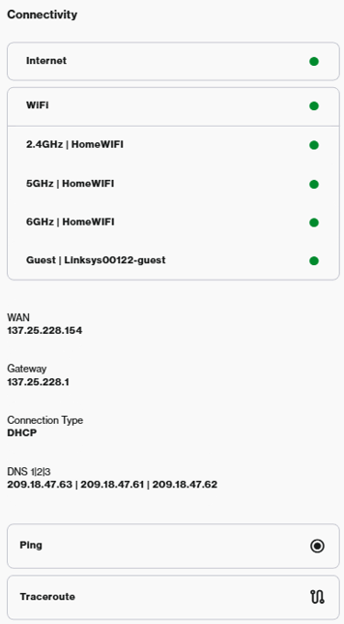
Connectivity
The Connectivity tile displays the following settings:
- Internet status
- WiFi status - Go to the Incredible WiFi tile to configure the WiFi settings.
- WAN IP address and connection settings - To configure the internet settings, DHCP server, or DNS settings, go to Advanced Settings.
- Ping and Traceroute diagnostics
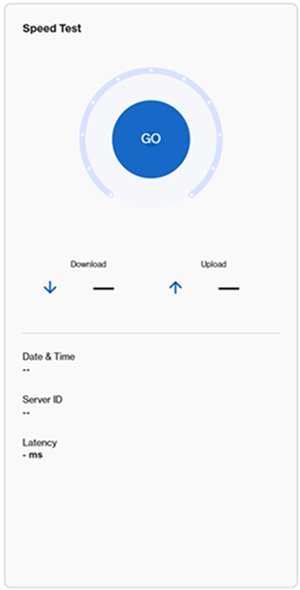
Speed Test
Speed Test services may vary by model.
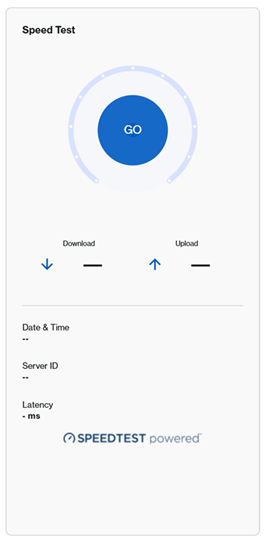
To run a speed test, click the GO button or Test Again.
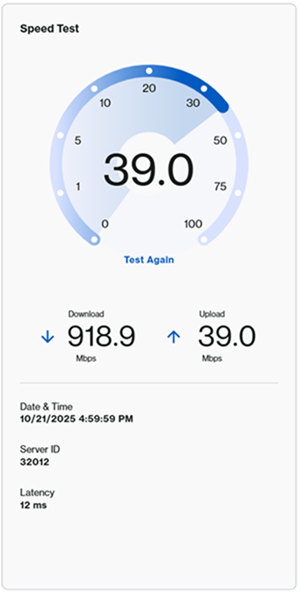
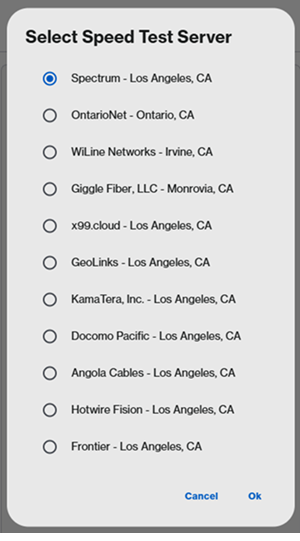
On some models, you will have to select a server first.
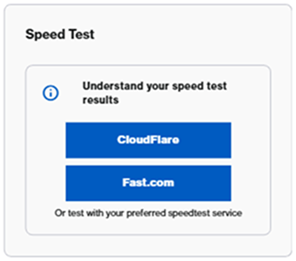
LN1600 series – Offers third-party speed test services, such as CloudFlare or Fast.com. Select a service to run a test.
Internet and LAN ports
Port layout description varies by model.
SPNM60/SPNM62
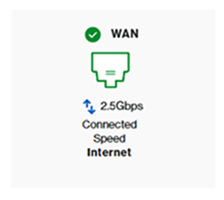
The Linksys SPNM60 and SPNM62 support three LAN ports and one Internet port. All ports are multi-link.
Scroll to the bottom of the page to check the current port in use and current speed. The connection speed will depend on the device that is connected to it.

SPNM60
- One 2.5 Gbps Internet port
- LAN ports 1 to 3 support up to 2.5 Gbps
SPNM62
- One 10 Gbps Internet port
- Ports 1 and 2 support up to 2.5 Gbps
- Port 3 supports up to 10 Gbps
LN1600 series
The Linksys LN1600 supports one multi-link Ethernet port, up to 2.5 Gbps.
Instant-Topology
In the Instant-Topology tile, you can view detailed information about the arrangement of the nodes and how they are connected to your network. Learn more.

