


Accessing the Linksys Smart Wi-Fi Router's user interface using the local access link

The web interface of your router can be accessed through the local access link on the Login page.
The steps below will guide you on how to access the Linksys Smart Wi-Fi Router settings locally.
1. Launch a web browser.
2. In the Address bar, enter your router’s IP address or “myrouter.local” then press [Enter].


The default IP address of the router is 192.168.1.1. If you changed it, enter the new IP address instead.
3. Enter your Router Password and click Sign In.
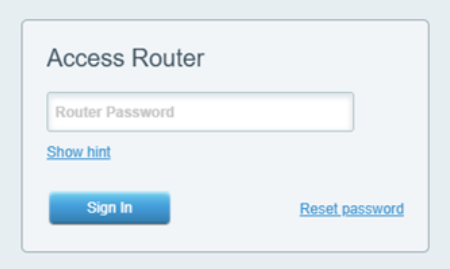
The default password is admin. If you changed it, enter the new password instead.
Wait until you are redirected to the user interface of your Linksys Smart Wi-Fi Router.
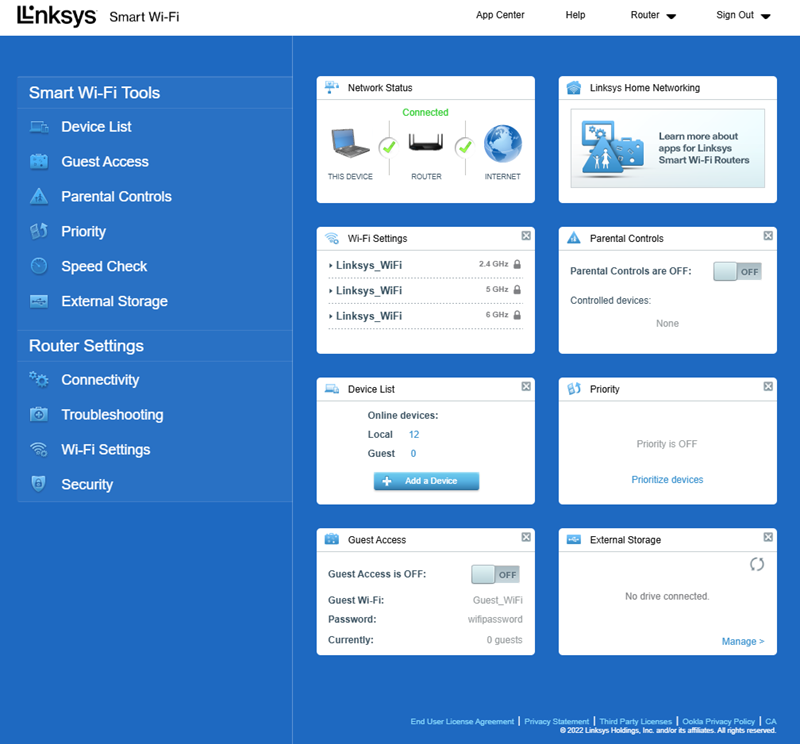
The Device List is displayed as the Network Map Tool on some of the Linksys Smart Wi-Fi Routers. The External Storage is displayed as USB Storage among Linksys Smart Wi-Fi Routers with older firmware versions.
You should now be able to change or personalize your router and network settings.
Find out more:
How to access Linksys router's web interface through a web browser

