


Child node keeps losing connection
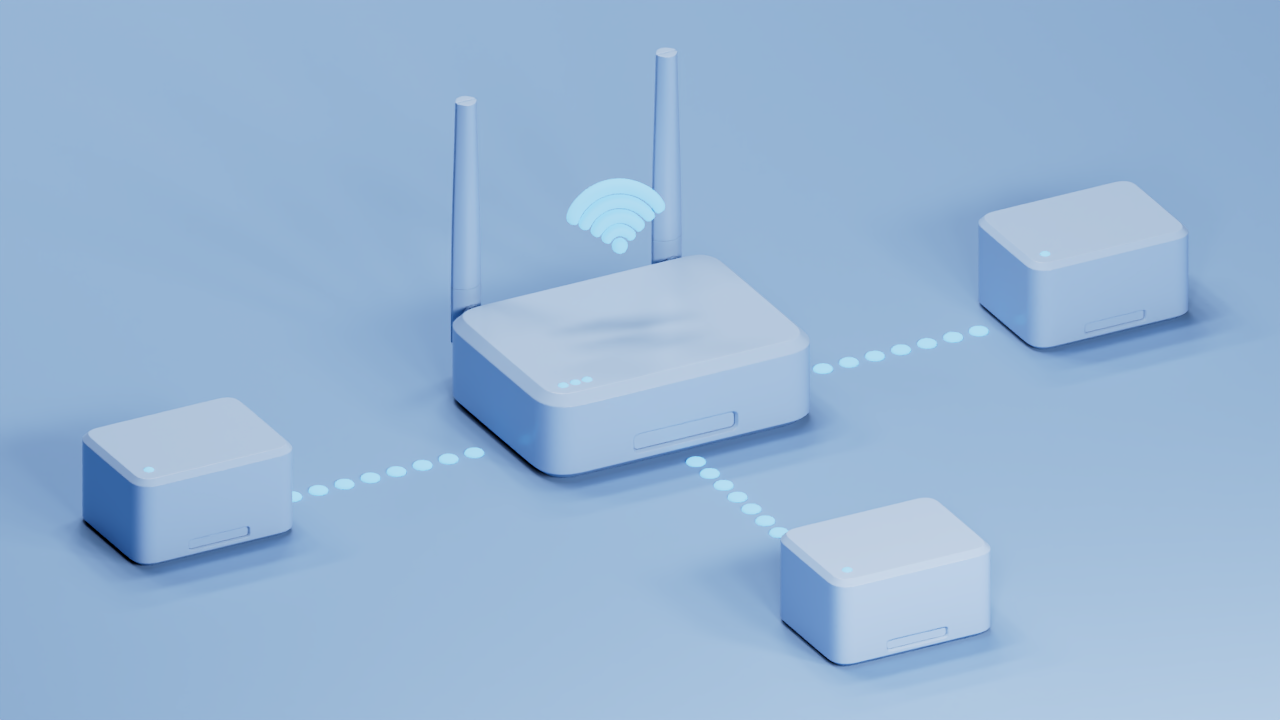
Before you begin:
- Parent node - The Linksys node that is connected to your modem or internet source.
- Child node - An additional node to extend your WiFi network.
If a child node frequently drops its connection, follow these sequential troubleshooting steps to restore a stable network.
The light of your disconnected child node reveals its status and path to resolution:
| Light Color | Status | Description |
None |
OFF |
|
Blue   |
Blinking |
|
| Solid |
|
|
White  |
Blinking |
|
| Solid |
|
|
Red  |
Solid |
|
|
Blinking |
|
Distance and physical interference are the primary causes of dropping connections between your hardware.
- Reduce distance: Move the child node closer to the parent node or an adjacent, stable child node.
- Line of sight: Avoid placing nodes behind thick concrete walls, inside metal entertainment centers, or near heavy electronics.
- Verify Strength: Learn how to check real-time connection metrics to ensure your units sit within an "Excellent" or "Good" coverage zone.
Reference: Understanding the signal strength in the LinksysNOW web interface
To prevent nodes from connecting to a farther node, perform a sequence reboot. A sequence reboot helps mesh nodes establish connections in the intended order, reducing the chance that a child node connects to a farther or less suitable upstream node.
1. Turn OFF all nodes. Power OFF the parent node and all child nodes.
2. Power ON the parent node first. Wait until its LED indicates that it is fully booted and operational.
3. Power ON the first child node. Wait for it to finish booting and reconnect to the mesh network.
4. Power ON the remaining child nodes one at a time. Follow the intended network topology, powering ON each node only after the previous node has reconnected successfully.
5. Verify the mesh connections. Once all nodes are online, check the connection status and confirm that each child node is connected to the intended upstream node.
Certain advanced wireless technologies can cause specific node models to drop offline. Turn OFF the following features one at a time to isolate the cause. Follow these instructions to learn how.
- Multi-Link Operation (MLO): Located under the Advanced tab, this can cause sync issues on certain Wi-Fi® 7 mesh setups between the parent node and child nodes.
- Dynamic Frequency Selection (DFS): Forces the network to change channels if radar activity is detected, temporarily dropping connected child nodes.
- MAC Filtering: Located under its own menu tab, review this area to ensure a child node or its wired clients aren't being inadvertently blocked by the parent node.
If none of the above resolved the problem, contact Linksys support and provide the following information:
- Disconnection frequency: How often do they drop? (e.g., twice a day)
- Outage duration: How long do self-reconnections take?
- Self-healing: Do nodes reconnect on their own?
- Manual reboots: Must you restart the parent or child node?
- Initial signs: What is your first observation during a drop?
- LED status: Is the child light solid or blinking? What color?
- Wired clients: Are any devices hardwired to the child nodes?

