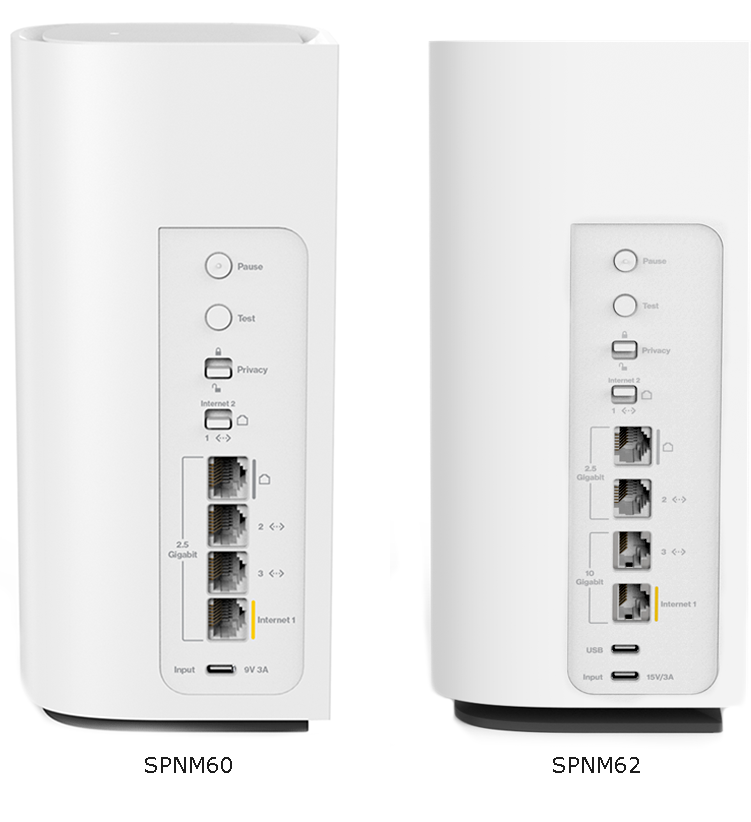
The Linksys Pinnacle Mesh router features a variety of physical buttons and switches across its bottom and back panels, each designed to give you greater control over network setup, diagnostics, and privacy. Below is a quick overview of each control’s purpose and functionality to help you get the most out of your router.
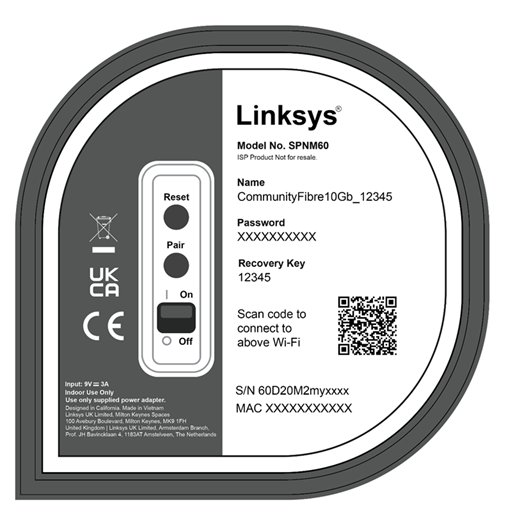
- Reset button – Hold for 15-20 seconds to restore the router to factory default settings.
- Pair button – For adding child nodes into the network.
- Power switch – Toggle to power the router ON or OFF.
Scan the QR code to connect to WiFi clients using the default settings. If the WiFi settings have been customized, use the QR code located in the router’s web interface instead.
Side panel
Pause button
Pressing the Pause button will block all WAN traffic (both wired and wireless) for 120 seconds. If you have other Linksys SPNM60CF or SPNM62CF units configured as child nodes, note that the Pause button is only supported on the parent router.

1. Press the Pause button on the parent router. The light indicator on the top panel will start blinking white once activated.
2. The pause will stop all WAN traffic for 120 seconds. The light will return to solid white once the internet connection resumes.
3. To cancel the pause, simply press the Pause button again.
Test button

Press the Test button on your router to perform a quick diagnostic check. Supported on the parent router only. Not supported in Bridge mode.
What the test checks:
- Verifies that both the 2.4 and 5 GHz WiFi radios are ON
- Confirms that an internet connection is detected
- Validates successful DNS resolution
While the test is in progress, the light indicator on the parent router will flash white. After completion, the light will indicate the result with one of the following light states:
- Green – All tests passed. After 30 seconds, the light will return to solid white.
- Orange – DNS or WiFi radio test failed. You will need to reboot the router for the light to go back to its previous state.
- Red – Internet connection failed. The light will remain red until the internet connection is restored, then switch to solid white.
Privacy switch
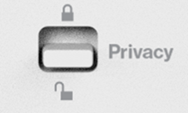
The Instant-Privacy feature prevents any new wireless devices from joining the network. By default, this feature is turned OFF. Supported only on the parent router. You can either use the external toggle switch or you can also enable it from the web interface.
Before you enable this option:
- Ensure all devices you want on the network are connected to WiFi first. You can then turn the Instant-Privacy feature ON.
IMPORTANT: If a device has a Private Wi-Fi Address or Random MAC address enabled, it may not reconnect to the network on its next attempt due to the new MAC address it uses. To resolve this, disable the random MAC feature on iOS or Android™, turn Instant-Privacy OFF, reconnect your devices, and then turn it back ON. - When adding new child nodes, be sure to turn the feature OFF beforehand. Once the nodes have been added successfully, you may turn them back ON.
- If MAC Filtering is enabled on your Linksys router, it will automatically be turned OFF when Instant-Privacy is active.
To use the external toggle switch, move it to the lock position to enable the feature. You can also log in to the web interface to check the ON/OFF status.
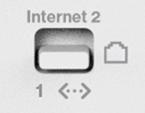
Internet 2 switch
This feature is reserved for future use. Ensure the toggle switch is in the down position.
Additional USB port (Linksys SPNM62 only)
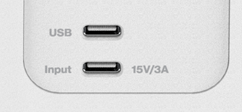
The SPNM62 model includes an extra USB-C port labeled USB, which can be used to charge smartphones and other compatible devices.