If you need to reset the parent router (router connected to your modem), there are a few methods on how to set up your router and child nodes again. This article applies to the Linksys LN1400PW-HK model using a DHCP (Automatic) internet connection type.
Before you begin:
- If your service provider uses PPPoE, you can follow these setup instructions.
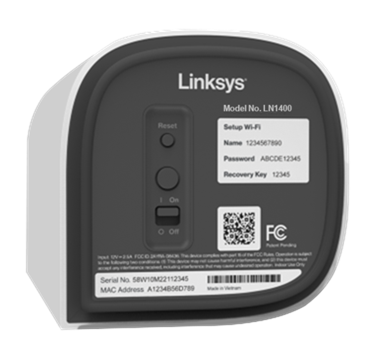
- Write down the default WiFi name, password, and recovery key found at the bottom of the parent router.
- Parent router: The parent router is the Linksys Mesh router that will be connected to your modem.
- Child node: An additional Linksys Mesh node used to extend your WiFi, such as another Linksys Mesh router.
What's required:
- Pair button setup: A mobile device or computer is required to customize your settings.
- Plug-N-Play setup wizard: A mobile device or computer is required to customize your settings.
Choose one of the following setup methods below:
Pair button setup
This is the easiest and quickest way to set up the parent router. A mobile device or computer is required to customize your settings after the setup is completed.
1. Remove any existing router, then connect to the Linksys router using an ethernet cable from the Internet port to your modem, and power on the router. Wait until the light on the router is a solid blue light, which indicates it is ready for setup.
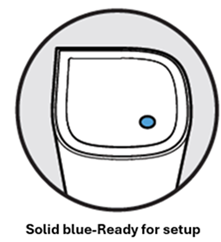
Is the light solid red? If the light is solid red, reset it by holding down the reset button for about 15 seconds, then wait until the light becomes solid blue.
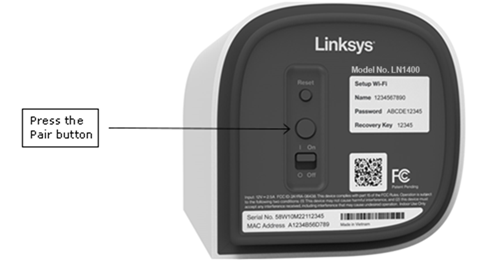
2. Once the router has a solid blue light, press the Pair button on the bottom of the parent router for at least 3 seconds.
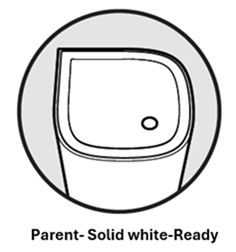
3. The light on the parent router will begin blinking. Once the light on the router turns solid white, the router is now set up and online.
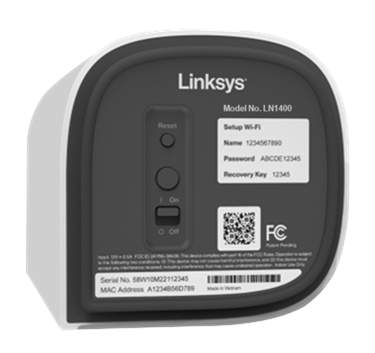
4. Connect a mobile device or desktop computer to the default WiFi name. The default WiFi credentials are located at the bottom of the parent router. If you are using a mobile device, scan the QR code to connect to the WiFi.
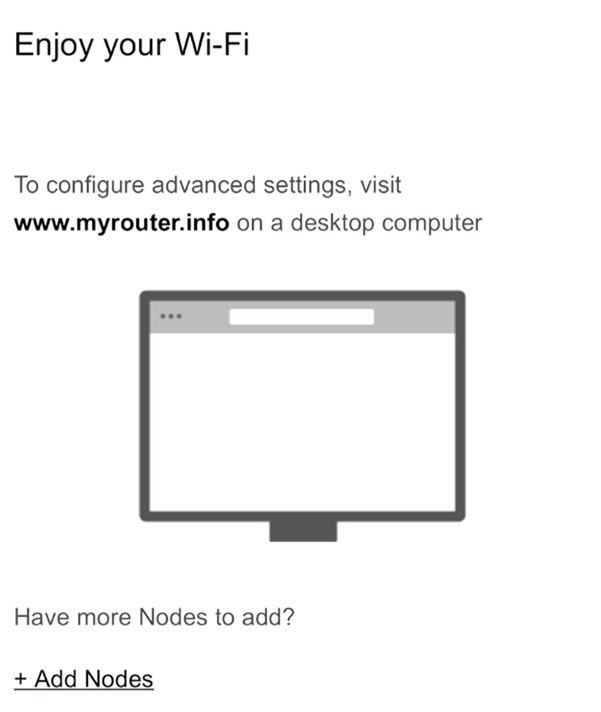
5. Open a desktop browser and enter "www.myrouter.info" or "myrouter.info" in the Address bar and hit [ENTER]. You can also use the IP address of the parent router, which is https://192.168.1.1.
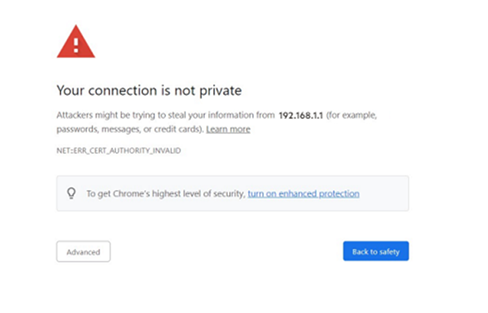
6. If you receive any browser warning messages, follow these instructions to bypass the browser message.
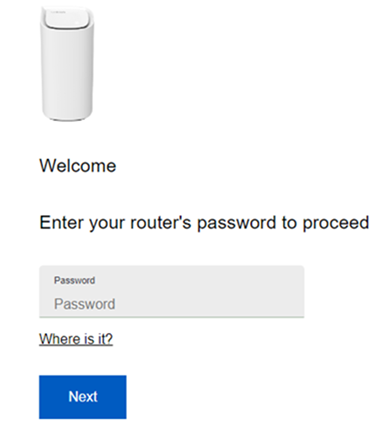
7. Enter the router’s default password. The password is the same as the default WiFi password located on the bottom of the parent router connected to your modem, then click Next.
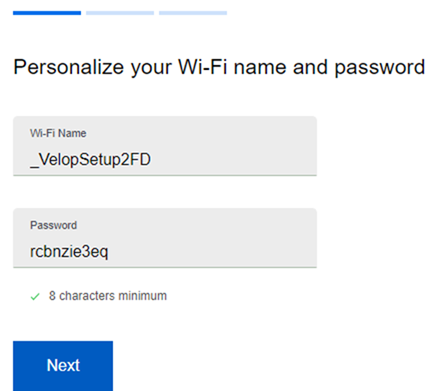
8. Customize your WiFi name and password and click Next. The WiFi password is case-sensitive.
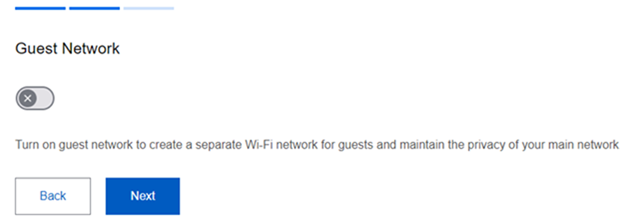
9. Enable the Guest network as needed; you can change this later at any time after setup. Click Next.
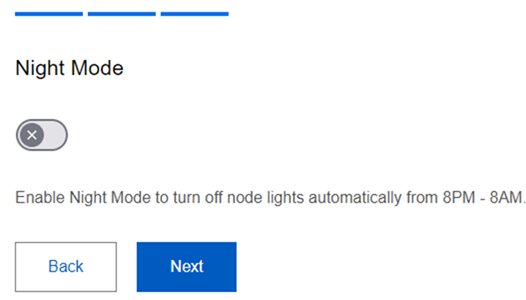
10. Enable the Night Mode feature. You can change this setting after setup using the Linksys app. Click Next.
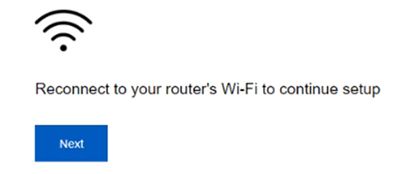
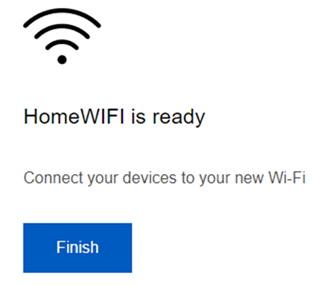
11. Wait while the settings are being saved. Connect your mobile device or computer using the new WiFi name when prompted, enter the password if needed, hit Next, and then click Finish.
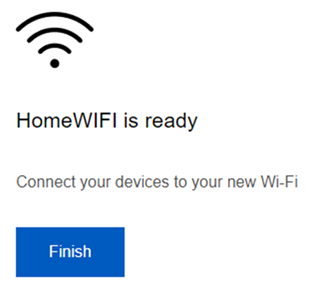
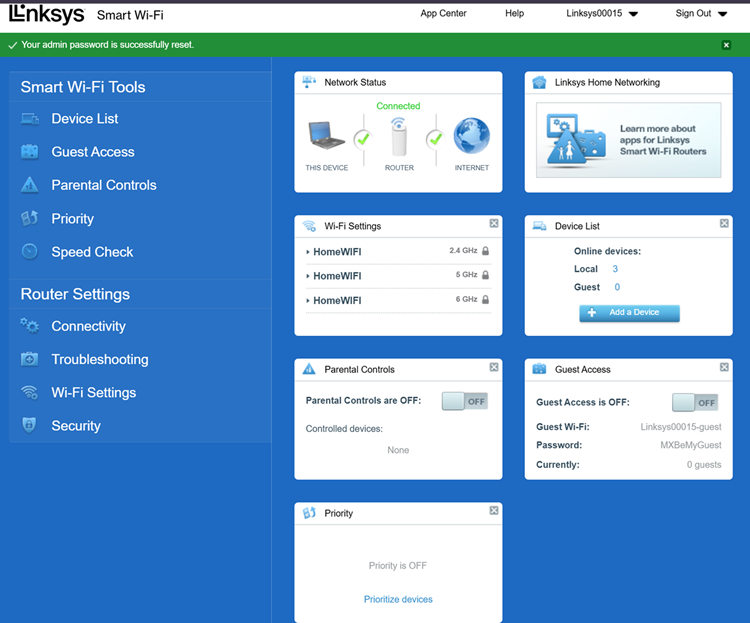
12. You have now customized the basic settings of your router. Log in to the router's dashboard for further customizations.
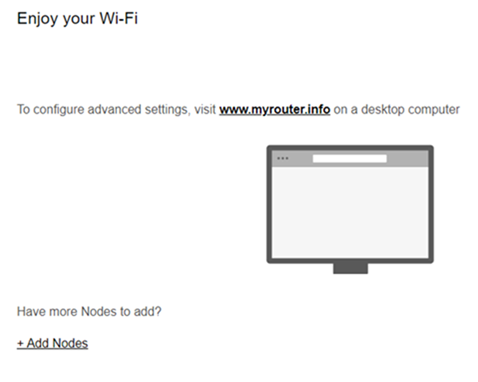
To add child nodes, either click on +Add Nodes or add child nodes later.
1. Remove any existing router, then connect the Linksys router using an ethernet cable from the Internet port to your modem and power on the router. Wait until the light on the router is a solid blue light, which indicates it is ready for setup
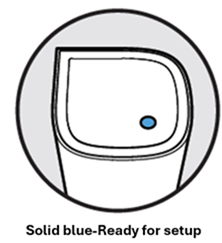
Is the light solid red? If the light is solid red, reset it by holding down the reset button for about 15 seconds, then wait until the light becomes solid blue.
2. Connect a mobile device or desktop computer to the default WiFi name. The default WiFi credentials are located at the bottom of the parent router.
3. Open a desktop browser and enter "www.myrouter.info" or "myrouter.info" in the Address bar and hit [ENTER]. You can also use the IP address of the parent router, which is https://192.168.1.1.
4. If you receive any browser warning messages, follow these instructions to bypass the browser message.
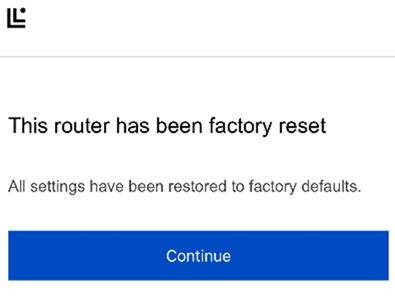
5. Click Continue.
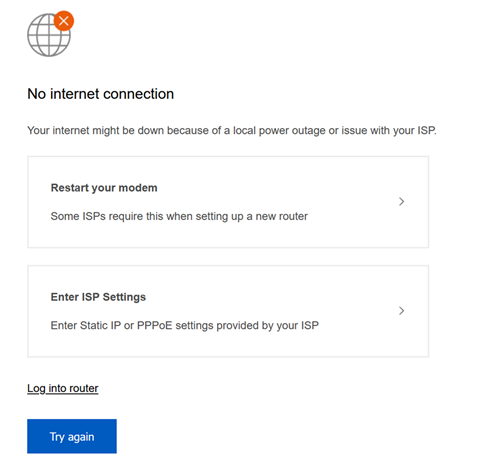
No Internet connection message: Make sure the modem is plugged into the Internet port of the Linksys parent router. If your connection requires manual settings, follow these instructions with a device that is online. Click Restart your modem.
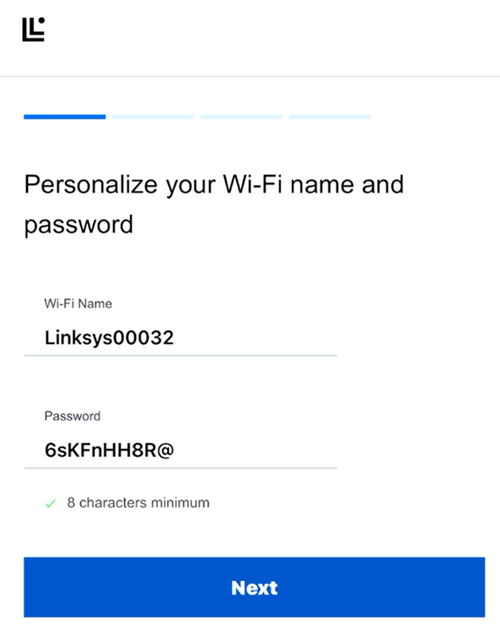
6. Customize your WIFI name and password and click Next. The WiFi password is case sensitive.
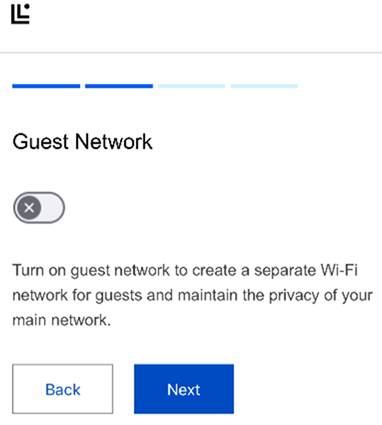
7. Enable the Guest network if needed. You can change this at any time after setting up.
8. Turn ON the Night mode feature if needed. You can change this setting at any time.
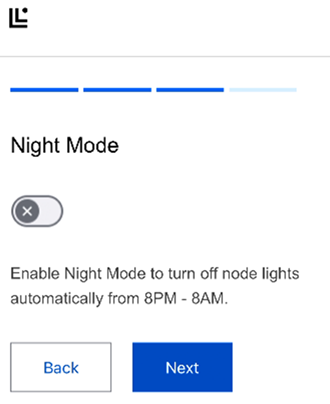
9. Connect to your new WiFi name when prompted and then click Next.
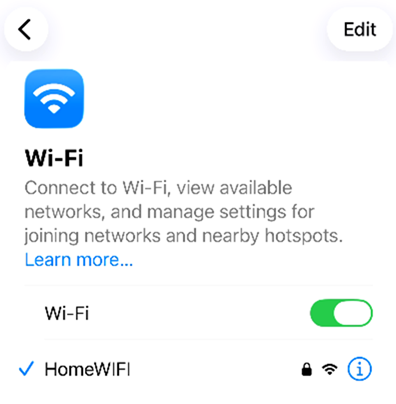
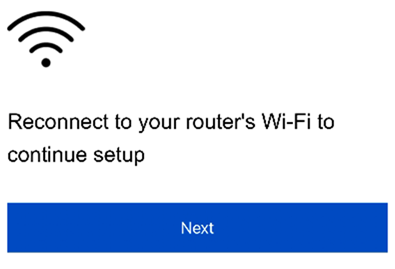
10. Adding child nodes?
- Yes – Click on +Add Nodes.
- No – Click Next. To add child nodes later, follow these instructions.
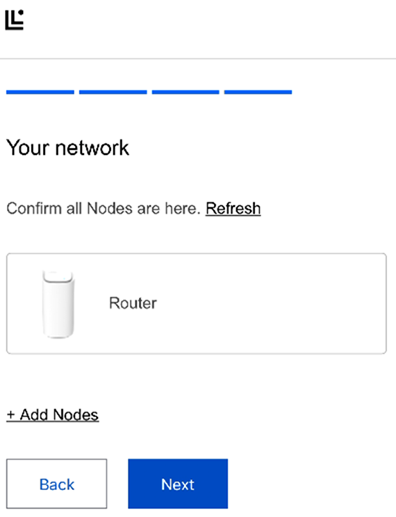
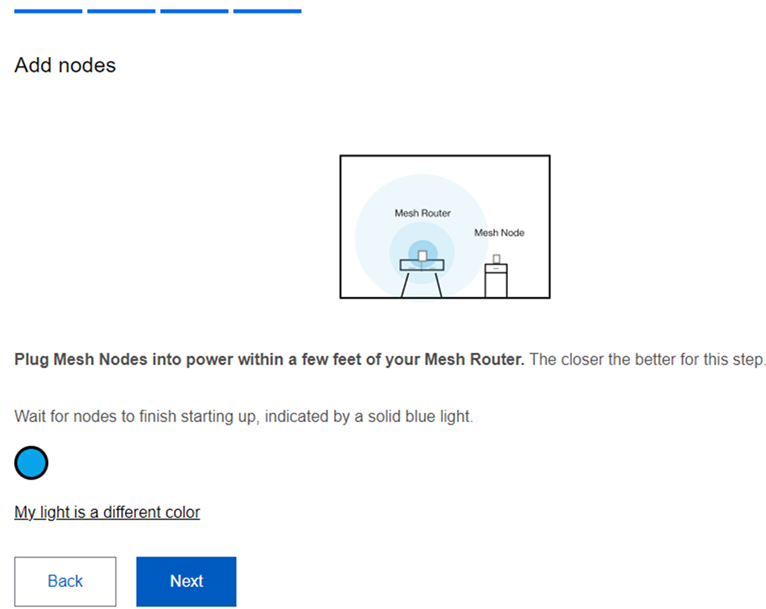
11. Make sure the child nodes have a solid blue light, which indicates that the node is ready for setup, then click Next.
If the light on the child node is red, hold down the reset button on this node for about 15-20 seconds. Wait for the light to turn solid blue and then click Add Nodes again to try again.
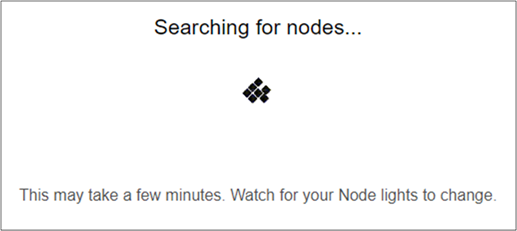
12. The router will begin scanning for unconfigured nodes. Once the nodes are detected, the child node’s light will begin blinking.
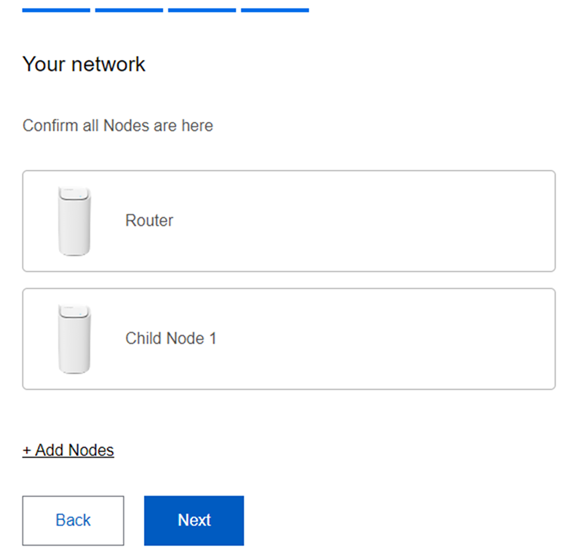
13. Once the child node has been added to the network, you will see a list of your nodes. Click Next.
Child node not found or not showing in the list?
- Check the light on the child node; if it’s blinking white or solid white, the node has been added successfully. The node may be taking a little bit longer to show on the list. Just click Next to continue. Once the light on the child nodes is solid white, you can check the Device list in the web interface or Network Administration in the mobile app for the child nodes.
- If the light on the child node is solid blue, try clicking on Add Nodes again, and make sure the node is no more than 10 ft away from the parent router. You can also complete the wizard or try other methods for adding a child node.
14. Click Next
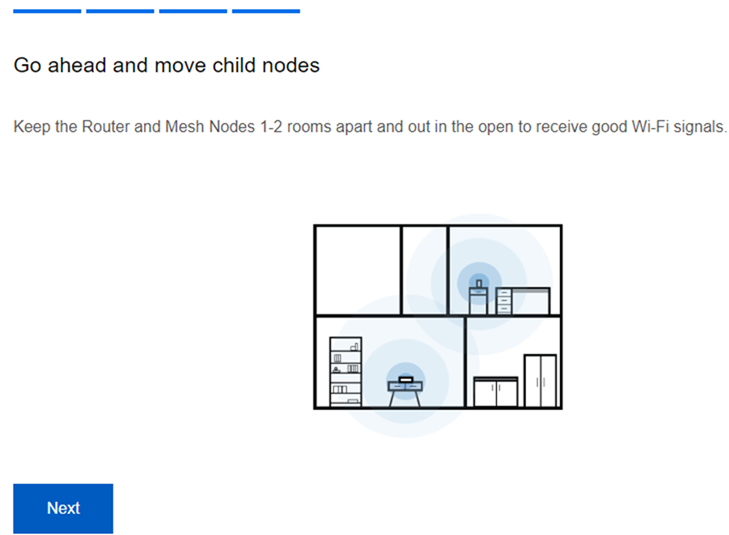
15. Click Finish.
16. Setup is now complete. Log in to the router's dashboard for more information.