


It is recommended to keep the automatic firmware updates turned ON, so you can receive the latest firmware updates when they become available.
However, if you need to manually update the firmware, you can use the methods below.
Hidden firmware link
Web interface
Hidden firmware link
1. Download the Linksys LN1100 firmware to your computer.
2. Connect the computer to the Linksys LN1100 network.
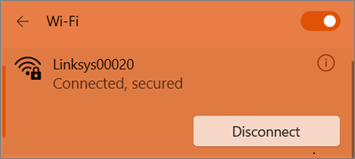
3. Open a web browser and enter "www.myrouter.info/fwupdate.html" in the Address bar. Press [Enter] on your keyboard to proceed.
You can also use the IP address of your Linksys LN1100 router such as "https://192.168.1.1/fwupdate.html".
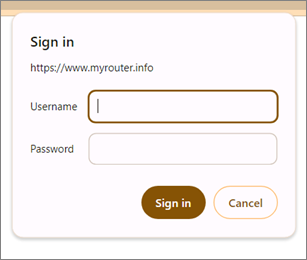
4. When prompted enter the Username and Password and then click Sign in.
a. Unconfigured Router - If the router is on factory defaults, use admin for both Username and Password.
b. Configured Router - If the router is configured, use admin as the Username and the Password is the same as the default WiFi password. If you have changed your router’s password, use your customized password.
5. Enter your current router password in the Admin password field. This field will always show as “admin” regardless if you have already personalized your router password or not. Make sure to enter the correct router password.
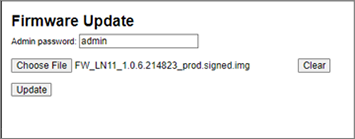
6. Click Choose File and select the firmware you downloaded previously. Click Update to proceed.
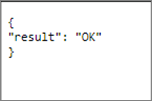
7. Wait until you get an OK confirmation. Do not turn OFF the router during this process.
8. The status light on the router will begin to flash, wait until the light goes back to solid white or solid blue, depending on its previous state.
Once the light goes back to solid, the update is complete.
Web interface
1. Download the Linksys LN1100 firmware to your computer.
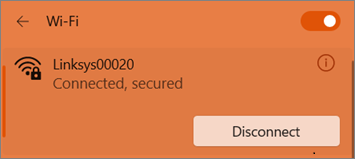
2. Connect the computer to the Linksys LN1100 network.
3. Open a browser and enter "www.myrouter.info" or "myrouter.info" in the Address bar. Press [Enter] on your keyboard to proceed.
4. Log in with your router password. If you have customized your password or have forgotten it, click on Reset password and follow the steps to change the router password.
5. Click on the CA link at the bottom of the screen.

6. Click on Connectivity > Basic.
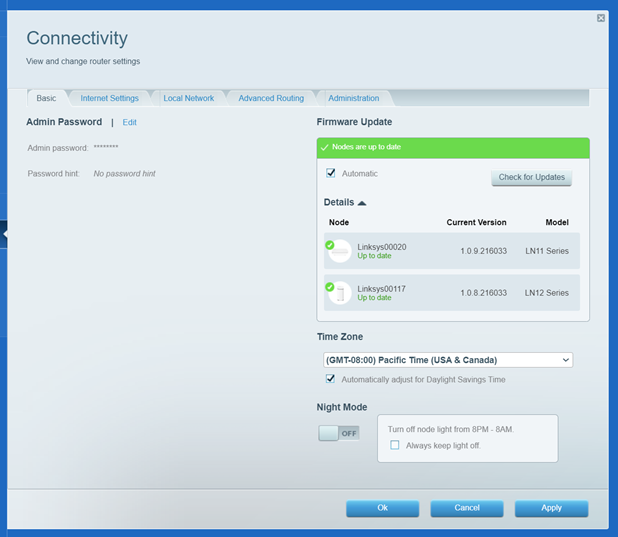
7. Click on Choose File and select the firmware you downloaded previously, then click Start.


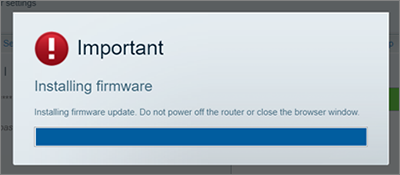
10. The router’s status light will begin to flash, once the light is solid, the update has been completed.

