You are using an unsupported browser. Please update your browser to the latest version on or before July 31, 2020.
close
You are viewing the article in preview mode. It is not live at the moment.
> 進階配置 > 使用MLO無線連接兩台OpenWRT MBE70(LN6001)路由器
使用MLO無線連接兩台OpenWRT MBE70(LN6001)路由器
print icon

本文提供了逐步說明,如何配置兩台Linksys OpenWRT MBE70(LN6001)設備,使用多鏈路操作(MLO)建立無線連接。


如需進一步説明,請聯繫OpenWRT社區尋求支援。


網路拓撲
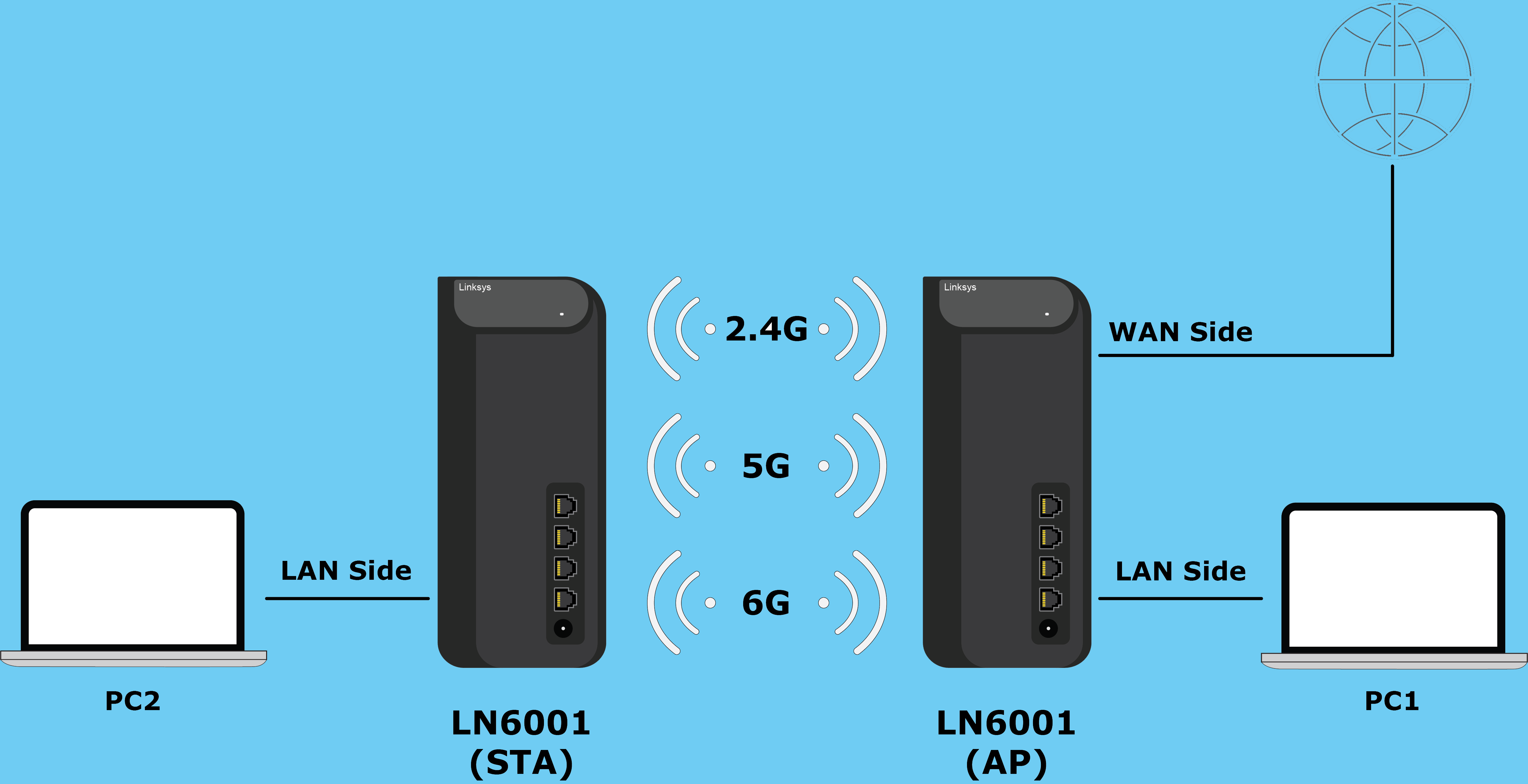
 

Network Topology


第一台路由器:在你的母 MBE70(AP)上執行以下設置。


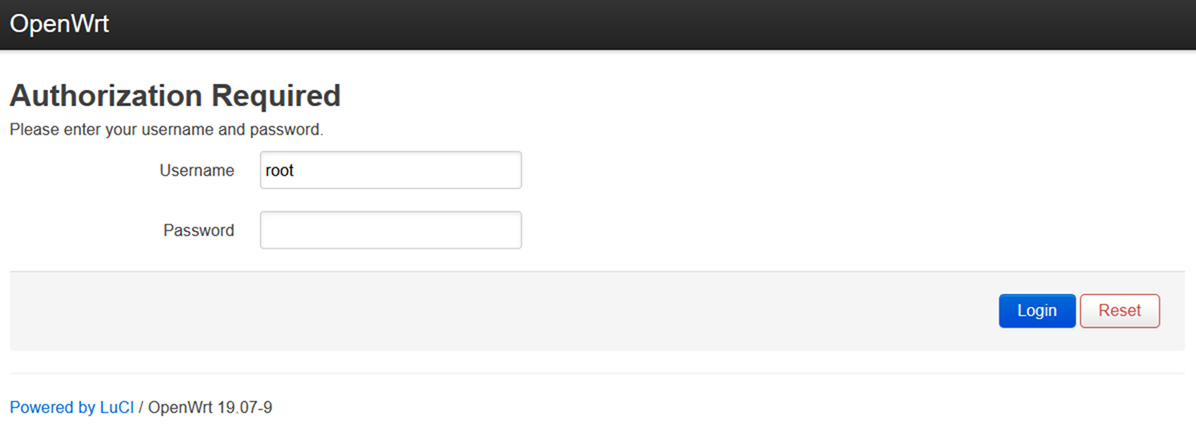
1. 登錄路由器。默認使用者名和密碼分別是root和預設WiFi密碼


Router login screen

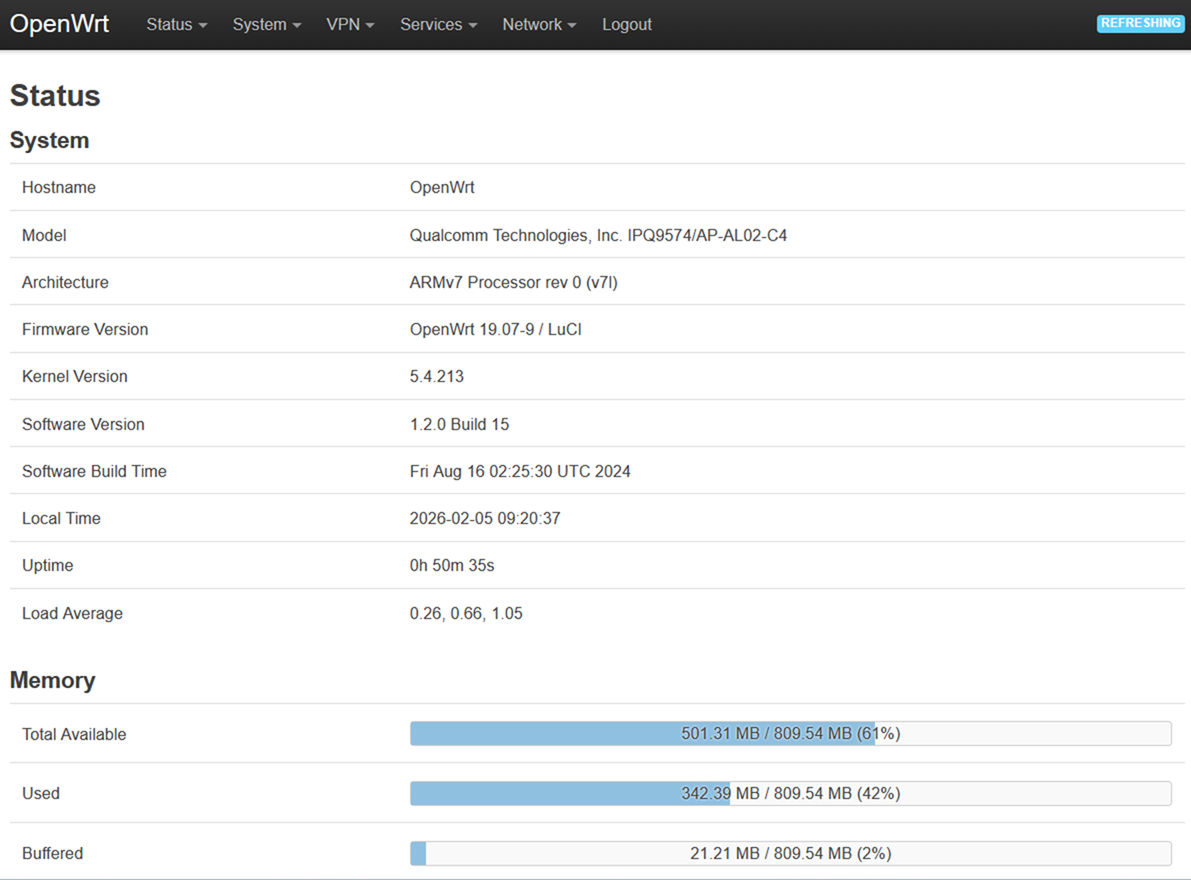
2. 進入網頁介面后,進入網路>無線


Select the Network tab and then go to the Wireless sub-tab

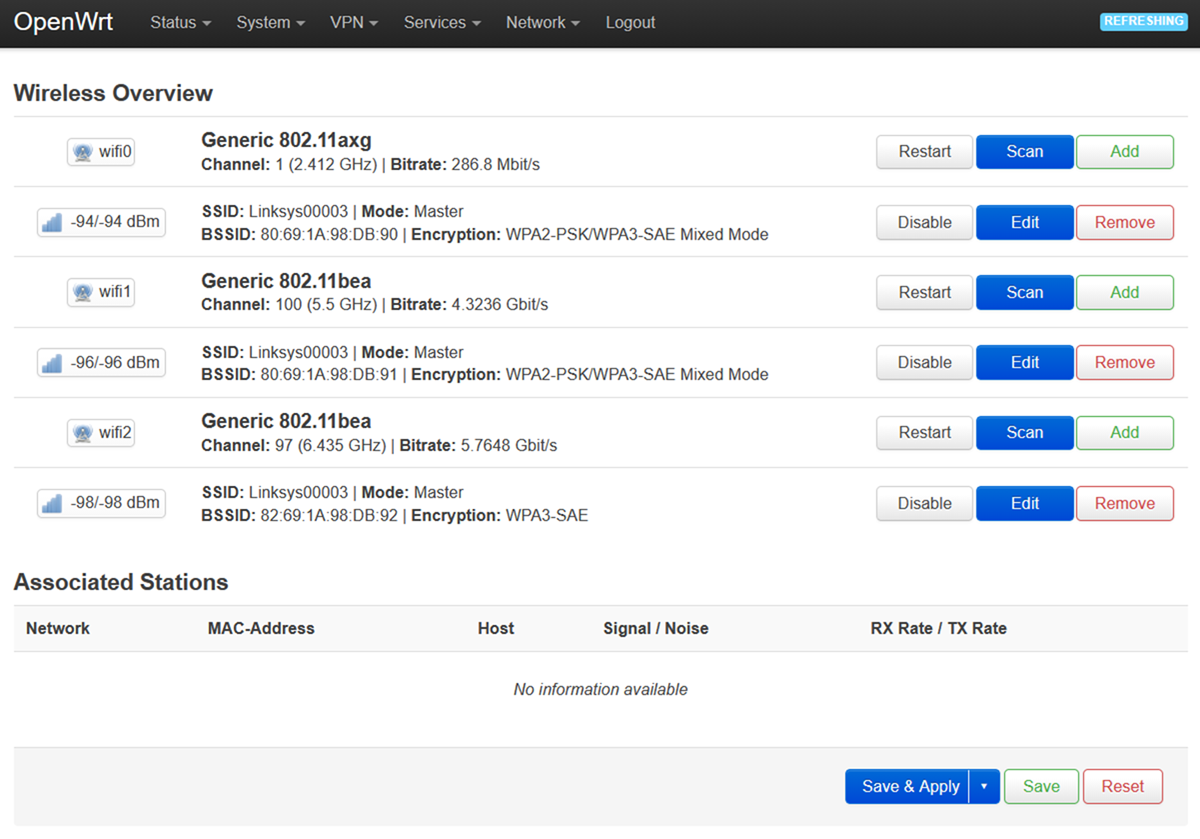
3. 點擊編輯按鈕,連接2.4 GHz介面(wifi0)。


Click Edit where it says "wifi0"

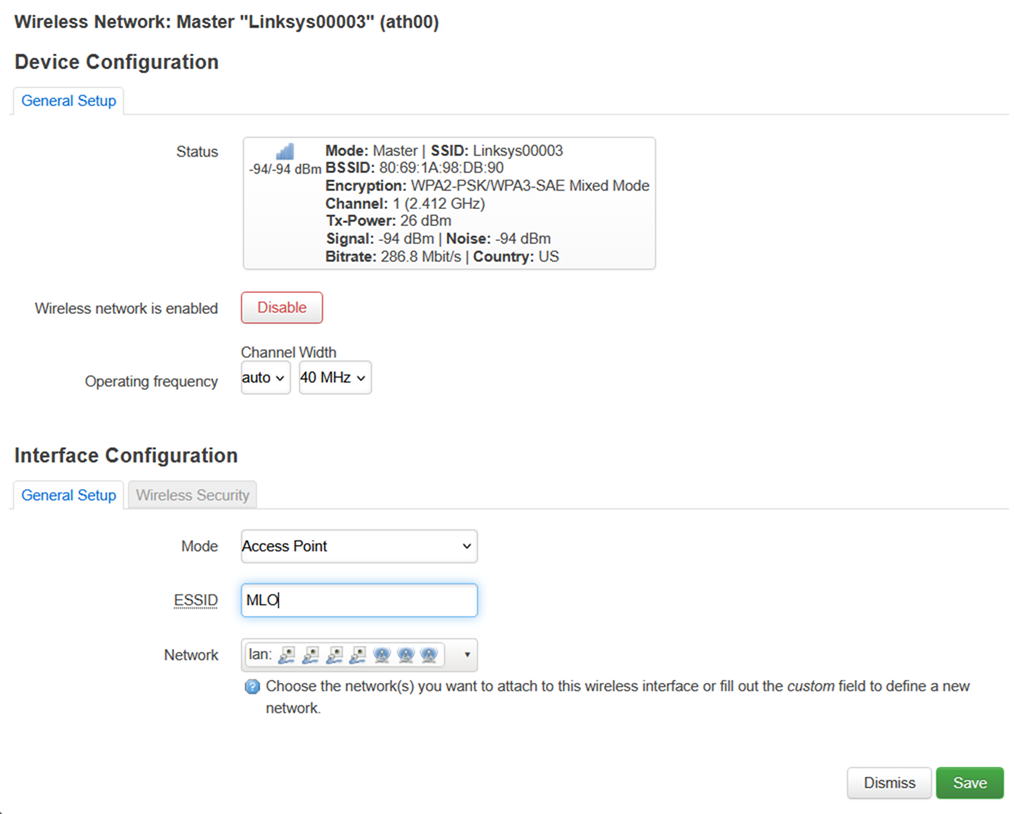
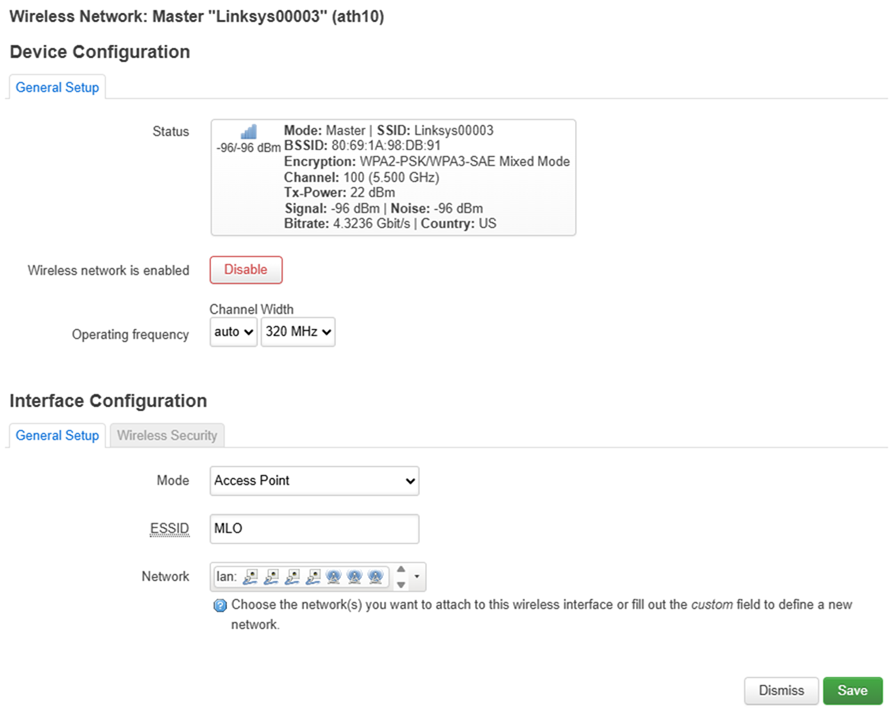
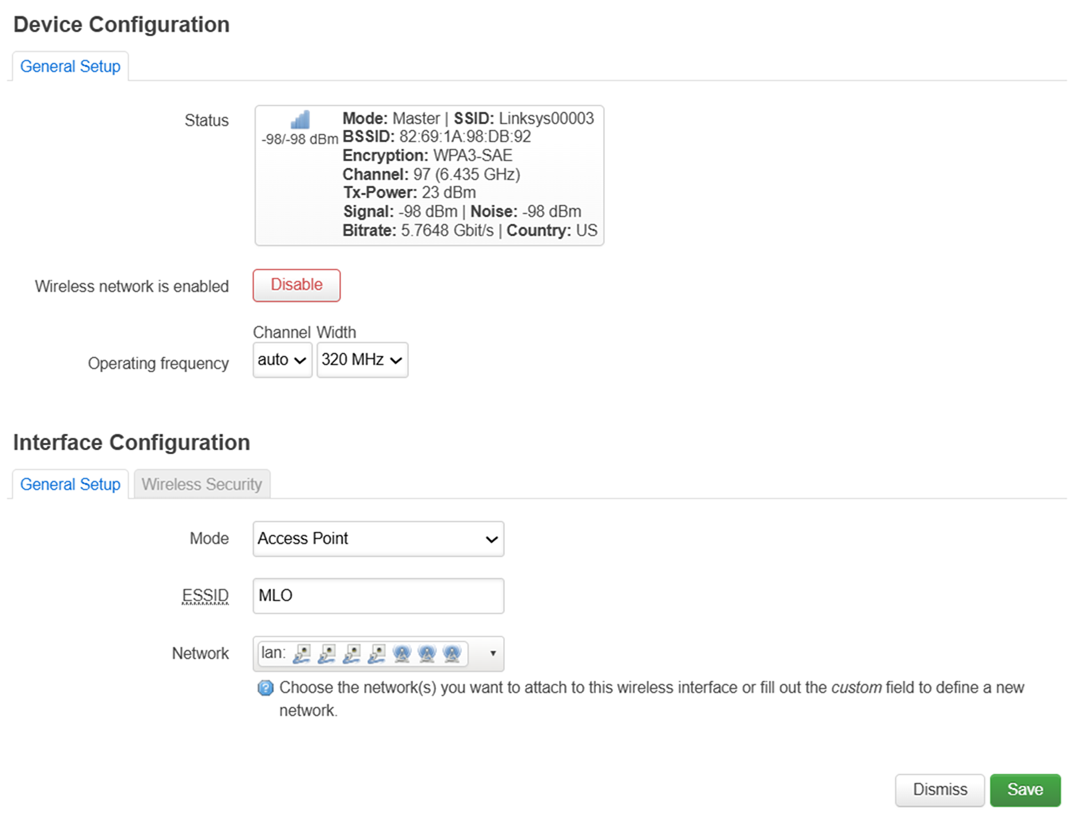
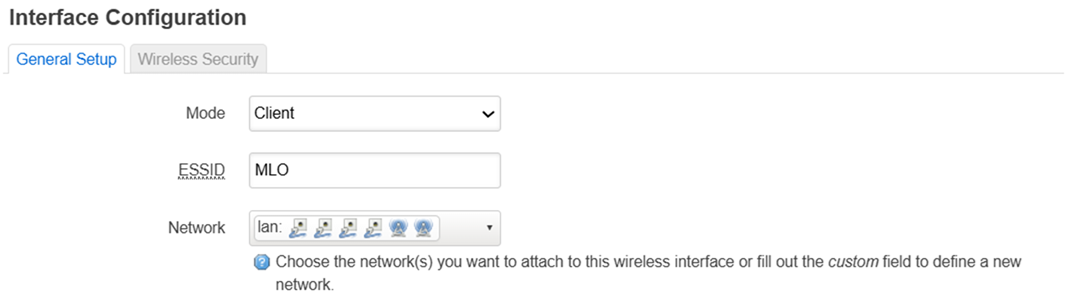
4. 在「介面配置」 >「通用設置」 中,將ESSID更改為MLO

Edit ESSID to "MLO"

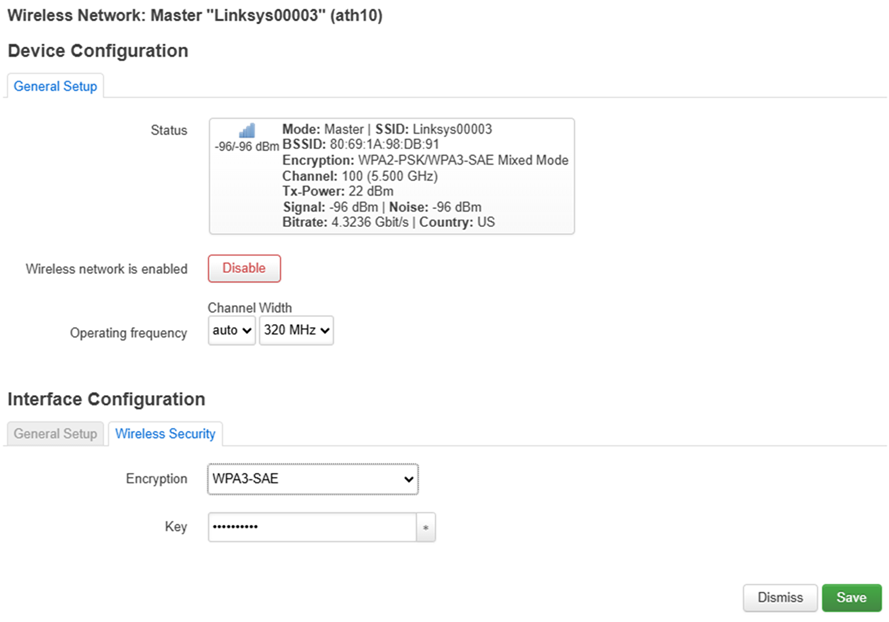
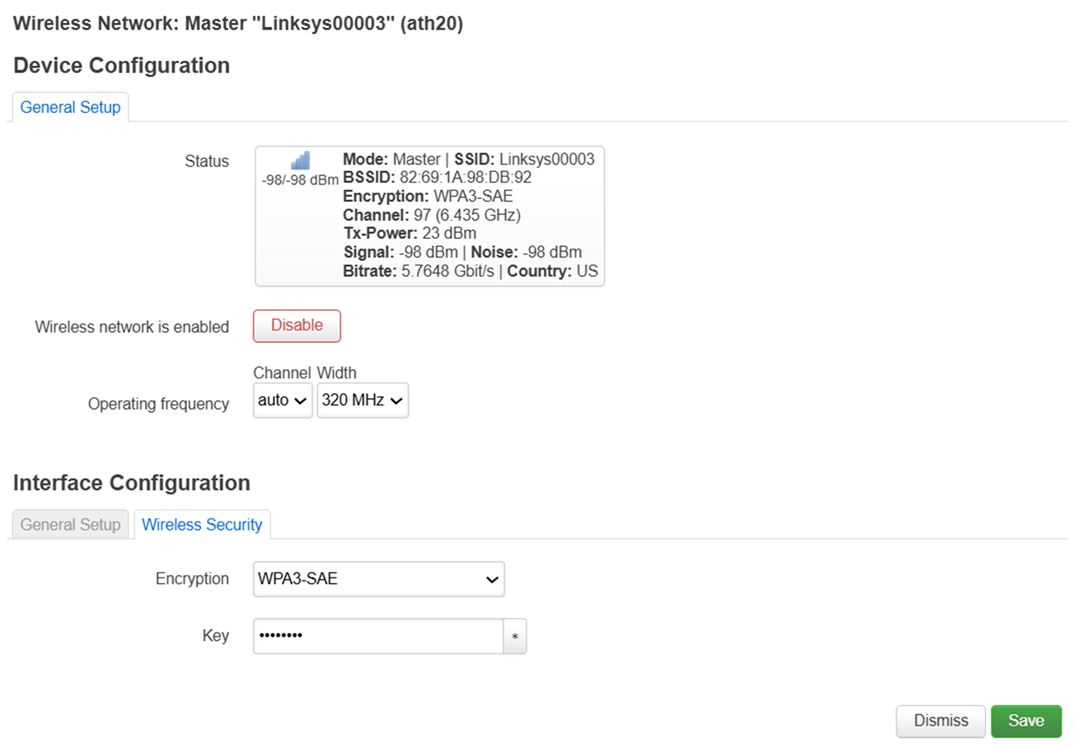
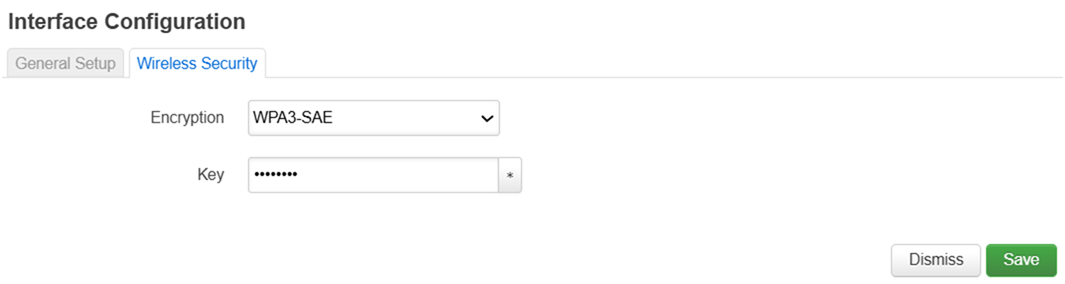
5. 在無線安全中,將加密改為WPA3-SAE,並自定義密鑰(這將是你2.4 GHz頻段的無線密碼)。


點擊保存繼續。
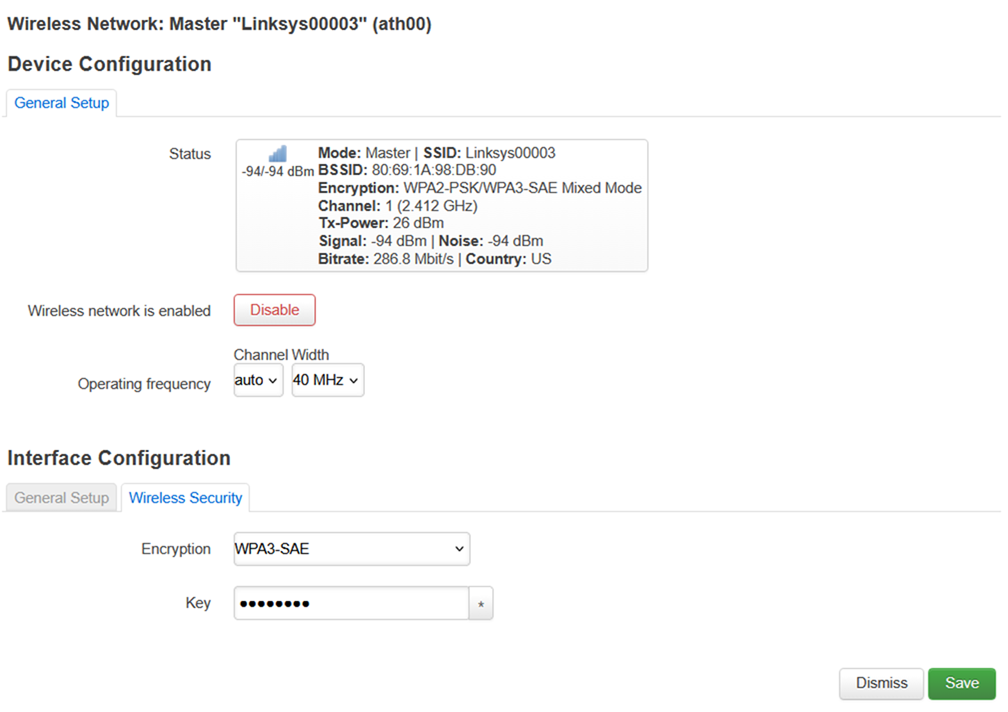
 

Go to "Wireless Security" and change the Encryption to WPA3-SAE


6. 您將被重新導向到無線概覽頁面。點擊「保存並應用」。


Click the Save & Apply button at the bottom.


Changes successfully saved.


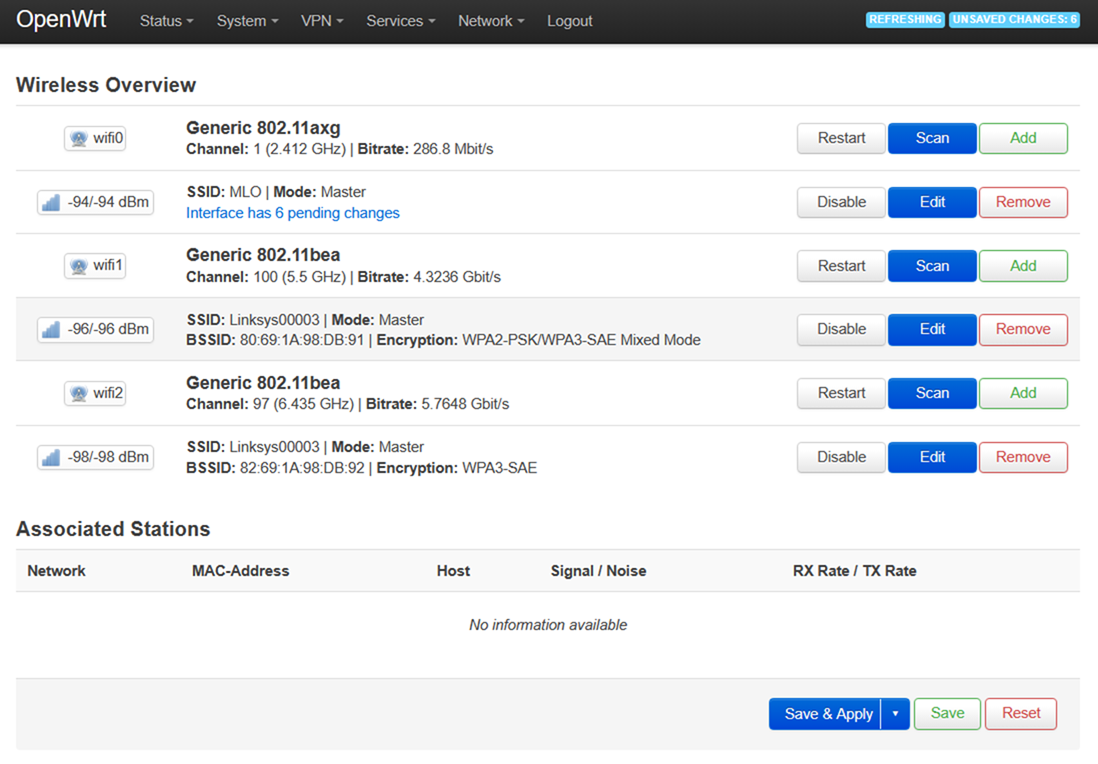
7. 對5 GHz介面(wifi1)執行同樣的步驟。


Apply the same configuration to "wifi1" settings


wifi1 settings


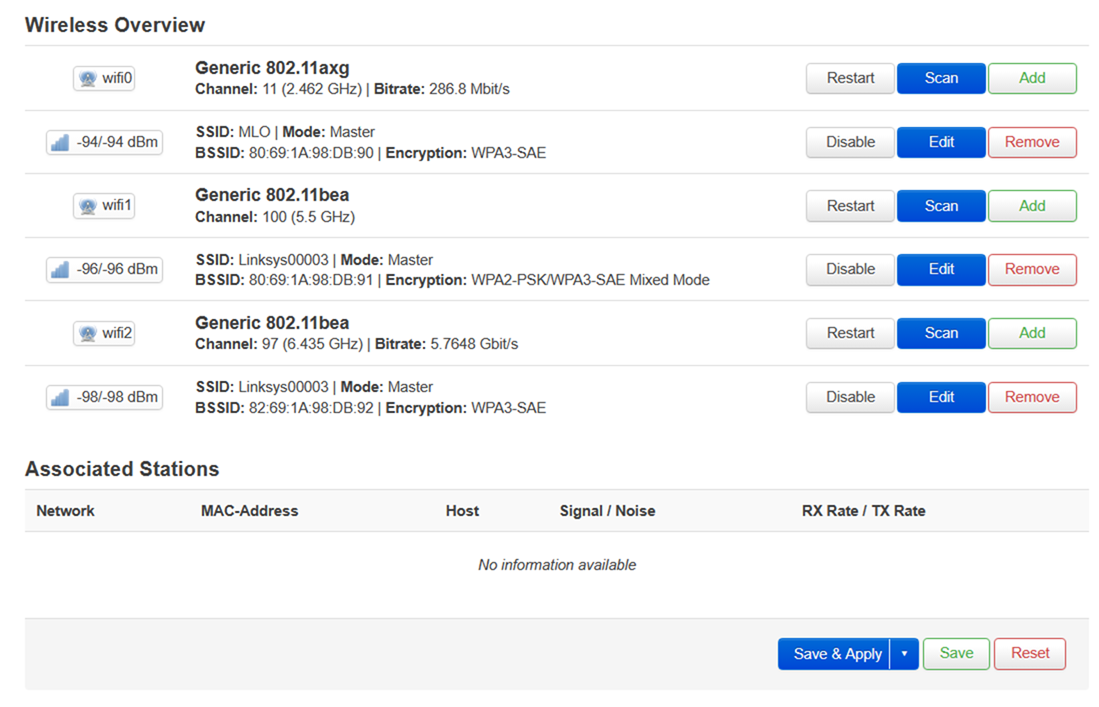
8. 對6 GHz介面(WiFi2)執行同樣步驟。


Apply the same configuration to "wifi2" settings


wifi2 settings


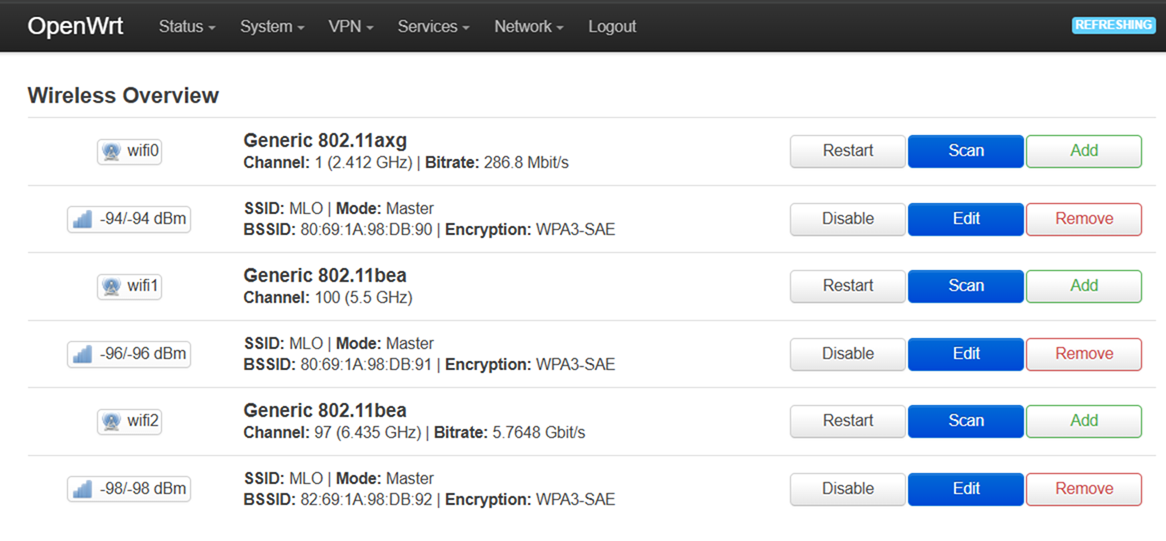
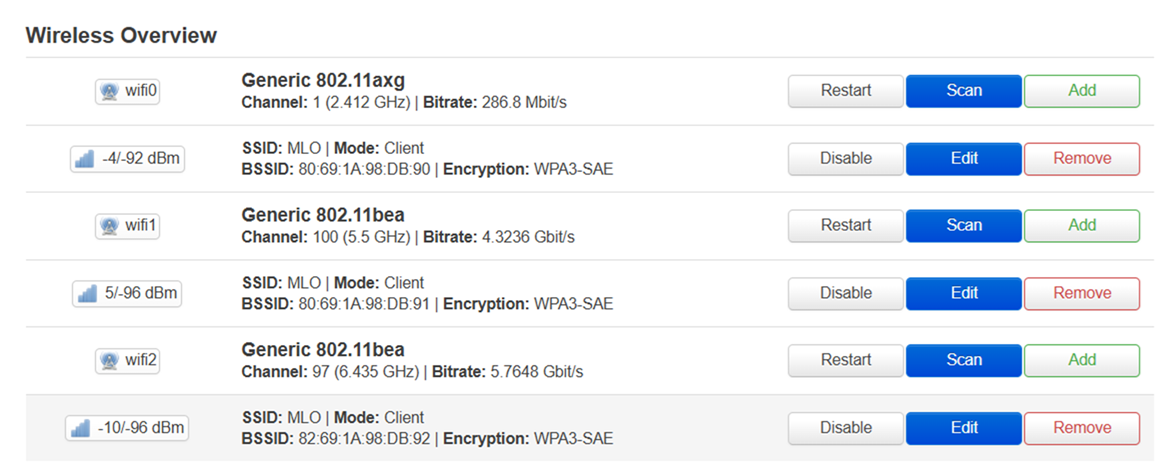
wifi0, wifi1, and wifi2 settings overview


9. 存取MLO>網路  。


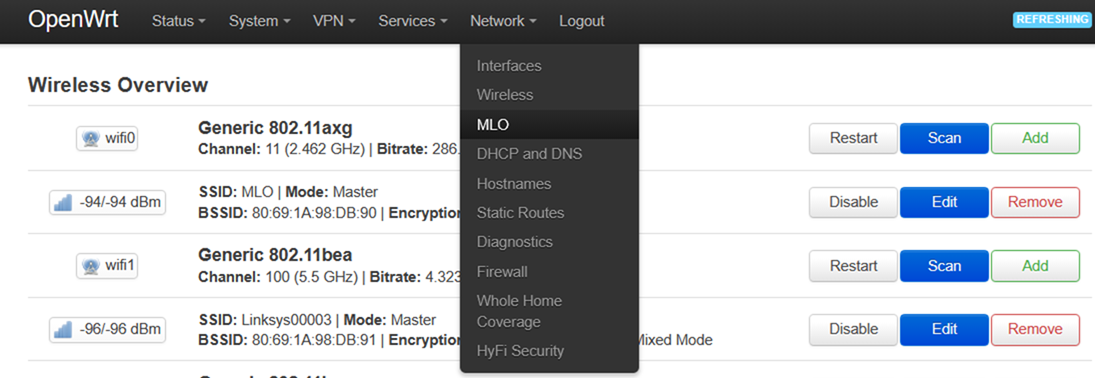
Go to the Network tab and then to the MLO sub-tab


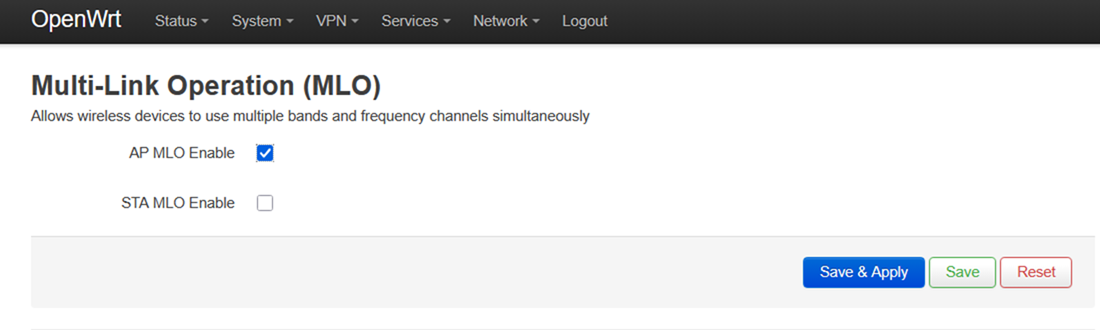
10. 勾選AP MLO啟用框,點擊保存並應用


Check where it says "AP MLO Enable". Then click Save and Apply.
 

第二路由器:對子路由器 MBE70(STA)執行以下設置。


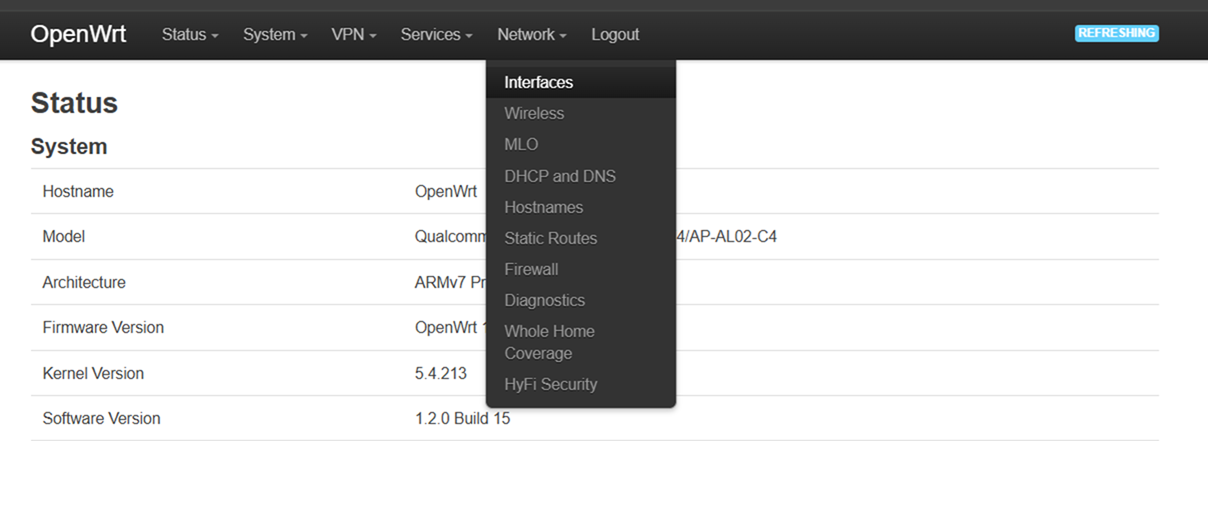
1. 登錄備用路由器,然後進入網路>介面


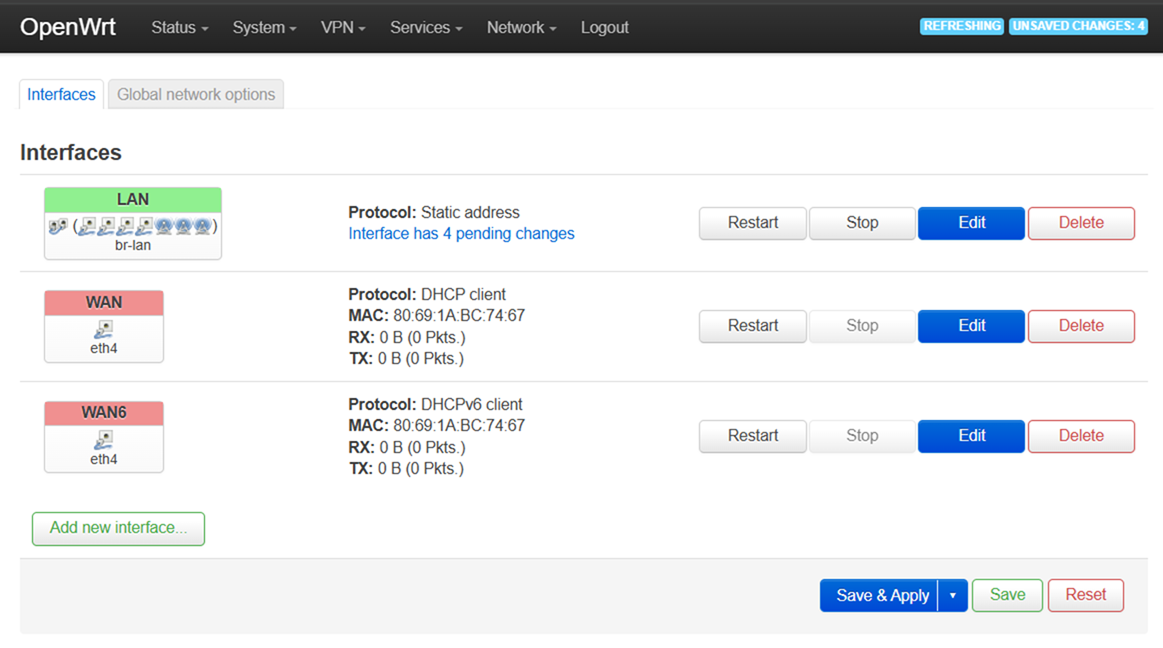
Go to the Network tab, then click on the Interfaces sub-tab


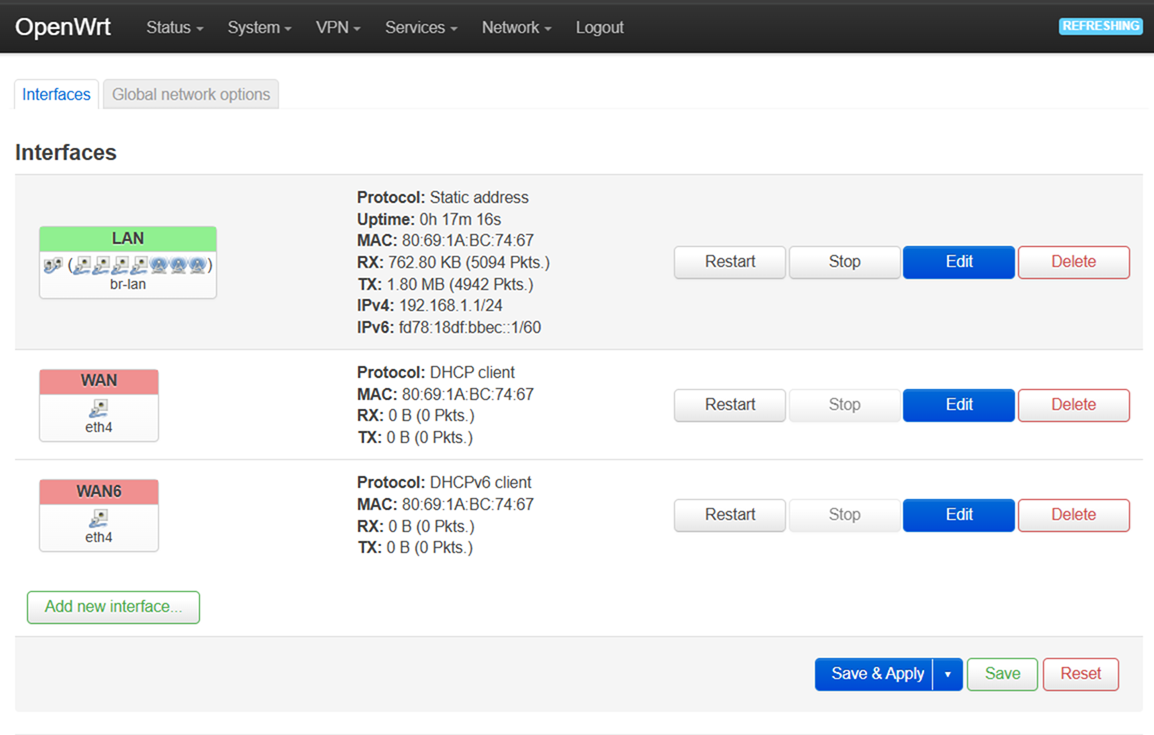
2. 在「介面」標籤下,點擊「編輯」按鈕以選擇局域網。

Click the Edit button where it says LAN.


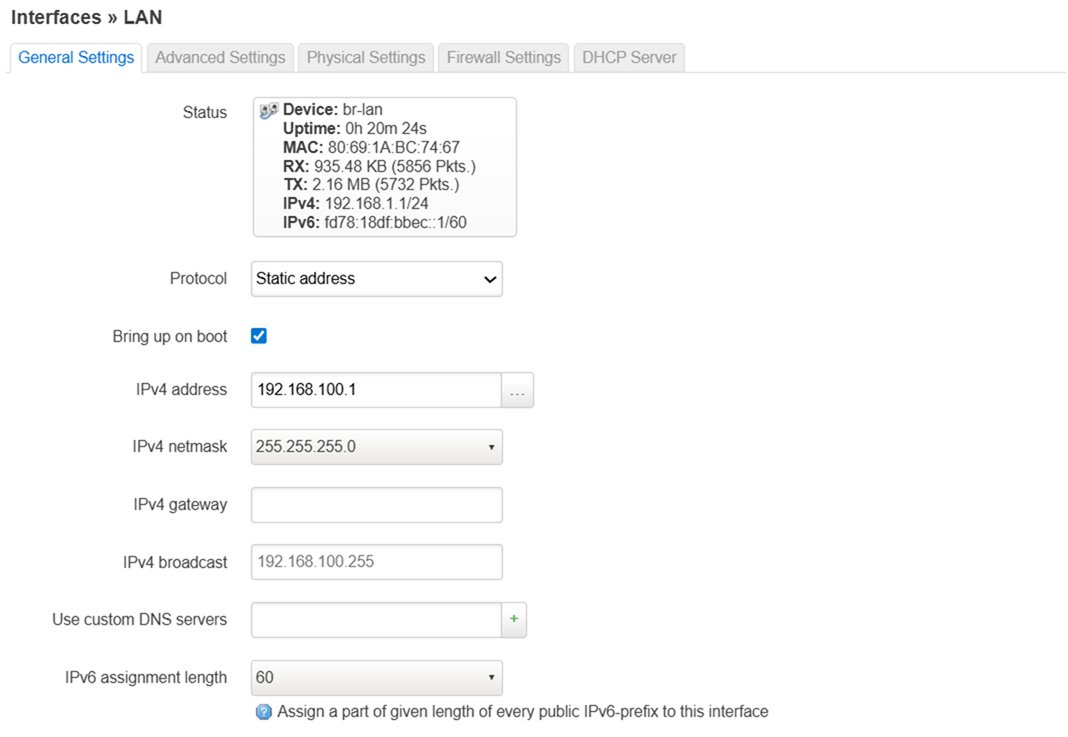
3. 將局域網 IPv4 位址從 192.168.1.1 更改為 192.168.100.1,並點擊保存


Change the IP address then click Save. And then click on Save & Apply.


完成後點擊「保存並應用」。


Change the IP address then click Save. And then click on Save & Apply.


4. 路由器保存設置后,使用新的IP位址192.168.100.1登錄用戶介面。


進入網路>無線>,然後點擊掃描按鈕,進入你的2.4 GHz介面。

 

Press the Scan button for 2.4 GHz


5. 找到MLO  SSID后點擊加入網路按鈕。


Click the Join Network button

6. 確保選擇取代無線配置,並在WPA密碼列輸入MLO SSID的WiFi密碼。


完成後點擊提交按鈕。
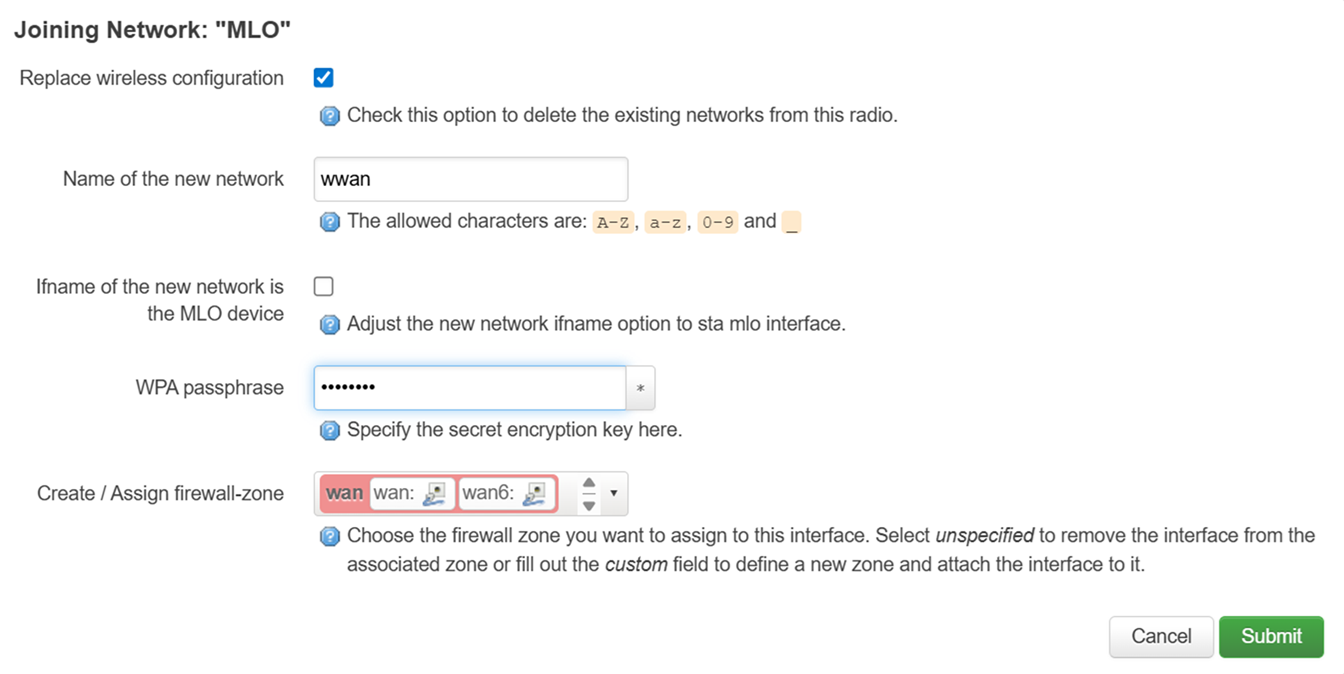
 

Put the password in the WPA passphrase field and hit Submit

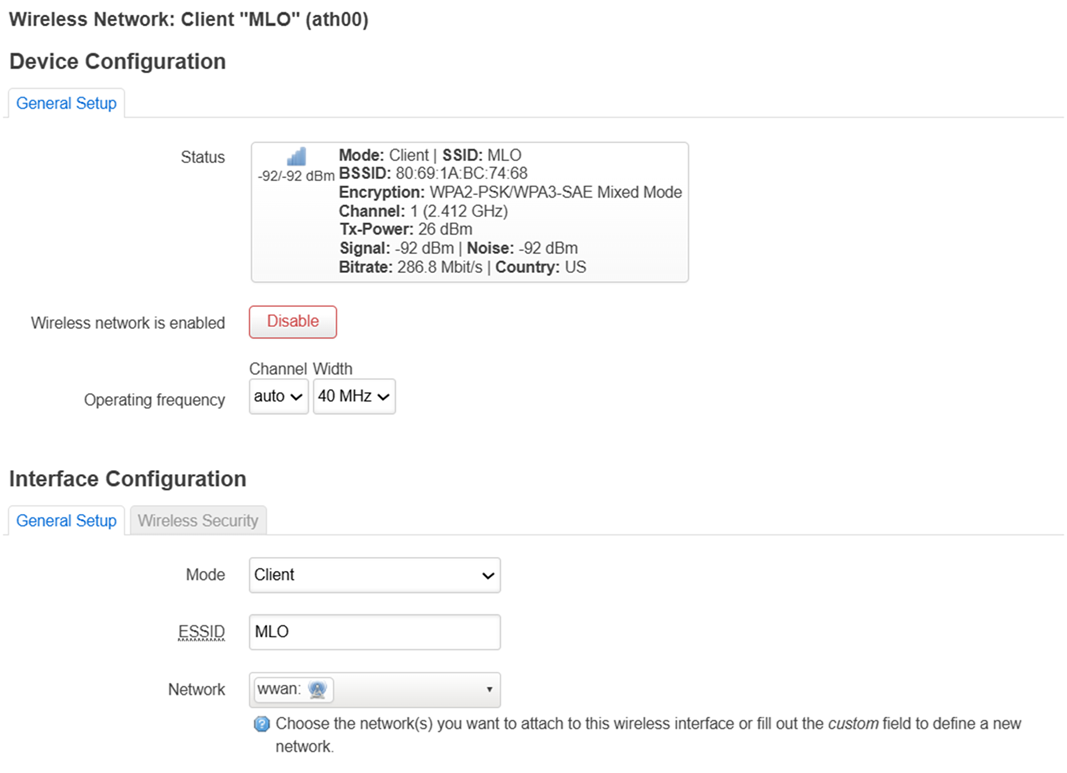
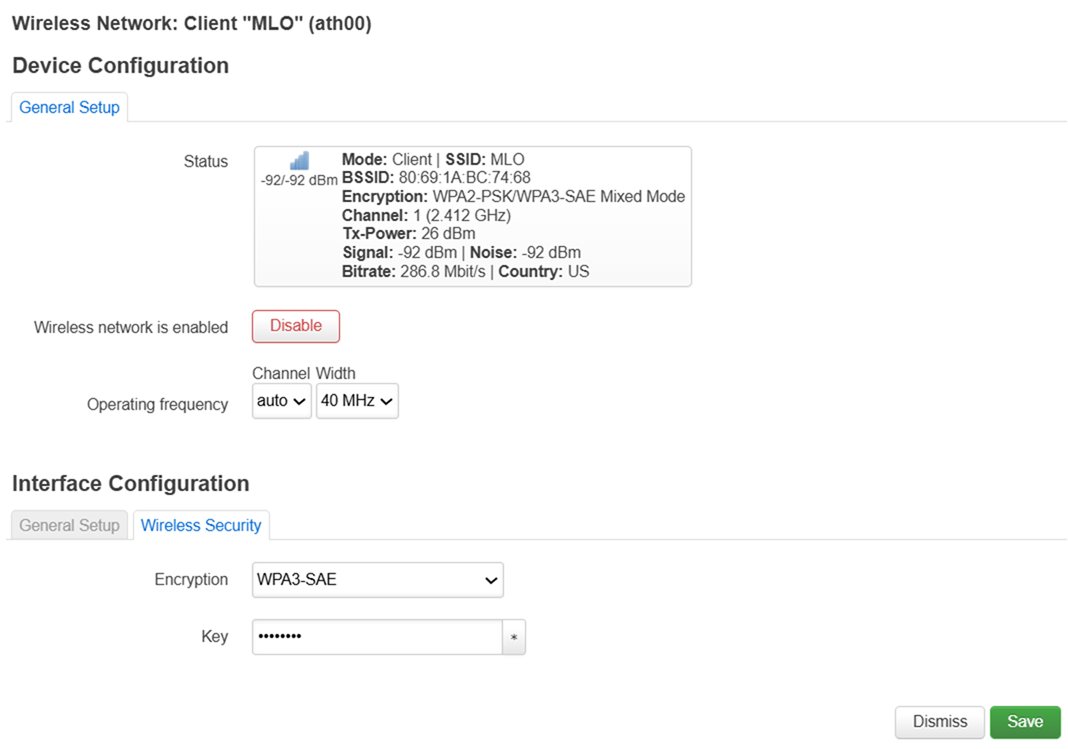
7. 將加密類型設置為WPA3-SAE,將密碼更新為MLO SSID密碼,將模式設置為用戶端


Change the Mode to "Client".


Change the Encryption type to WPA3-SAE

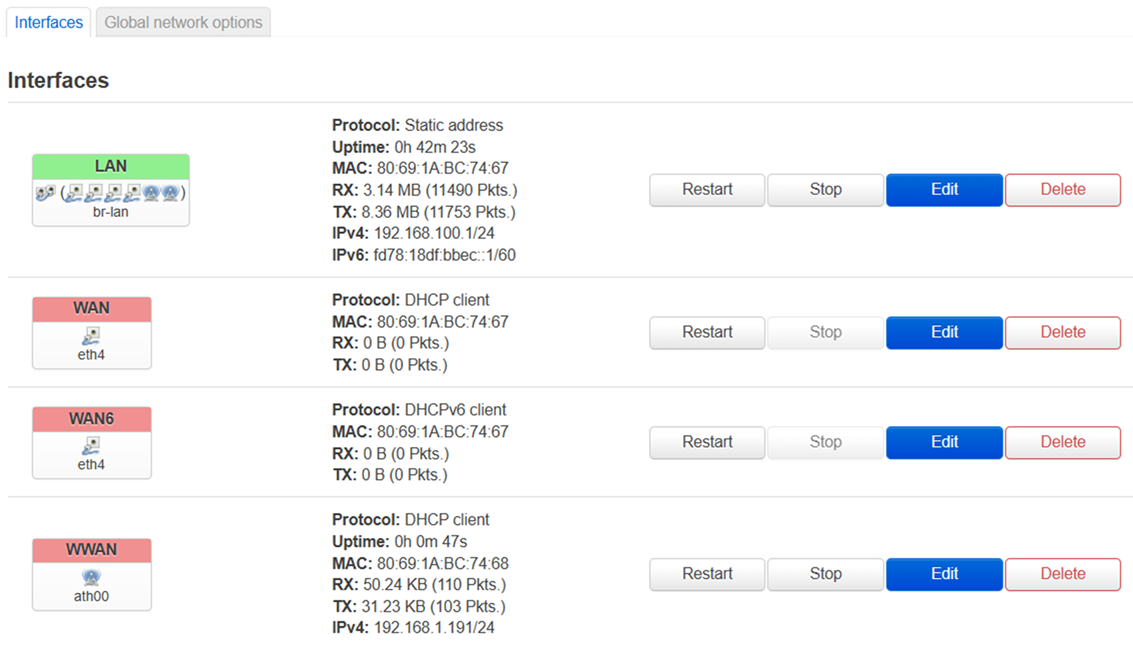
8. 進入網路>介面,你會看到新增了一個WWAN介面。


Interfaces overview. You will you will see that another WWAN interface has been added

9. 進入網路>無線,點擊編輯按鈕以切換5 GHz介面(wifi1)。


Click the Edit button where it says "wifi1"

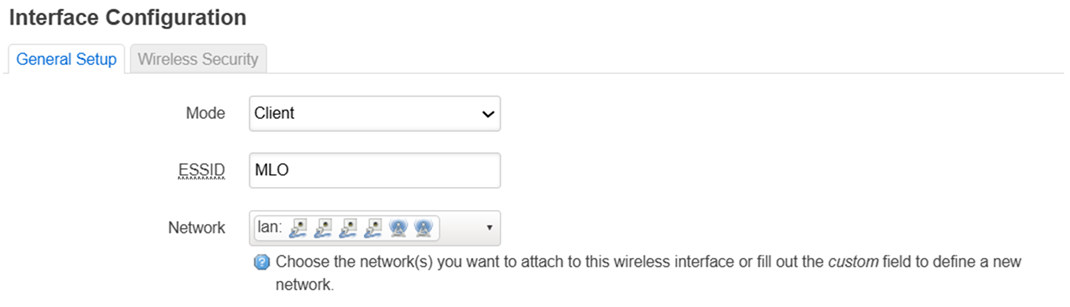
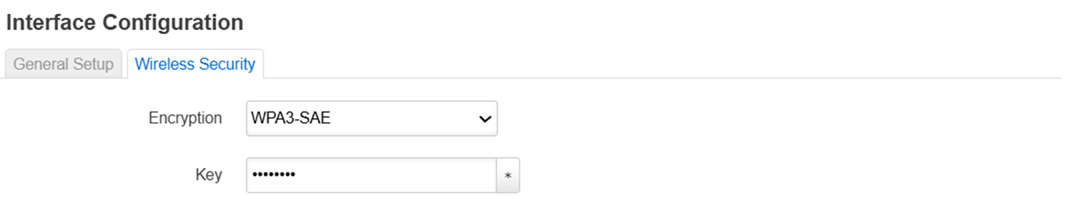
10.  將ESSID改為MLO 模式改為用戶端,加密改為WPA3-SAE,密碼改為與你父WiFi相同的密碼 點擊保存,然後點擊保存並應用

Change the ESSID to MLO. Change the Mode to Client.


Change encryption to WPA3-SAE.


11. 在第 10 步對6 GHz介面(WiFi2)執行同樣步驟。


Perform the same steps on "wifi2"


Perform the same steps on "wifi2"


Perform the same steps on "wifi2"

12. 進入網路>無線,確保這三組無線信號已啟動。


Go to Network and then Wireless. Check that the three radios are activated.

13. 進入網路>MLO,選擇 STA MLO 啟用。點擊「保存並應用」。
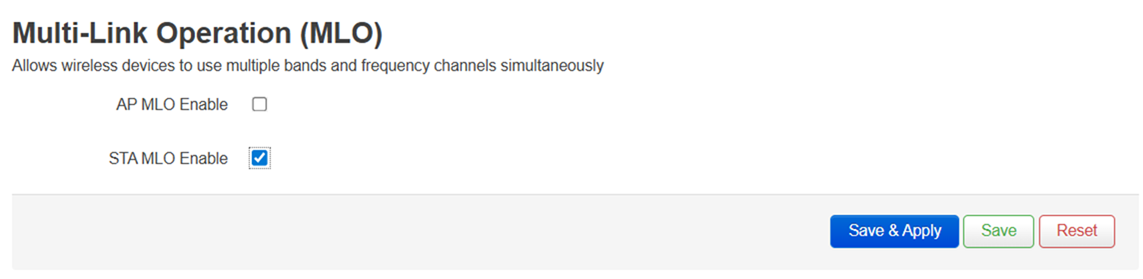
 

Check the STA MLO Enable box and click Save & Apply.

這篇支援文章有用嗎?
0 / 0 覺得這很有幫助

聯絡我們
致電我們  存取我們的全球支援號碼清單
Reddit  加入並訂閱我們的官方 Reddit 社群
與我們聊天  我們樂意為您解答所有問題
Linksys
Now
Support
滾動到頂部圖標