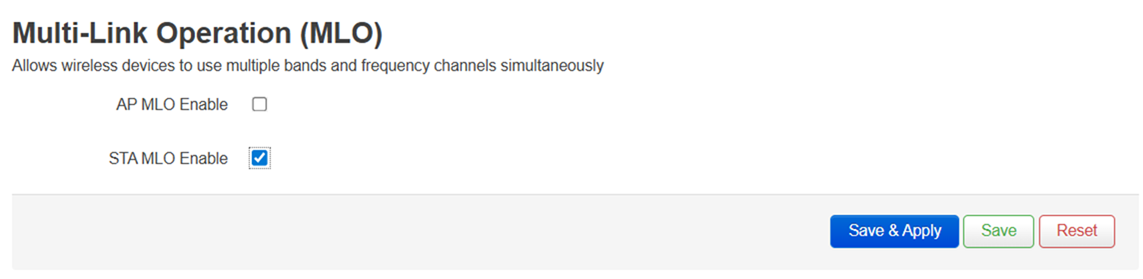
This article provides step-by-step instructions for configuring two Linksys OpenWRT MBE70 (LN6001) devices to establish a wireless connection using Multi-Link Operation (MLO).
If you need further assistance, please reach out to the OpenWRT community for support.
Network Topology
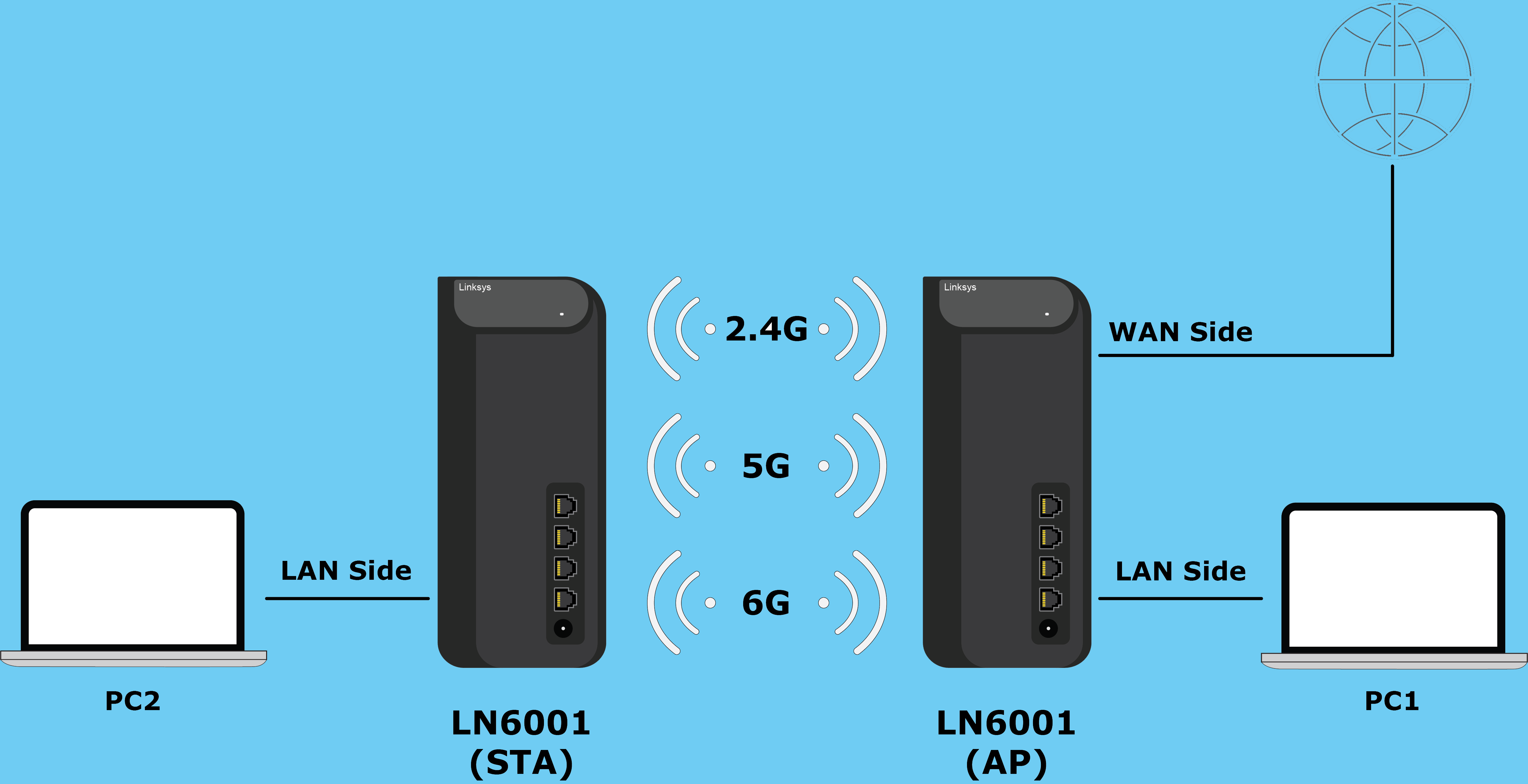
First Router: Perform the following settings on your parent MBE70 (AP).
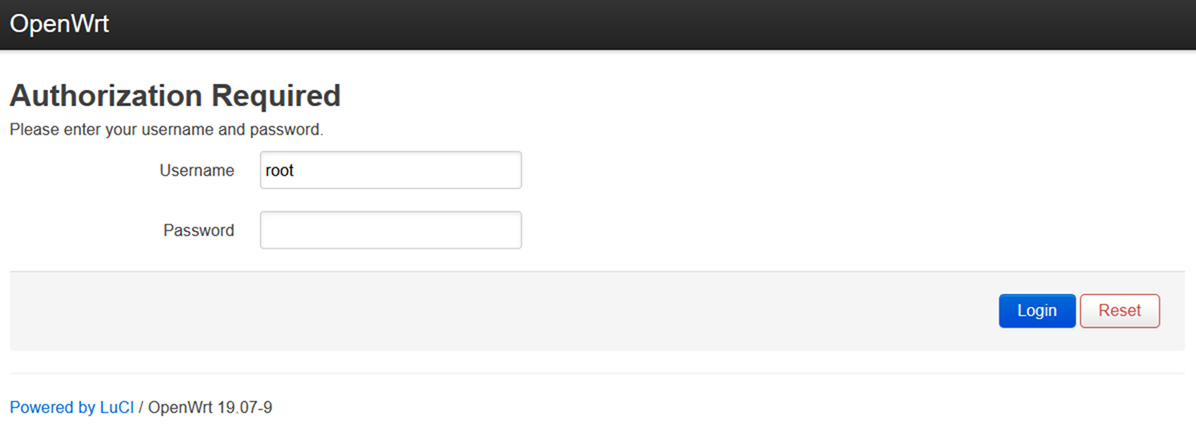
1. Log in to the router. The default username and password are root and the default WiFi password, respectively.
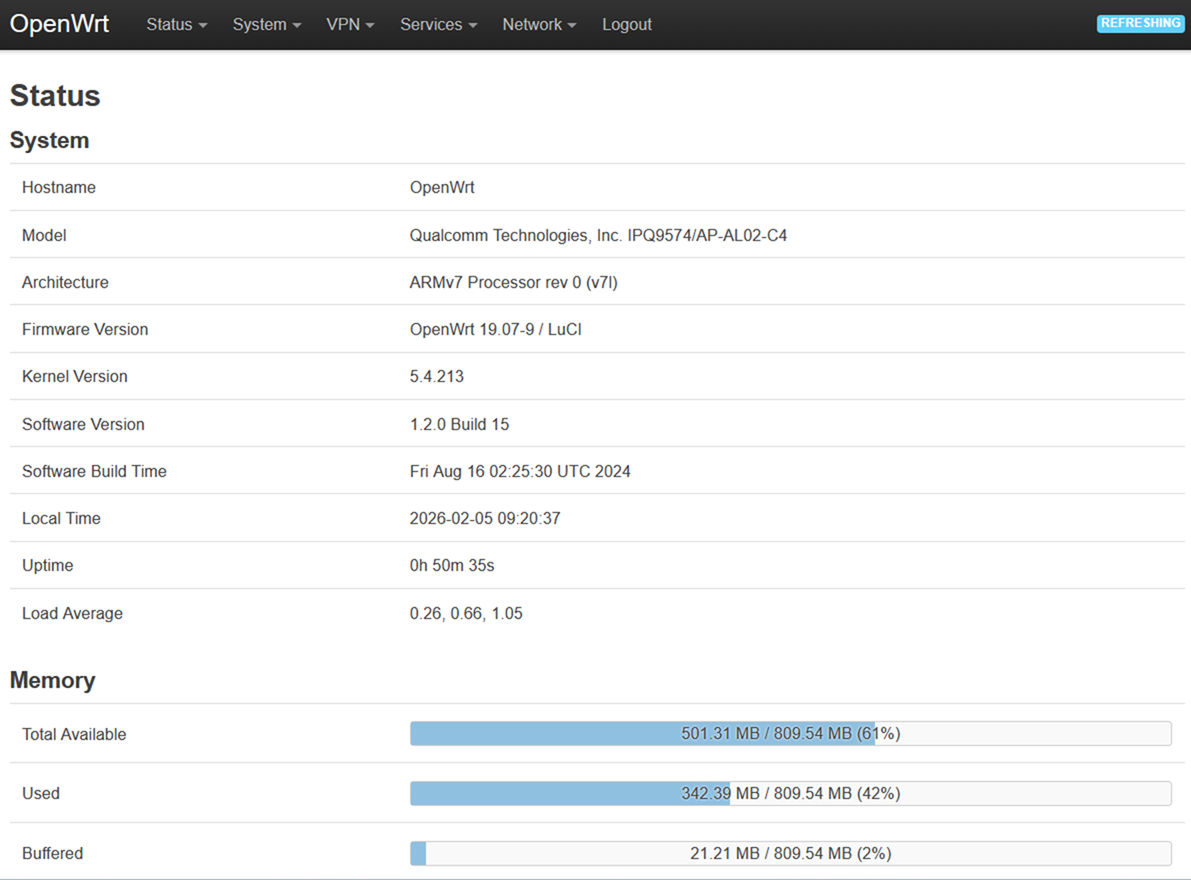
2. Once inside the web interface, go to Network > Wireless.
3. Click the Edit button for the 2.4 GHz interface (wifi0).
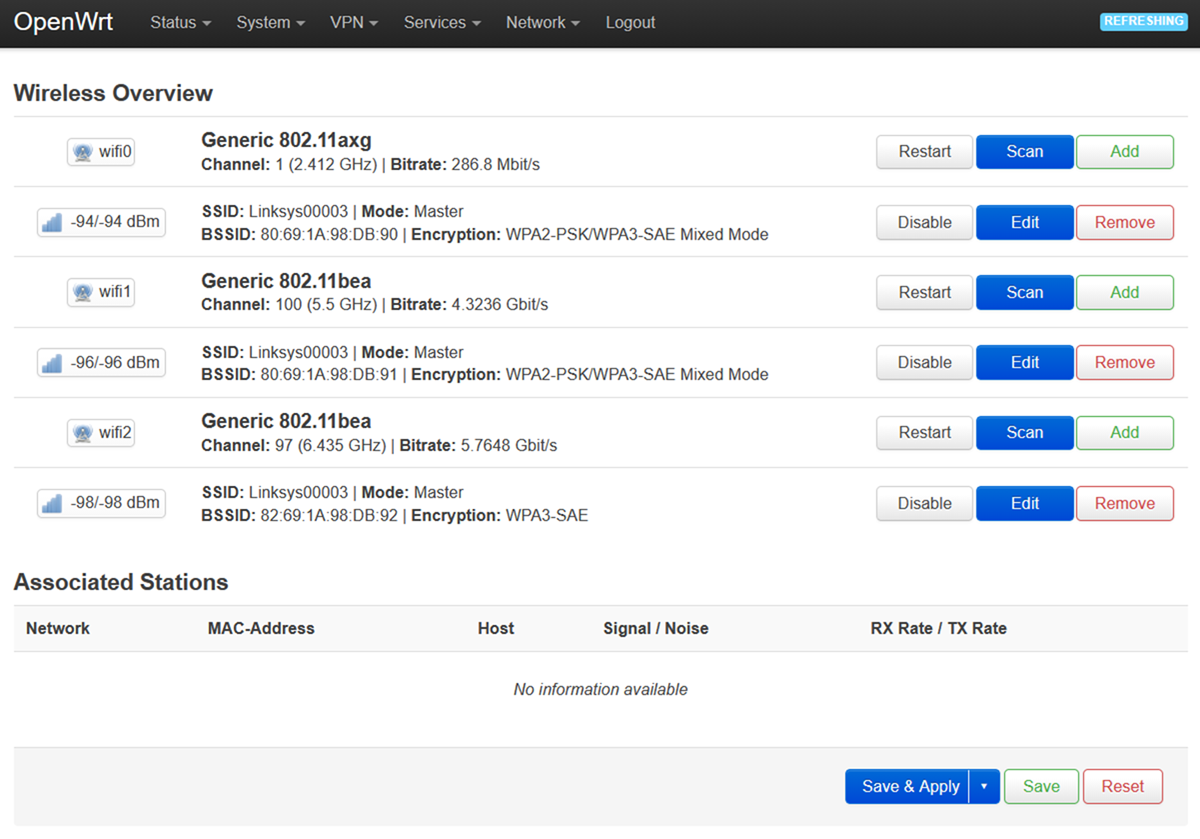
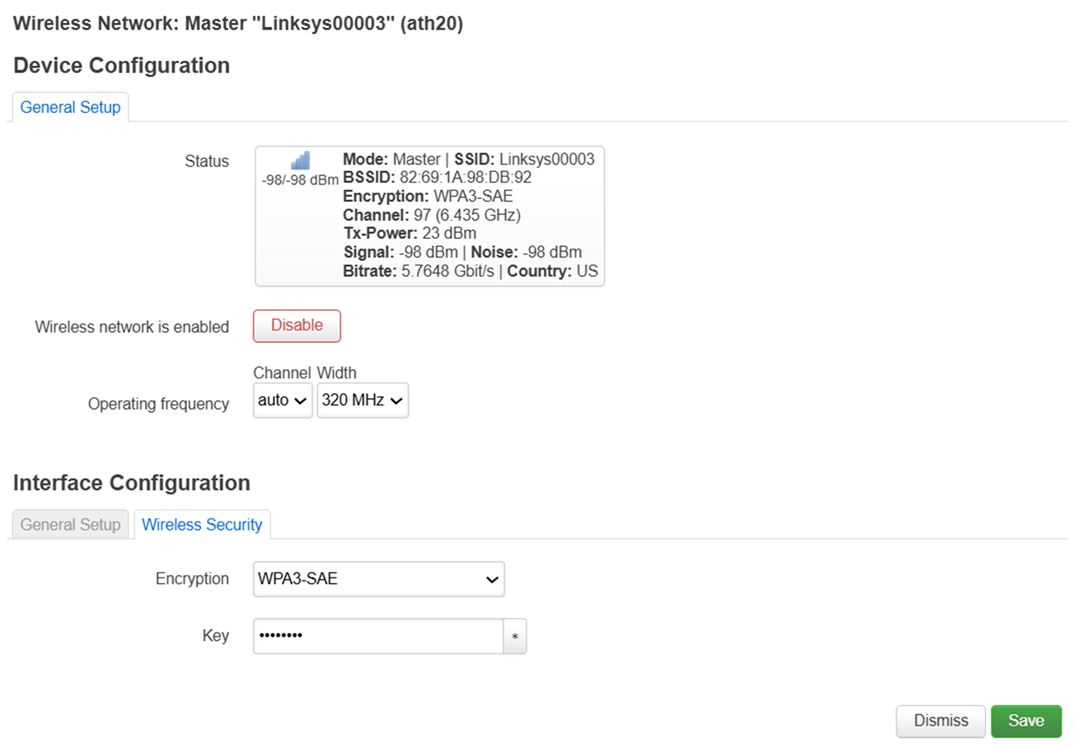
4. Under Interface Configuration > General Setup, change the ESSID to MLO.
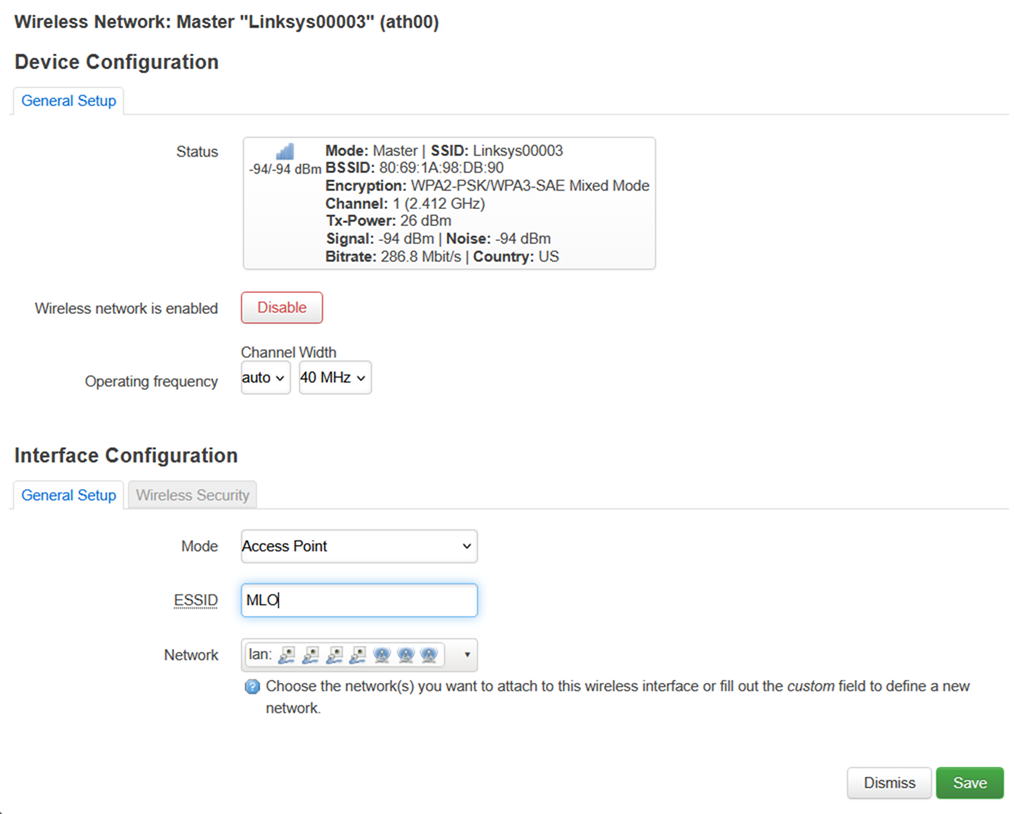
5. Under Wireless Security, change the Encryption to WPA3-SAE and customize the Key (which will be your wireless password for the 2.4 GHz band).
Click Save to continue.
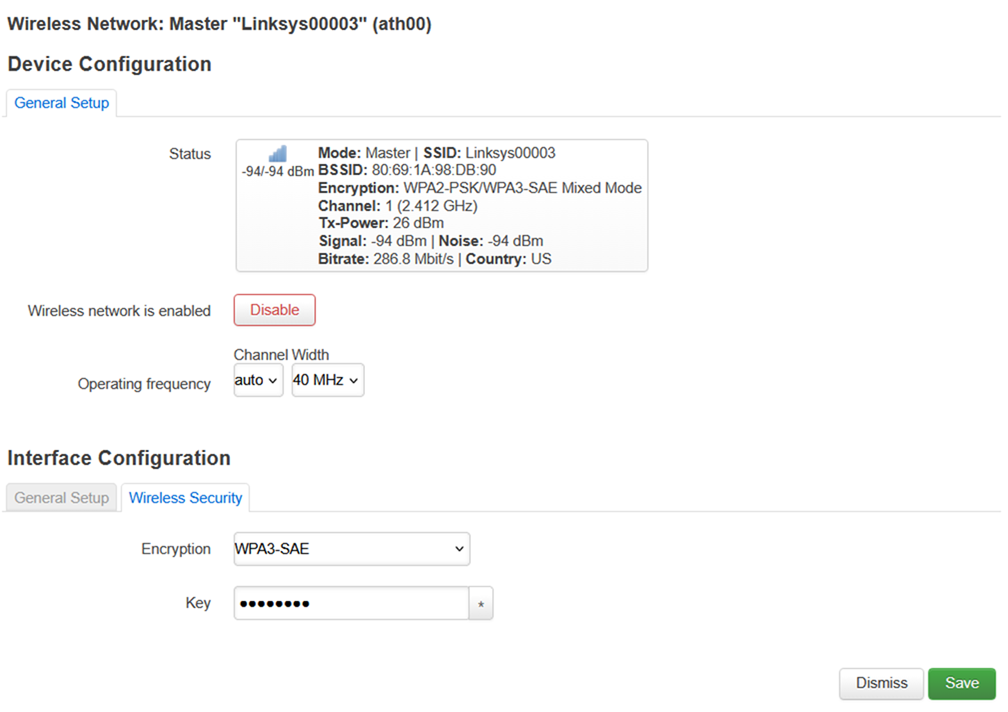
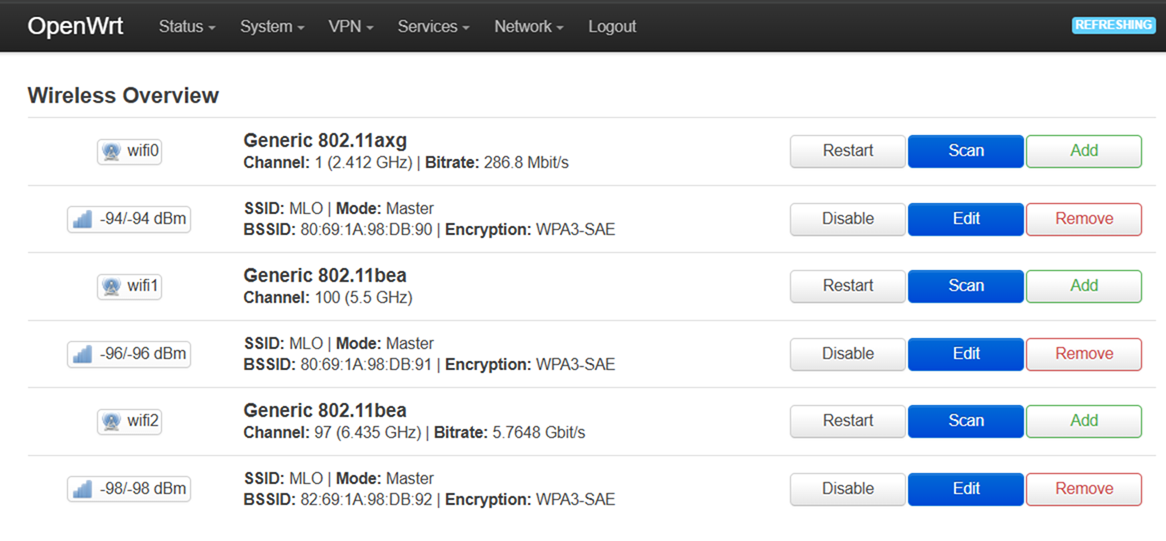
6. You will be rerouted back to the Wireless Overview page. Click Save & Apply.
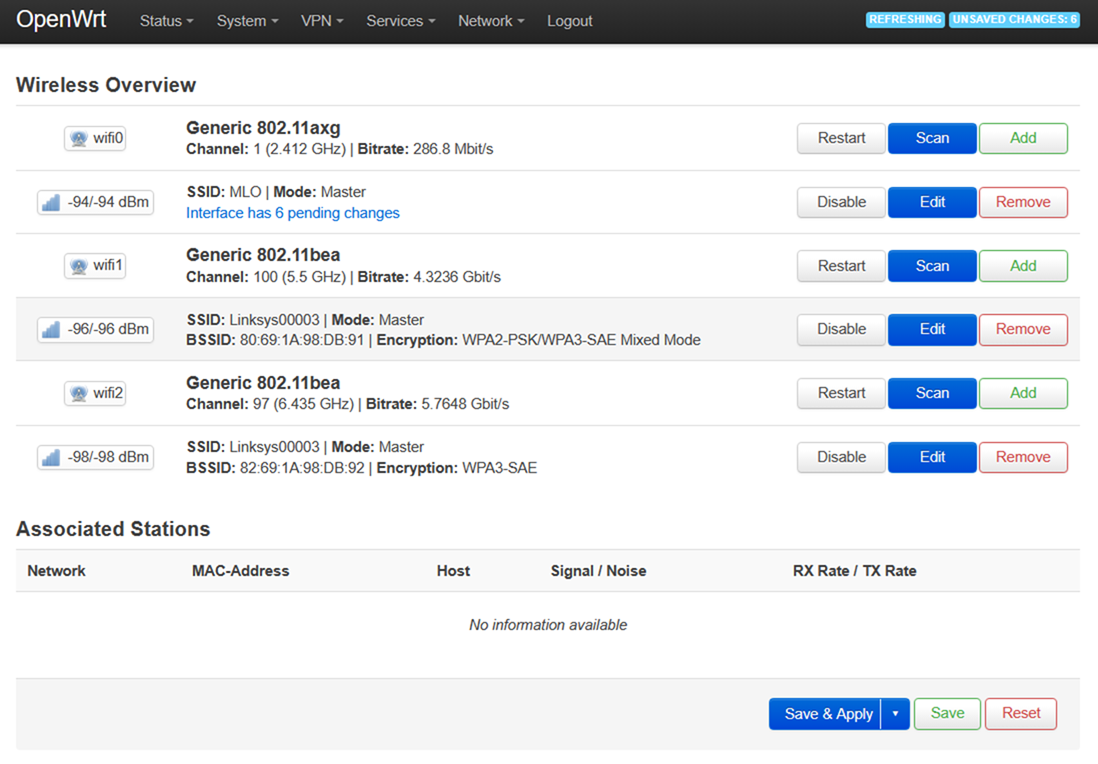
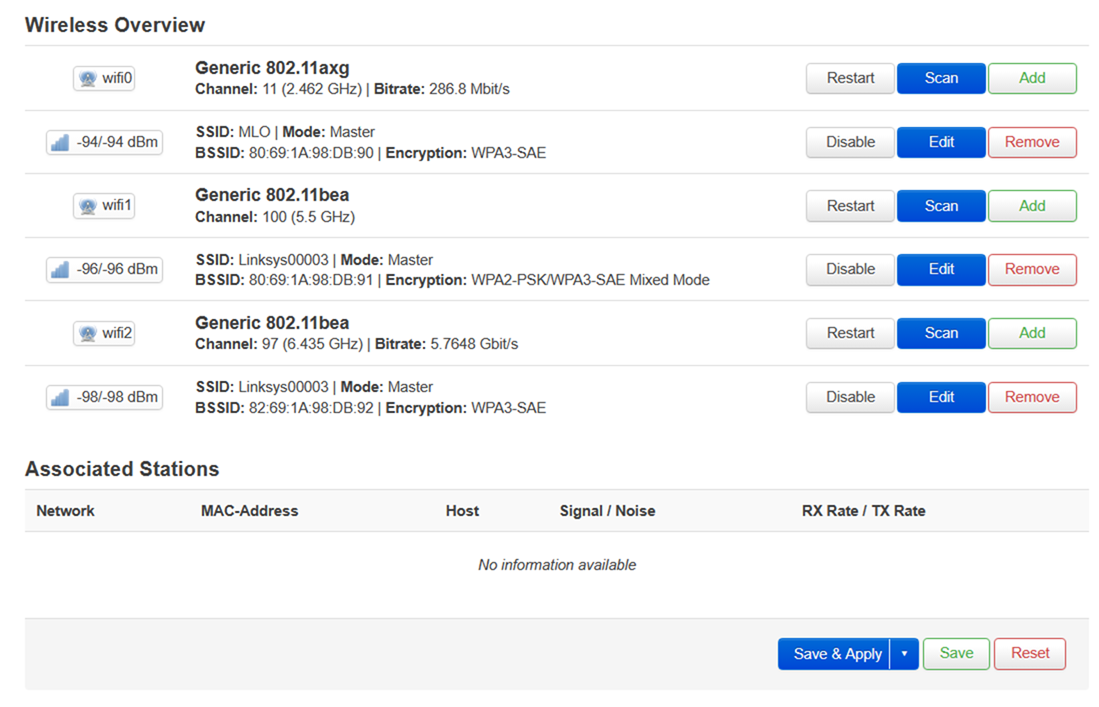
7. Perform the same steps for the 5 GHz interface (wifi1).
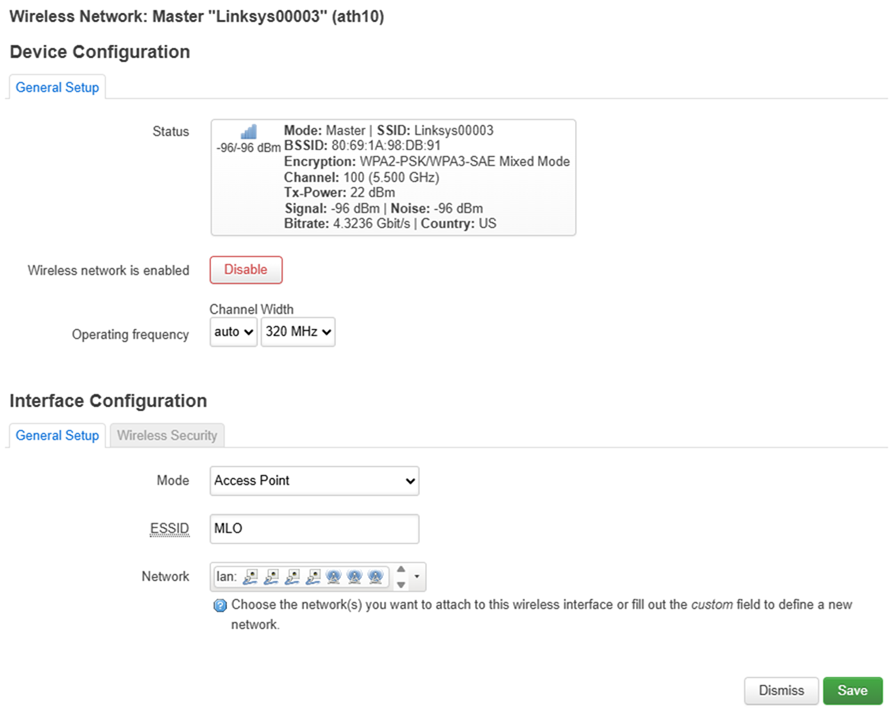
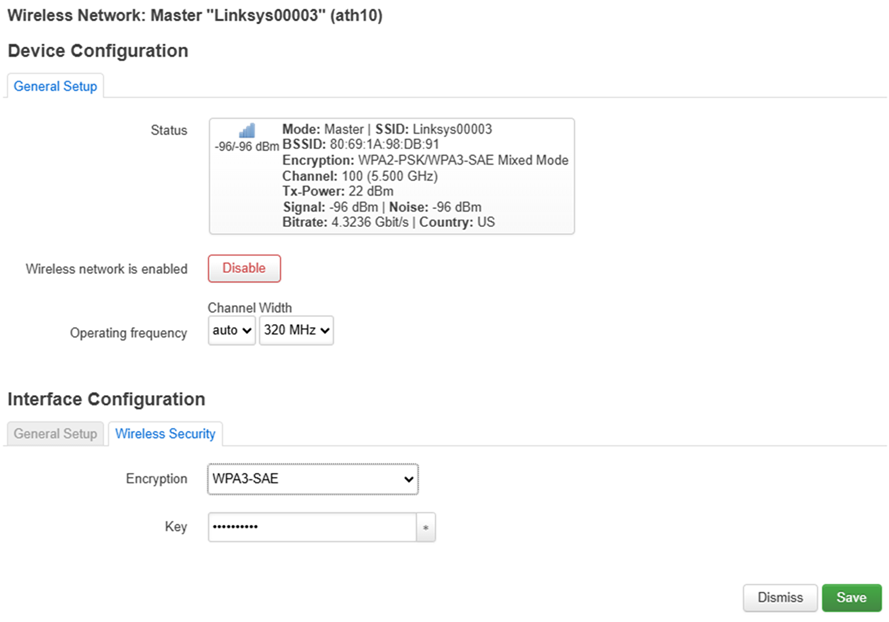
8. Perform the same steps for the 6 GHz interface (wifi2).
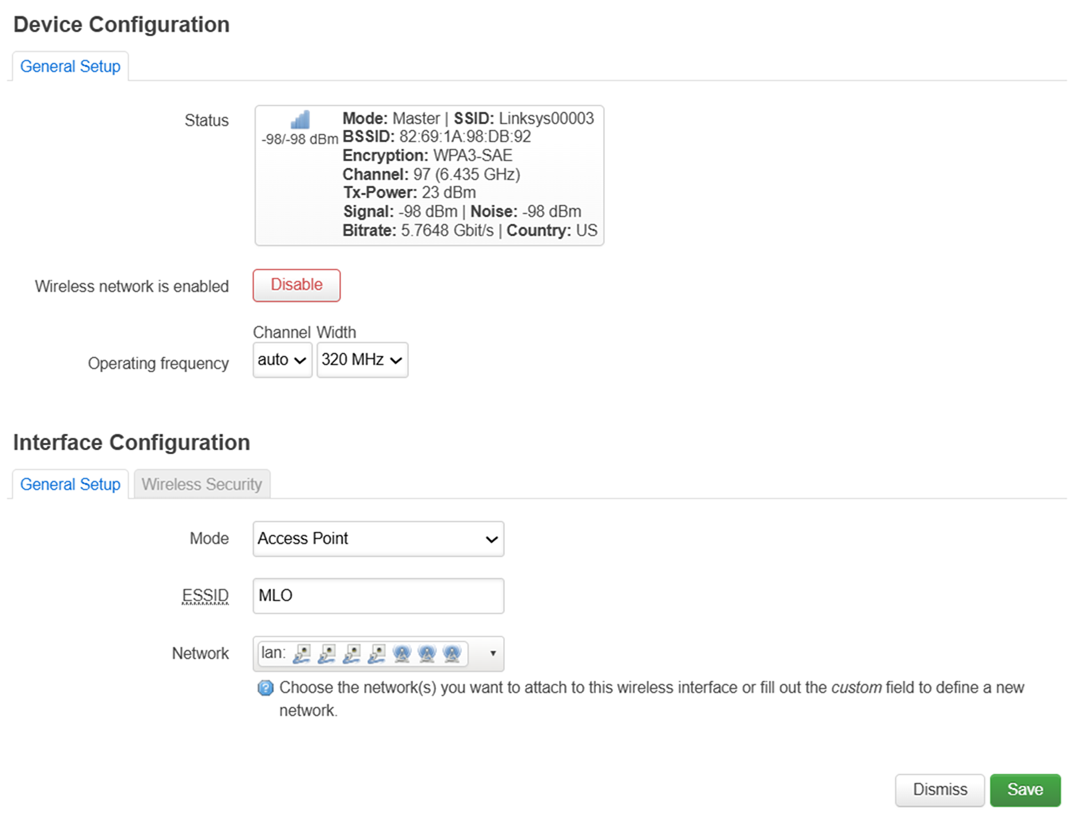
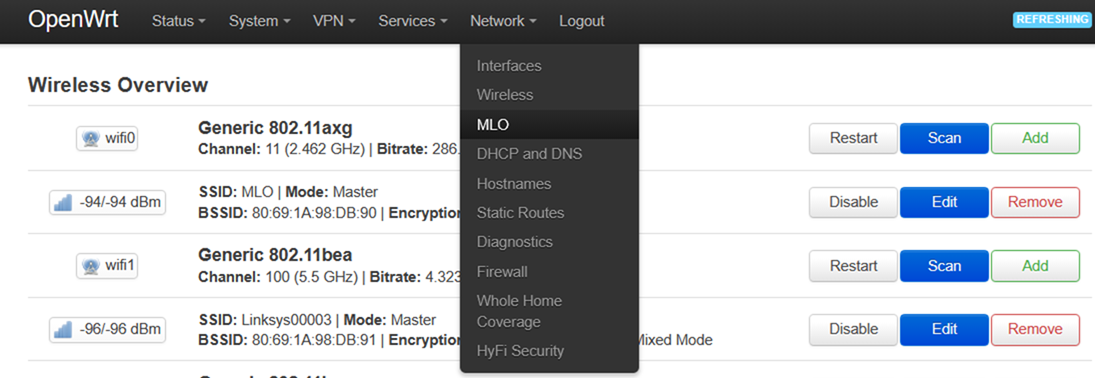
9. Go to Network > MLO.
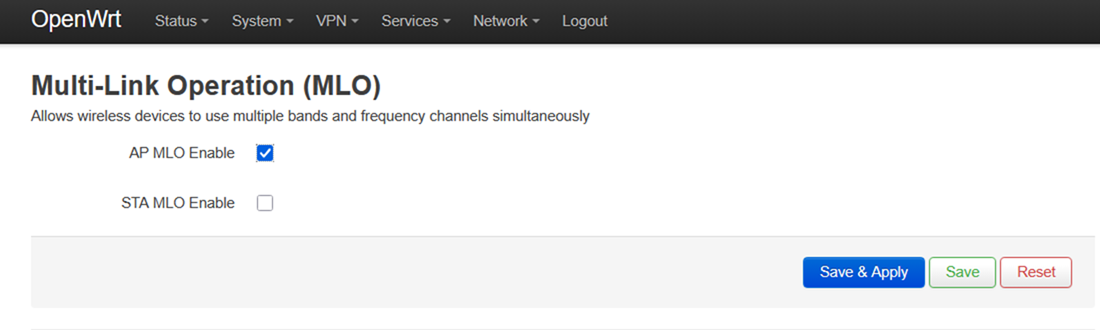
10. Check the AP MLO Enable box and click Save & Apply.
Second Router: Perform the following settings for the child MBE70 (STA).
1. Log in to the secondary router, then go to Network > Interfaces.
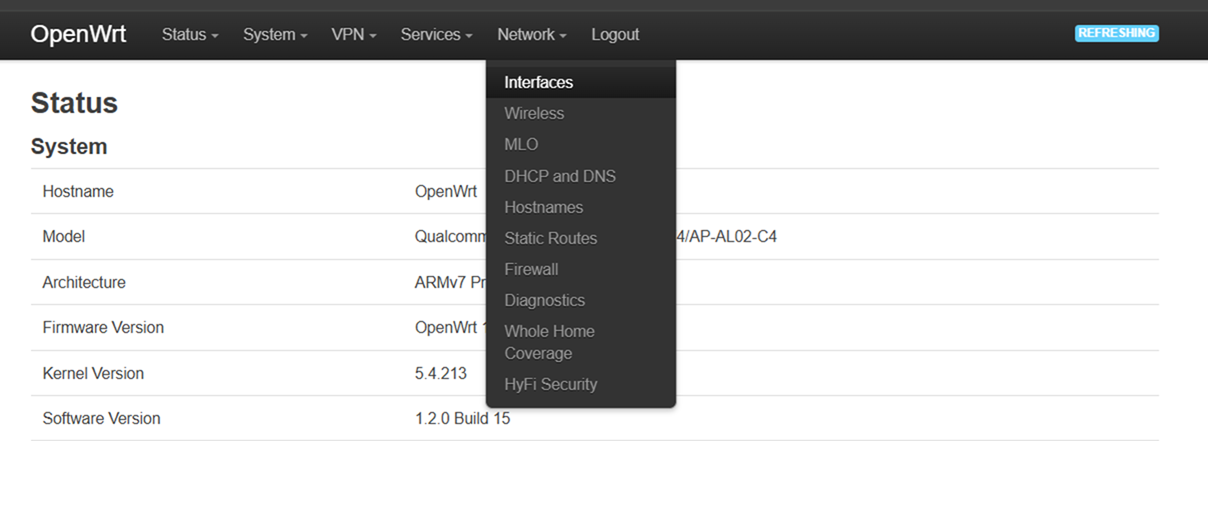
2. Under the Interfaces tab, click the Edit button for LAN.
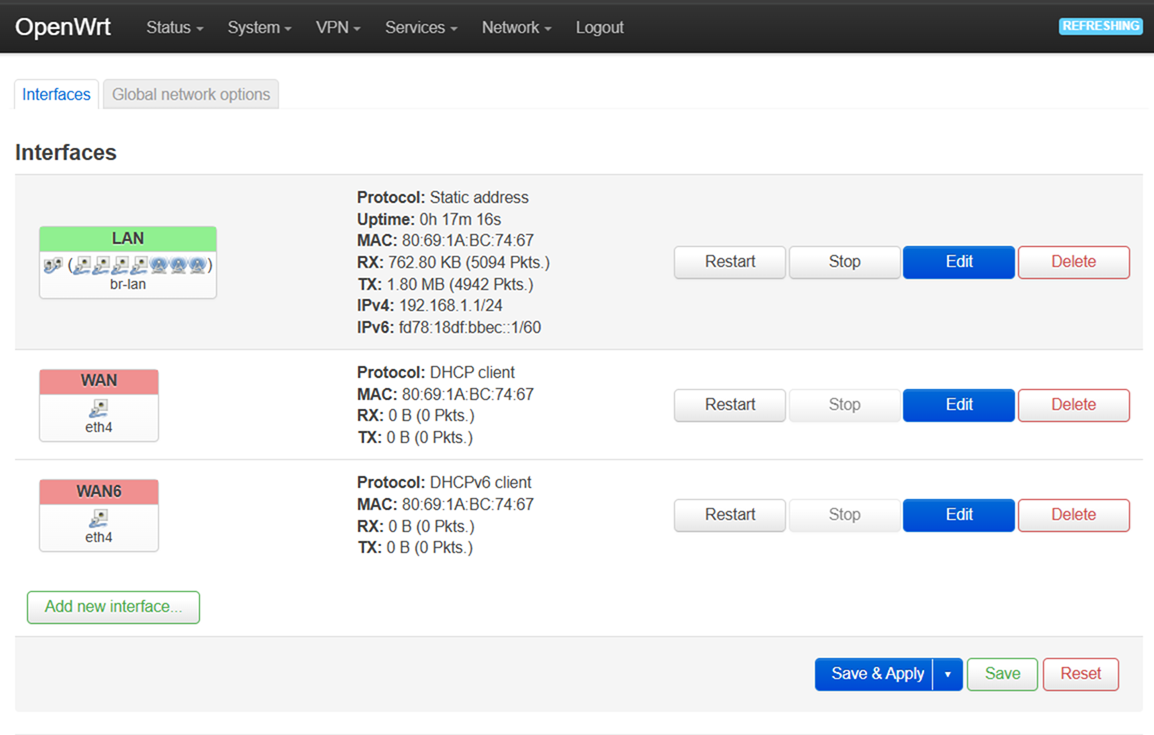
3. Change the LAN IPv4 Address from 192.168.1.1 to 192.168.100.1 and click Save.
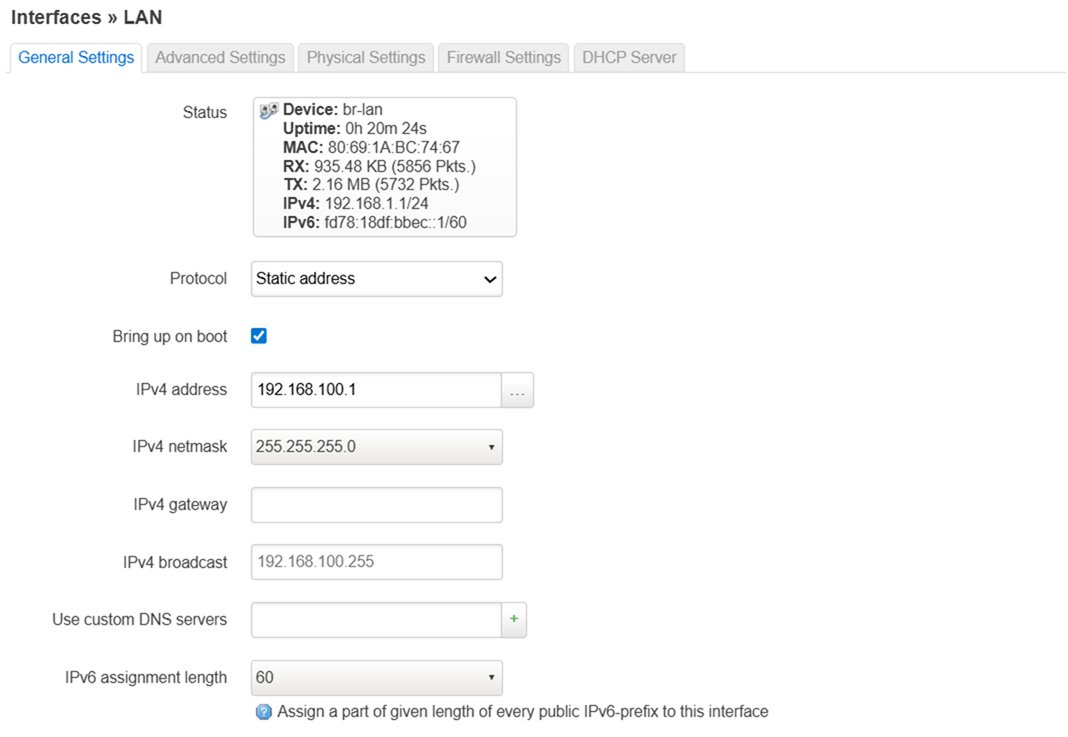
Click Save & Apply once done.
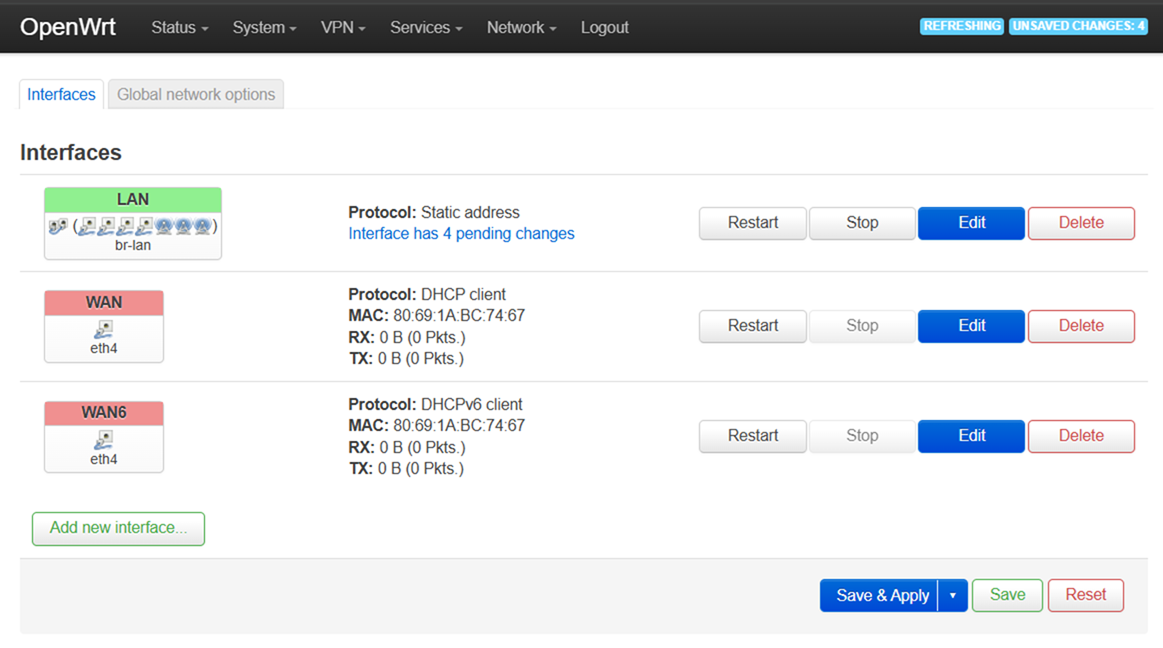
4. After the router has saved the settings, log in to the user interface using the new IP address - 192.168.100.1.
Go to Network > Wireless > then press the Scan button for your 2.4 GHz interface.

5. Click the Join Network button once you have found the MLO SSID.

6. Make sure to select Replace wireless configuration and put the WiFi password of the MLO SSID in the WPA passphrase field.
Click the Submit button once done.
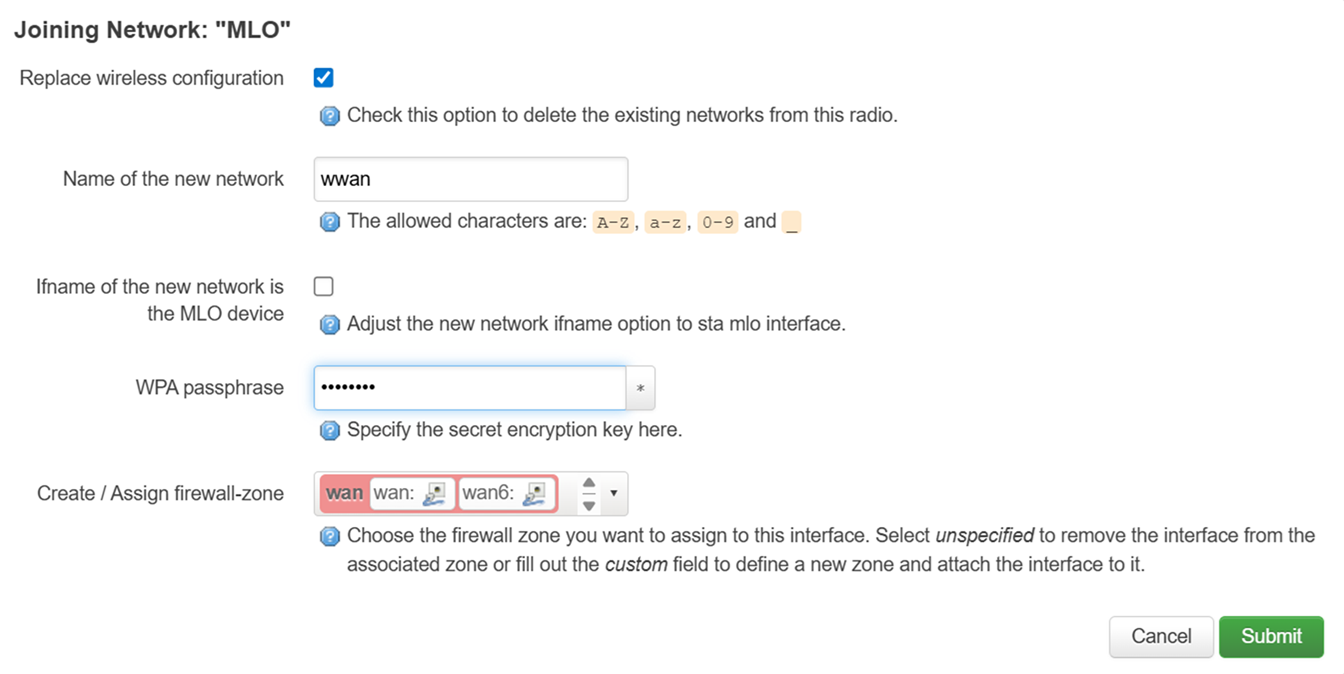
7. Set the Encryption type to WPA3-SAE, update the password to the MLO SSID password, and the Mode to Client.
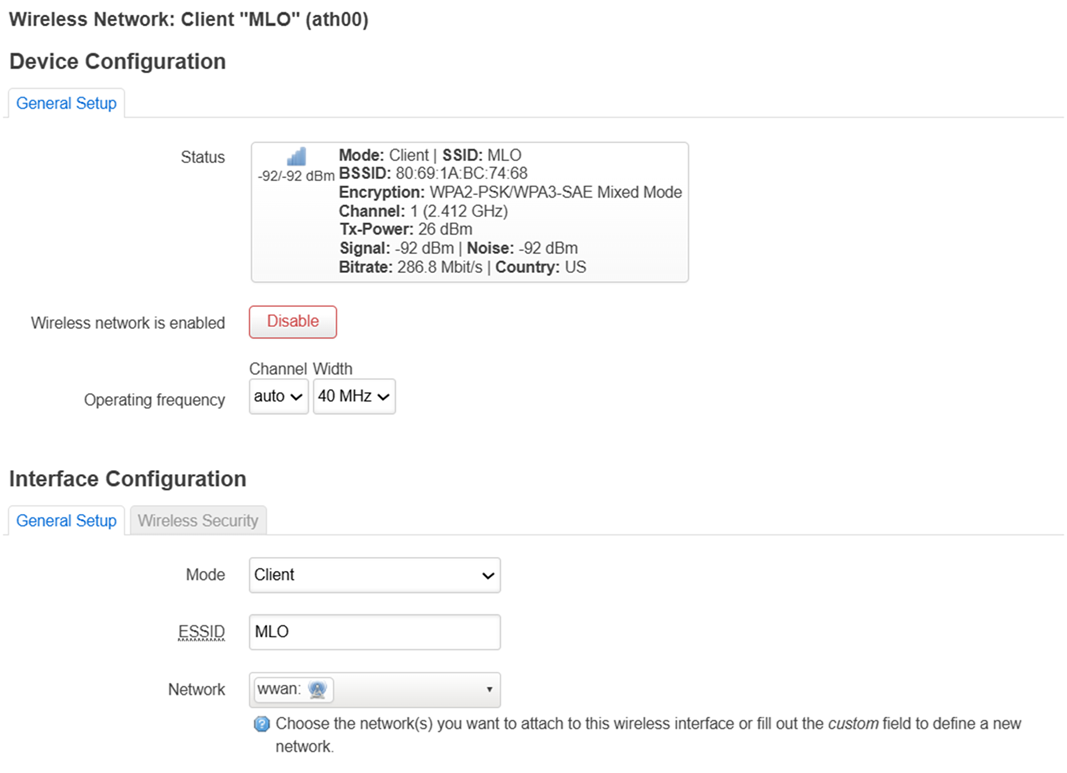
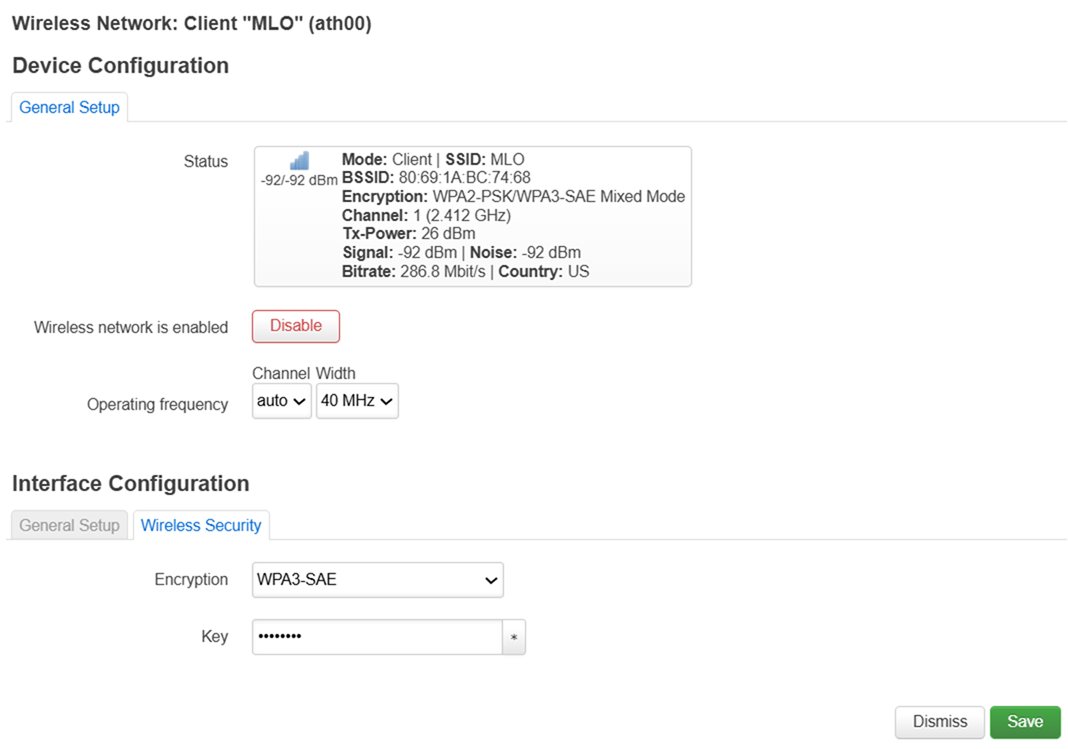
8. Go to Network > Interfaces, and you will see that another WWAN interface has been added.
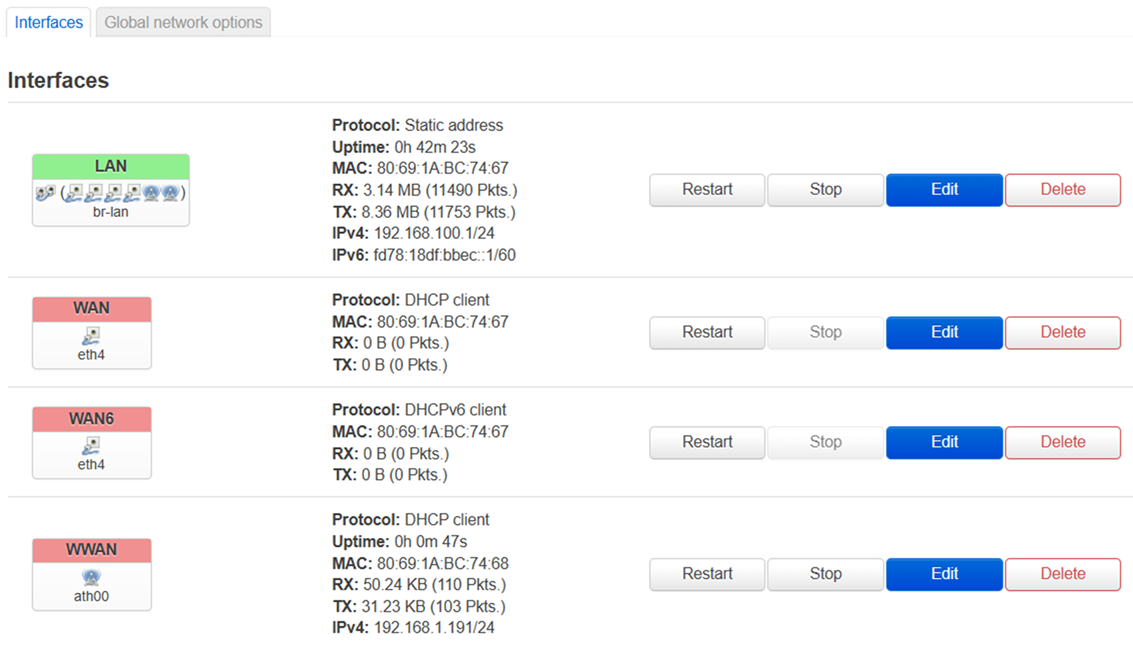
9. Go to Network > Wireless and click the Edit button for 5 GHz interface (wifi1).

10. Change the ESSID to MLO, Mode to Client, encryption to WPA3-SAE, and password to the same as your parent WiFi password. Click Save, then click Save & Apply.
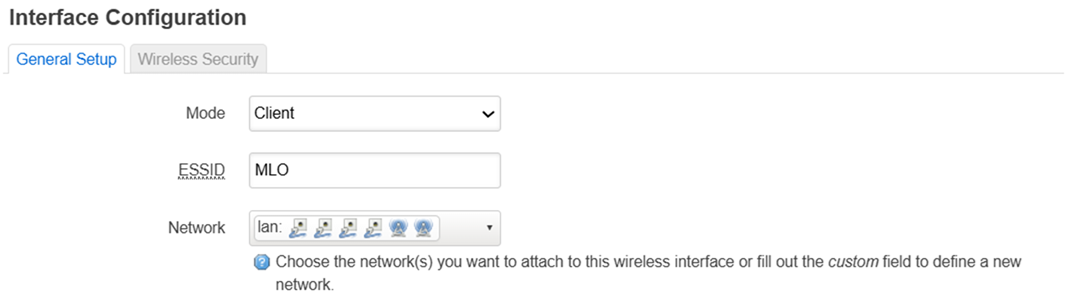
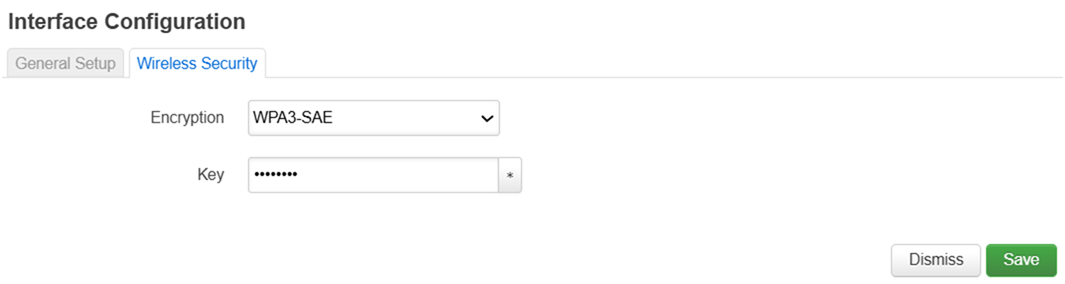
11. Perform the same steps on Step 10 for the 6 GHz interface (wifi2).

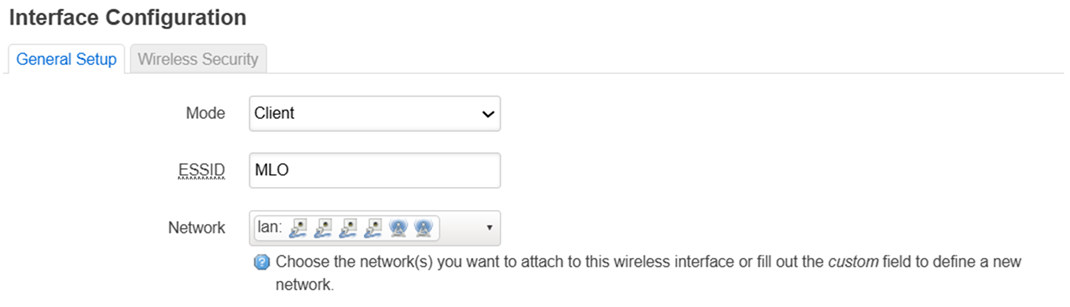
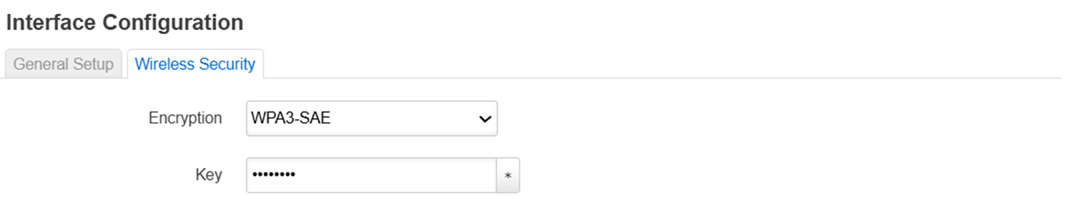
12. Go to Network > Wireless, make sure that these three radios are activated.
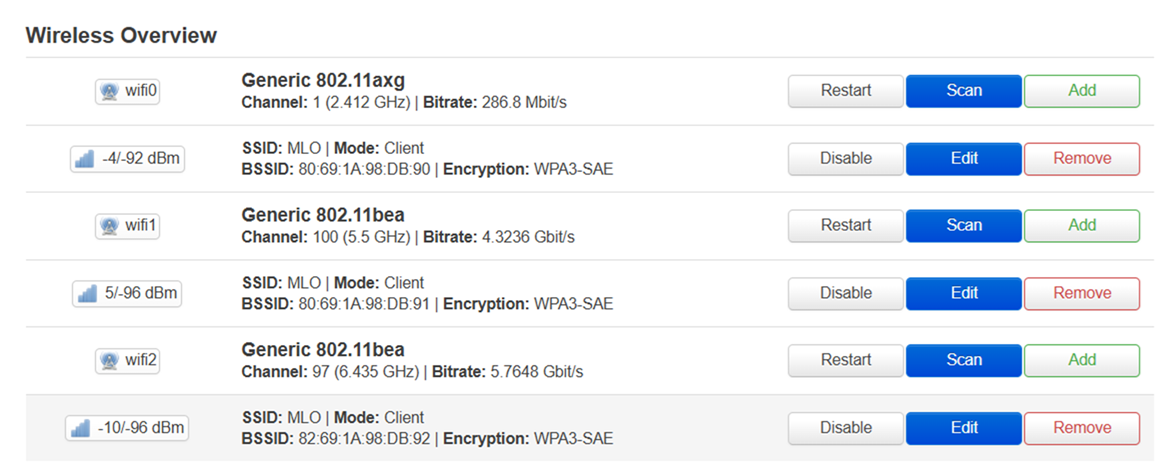
13. Go to Network > MLO and check STA MLO Enable. Click Save & Apply.