Connessione wireless tra due router OpenWRT MBE70 (LN6001) tramite MLO

Questo articolo fornisce istruzioni dettagliate per configurare due dispositivi Linksys OpenWRT MBE70 (LN6001) al fine di stabilire una connessione wireless tramite la modalità Multi-Link Operation (MLO).
Se hai bisogno di ulteriore aiuto, contatta la comunità di OpenWRT per ricevere assistenza.
Topologia di rete
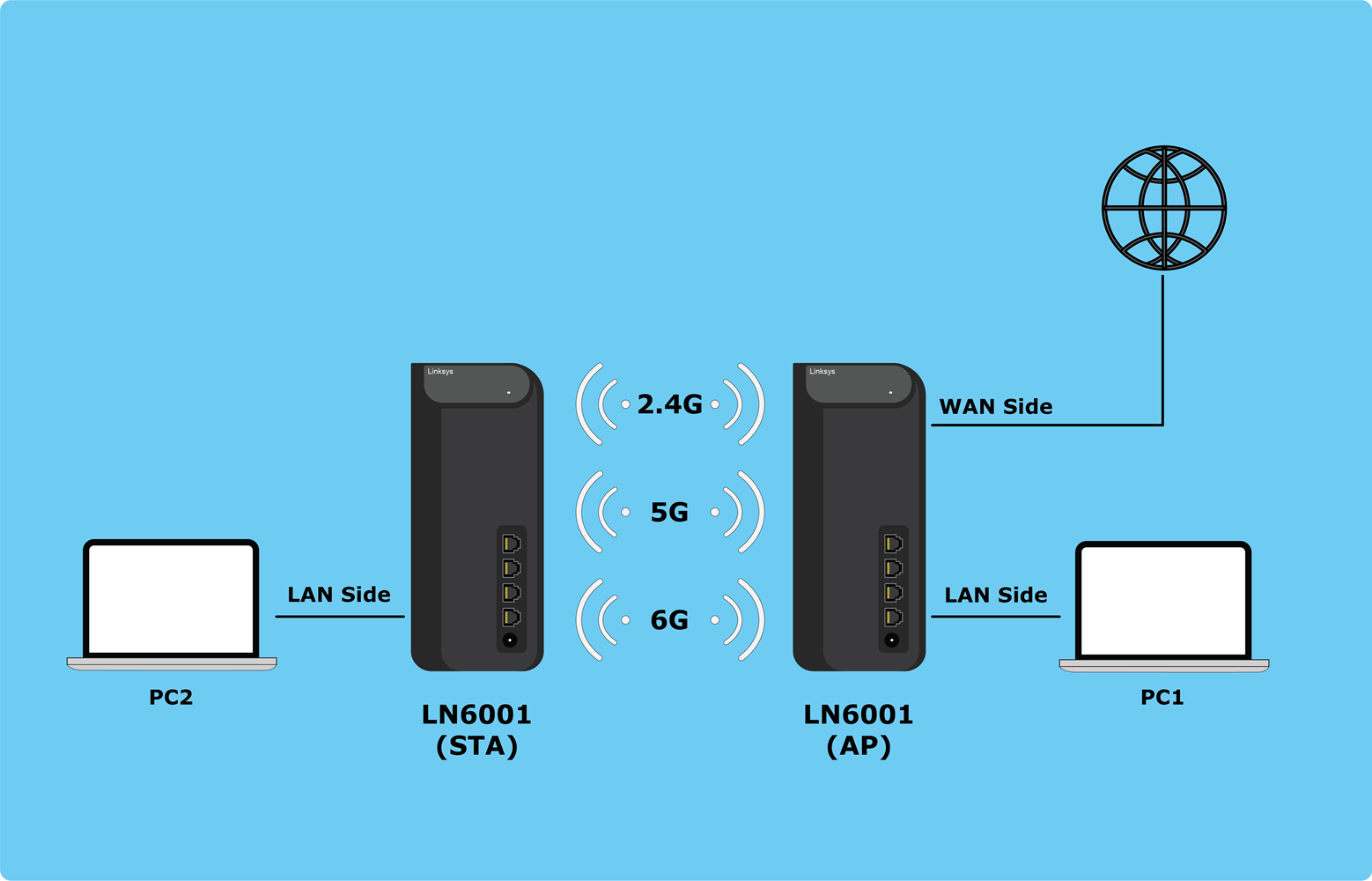
Primo router: effettuare le seguenti impostazioni sul proprio MBE70 principale (AP).
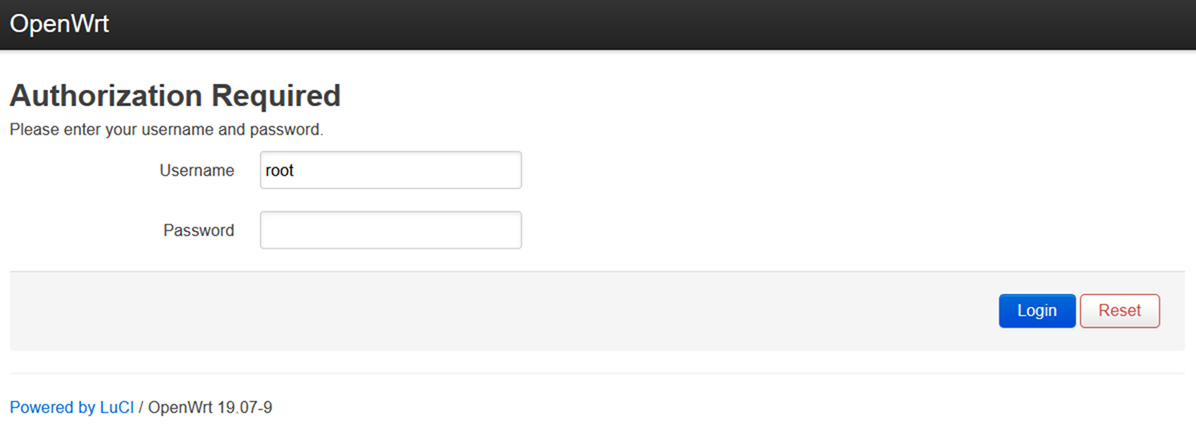
1. Il nome utente e la password predefiniti sono rispettivamente root e la password predefinita del Wi-Fi.
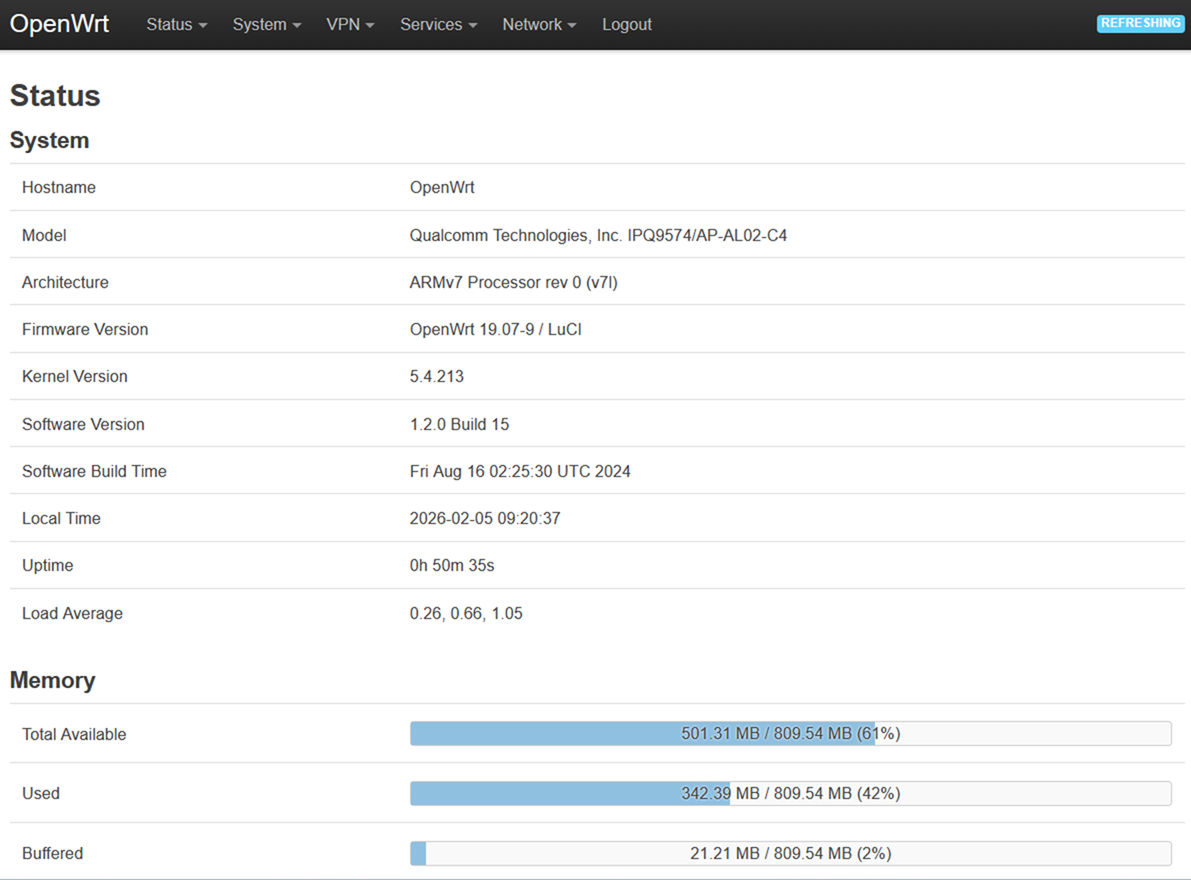
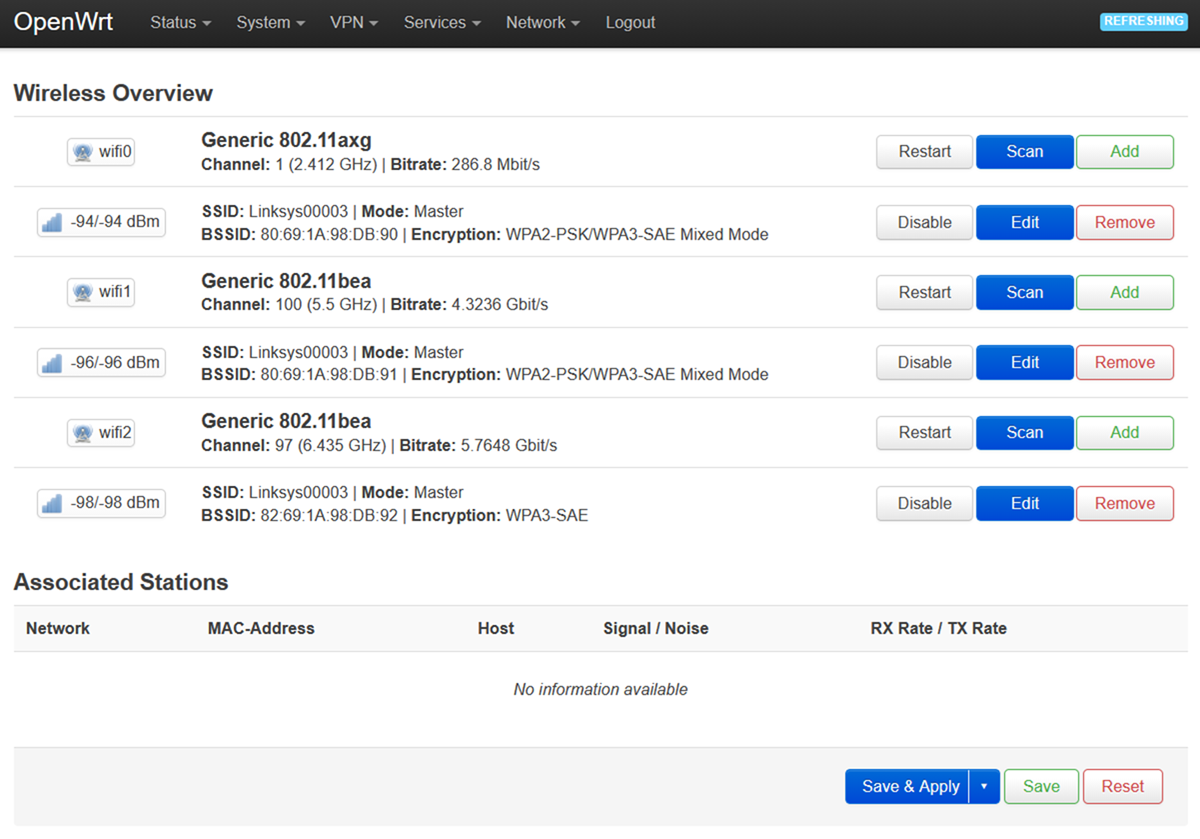
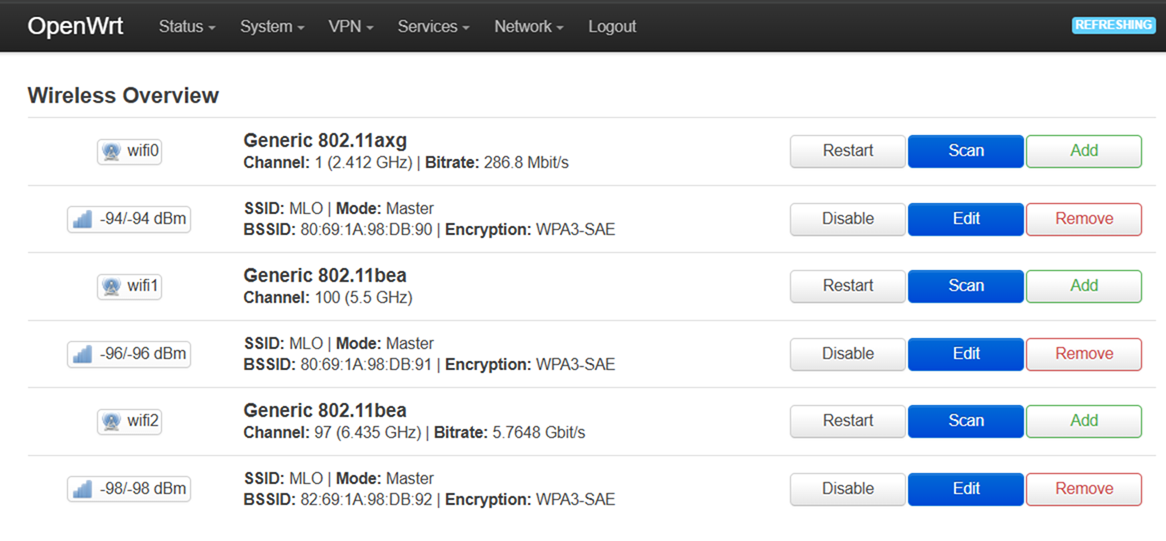
2. Una volta acceduto all'interfaccia web, vai su Network > Wireless (Rete > Wireless).
3. Fare clic sul pulsante Edit (Modifica) nell'interfaccia a 2,4 GHz (wifi0).
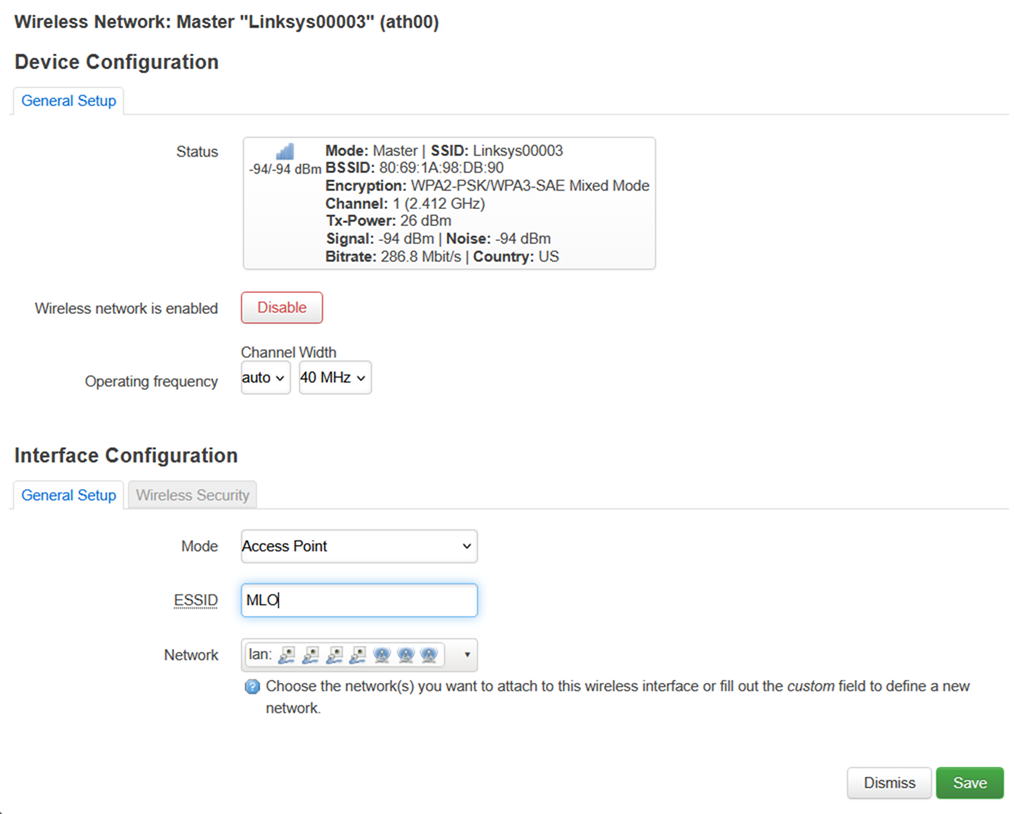
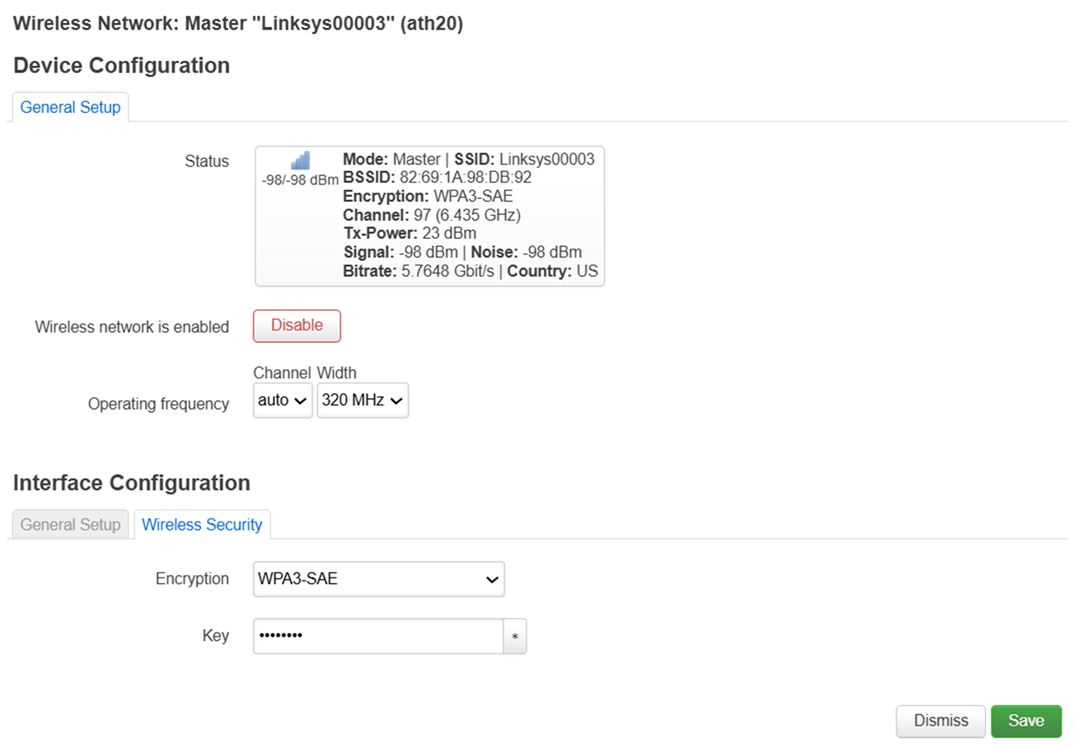
4. In Interface Configuration > General Setup (Configurazione interfaccia > Impostazioni generali), modificare l'ESSID in MLO.
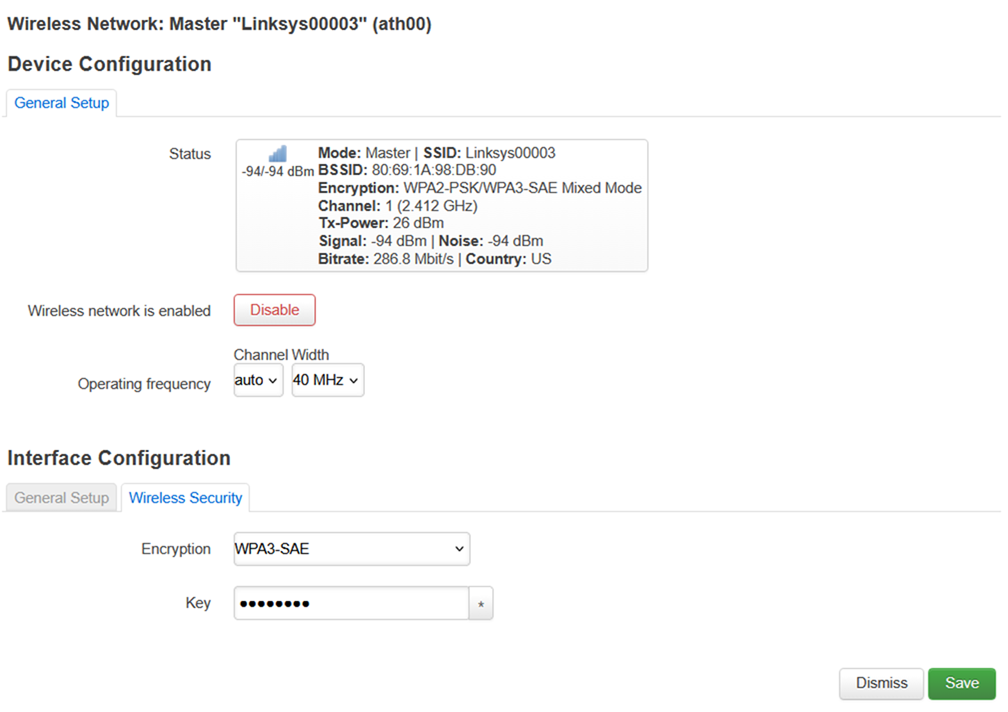
5. In Wireless Security (Sicurezza wireless), imposta la crittografia su WPA3-SAE e imposta una chiave personalizzata (che sarà la tua password wireless per la banda a 2,4 GHz).
Fare clic su Save (Salva) per continuare.
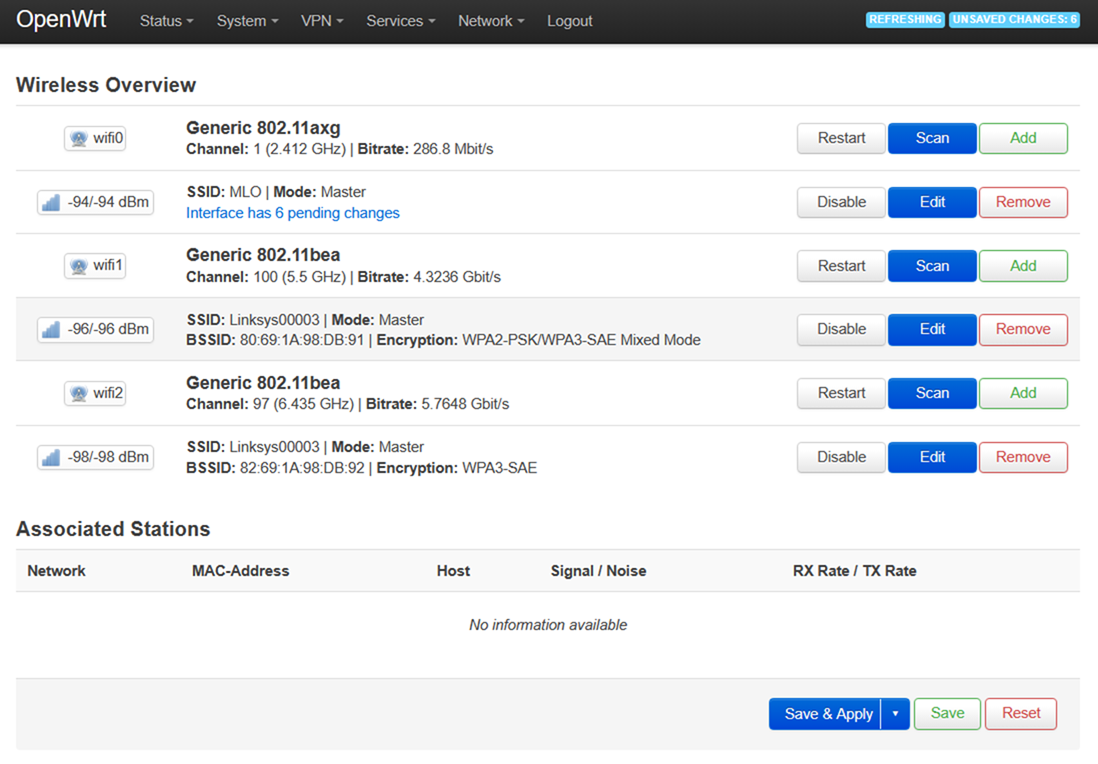
6. Verrai reindirizzato nuovamente alla pagina Wireless Overview (Panoramica sulla rete wireless). Fare clic su Save & Apply (Salva e applica).
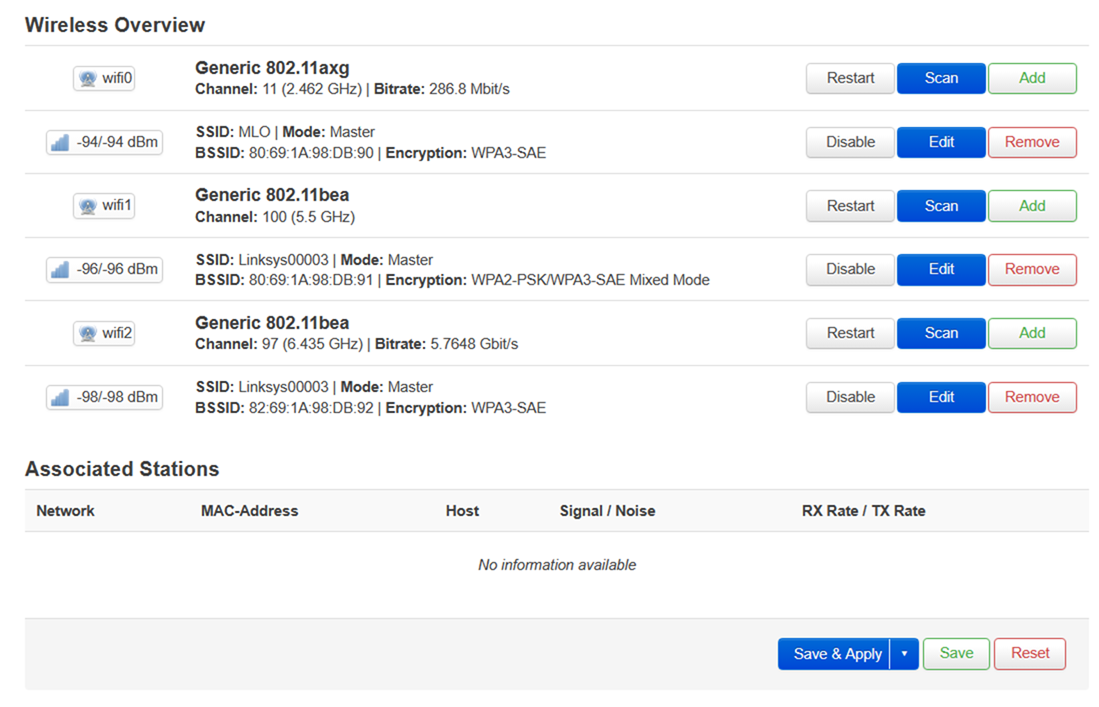
7. Seguire la stessa procedura per l'interfaccia a 5 GHz (wifi1).
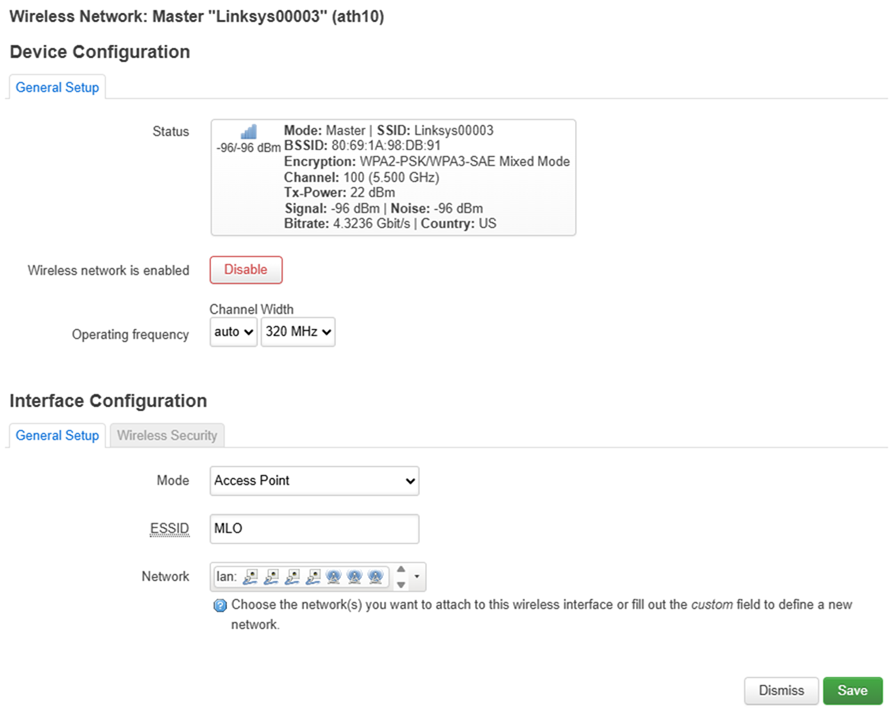
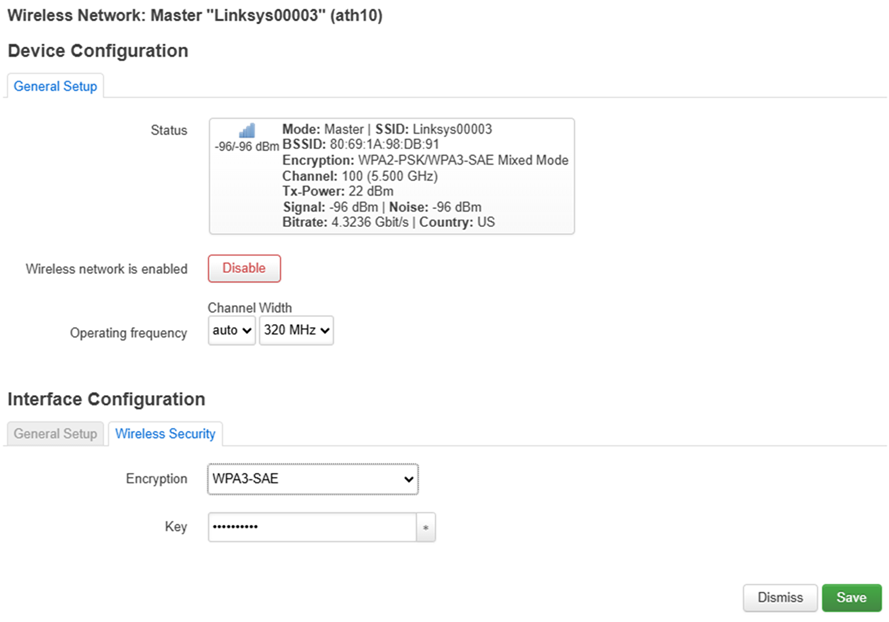
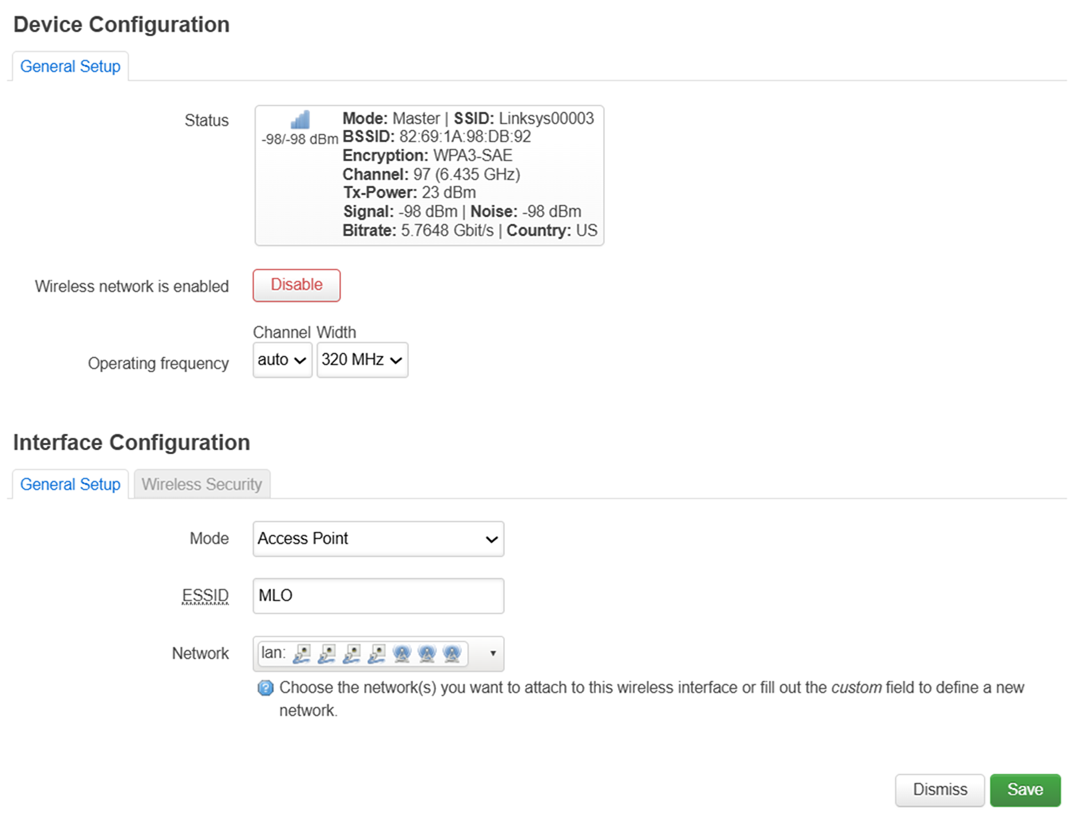
8. Seguire la stessa procedura per l'interfaccia a 6 GHz (wifi2).
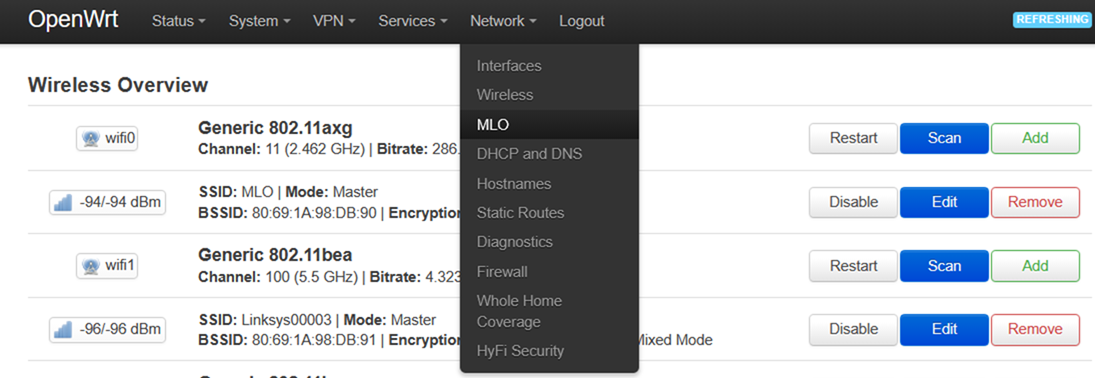
9. Vai su Network > MLO (Rete > MLO).
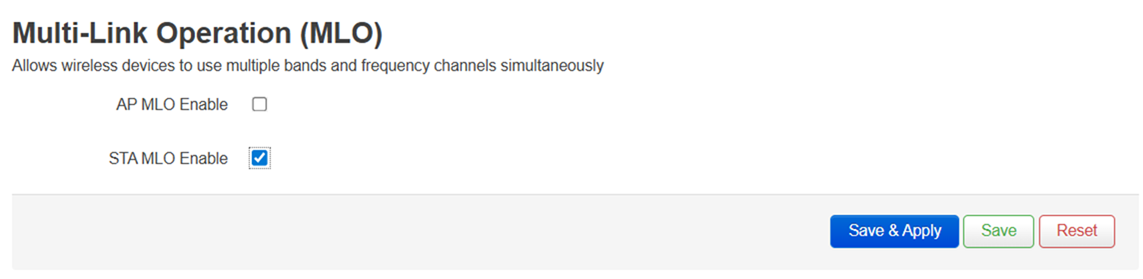
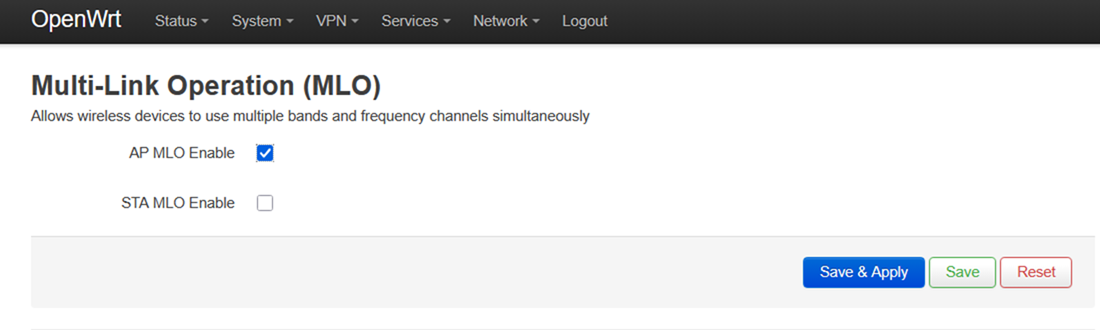
10. Selezionare la casella AP MLO Enable (Abilita MLO dell'access point) e fare clic su Save & Apply (Salva e applica).
Secondo router: effettuare le seguenti impostazioni per il router secondario MBE70 (STA).
1. Accedi al router secondario e vai su Network > Interfaces (Rete > Interfacce).
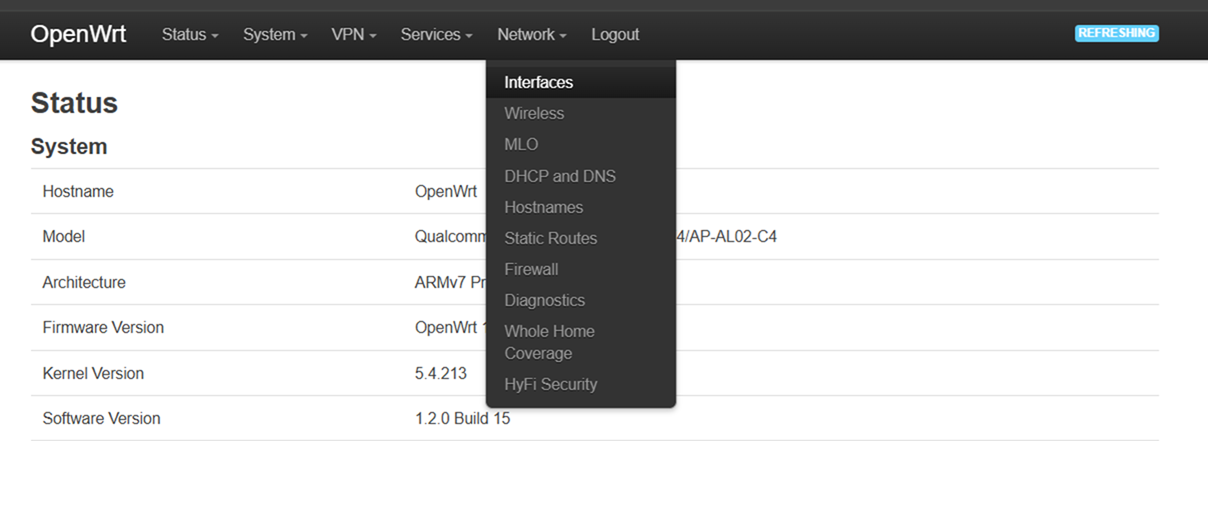
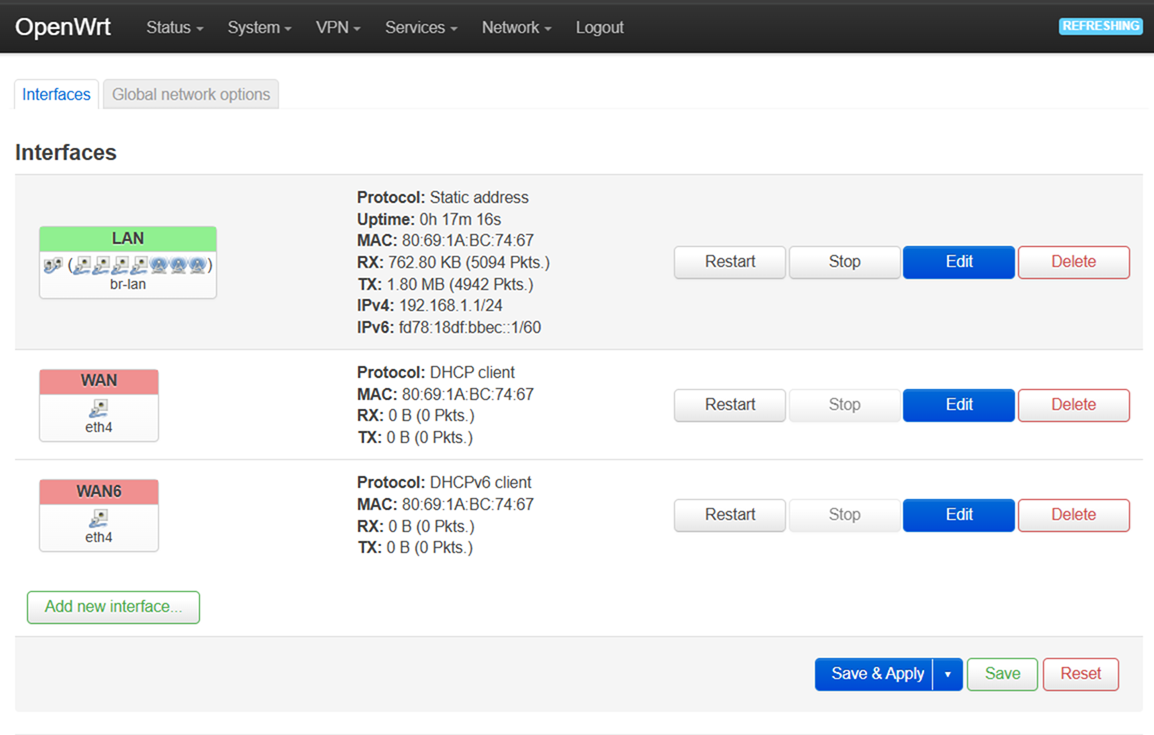
2. Nella scheda Interfaces (Interfacce), fare clic sul pulsante Edit (Modifica) relativo alla LAN.
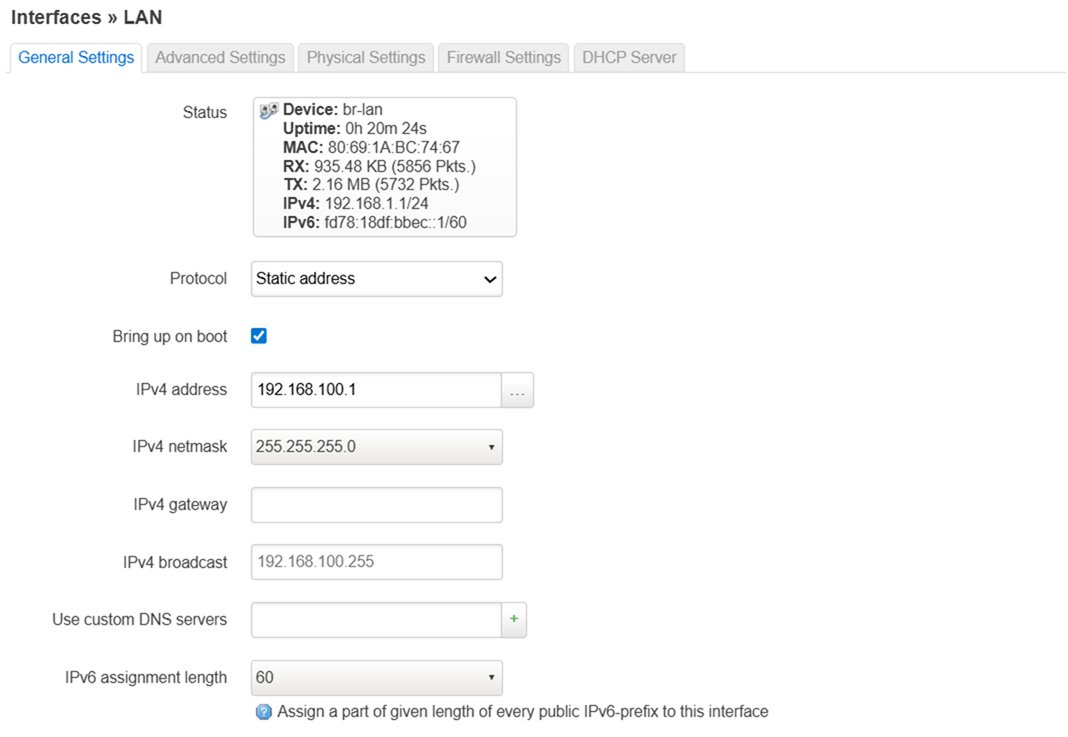
3. Modifica l'indirizzo IPv4 della LAN da 192.168.1.1 a 192.168.100.1 e fare clic su Save (Salva).
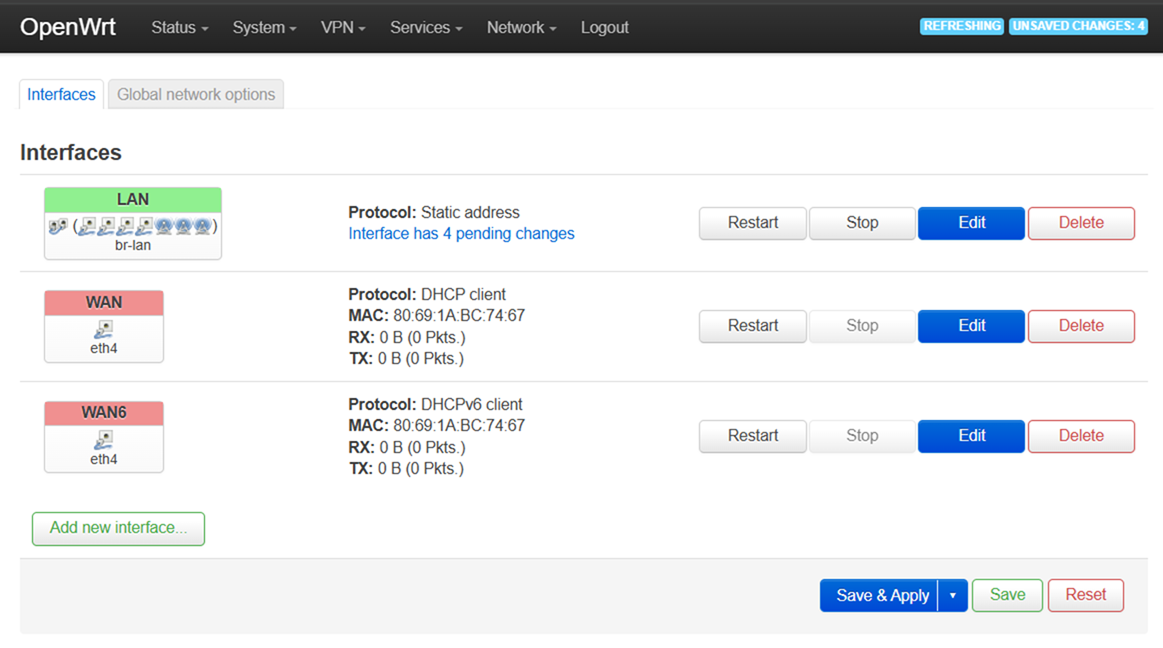
Una volta terminato, fare clic su Save & Apply (Salva e applica).
4. Una volta che il router avrà salvato le impostazioni, accedi all'interfaccia utente utilizzando il nuovo indirizzo IP: 192.168.100.1.
Vai su Network > Wireless (Rete > Wireless) e poi premi il pulsante Scan (Scansiona) per la tua interfaccia a 2,4 GHz.

5. Una volta individuato l'SSID dell'MLO, fare clic sul pulsante Join Network (Entra nella rete).

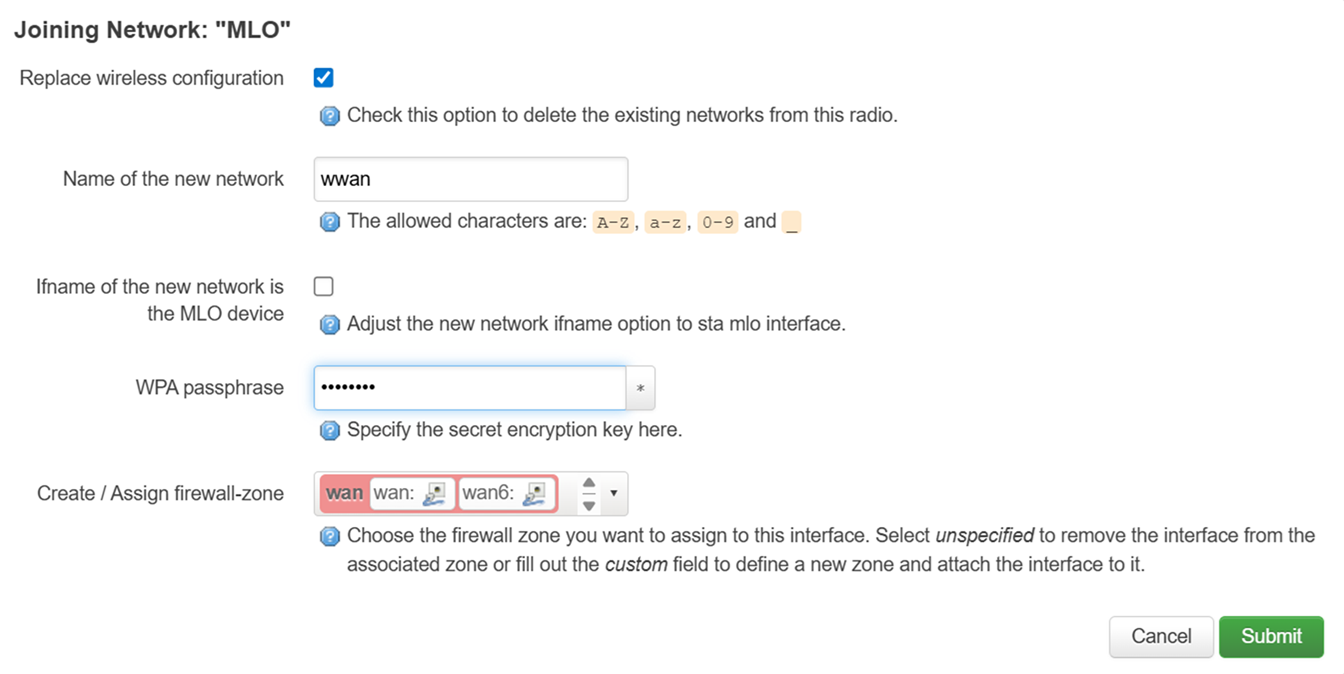
6. Assicurati di selezionare Replace wireless configuration (Sostituisci configurazione wireless) e inserisci la password Wi-Fi dell'SSID dell'MLO nel campo WPA passphrase (Passphrase WPA).
Una volta fatto ciò, fare clic sul pulsante Submit (Invia).
7. Imposta il tipo di crittografia su WPA3-SAE, aggiorna la password con la password SSID di MLO e la modalità su Client.
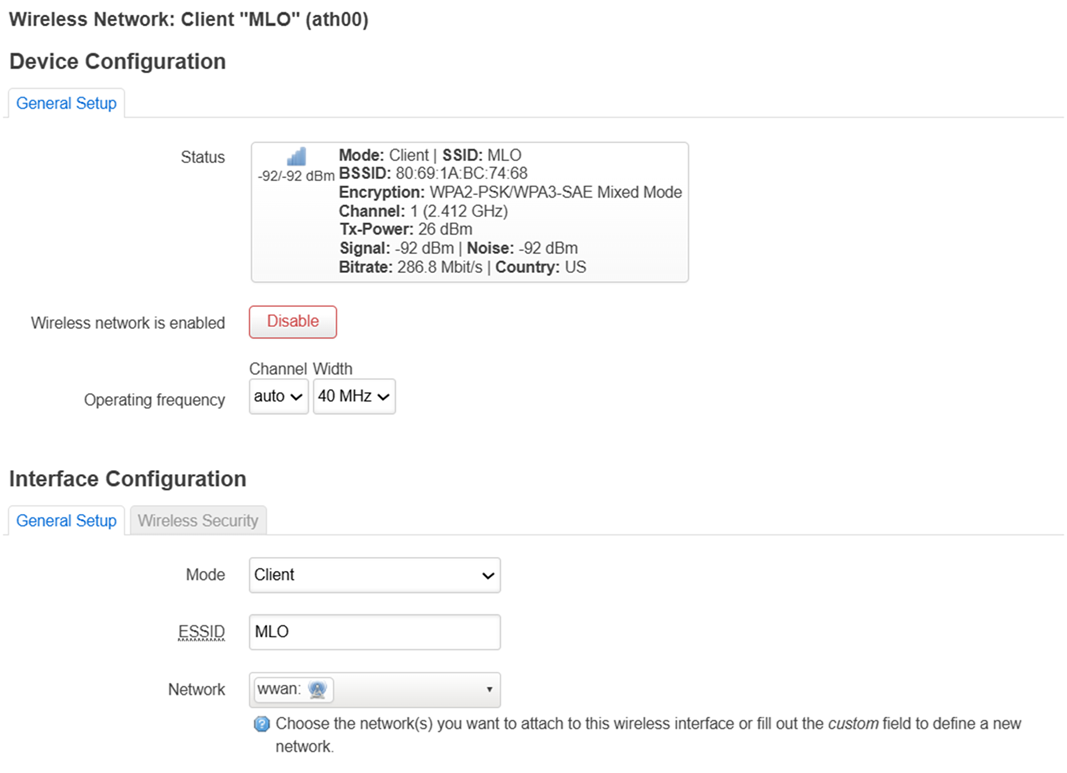
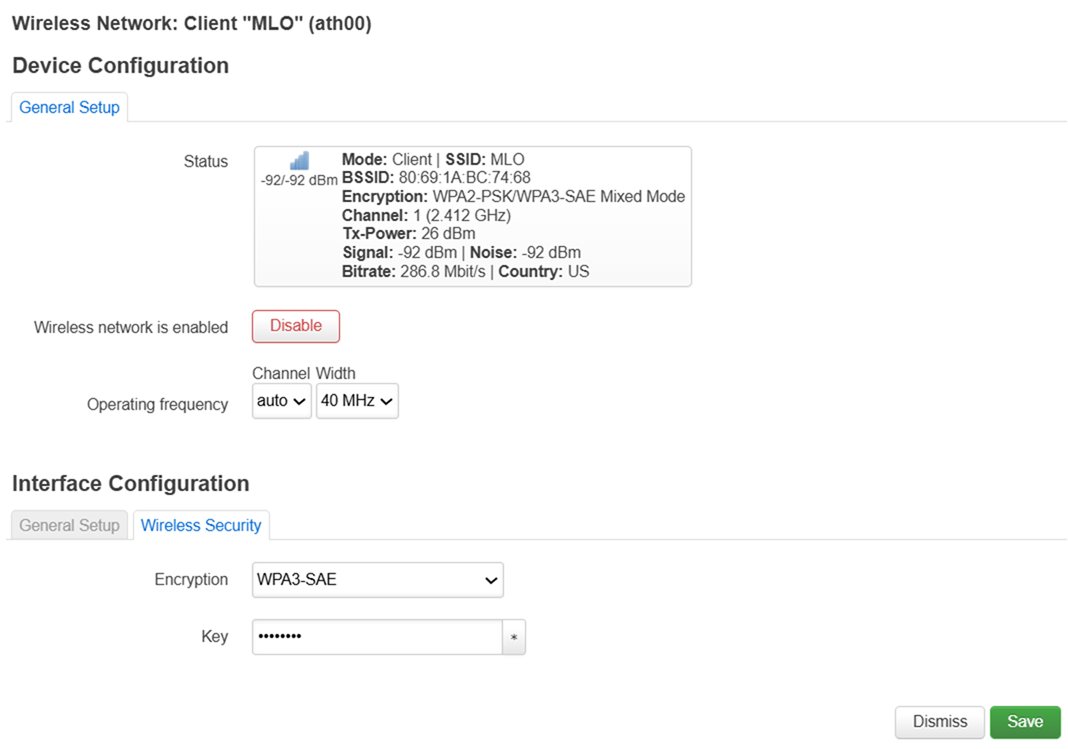
8. Vai su Network > Interfaces (Rete > Interfacce e vedrai che è stata aggiunta un'altra interfaccia WWAN.
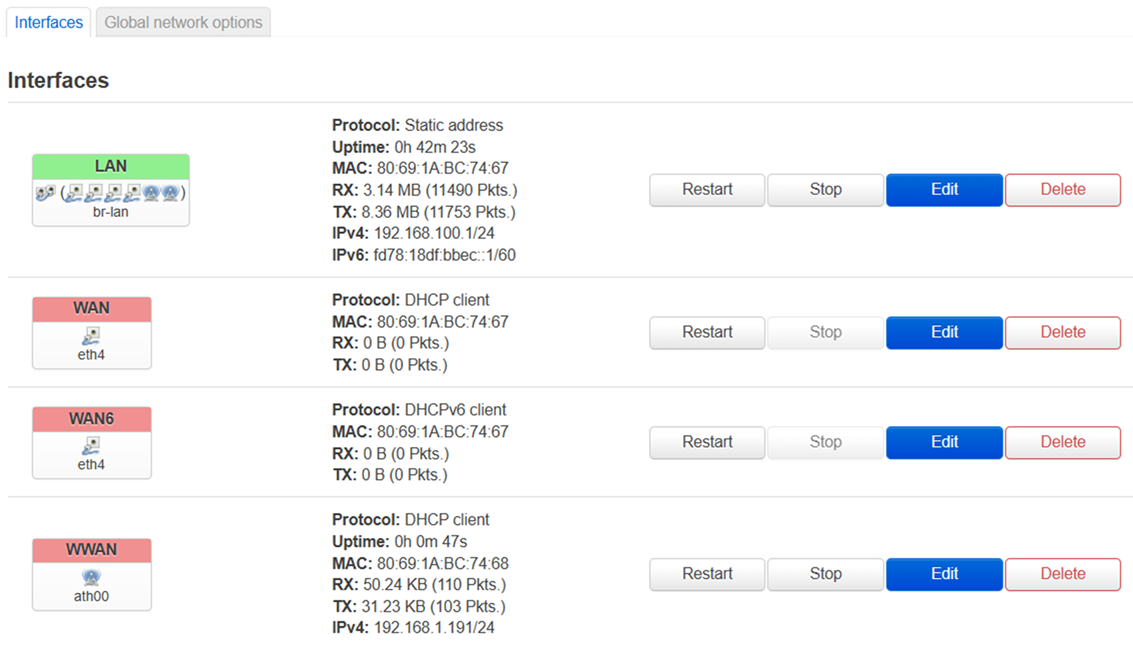
9. Vai su Network > Wireless (Rete > Wireless) e fare clic sul pulsante Edit (Modifica) dell'interfaccia a 5 GHz (wifi1).

10. Modifica l'ESSID in MLO, la modalità in Client, la crittografia in WPA3-SAE e la password in quella della tua rete Wi-Fi principale. Fare clic su Save (Salva), quindi su Save & Apply (Salva e applica).
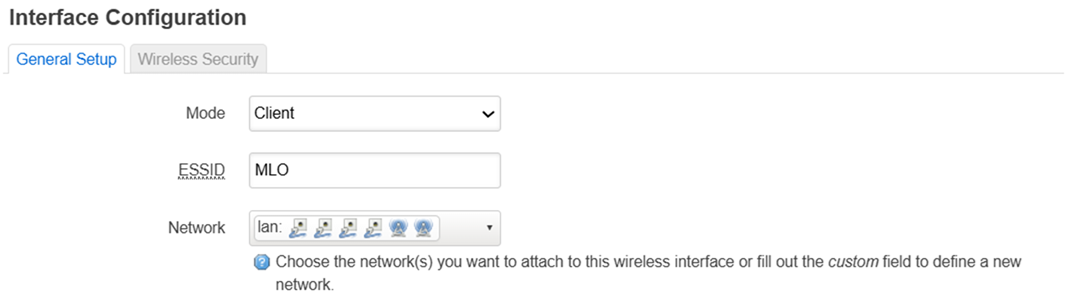
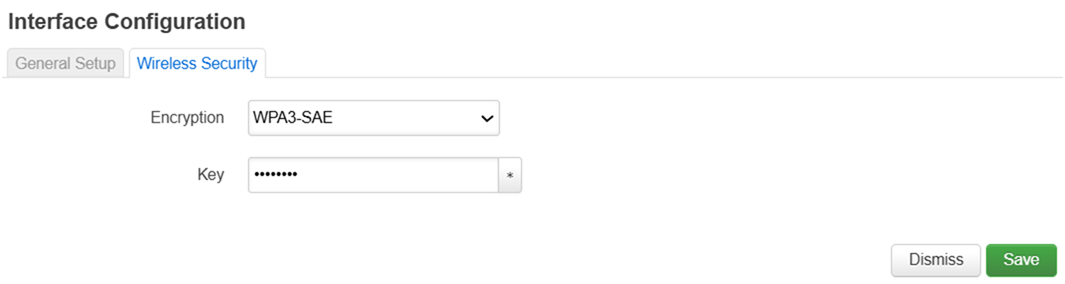
11. Seguire la stessa procedura descritta al passo 10 per l'interfaccia a 6 GHz (wifi2).

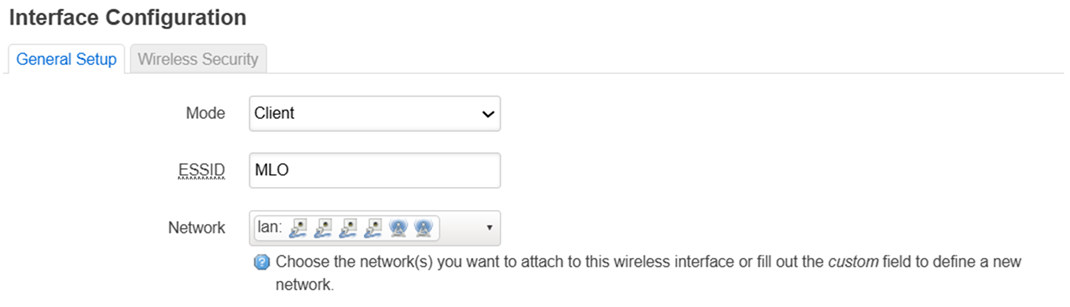
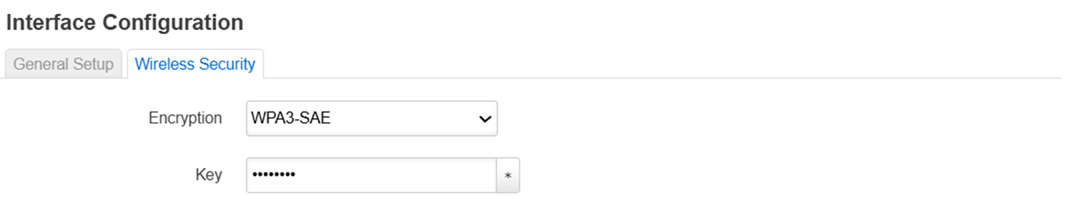
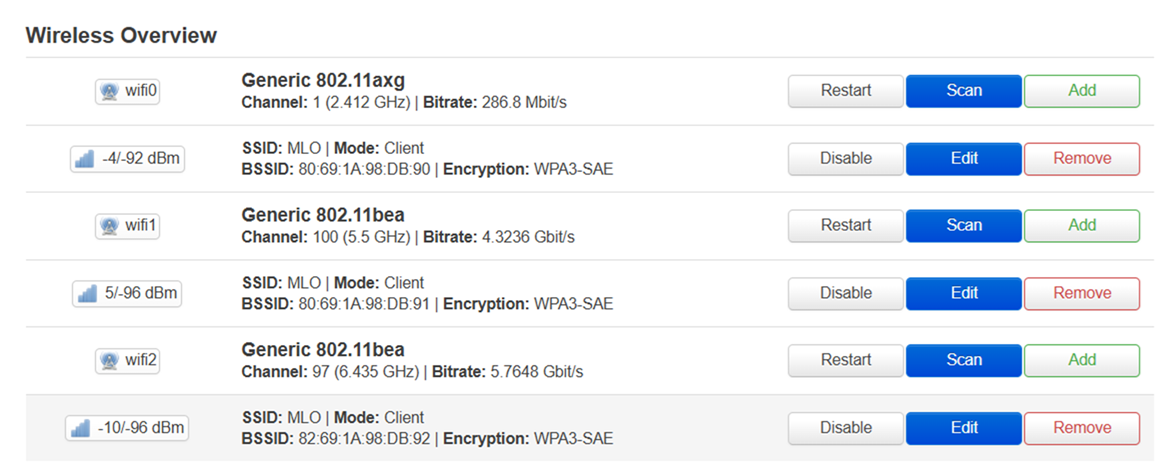
12. Vai su Network > Wireless (Rete > Wireless) e assicurati che queste tre opzioni siano attivate.
13. Vai su Network > MLO (Rete > MLO) e seleziona STA MLO Enable (STA MLO abilitato). Fare clic su Save & Apply (Salva e applica).