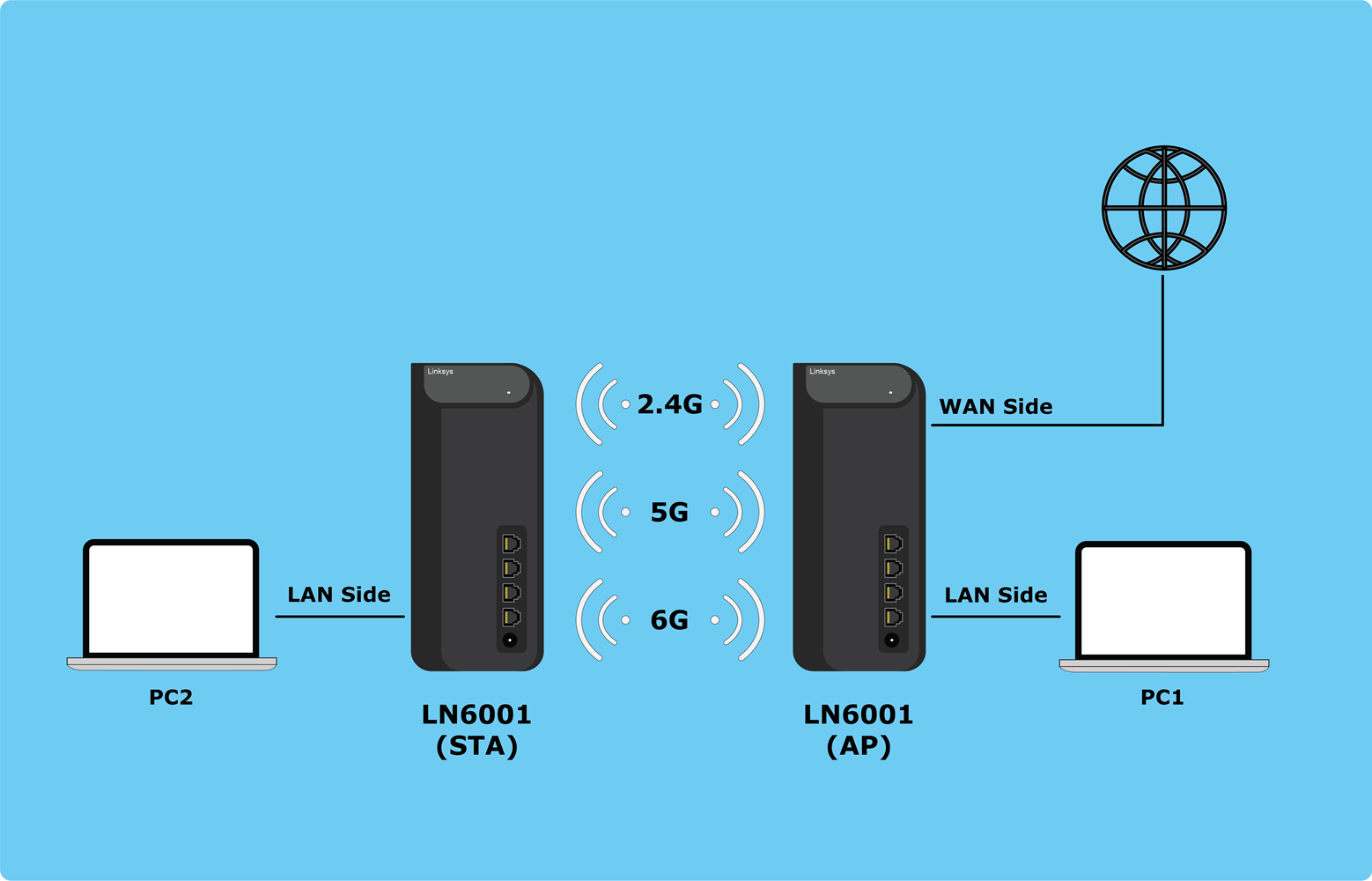
Este artículo ofrece instrucciones paso a paso para configurar dos dispositivos Linksys OpenWRT MBE70 (LN6001) con el fin de establecer una conexión inalámbrica mediante el modo Multi-Link Operation (MLO).
Si necesita más ayuda, póngase en contacto con la comunidad de OpenWRT para obtener asistencia.
Topología de red
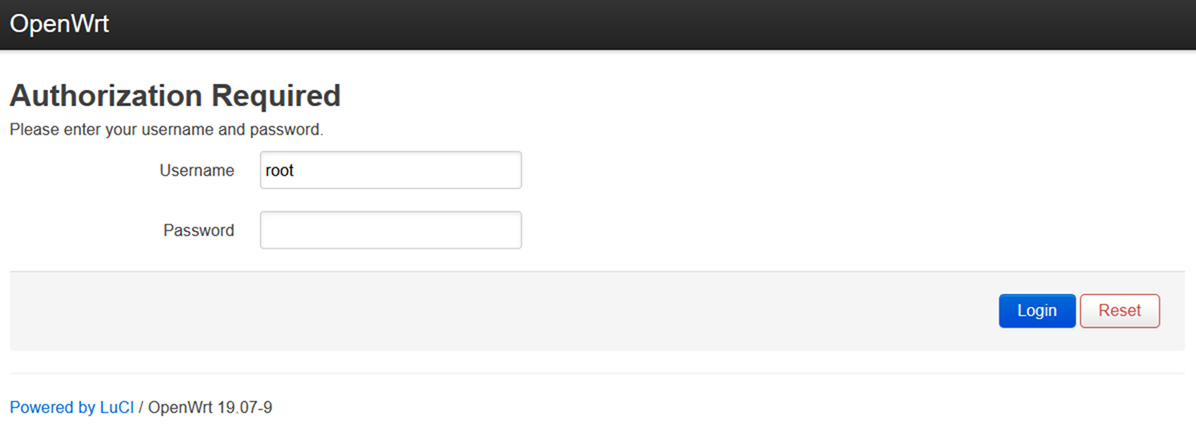
Primer router: Realice los siguientes ajustes en su MBE70 principal (AP).
1. Inicie sesión en el router. El nombre de usuario y la contraseña predeterminados son root y la contraseña predeterminada de WiFi, respectivamente.
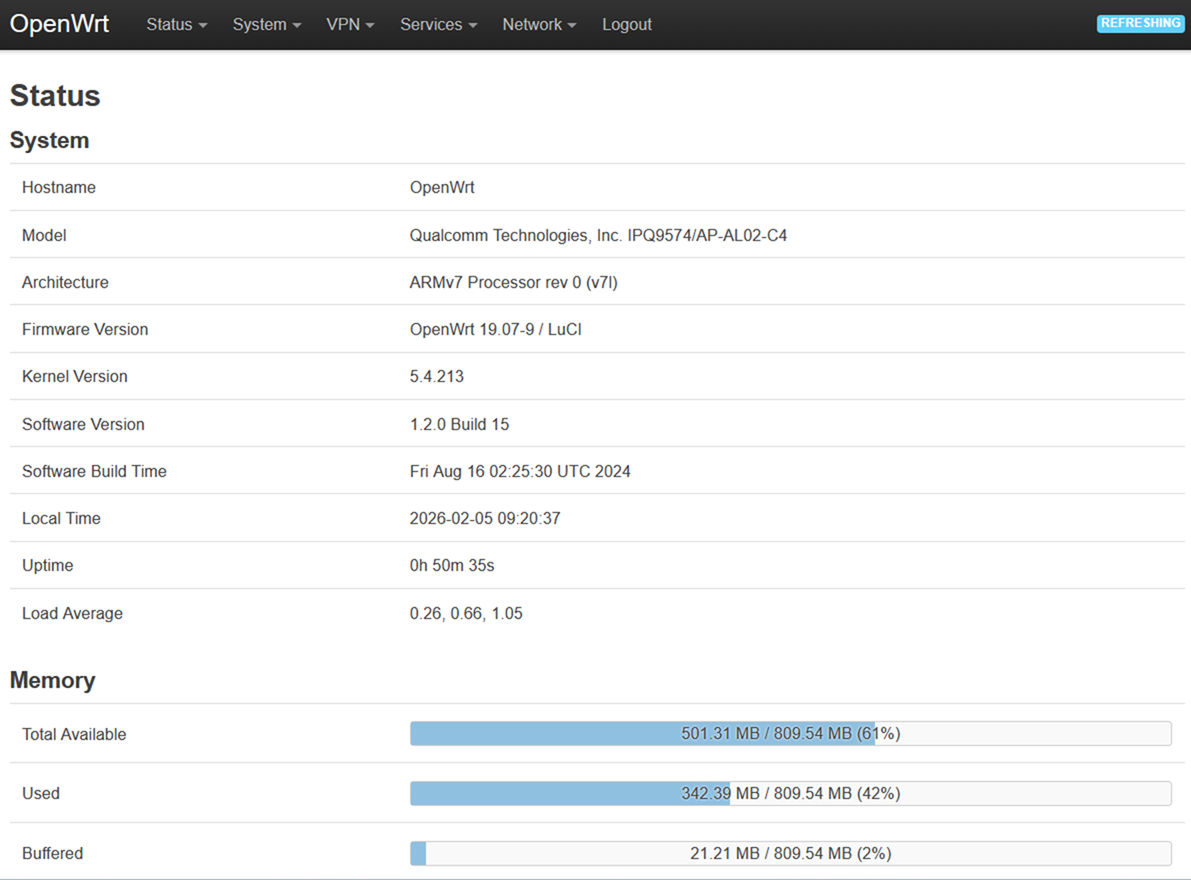
2. Una vez dentro de la interfaz web, vaya a Network > Wireless (Red > Inalámbrico).
3. Haga clic en el botón Edit (Editar) de la interfaz de 2,4 GHz (wifi0).
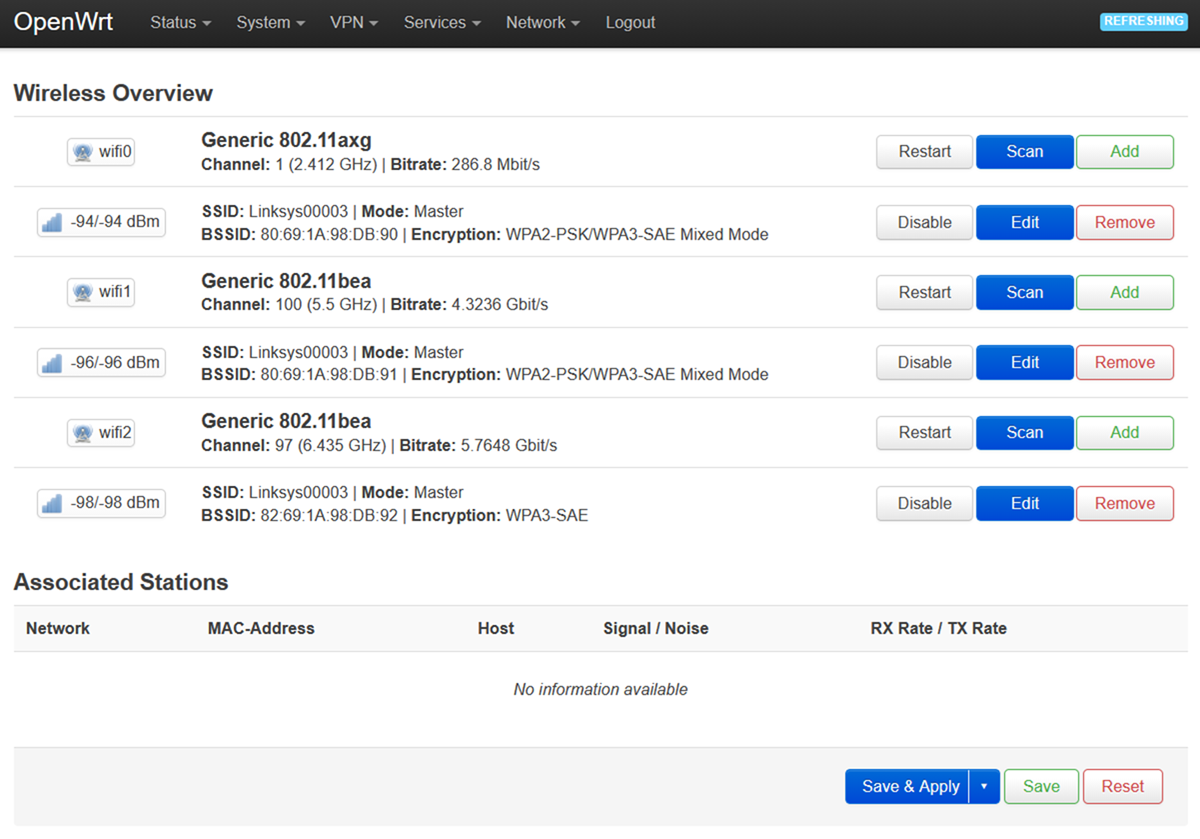
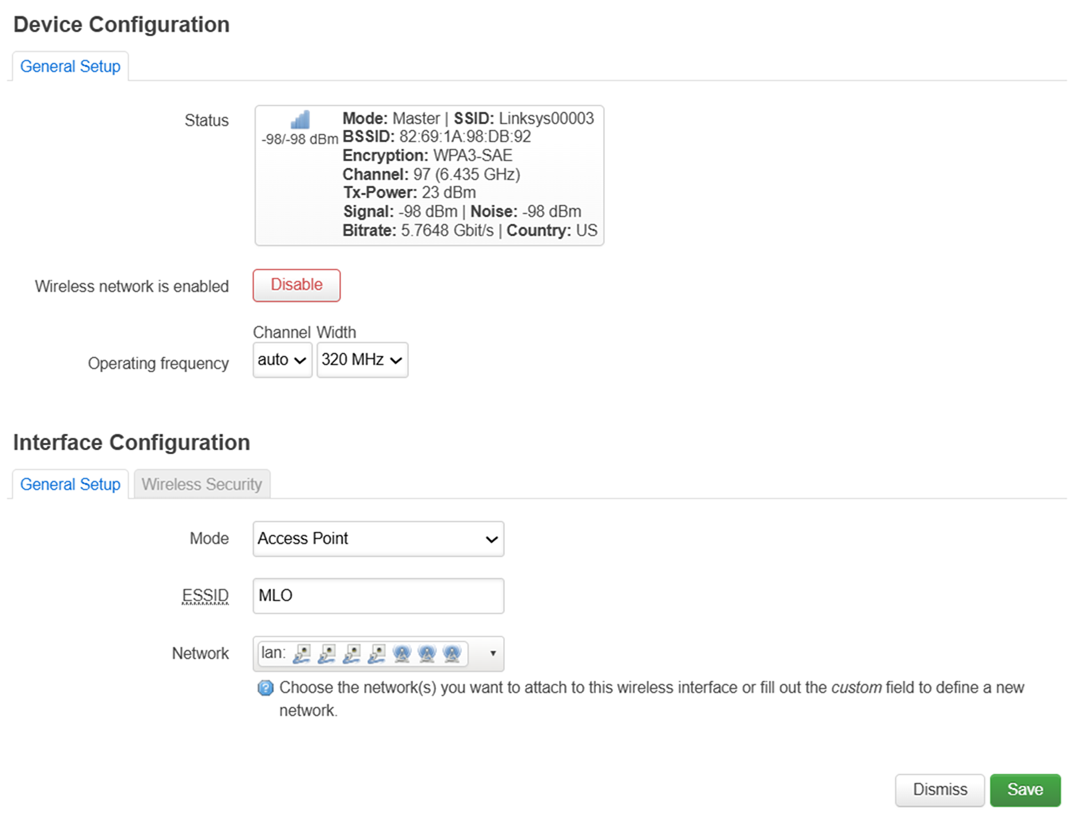
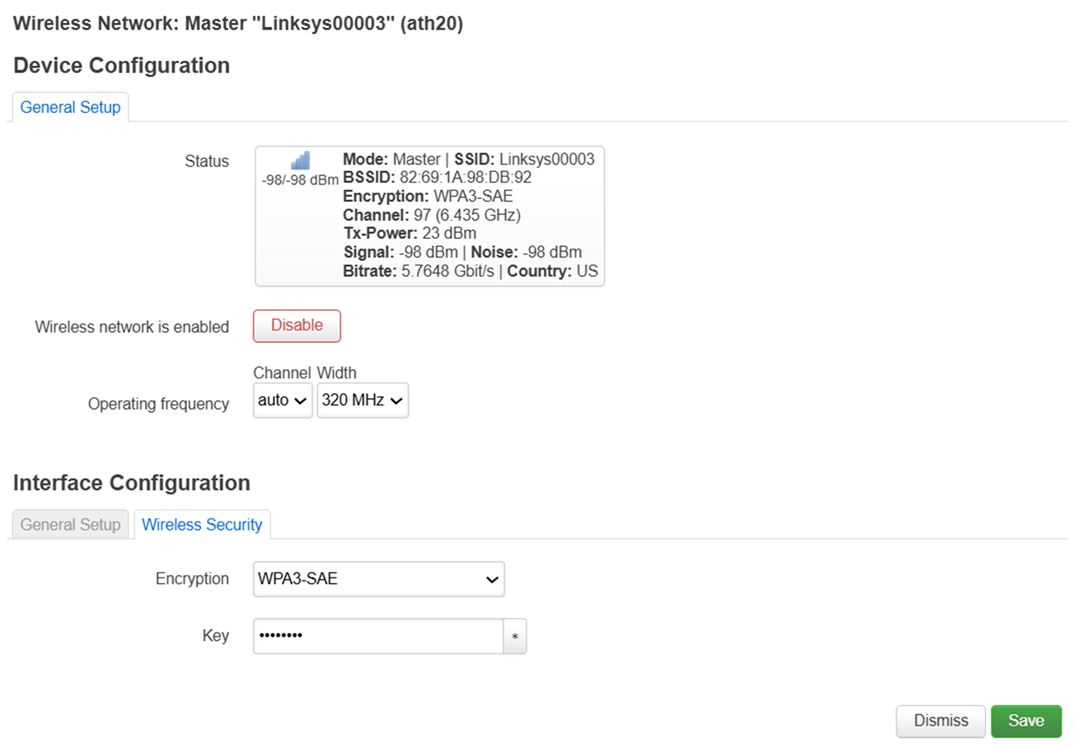
4. En Interface Configuration > General Setup (Configuración de la interfaz > Configuración general), cambie el ESSID a MLO.
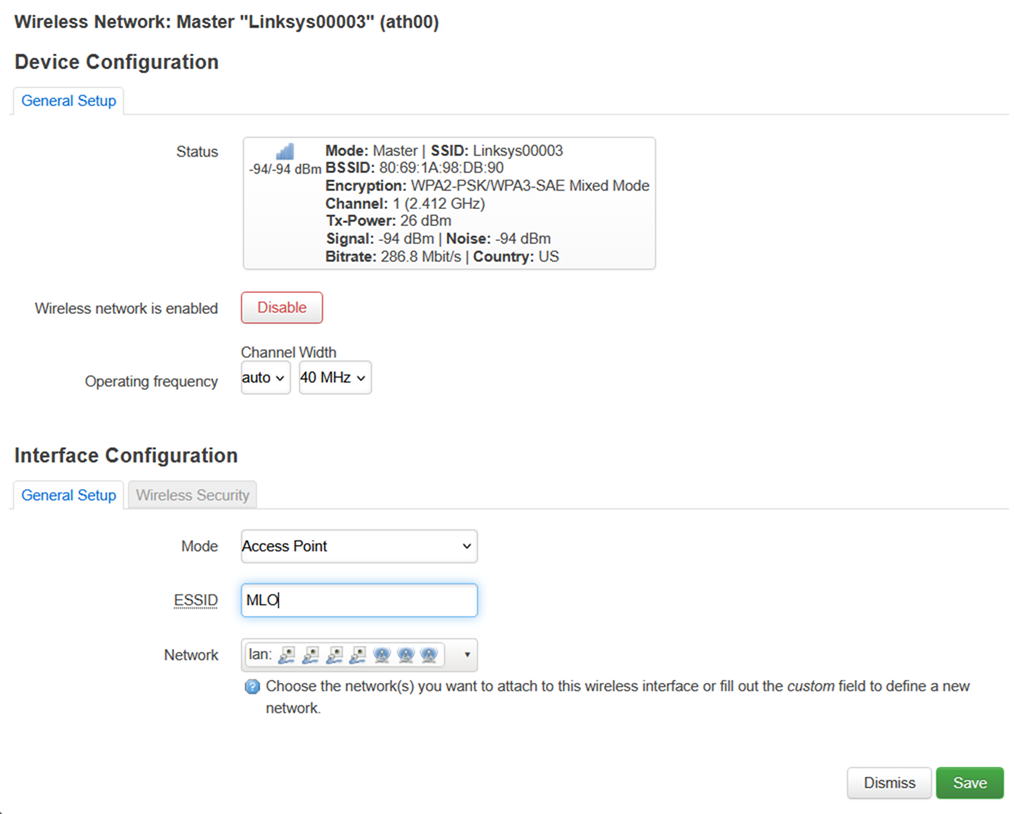
5. En Wireless Security (Seguridad inalámbrica), cambie el Cifrado a WPA3-SAE y personalice la Clave (que será su contraseña inalámbrica para la banda de 2,4 GHz).
Haga clic en Save (Guardar) para continuar.
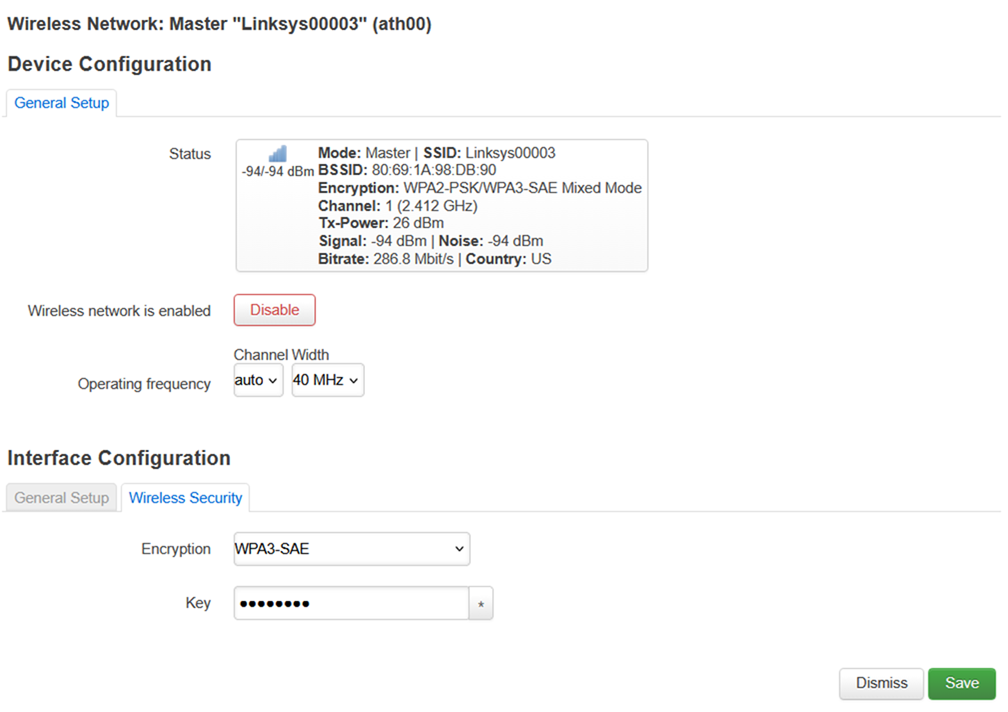
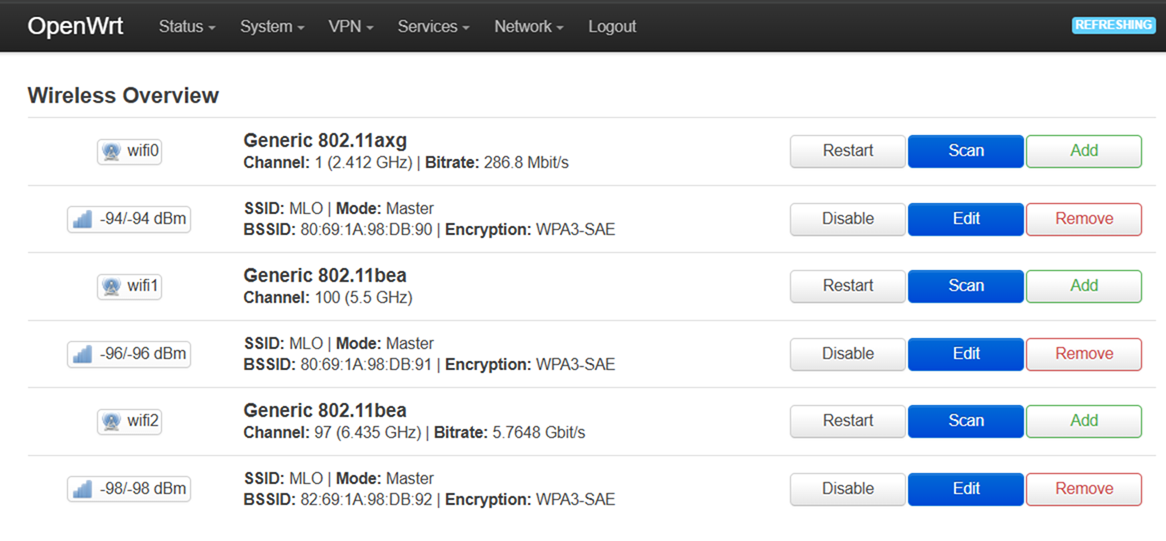
6. Se le redirigirá de nuevo a la página Wireless Overview (Resumen de red inalámbrica). Haga clic en Save & Apply (Guardar y aplicar).
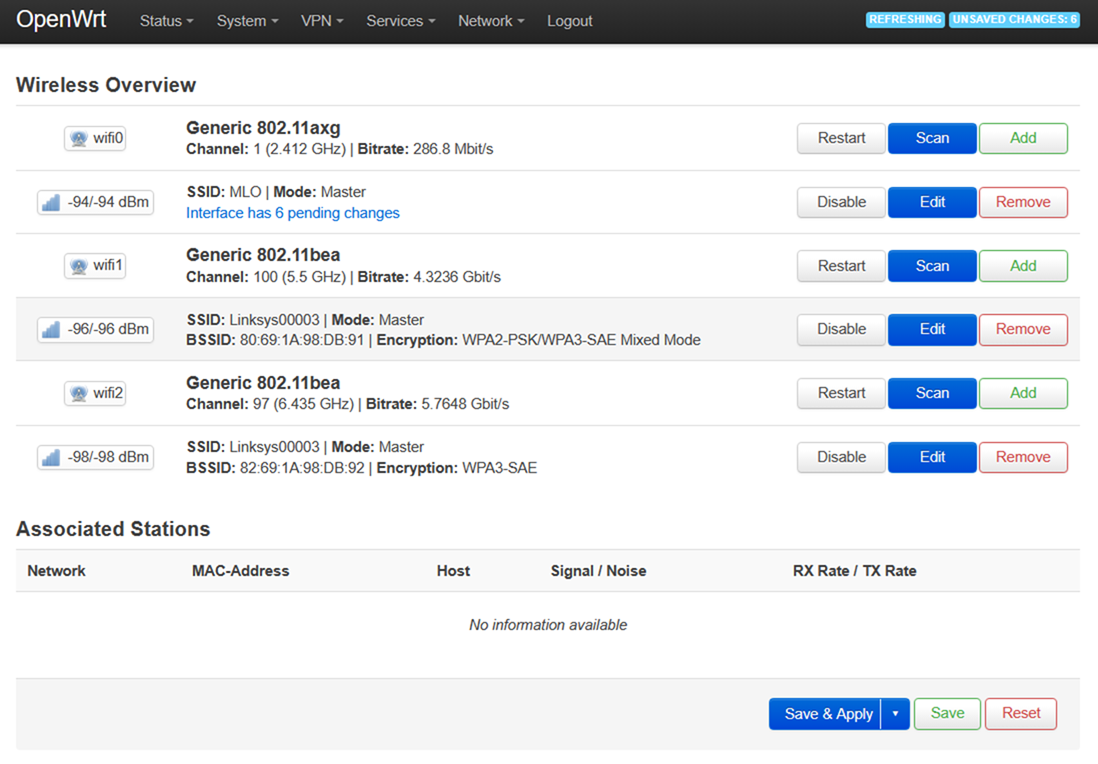
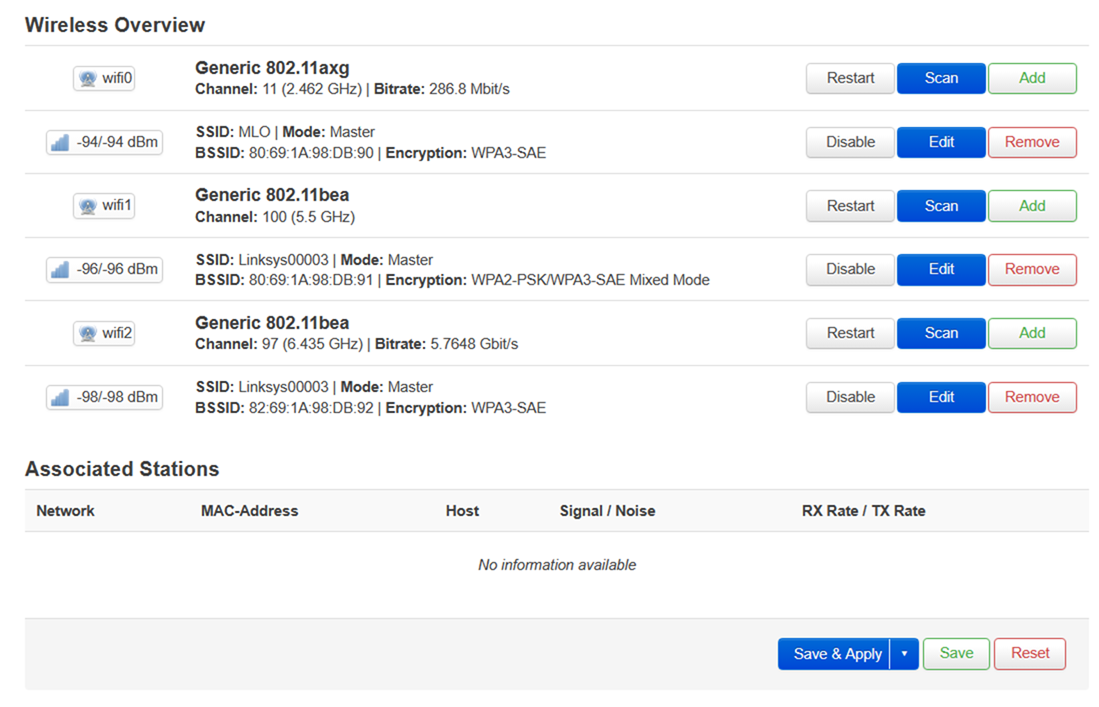
7. Realice los mismos pasos para la interfaz de 5 GHz (wifi1).
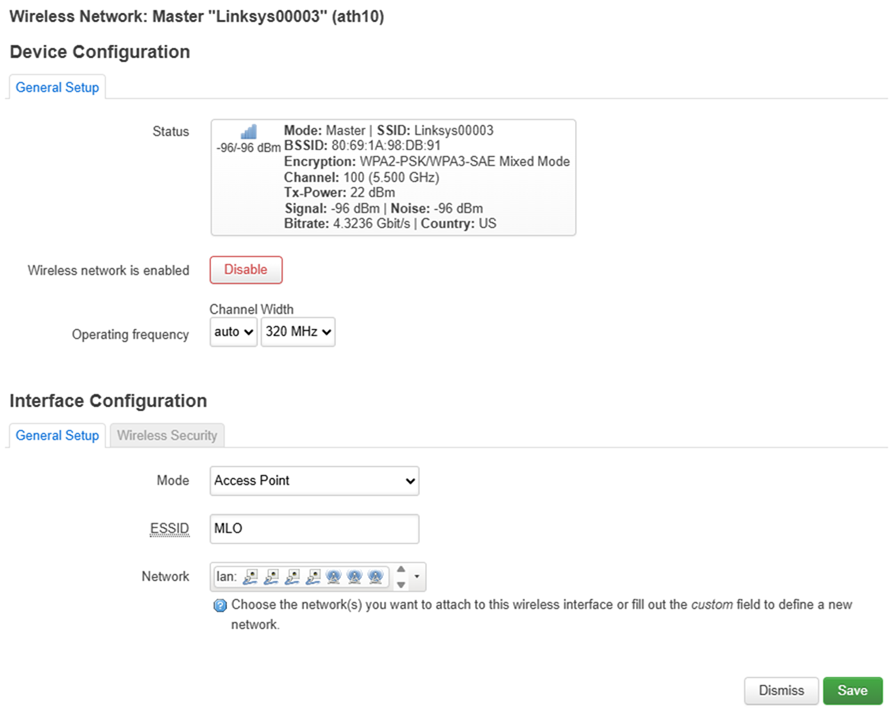
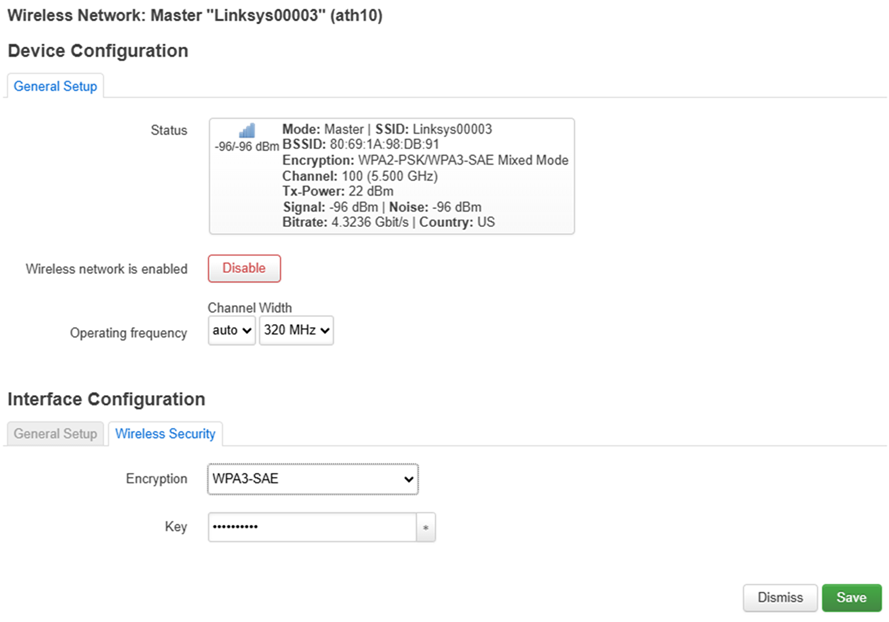
8. Realice los mismos pasos para la interfaz de 6 GHz (wifi2).
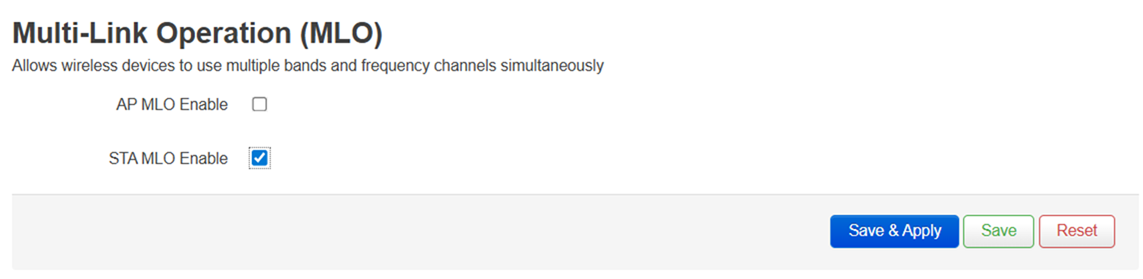
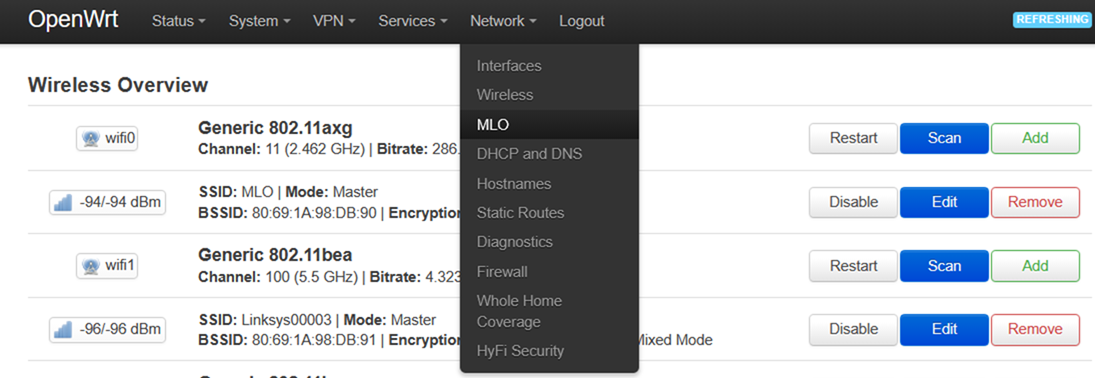
9. Vaya a Network > MLO (Red > MLO).
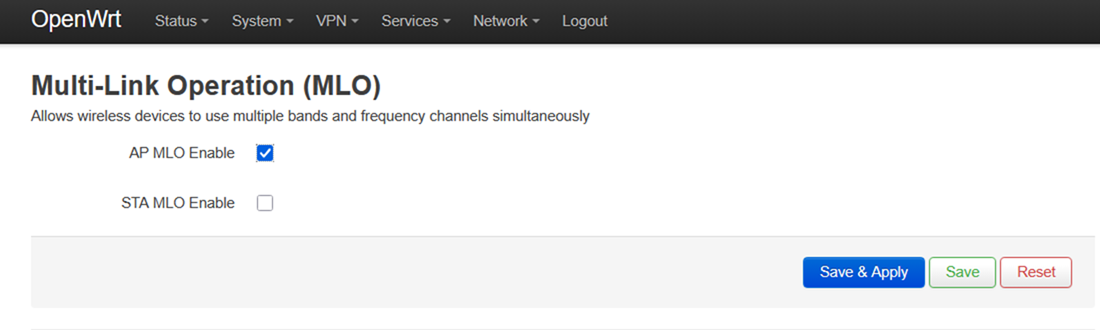
10. Marque la casilla AP MLO Enable (Habilitar MLO del punto de acceso) y haga clic en Save & Apply (Guardar y aplicar).
Segundo router: Realice los siguientes ajustes para el MBE70 secundario (STA).
1. Inicie sesión en el router secundario y vaya a Network > Interfaces (Red > Interfaces).
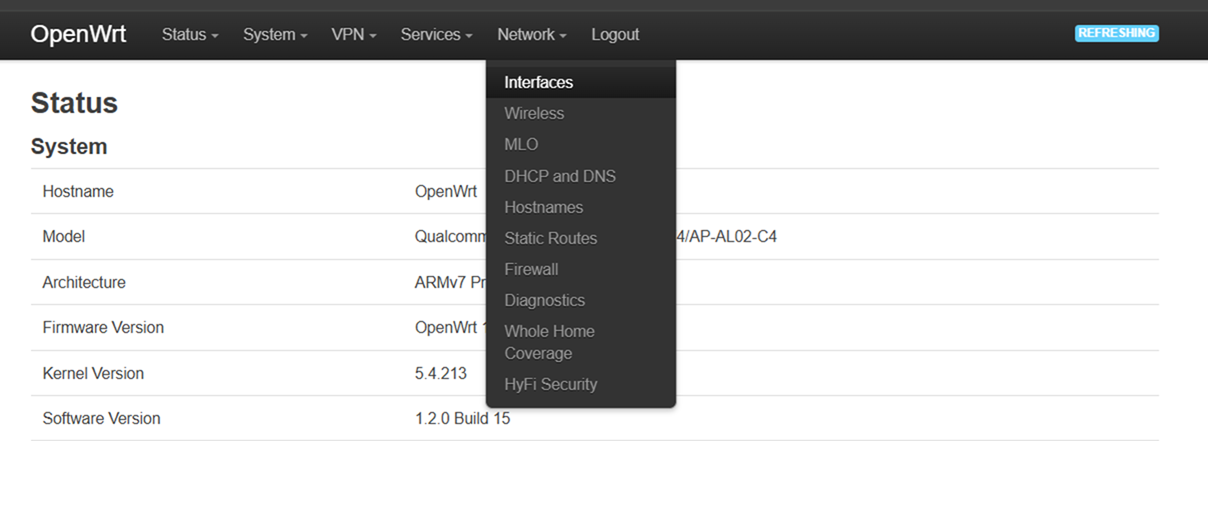
2. En la pestaña Interfaces, haga clic en el botón Edit (Editar) correspondiente a LAN.
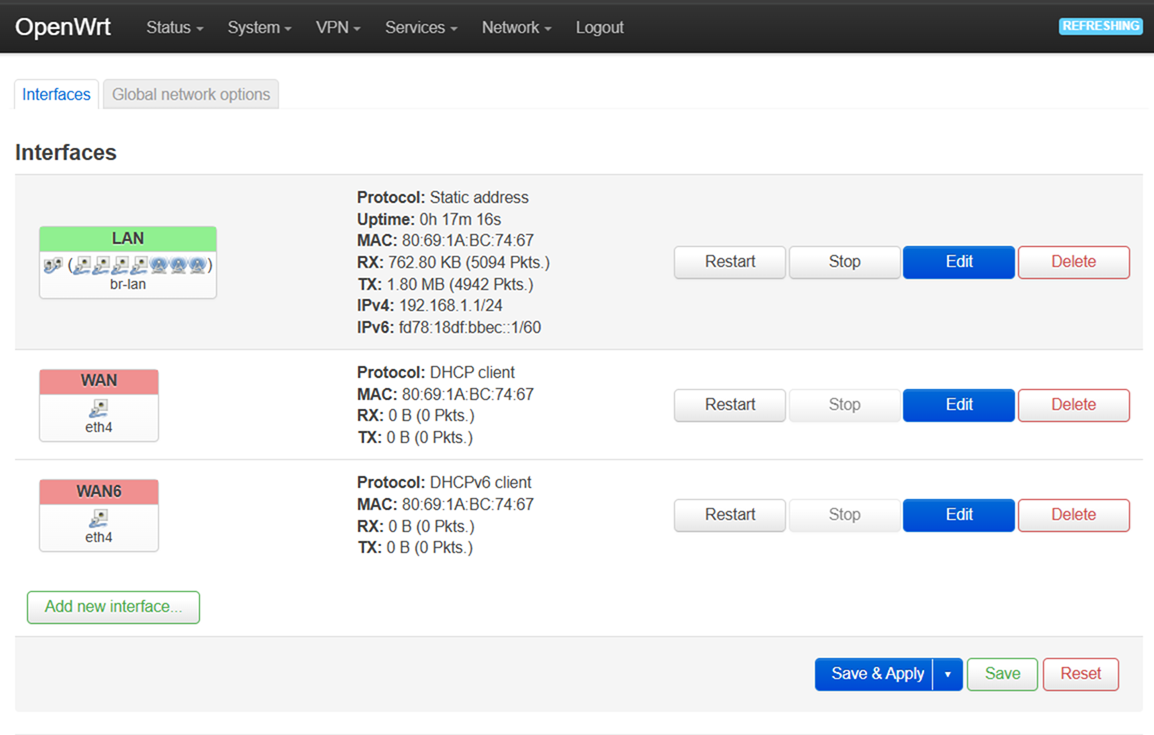
3. Cambie la dirección IPv4 de LAN de 192.168.1.1 a 192.168.100.1 y haga clic en Save (Guardar).
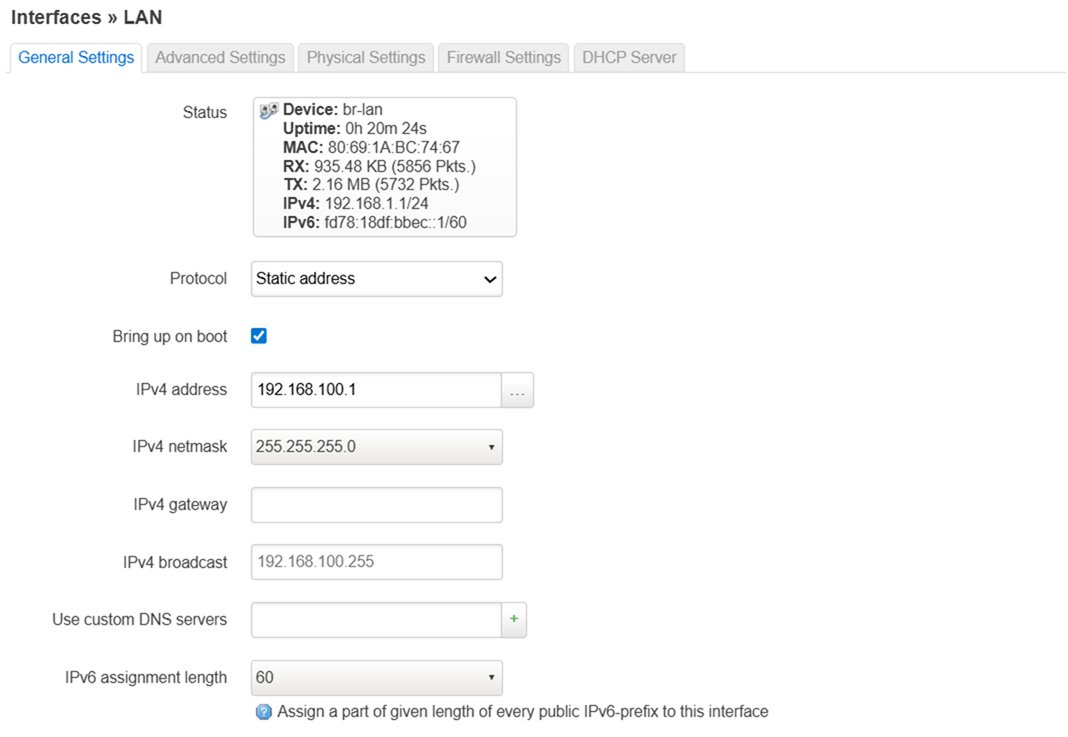
Haga clic en Save & Apply (Guardar y aplicar) una vez que haya terminado.
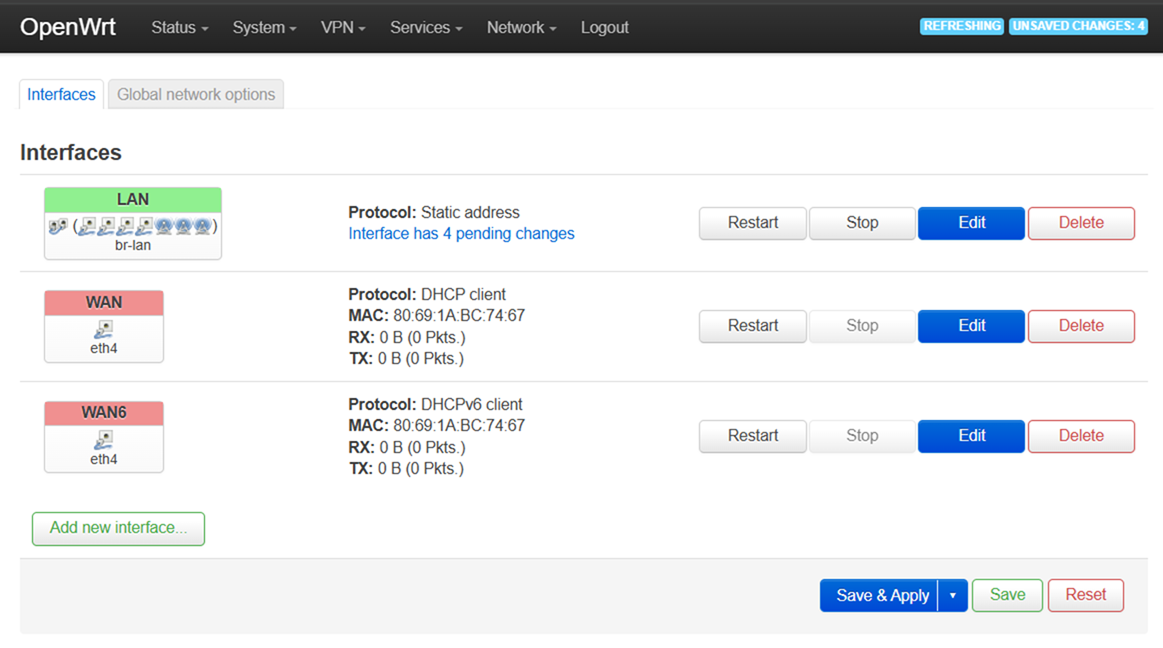
4. Una vez que el router haya guardado la configuración, inicie sesión en la interfaz de usuario utilizando la nueva dirección IP: 192.168.100.1.
Vaya a Network > Wireless (Red > Inalámbrico) > y, a continuación, pulse el botón Scan (Escanear) para su interfaz de 2,4 GHz.

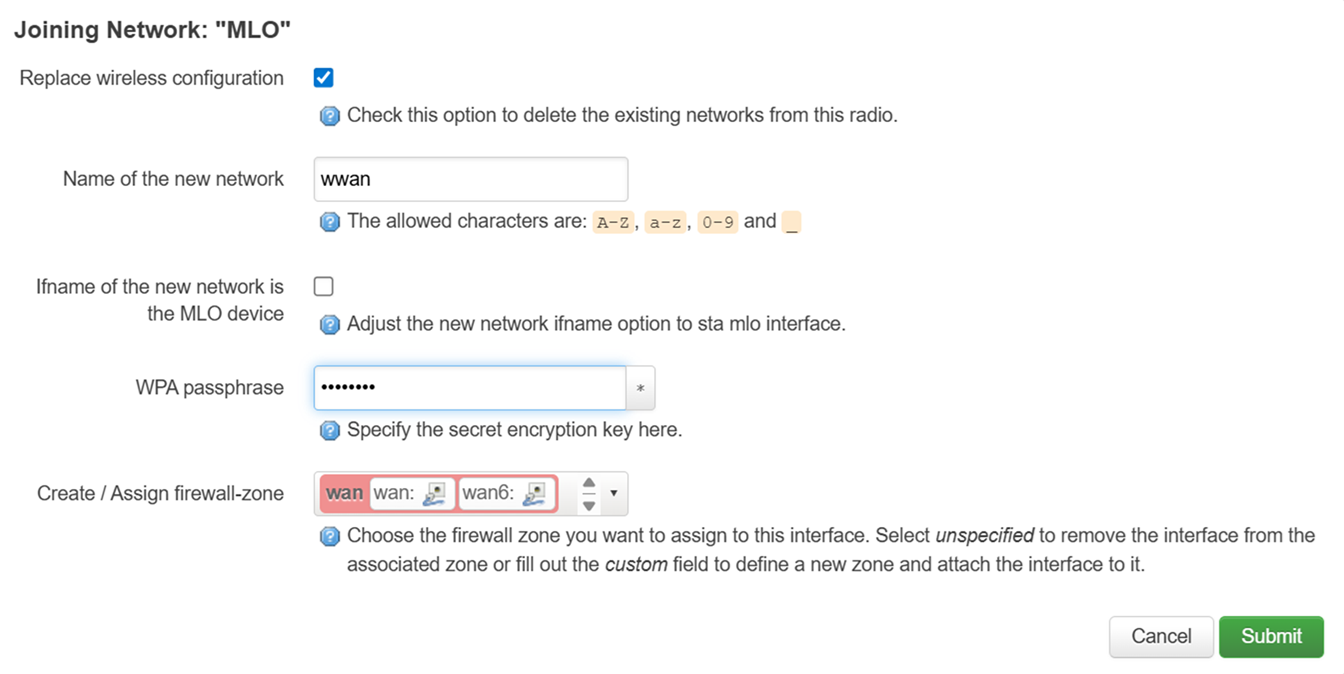
5. Haga clic en el botón Join Network (Unirse a la red) una vez que haya encontrado el SSID del MLO.

6. Asegúrese de seleccionar Replace wireless configuration (Reemplazar configuración inalámbrica) e introduzca la contraseña WiFi del SSID del MLO en el campo WPA passphrase (Frase de contraseña WPA).
Haga clic en el botón Submit (Enviar) una vez hecho esto.
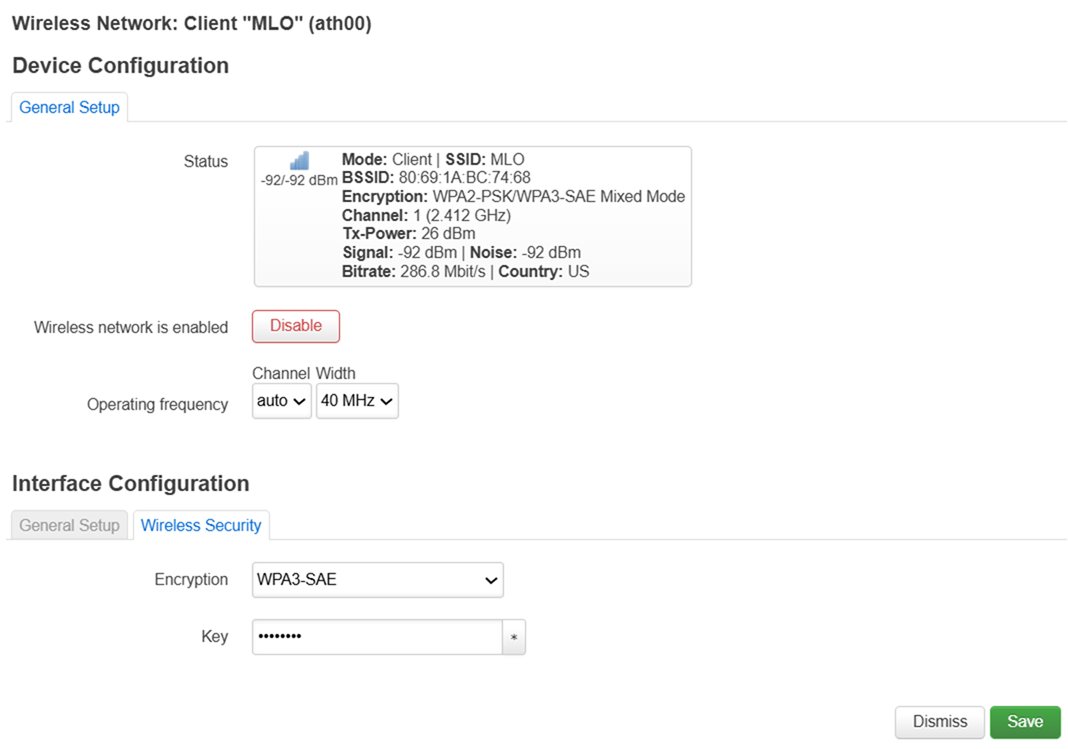
7. Establezca el Tipo de Cifrado en WPA3-SAE, actualice la contraseña con la del SSID de MLO y el Mode (Modo) a Client (Cliente).
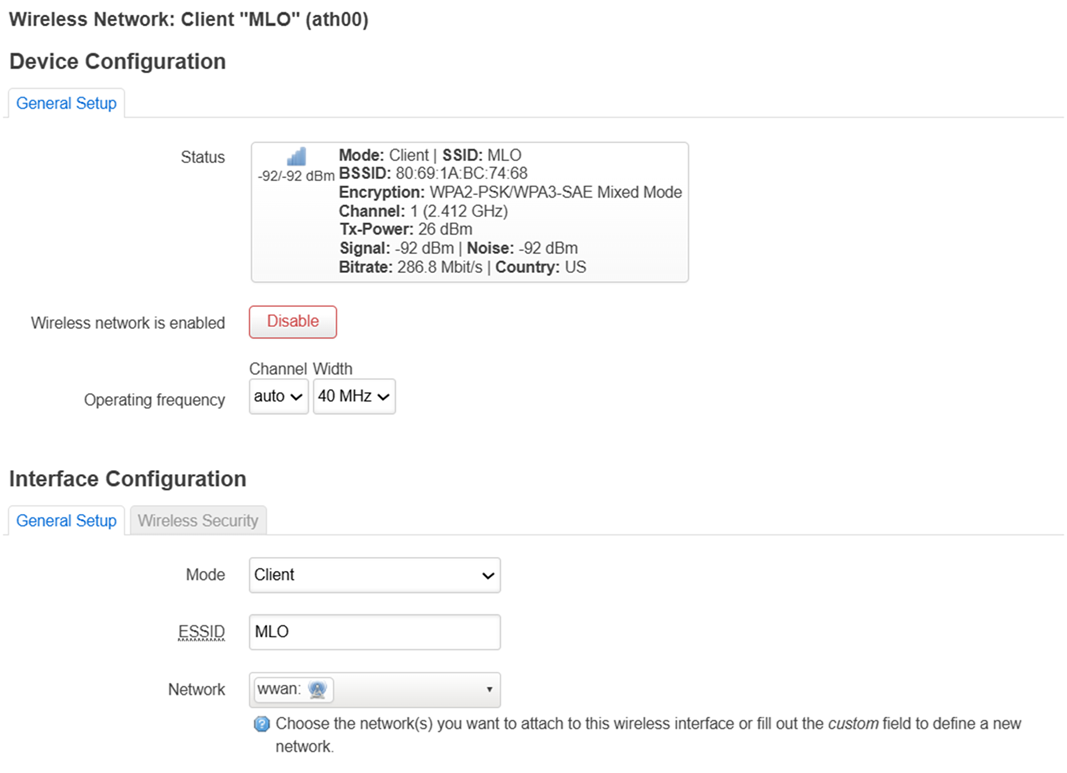
8. Vaya a Network > Interfaces (Red > Interfaces) y verá que se ha añadido otra interfaz WWAN.
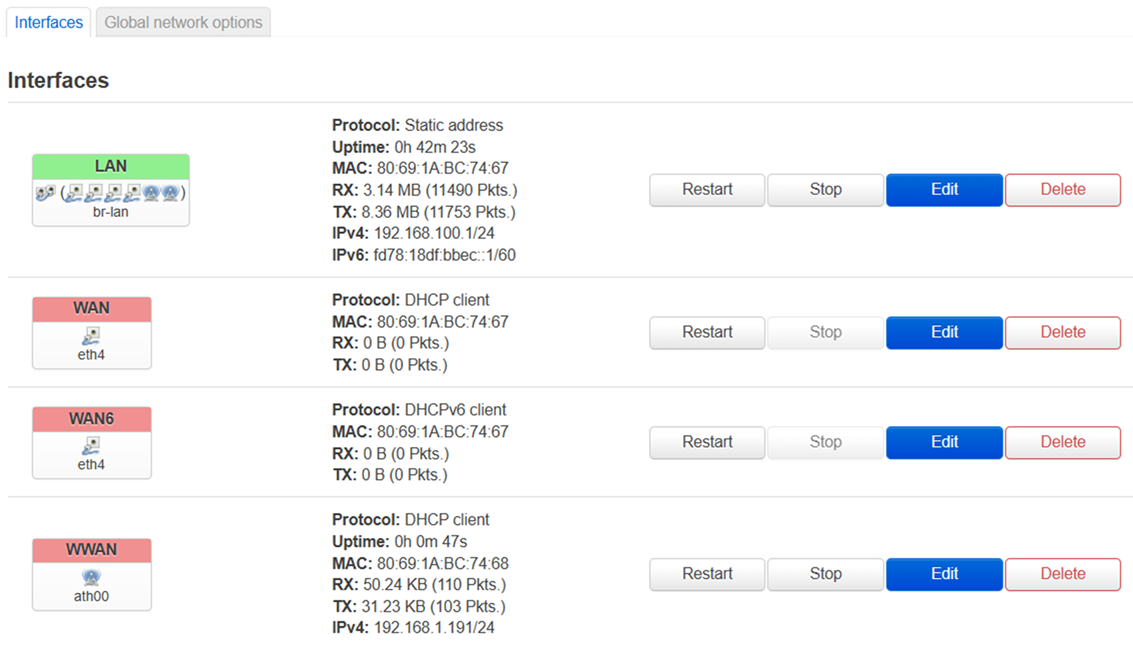
9. Vaya a Network > Wireless (Red > Inalámbrico) y haga clic en el botón Edit (Editar) de la interfaz de 5 GHz (wifi1).

10. Cambie el ESSID a MLO, el Mode (Modo) a Client (Cliente), el cifrado a WPA3-SAE y la contraseña a la misma que la de su red WiFi principal. Haga clic en Save (Guardar) y, a continuación, en Save & Apply (Guardar y aplicar).
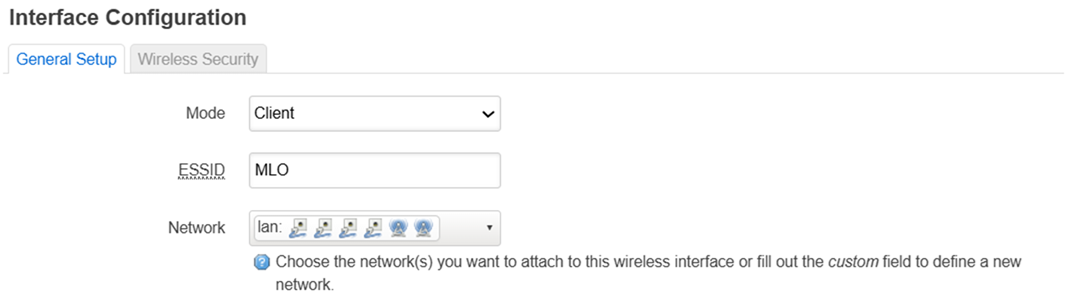
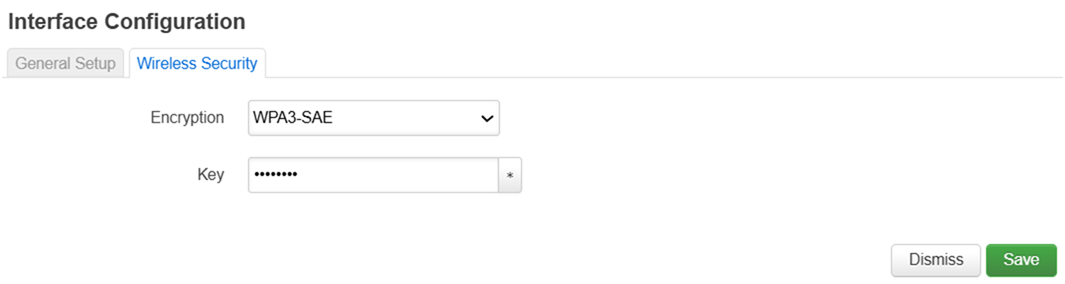
11. Realice los mismos pasos del paso 10 para la interfaz de 6 GHz (wifi2).

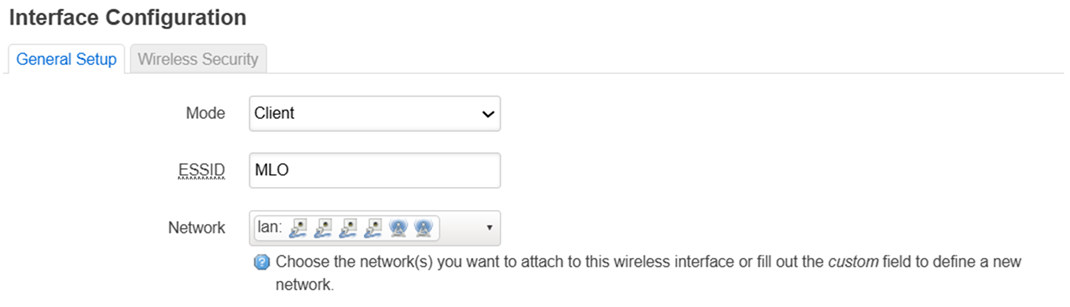
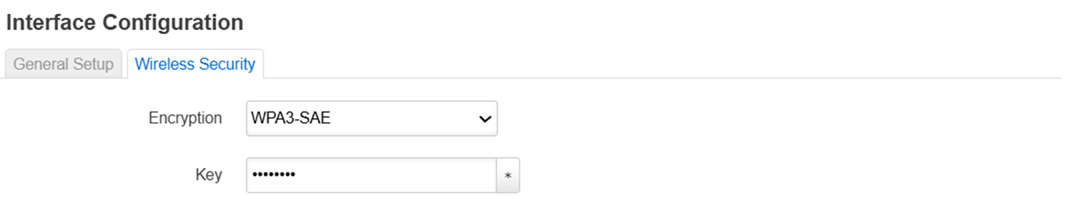
12. Vaya a Network > Wireless (Red > Inalámbrico) y asegúrese de que estas tres radios estén activadas.
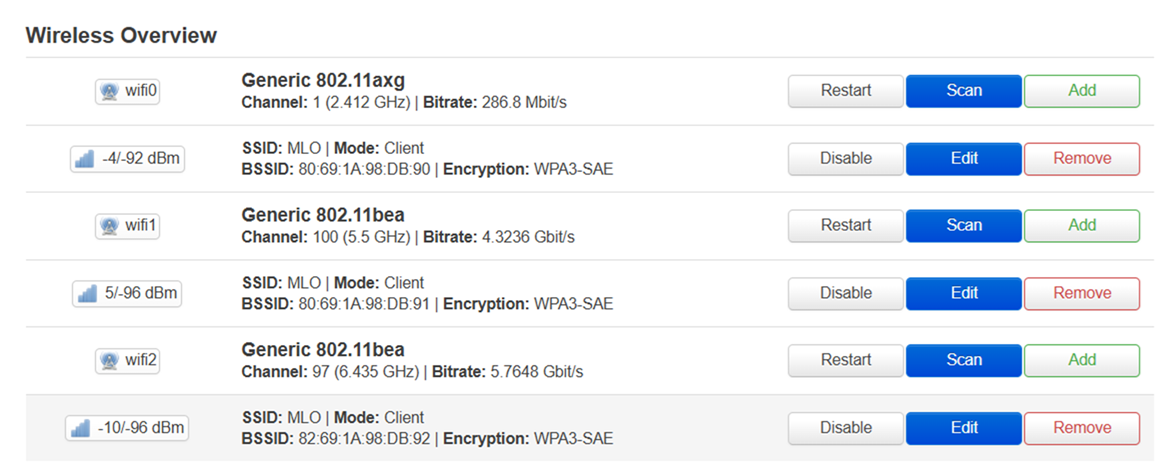
13. Vaya a Network > MLO (Red > MLO) y marque STA MLO Enable (STA MLO habilitado). Haga clic en Save & Apply (Guardar y aplicar).