


This article will teach you how to set up the Linksys SPNMX42GC, SPNMX55GC, or SPNMX57GC for the Gigaclear ISP.
Before you begin:
- Hardware installation depends on your Gigaclear equipment. Check your Quick Start guide or visit https://gigaclear.com/setup-linksys-router.
- Auto Configuration Server (ACS) support - This node supports Automatic Setup with Gigaclear ISP. This means that once the node is plugged into the Gigaclear modem and detects an internet connection, it will automatically configure itself as the parent router. Once the light turns solid blue, the node is set up and online. Do not try to set up the node with the Linksys app.
- Parent router - A parent router is the Linksys Mesh router connected to your modem.
- Child node - A child node is another node used to extend your WiFi network.
- Write down the default WiFi credentials and Key located on the bottom of the parent router.
Directions:
1. Get your Gigaclear equipment ready for setup. Either check your Quick Start Guide that came with the Linksys router, or go to the Gigaclear setup link to set up the hardware properly.
2. Connect your Linksys router from the Internet port to your ISP equipment.
3. Power on the router. The router will display a solid purple light, which indicates it’s ready for setup.
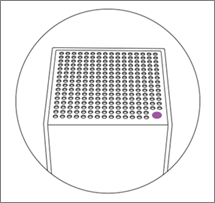
Solid Purple - Ready for setup
4. Within a few minutes, the router’s LED will start flashing white, which means the router is going through automatic setup. Wait until the light turns solid blue; this indicates that the router is now online.
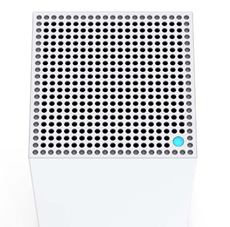
Solid blue - Ready
Light did not turn solid blue?
- If the light is not turning solid blue after wiring the Gigaclear equipment with the Linksys router, contact your ISP to make sure that the wiring is properly set up.
5. Connect your wireless devices to your new WiFi network. The wireless credentials are located on the product label at the bottom of the router.
6. To manage your settings within the web interface, proceed with these instructions.
Using the Linksys app
If you want to use the Linksys app to manage your settings from any mobile device, follow the steps below.
Before you begin, make sure your mobile device is connected to your WiFi name.
1. Download the Linksys app for your Android™ or iOS mobile device.
2. Launch the Linksys app and tap Manage Your Wi-Fi.

3. Enter the default router password.
The default router password is the combination of the default WiFi Password (this is case-sensitive) plus the Recovery Key number, located on the product label. In the example below, e1gktd1xzw90094 is the default router password.

You can now customize your admin password using the Linksys app.
Find out more:
Adding a child node to an existing Linksys Mesh system

