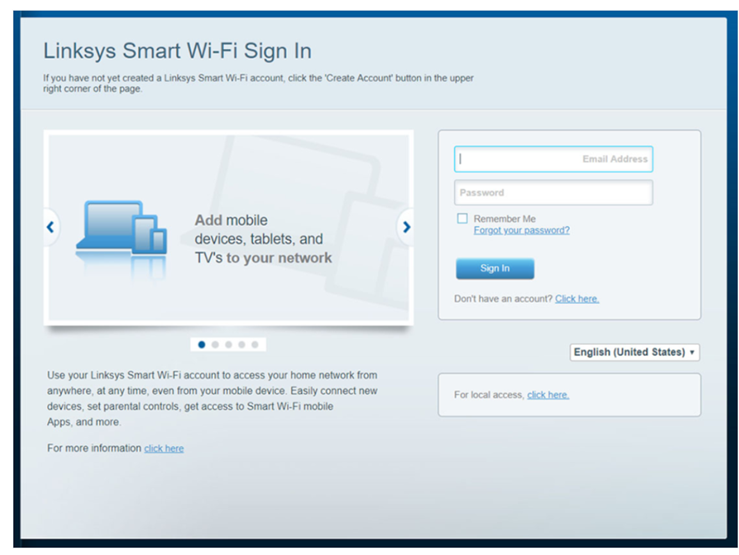
Linksys Smart WiFi Routers have a web interface for local configuration.
To prevent access issues, keep the router’s firmware updated or perform a manual upgrade.
Your web interface is accessible via the web browsers in Windows®, Mac®, and iPad®.
Follow the steps below to learn how to access your router locally.
1
Launch a web browser.
2
Enter your router’s default IP address, https://192.168.1.1 or
myrouter.local then press [Enter].
If the IP address does not work, check your router's IP address. If you encounter a bad gateway error, try these troubleshooting steps.
3
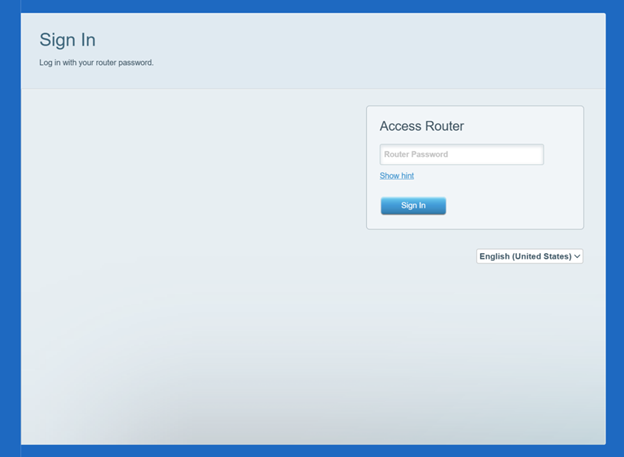
Enter your Router Password and click Sign In.
The default administrator password of an unconfigured router is admin. If you have changed it, enter the new password instead. If you cannot log in with any password, you must perform a physical factory reset on the router and set it up again.
The router's web interface home page will now appear.
If you see the following page, click the "For local access, click here" link.