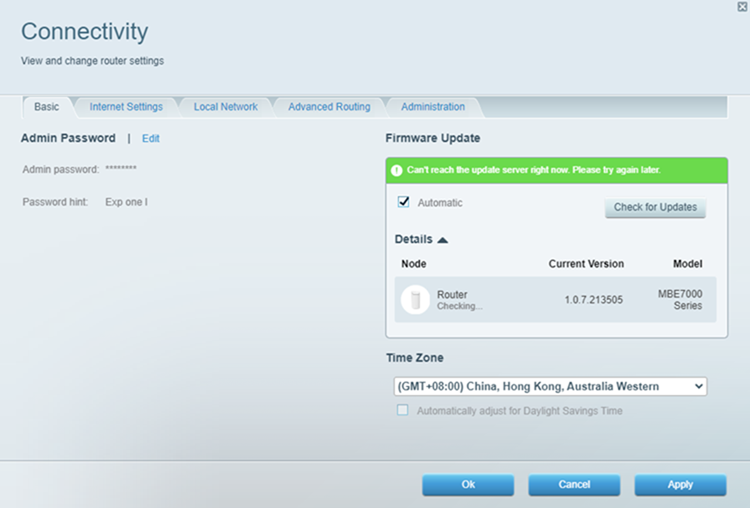
A firmware is a program or set of instructions encoded on a device. Updating your router’s firmware will keep its features up to date and fix many performance issues.
This article will help you check your router's firmware version via the web interface.
1. Connect a desktop computer to your Linksys WiFi.
2. Open a web browser, type “myrouter.local” or "https://192.168.1.1" in the Address bar, then press [ENTER].


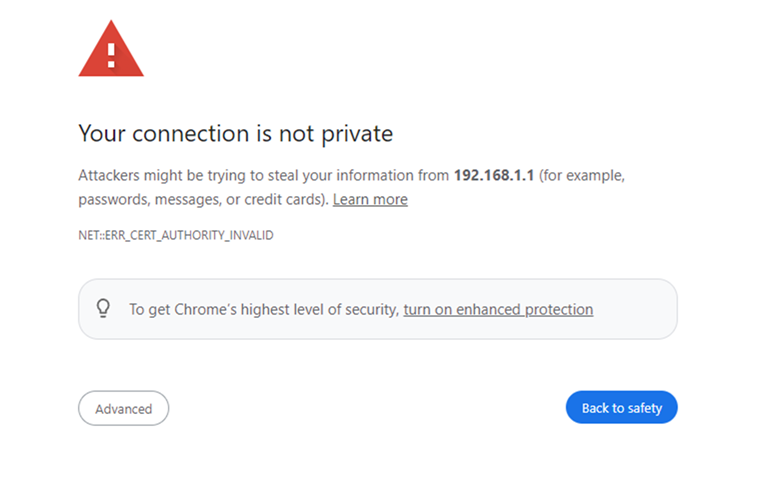
3. If you receive the following message, follow these instructions to proceed.
4. Enter your router password. “admin” is the default password, and click on Sign In.
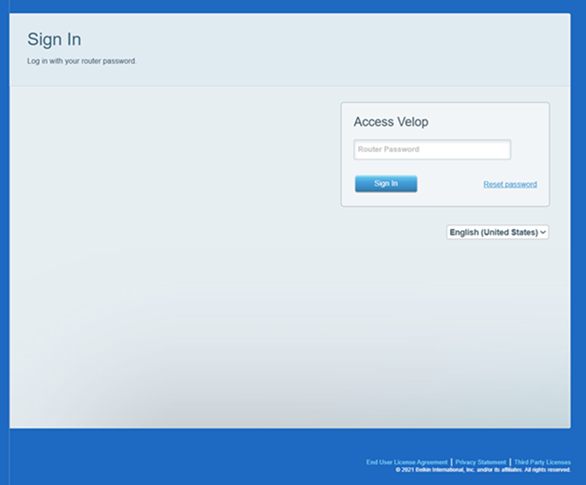
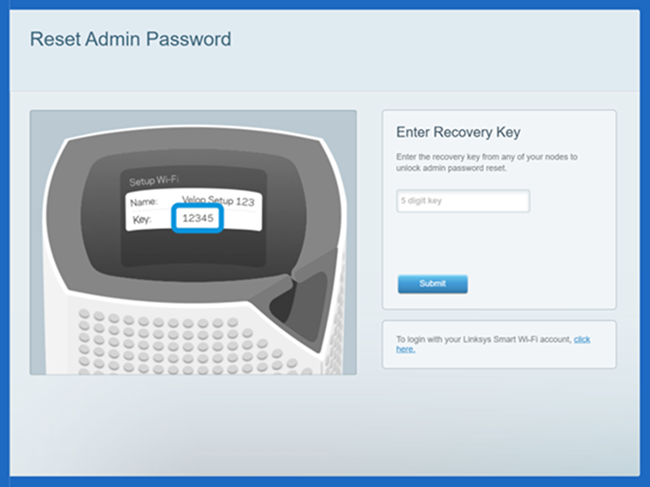
If you have forgotten the password, click on the Reset password link to recover it. You will be prompted to enter the Recovery Key located on the product label at the bottom of the parent node or router. Click Submit once done.
Create a new password and hint, then click Reset. This will only reset your password, not your router settings. Please note that passwords are case-sensitive.
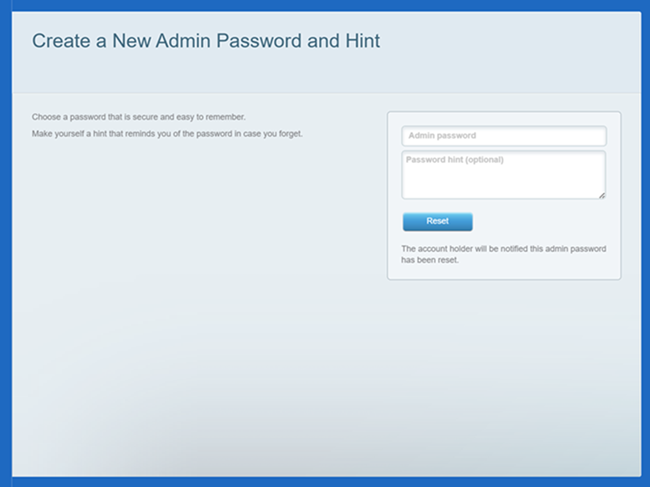
You will be redirected to the dashboard.
5. Click Connectivity under Router Settings.
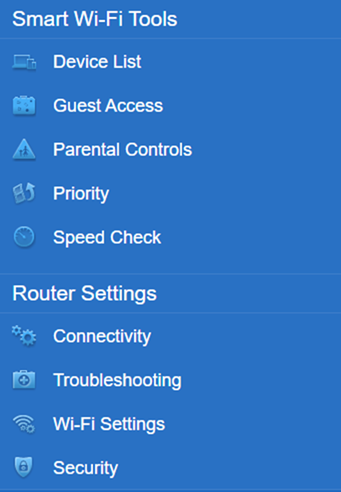
6. On the Basic tab, click Details under Firmware Update. The firmware version will be displayed under the Current Version of your device.
Check the Automatic box to allow your node to update whenever new firmware is available. Uncheck it if you prefer to install updates manually. The default setting is ON.