Checking or verifying the router's WiFi settings is crucial for connecting devices to your network, especially if you are uncertain about the current configuration.
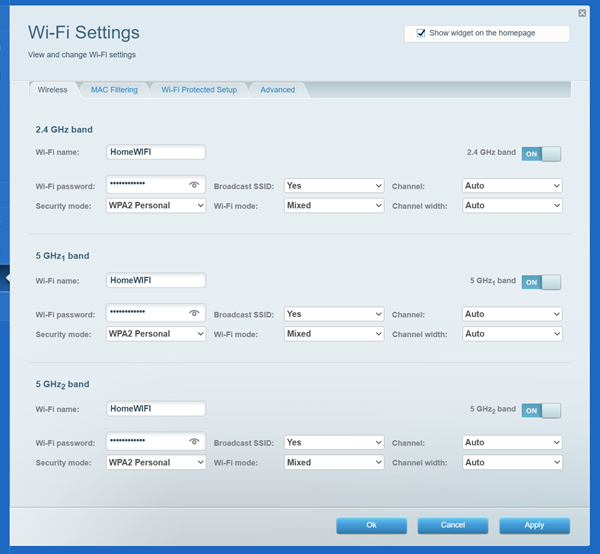
Before connecting to your WiFi, take note of these three key settings on your router:
- WiFi Name (SSID)
- WiFi Security Mode
- Security Key (Password / Passphrase)
1. Open a web browser to access your router's web interface.
2. Click Wi-Fi Settings under Router Settings to view and update your WiFi configuration.

Using the procedures below, you can also check your WiFi settings according to your computer’s operating system.
1. Right-click the WiFi icon in the bottom-right corner and select Network and Internet settings.
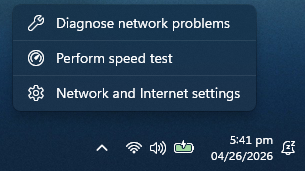
2. Go to Wi-Fi and select the network you are connected to.

3. Click the Show button to view the password.

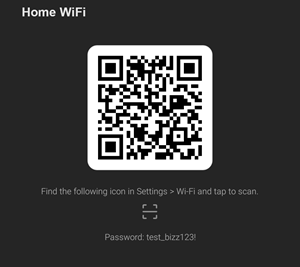
To connect additional mobile devices, scan the provided QR code.

The following are steps for retrieving the WiFi password using Keychain Access. Note that steps may differ depending on the operating system being used. In the following steps, macOS Sierra version 10.12.6 is used.
1. Navigate to Go > Utilities.

2. Open Keychain Access.

3. Double-click your WiFi listed under Name.

4. In the Attributes tab, check the box for Show password.

5. Enter the Keychain password when prompted in the devices you want to connect, then click OK.
Note the password shown in the Show password field for future use when connecting devices to the WiFi.
Before proceeding, make sure that your iPhone® has the latest iOS version. The images below were taken from iOS 18.2.
1. Navigate to Settings > Wi-Fi.
2. Look for your WiFi Name and tap it.

3. Locate the field that shows Password and tap on it.

Depending on your phone’s security settings, you may be prompted to enter the passcode or use Face ID to view the Wi-Fi Password.

With your WiFi details saved, you’re ready to connect your devices to the network.
1. Navigate to Settings
2. Tap on Wi-Fi, Network & Internet, or Connections, depending on your device.
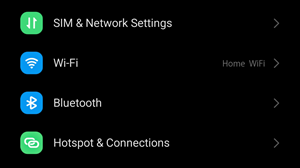
3. Look for your Wi-Fi Network name, then tap the QR code icon on the right.
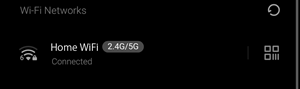
Depending on your phone’s security settings, you may be prompted to enter the passcode to view the Wi-Fi Password.