You are using an unsupported browser. Please update your browser to the latest version on or before July 31, 2020.
close
You are viewing the article in preview mode. It is not live at the moment.
> 進階配置 > 網格系統 > How to schedule a pause using the Parental Controls feature
How to schedule a pause using the Parental Controls feature
print icon

The Parental Controls and Family Time feature lets you create a schedule to block internet access for a device at a certain time and day. You can also create multiple schedules for a device. There are no limitations. To do this, follow the instructions below:


Linksys app
 

1. Log in to the Linksys app.

2. Tap Parental Controls or Family Time on the dashboard, or tap the menu icon in the upper-right corner and then tap Parental Controls or Family Time. Settings may vary by model.

 
iOS Android™

Parental Controls


Family Time


Parental Controls


Family Time
 
iOS Android

Parental Controls


Family Time

Parental Controls


Family Time

3. Tap on Control a Device if you have not set up Parental Controls/Family Time.
 
Parental Controls Family Time


If you already have Parental Controls/Family Time on one or more devices, tap Add a device.


4. Select a device.


5. Tap Schedule a Pause.


6. Select the days, with a start (Pause at) and end time (Resume at), to block internet access, and then tap Save. Make sure the router time is correct at the bottom; otherwise, tap Edit to set the correct time. When prompted, you can set a different time or keep the current router time.


7. Review your schedule. If you need to make any changes, tap on the schedule to edit.


8. Tap the back arrow. You will now see an orange bar showing the scheduled pause. For example, the Internet pauses at 8:00 pm.
 
 
9. The device and time of the pause will appear in the Parental Controls/Family Time list.


It will show up on the Android dashboard as well. This section will show the first few clients with Parental Control/Family Time settings.


How to edit a schedule
 
1. Tap on an existing device from the Parental Controls/Family Time list.


2. Tap on Schedule a Pause.


3. Select the scheduled time you want to edit (if more than one schedule appears), make your changes, and then tap Save.


You can also tap on Add internet schedule to create another schedule for the same client. Once you are in edit mode, you have the option to select a previous schedule, edit the existing schedule, or delete a schedule. Make sure to tap Save to apply the changes.


Web interface

1. Open a web browser to access your router's web interface or the LinksysSmartWiFi.com page.

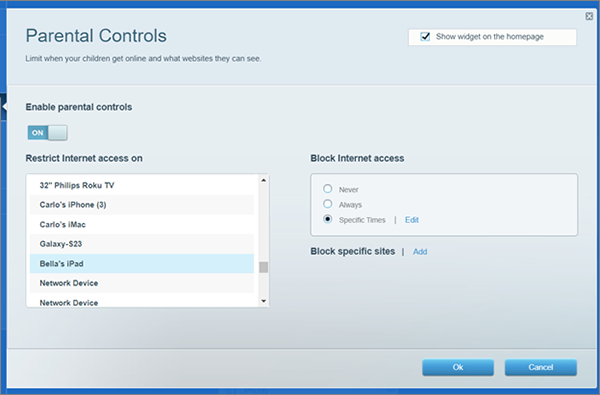
2. Choose Parental Controls from the main menu and turn it ON.

3. Pick a device from the list, select Specific Times, and click Edit.


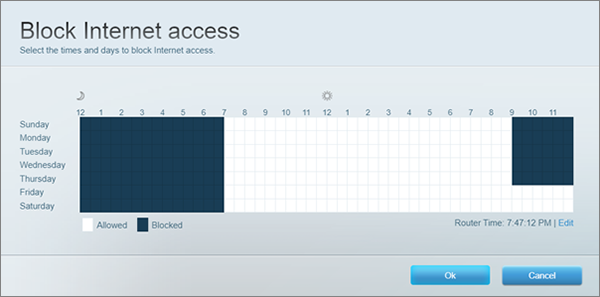
4. Select a schedule to block internet access for the device selected, then click Ok.


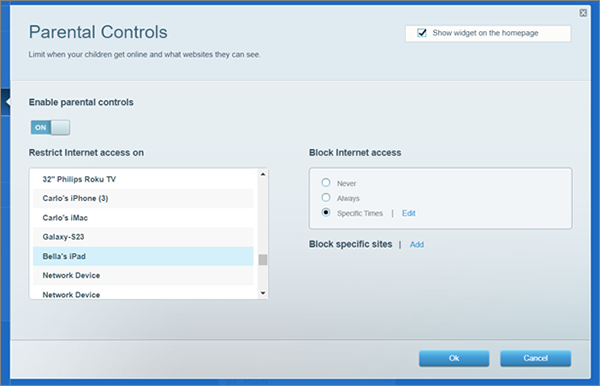
5. Click Ok again to save your settings.


Find out more:
 
How to pause internet access using the Parental Controls feature
這篇支援文章有用嗎?
0 / 0 覺得這很有幫助

聯絡我們
致電我們  存取我們的全球支援號碼清單
Reddit  加入並訂閱我們的官方 Reddit 社群
與我們聊天  我們樂意為您解答所有問題
Linksys
Now
Support
滾動到頂部圖標