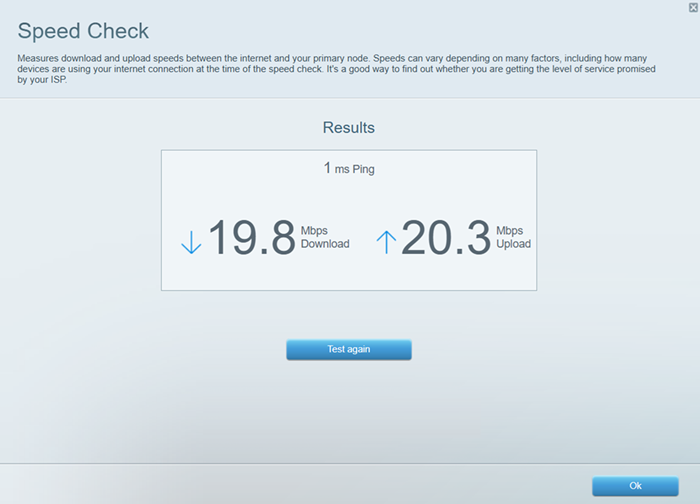
The Speed Check tool allows you to test the current upload and download speed of your internet connection.
Here is a short guide about the difference in values of your download and upload speeds:
- Download speed – the speed at which data is transferred from websites to your computer.
- Upload speed – The speed of data transfer from your computer to the internet.
Follow the steps below to learn how to perform a speed test on your network.
Factors such as the number of devices connected to your network and the applications and activities that require high throughput, such as video streaming and voice-over-internet protocol (VoIP), can affect your internet's upload and download speeds.
1. Connect a desktop computer to your Linksys WiFi.
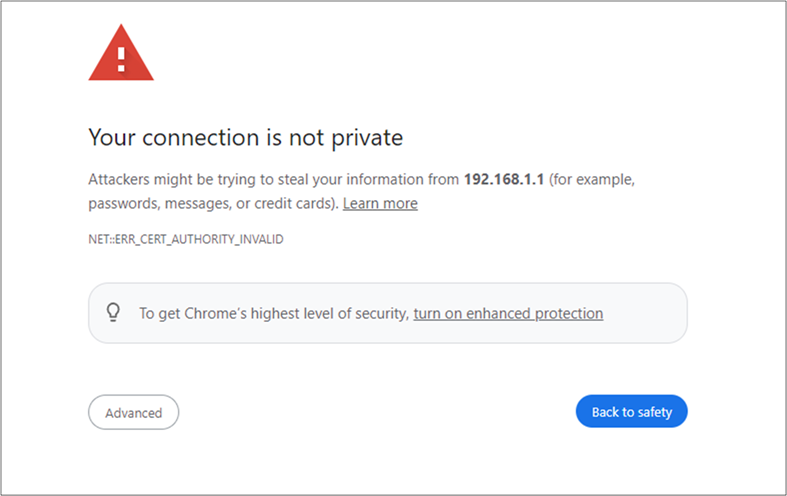
2. Launch a browser, type in the Address bar either “myrouter.local” or “https://192.168.1.1” and hit [ENTER].
If you receive a browser error message, follow these steps to resolve this issue.
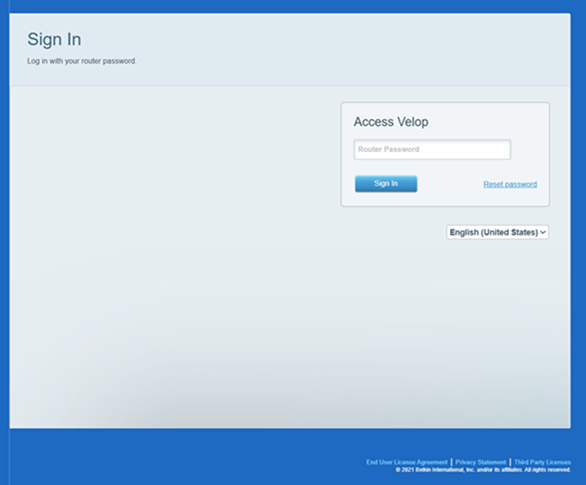
3. Enter your router password. “admin” is the default password. If you have forgotten the password, click on the Reset password link to recover it.
4. You will be redirected to the dashboard. Click Speed Check.
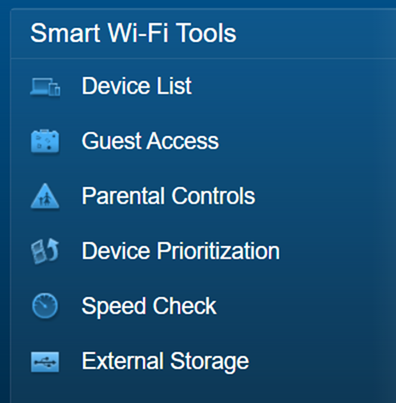
The speed test will begin immediately.
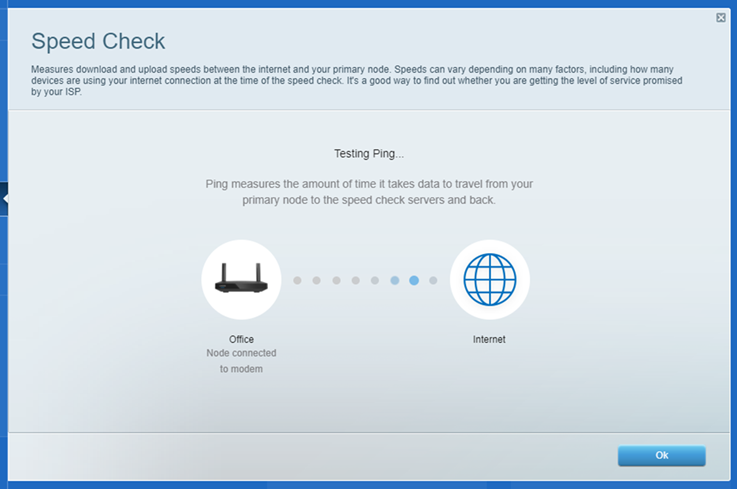
Once a speed test is done, you can click Test again to begin another session or click Ok to exit.