


Connecting devices using Wi-Fi Protected Setup™ (WPS) of the Linksys Dual-Band WiFi Router
Wi-Fi Protected Setup™ (WPS) makes it easy to add devices to your Wi-Fi without having to enter a Wi-Fi name and password. This article will guide you on how to connect devices using the WPS feature of your Linksys Dual-Band WiFi Router.
Before connecting devices using WPS, you must first enable the WPS feature of your Linksys Dual-Band WiFi Router by following the steps below:
1. Log in to the Linksys Dual-Band WiFi Router's web interface.
2. Click the Configuration tab.
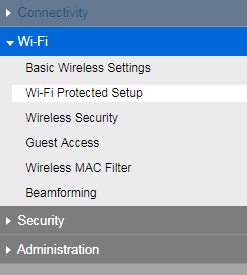
3. Click Wi-Fi, then go to Wi-Fi Protected Setup.
2. Click the Configuration tab.
3. Click Wi-Fi, then go to Wi-Fi Protected Setup.
4. Check the Wi-Fi Protected Setup box and press Save.
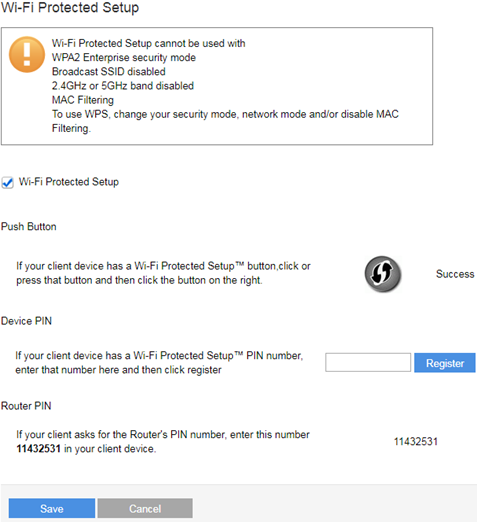
Now that you have enabled the WPS feature, you're ready to connect devices to your router. There are three methods you can use to connect devices to the router using the WPS feature: Push Button, Device PIN, and Router PIN.
Connecting a device using the Push Button
Connecting a device using its Device PIN
Connecting a device using the Router PIN
Connecting a device using its Device PIN
Connecting a device using the Router PIN
Connecting a device using the Push Button
1. Log in to the Linksys Dual-Band WiFi Router web interface.
2. Click the Configuration tab.
3. Click Wi-Fi, then go to Wi-Fi Protected Setup.
4. If your client device has a WPS button, click or press that button and then click the button on the right.
1. Log in to the Linksys Dual-Band WiFi Router web interface.
2. Click the Configuration tab.
3. Click Wi-Fi, then go to Wi-Fi Protected Setup.
4. If your client device has a WPS button, click or press that button and then click the
button on the right.
Connecting a device using its Device PIN
1. Log in to the Linksys Dual-Band WiFi Router web interface.
2. Click the Configuration tab.
3. Click Wi-Fi, then go to Wi-Fi Protected Setup.
4. If your client device has a WPS PIN, enter that number in the field on the right and then click Register.

Connecting a device using the Router PIN
1. Log in to the Linksys Dual-Band WiFi Router web interface.
2. Click the Configuration tab.
3. Click Wi-Fi, then go to Wi-Fi Protected Setup.
4. Enter the Router's PIN in your client device. In this example, the Router PIN is 11432531.


