


This article will guide you through setting up the Linksys MR20WH using the web interface.
Before you begin:
- You will need a computer.
- Parent router - The Linksys router that will connect to your modem.
- Child node - The additional Linksys Velop Mesh node that will extend your WiFi network.
- Write down the parent router's default WiFi name, password, and recovery key.
1. Gather all your equipment in the same area as your modem.
2. Remove any existing router.
- Disconnect your existing router.
- Power cycle your modem.
- Wait until your modem has rebooted, then go to the next step.
b. I have a Wi-Fi router and modem combined in one device, or I do not have any
existing routers in my home.
- Go to the next step.
3. Connect your modem with an Ethernet cable to the Internet port on the parent router and power it ON. Wait until your router has a solid purple light.
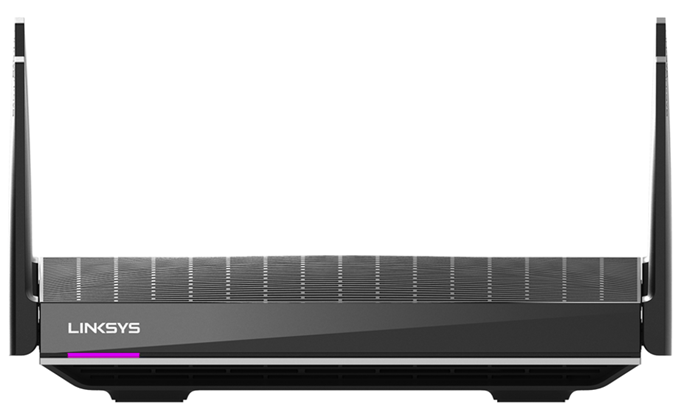
Purple light - Ready for setup
If the router has a red light, hold the reset button for about 20 seconds. Wait until the light becomes solid purple.
4. Connect your computer to the default WiFi name and enter the default WiFi password when prompted.
NOTE: You can also connect to the router via an Ethernet port.
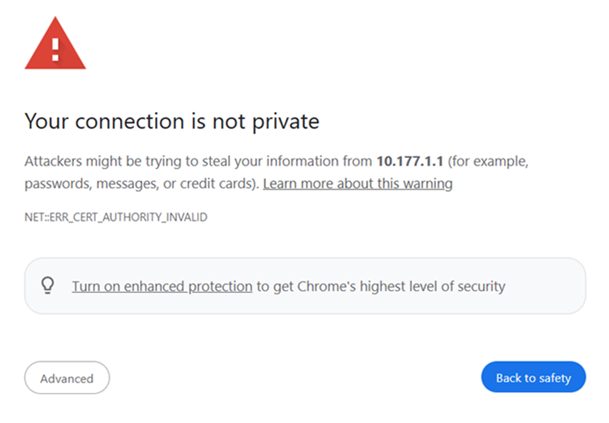
5. Open a desktop browser and go to "https://192.168.1.1" or use "myrouter.local."
If you receive a browser message as shown below, follow these instructions to bypass this message.
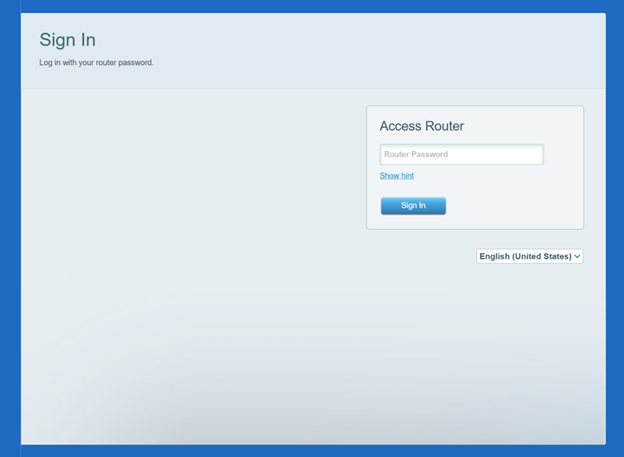
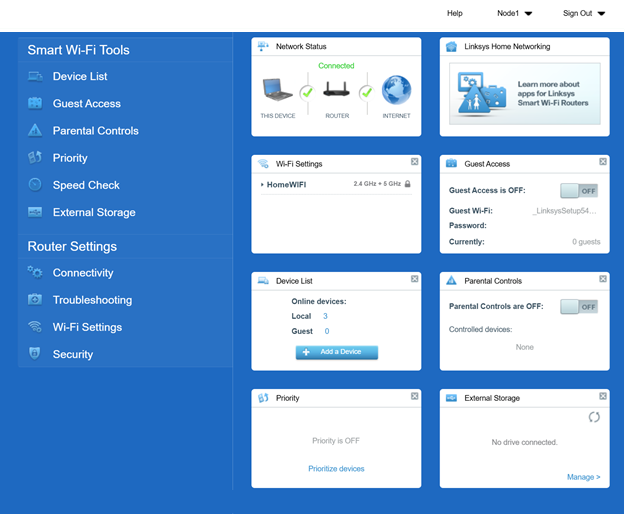
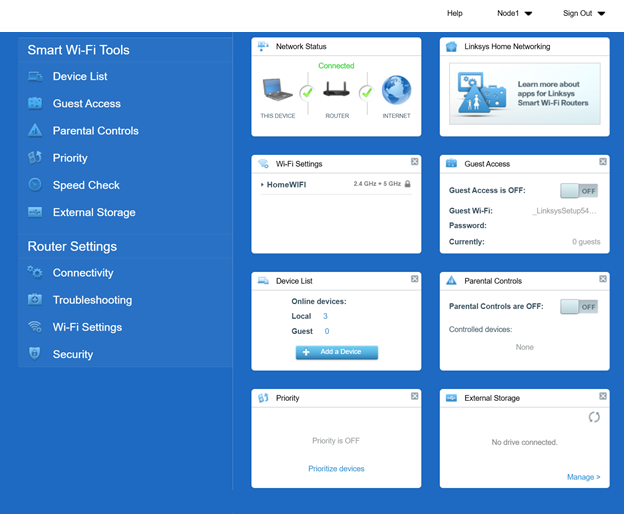
6. Enter admin, which is the default router password. You will then land on the router’s dashboard.
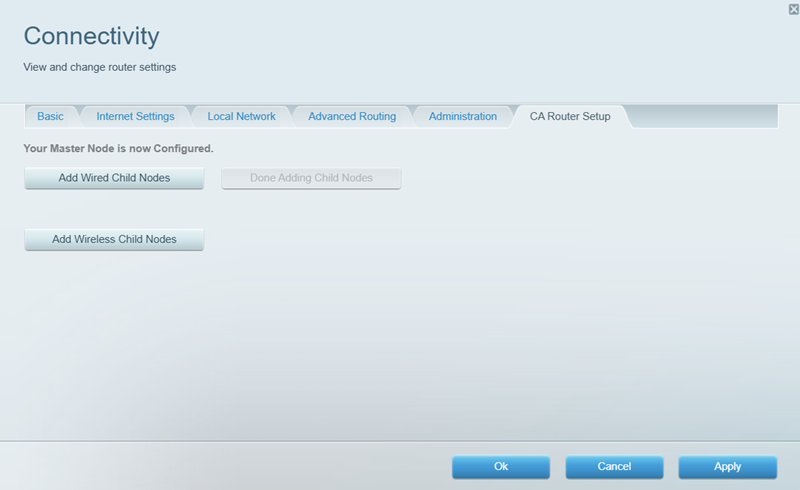
7. Click Connectivity, then click on CA Router Setup.
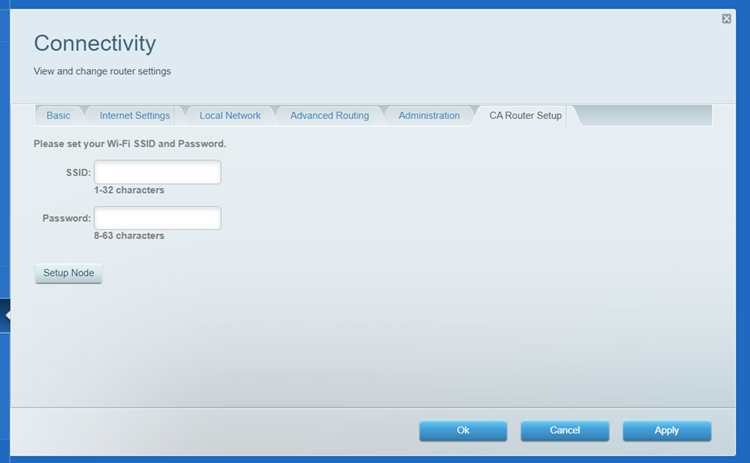
8. Create a WiFi name (SSID) and WiFi password, and click on Setup Node. The WiFi password is case-sensitive. Make sure to write down your new WiFi name and password.
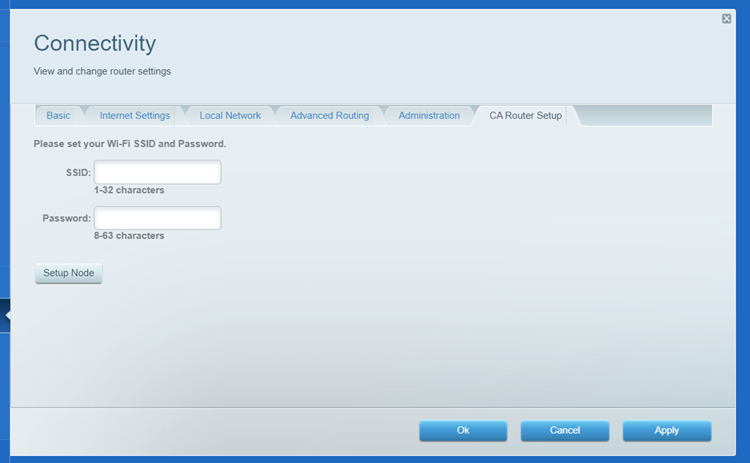
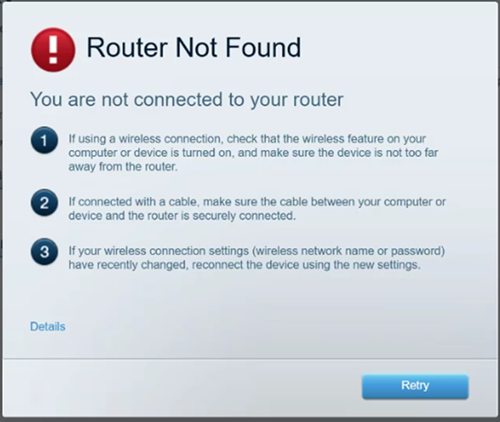
Leave this page open; you will lose your WiFi connection while the settings are being saved. Once you reconnect to WiFi, the setup will resume.
9. The light on top of the node will start to flash; wait until the light turns solid blue.
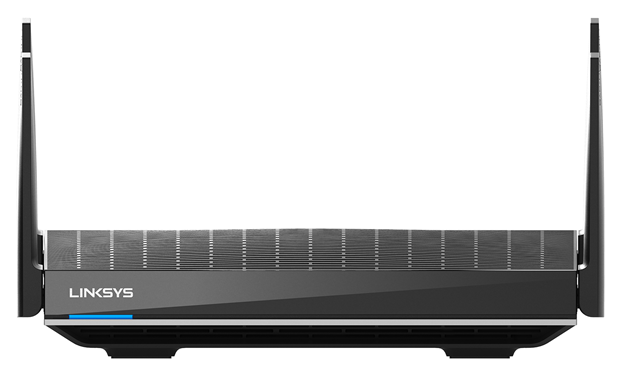
Solid blue - Online
The light did not turn solid blue?
Try the following:
- Power cycle your modem and wait for it to reboot. Then power cycle the Linksys router and wait for it to reboot. Reconnect to the router’s WiFi, then check if the light turns solid blue about 2 minutes after reconnecting.
- If you use a PPPoE connection or another type that requires manual settings, you will need to configure your internet settings before adding child nodes. Go to the Internet Settings tab, click Edit, and choose PPPoE. Enter your PPPoE information, then click Apply > Ok. Wait for the light on the node to turn solid blue.
10. Once you see your new WiFi name, connect to it to resume setup.
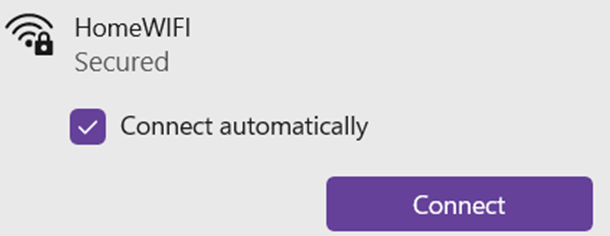
11. Click Ok.
Refresh the page to see your WiFi name.
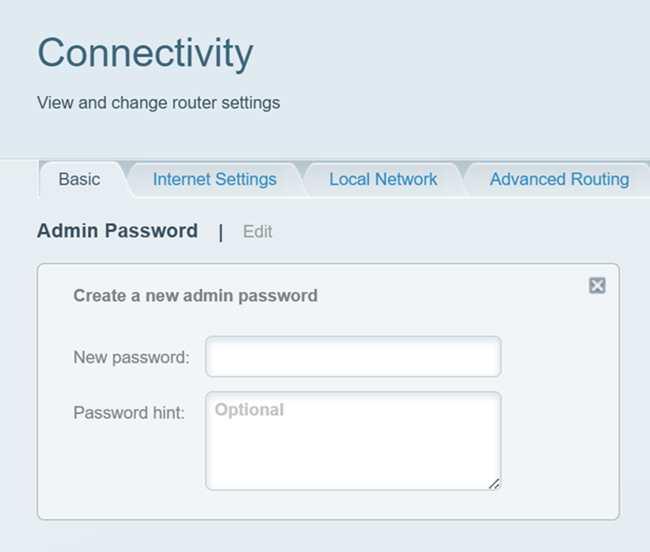
12. It is highly recommended to change the router’s password. Go to Connectivity > Basic tab. Then Ok to save your settings.
Your network is now ready to use. To add another Linksys MR20WH to the network, follow these instructions.

