


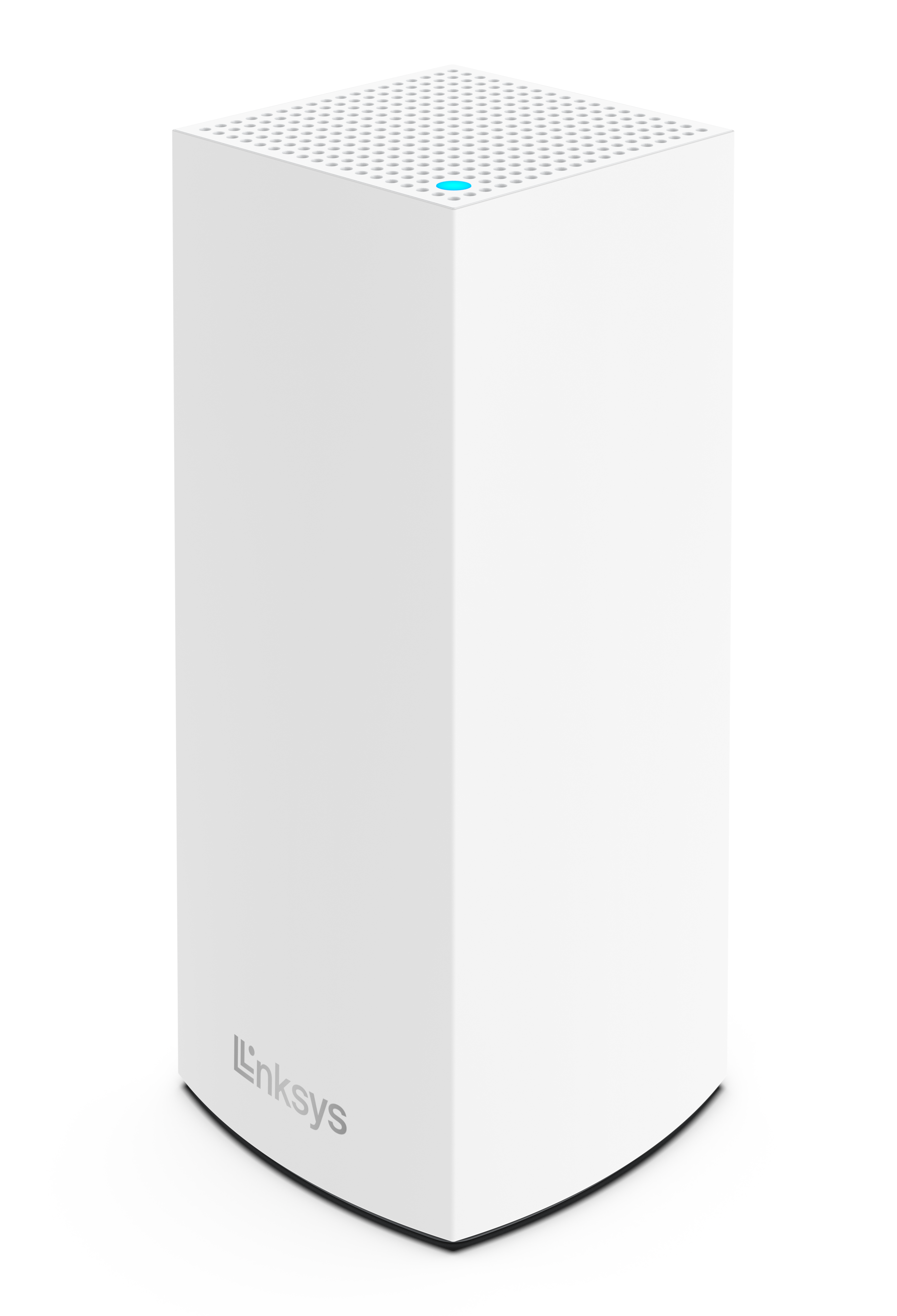
The Linksys MX5501ST for Starry ISP offers simultaneous video, gaming, and high-speed data. It is easy to add to a modular system of nodes to give you flawless WiFi everywhere and replace a standard router with mesh WiFi.
HARDWARE INFORMATION
SETUP AND INSTALLATION
Under normal operation, the router utilizes Automatic Configuration Server (ACS) support for a seamless, automated setup. Once connected, the solid purple light will flash white to indicate it is configuring itself.
IMPORTANT: If you do not see the light flashing white, the router may be running on older firmware. Firmware version 1.1.8.216775 is a custom firmware version provided exclusively for Starry ISP devices, and it is no longer under active development.
You can convert your current router into a standard retail model to use with any internet provider. To get started, you just need a quick firmware update. Please contact Linksys Support, and we will help you push the update to your device.
Below are the requirements for setting up the router:
- An active internet connection
- A desktop computer to set up the router
- The latest desktop browser to set up and manage the router settings
Once you plug in the router to Starry’s equipment, it will automatically call home, download your internet profile, and set up the router. The light on the router will start blinking white. Once the light turns solid blue, the router should already be set up and online. You can manage the router via the web interface. Follow these instructions to learn how to access the router’s web interface.
Yes, you can replace your standard router with the Linksys MX5501ST and set up a mesh system.
The router’s default WiFi name and password are printed on the product label at the bottom of the router.
The default WiFi name is Starryxxxxx or _VelopSetupxxx (Linksys MX5501ST-RF), where the xxxxx or xxx represents the last five or three digits of the router's MAC address located on the product label.
With the latest firmware, the default password is admin. If your node is on the Starry firmware, the default WiFi password is on the product label.
To learn how to configure Parental Controls, click on the links below:
How to schedule a pause using Parental Controls or Family Time
How to Pause Internet Access using the router's web interface
SECURITY AND PRIVACY
The Linksys MX5501ST supports the following settings:
- WPA2™/WPA3™ Mixed Personal
- WPA3 Personal Only
- WPA2 Personal
- Enhanced Open Only
- Open and Enhanced Open
- Open
Yes. The router supports VPN tunnels using IPSec, L2TP, and PPTP protocols.
Yes.
ADVANCED TROUBLESHOOTING
The latest firmware for standard retail MX5500 nodes is version 1.1.7.xxx (or later).
While version 1.1.8.216775 has a higher number, it is actually a custom firmware version provided exclusively for Starry ISP devices, and it is no longer under active development. If you currently have a Starry ISP node and want to convert it into a standard retail node so you can receive the latest 1.1.7.xxx updates, please contact Linksys Support for assistance.
Your node is a Starry ISP node, which has a blocking mechanism to prevent using retail firmware. Please contact Linksys Support to convert your router into a retail node using the latest firmware.
If you set up your router via ACS, meaning once the router is connected to the Starry equipment and the router has configured itself. You can also manage the router through the router's web interface.
Learn how to access the router through the web interface.
Dynamic Frequency Selection (DFS) is a spectrum-sharing mechanism that allows multiple wireless local area networks (WLANs) to coexist with radar systems. It automatically selects a frequency that does not interfere with certain radar systems while operating in the 5 GHz band. The benefits of using DFS channels are less WiFi interference and better WiFi performance. DFS channels are turned off by default.
Yes, you can use DFS if you are using other Linksys MX5501ST as child nodes.
If you have any non-Starry child nodes in your network that do not support DFS, your child nodes will not be able to connect.
Only if your clients support DFS channels. Clients that do not support DFS channels can connect to the 2.4 GHz band instead.
Your node may be a Linksys MX5501ST-RF; this node uses _VelopSetupxxx as the default SSID. Check the product label of your node to know its WiFi credentials.
It looks like your node is on an older Starry ISP firmware version that requires the default WiFi password found on the product label. Updating to the latest firmware will change the default password to “admin”.
Your node is a Starry ISP node, which has a blocking mechanism to prevent using retail firmware. Please contact Linksys Support to convert your router into a retail node using the latest firmware.
The Linksys MX5501ST has the auto-update feature turned ON at all times, regardless of whether you turn the feature OFF in the web interface.

