


링크시스 E9450라우터의 자녀보호기능을구성하는방법

The Parental Controls feature allows you to restrict a user’s internet access within your network. You can configure Parental Controls on up to 16 users on your Linksys E9450 WiFi 6 Router's network.
This article is for Linksys E9450-AH, E9450-CN, E9450-JP, and E9450-KR.
This article is for Linksys E9450-AH, E9450-CN, E9450-JP, and E9450-KR.
1. Log in to the parent node.
2. Go to Advanced setup > Parental Control.
3. Under Access Time Restriction section, click on the Add button.
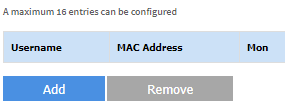
4. Enter a Username for the client.

5. Select the Other MAC Address radio button and enter the client’s MAC address.
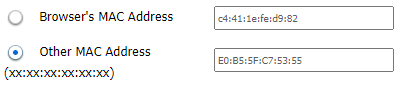
The Browser's MAC Address automatically displays the MAC address of the current device where the browser is running.
6. Choose the days you want to restrict the client from accessing the network.
6. Choose the days you want to restrict the client from accessing the network.

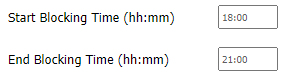
7. Enter the start and end blocking times.
8. Click
 .
.A client list will now be displayed in the Access Time Restriction table.
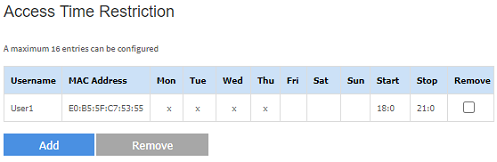
QUICK TIP: To delete a client from Parental Controls, check the Remove box and click the Remove button.
5245

