


Overview of the Linksys MX5500 router's web interface
This article will give you an overview of the Linksys Atlas Pro 6 Dual-Band Mesh WiFi router's web interface. Learn how to log in to the router’s dashboard.

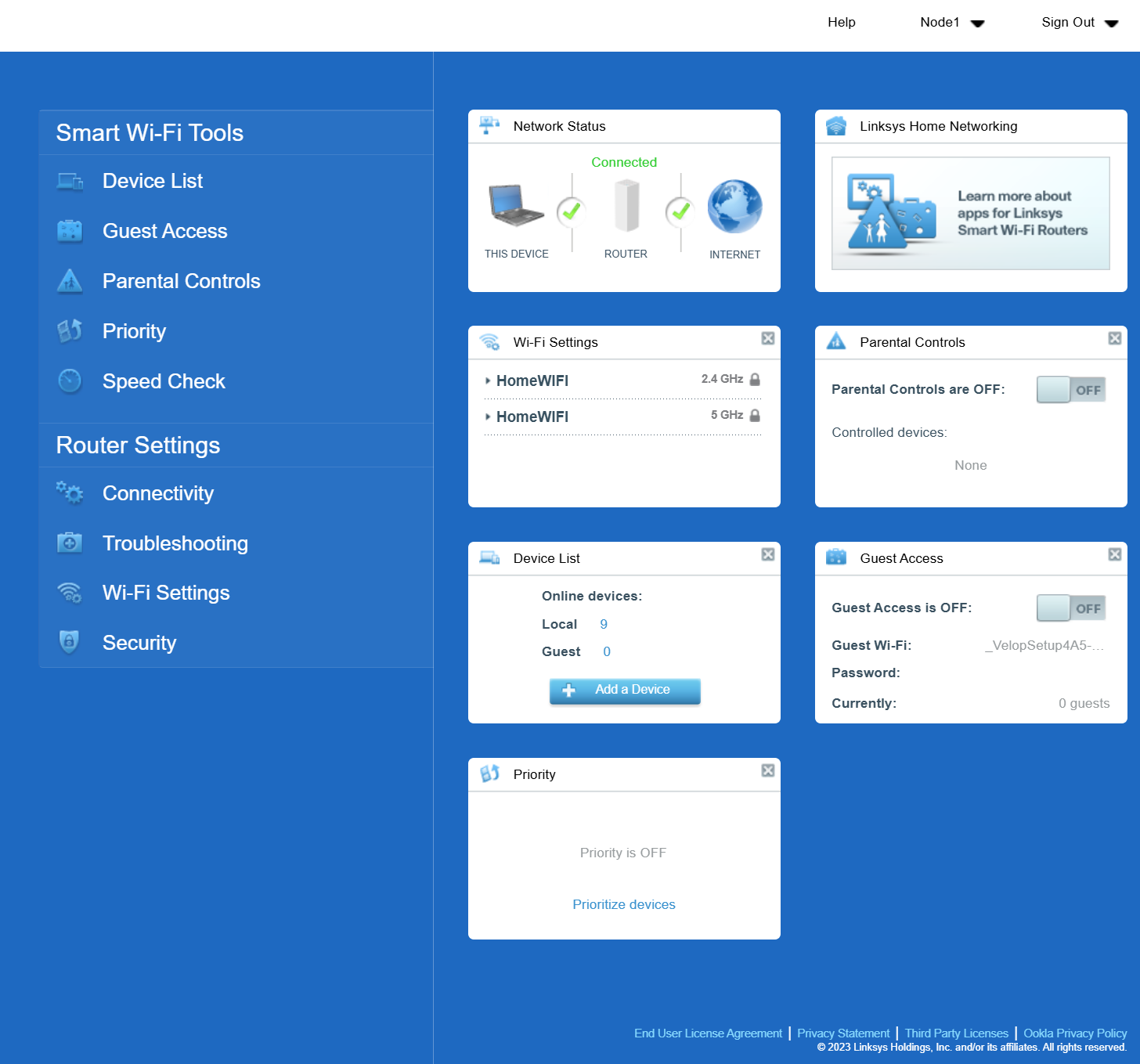
| Tool / Setting | Description |
| Device List | The Device List page displays the list of devices that have connected to the router.  |
| Guest Access | The Guest Access page allows you to configure WiFi settings for guests. Guest Access uses WPA2™ WiFi encryption.  |
| Parental Controls | Parental Controls are used to manage usage or block internet access on a connected device or specific sites per device.  |
| Priority | The router can give your devices priority for internet access. You can choose up to three devices – wired or wireless – to move to the front of the WiFi line. The rest of the devices on your network will share the remaining bandwidth. You might want to assign priority for work devices, devices that stream video, or devices that you use for online gaming.  |
| Speed Check | The Speed Check feature measures the download (from the internet) and upload (to the internet) speeds of your WiFi. It is a good way to find out whether you are getting the level of service provided by your internet service provider (ISP). Speeds can vary based on factors like how many devices are connected and what they're doing. 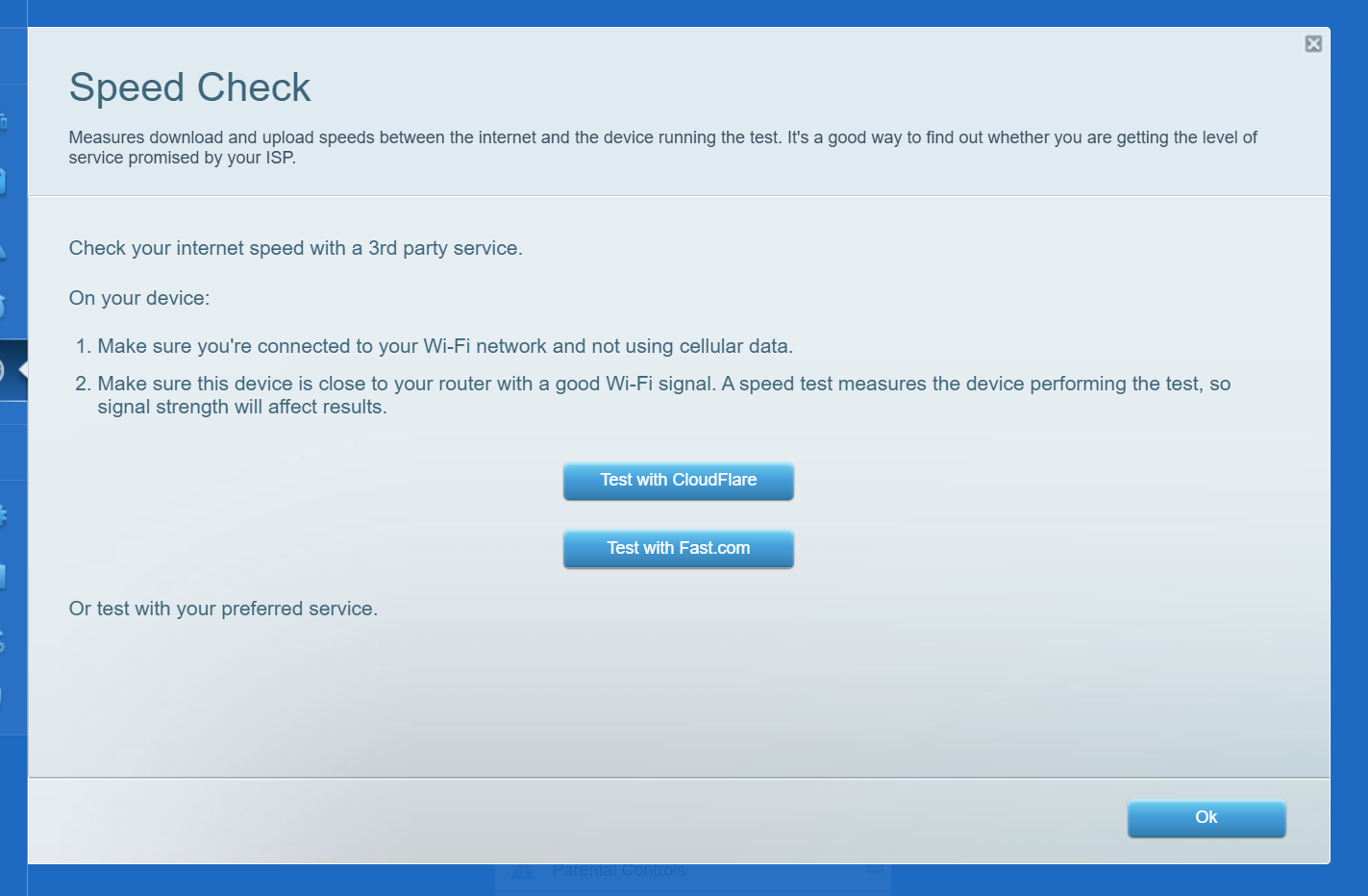 |
| Connectivity | The Connectivity page shows the firmware version and model of the router. 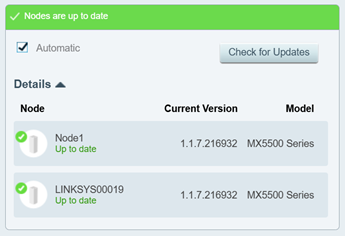 The Connectivity page has the following tabs and corresponding settings that you can select or configure: 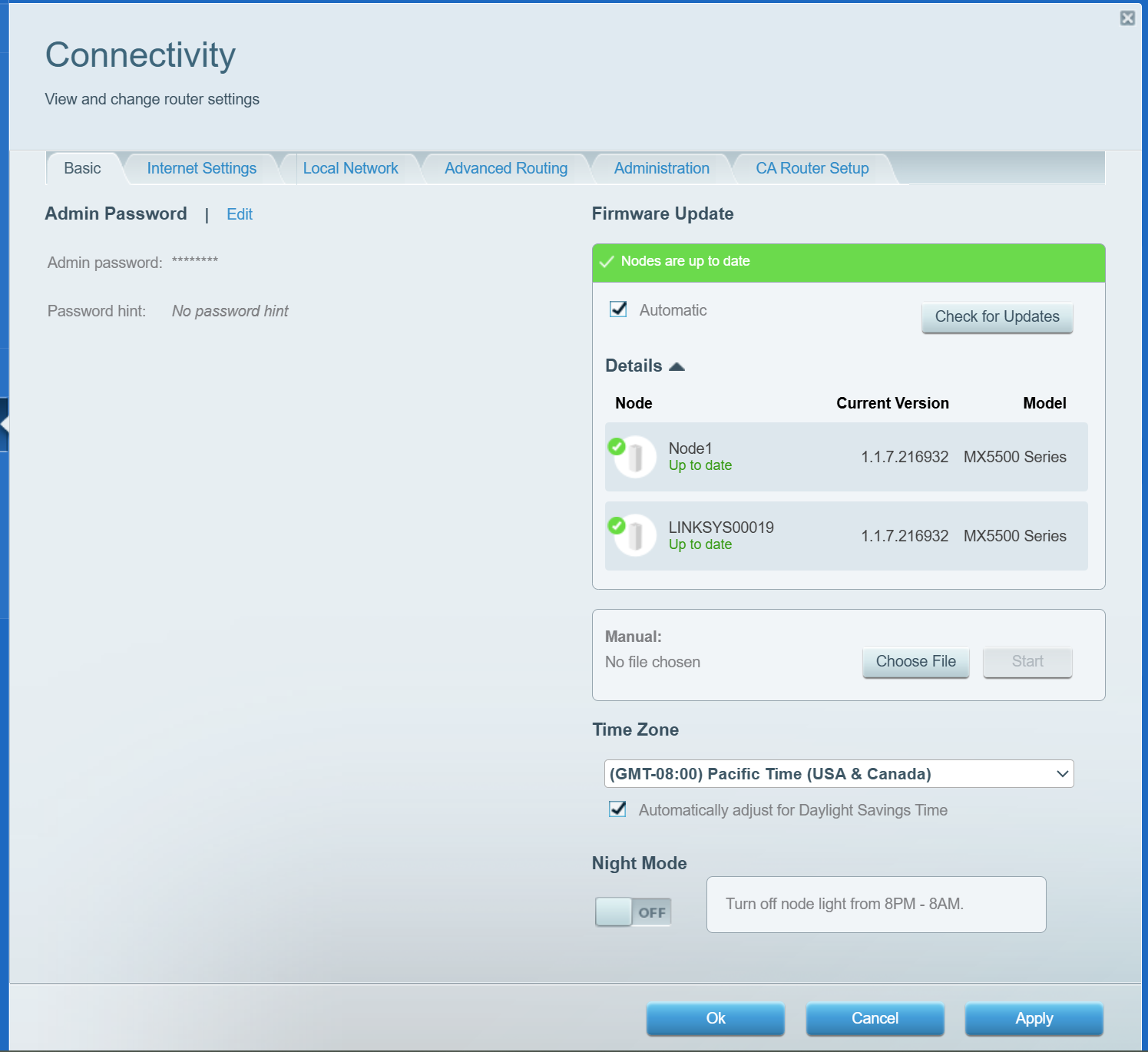
 |
| Troubleshooting | The Troubleshooting page allows you to diagnose and troubleshoot problems you may be having in your network. It provides useful information about your connected devices and network details. You can also restart the router on this page. 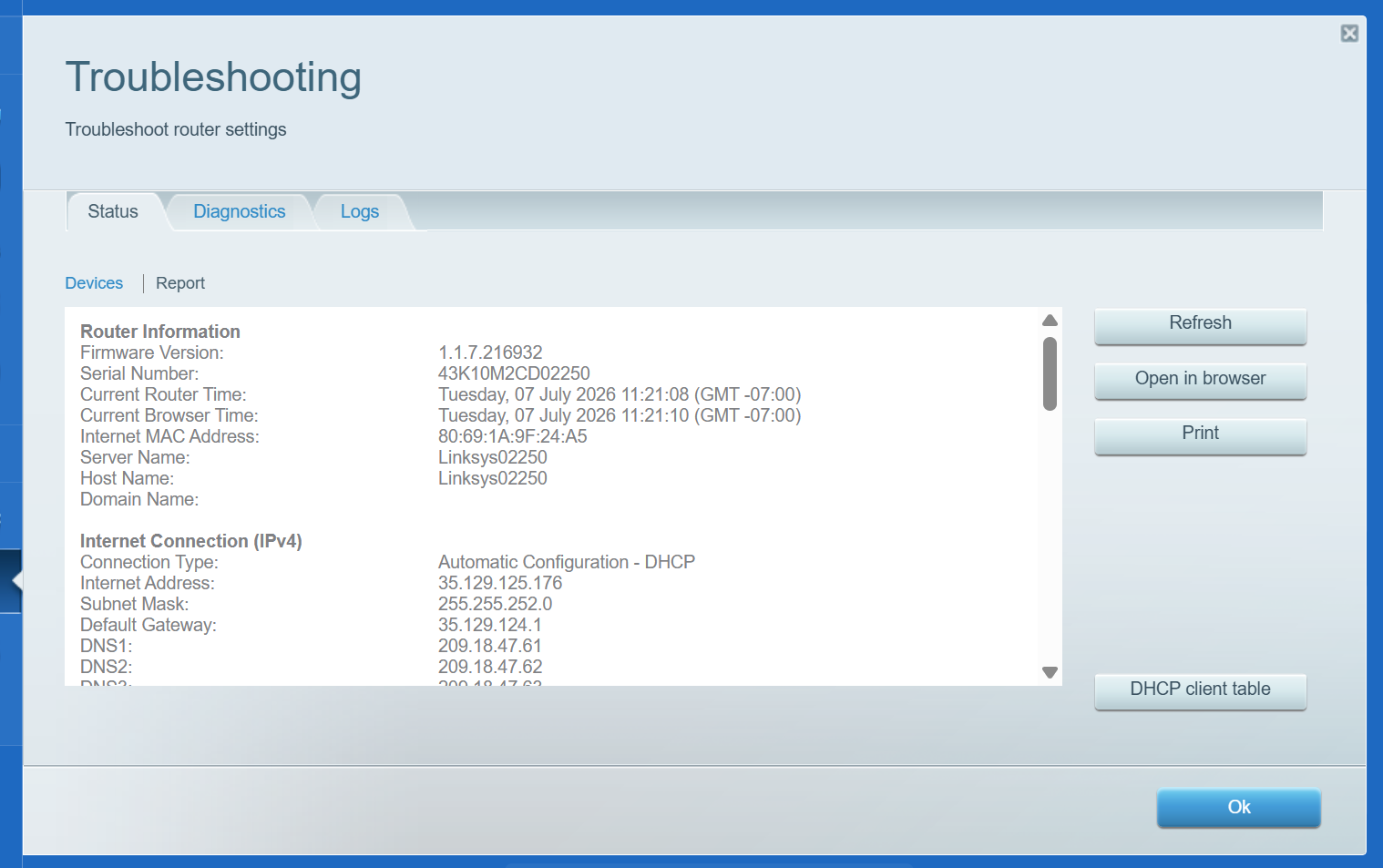 |
| Wi-Fi Settings | This section allows you to manage and configure the settings for your WiFi. 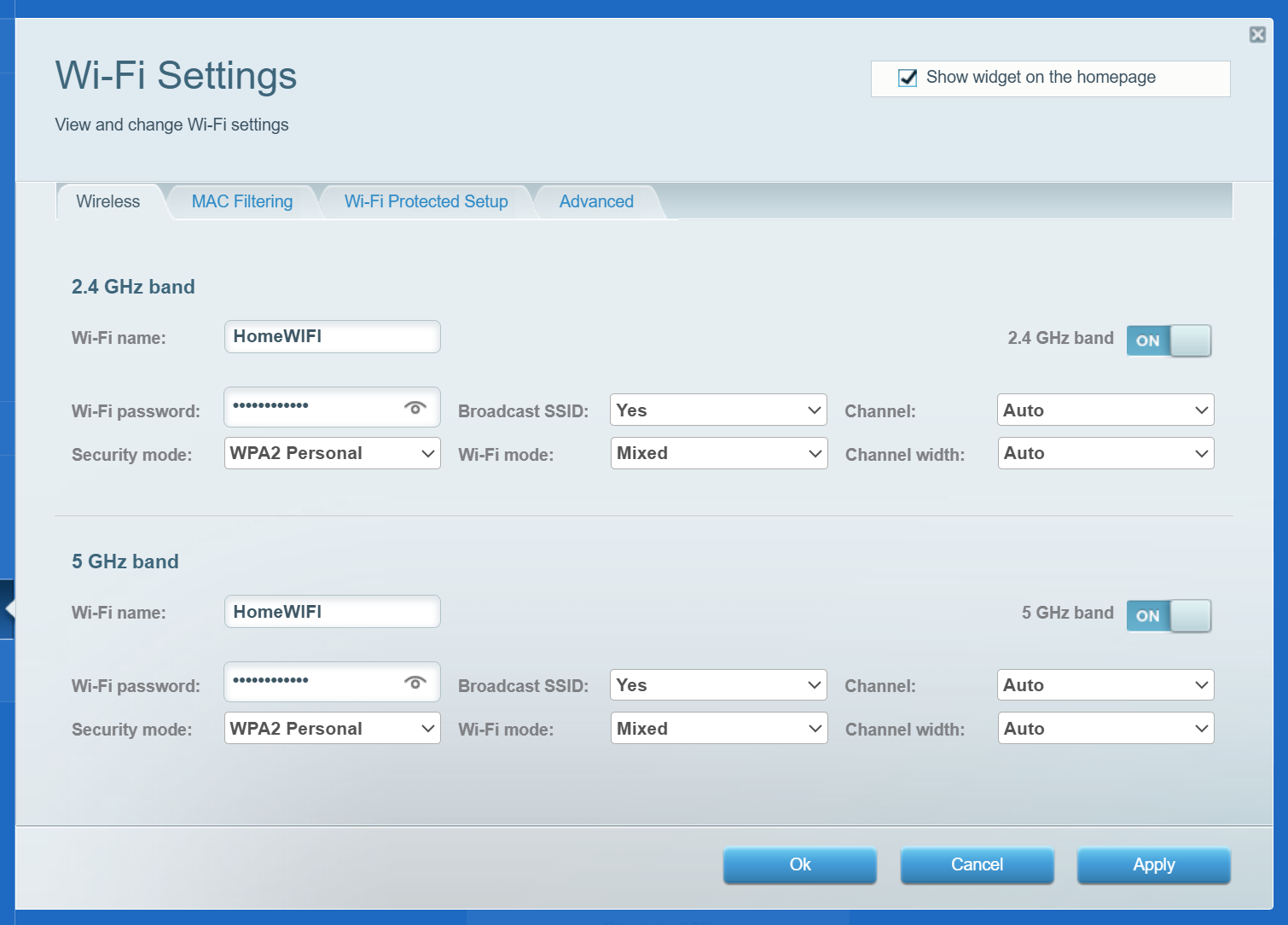 On the Wi-Fi Protected Setup™ tab, WPS is disabled by default.  Dynamic Frequency Selection (DFS) is also disabled by default. To enable it, go to the Advanced tab, toggle it ON, then click Apply, then OK. The WiFi will restart to apply the changes, temporarily disconnecting you. Learn more.  |
| Security | Security settings keep your WiFi safe from internet threats. You can also configure port forwarding and DDNS settings.  |

