


How to change the WiFi settings on a Linksys E9450 router

The instructions below will show you how to change the WiFi settings of your Linksys E9450 WiFi 6 Router.
This article is for Linksys E9450-AH, E9450-CN, E9450-JP, and E9450-KR.
Before you begin:
This article is for Linksys E9450-AH, E9450-CN, E9450-JP, and E9450-KR.
Before you begin:
- If you have mesh network with other child nodes connected, once the settings are changed on the parent node, these settings will also apply to all connected child nodes.
Directions
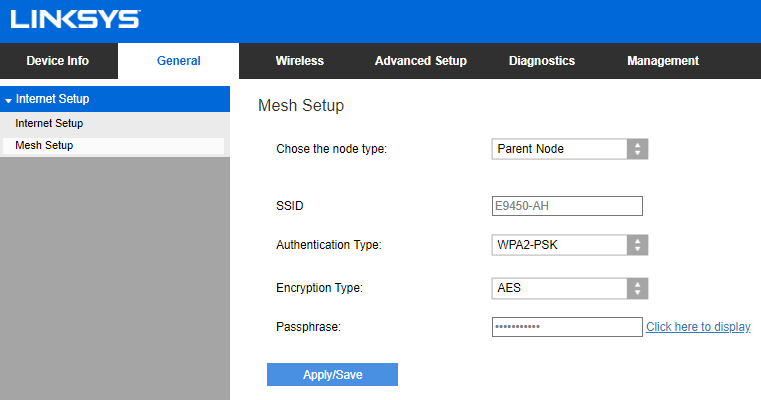
2. Go to General > Mesh Setup.
3. Enter the new SSID, Authentication Type, and Encryption Type or Passphrase (WiFi password) in the fields provided. Click Apply/Save.
3. Enter the new SSID, Authentication Type, and Encryption Type or Passphrase (WiFi password) in the fields provided. Click Apply/Save.
4. Click OK and click on No to adding new child nodes. Wait until the settings have been applied.

5. Once you see that your new WiFi name is broadcasting, connect your mobile device to it and click Done.

