You are using an unsupported browser. Please update your browser to the latest version on or before July 31, 2020.
close
You are viewing the article in preview mode. It is not live at the moment.
Home > Setup / Installation > Setting up a Linksys Velop mesh system
Setting up a Linksys Velop mesh system
print icon

There are multiple ways to set up your Linksys mesh system. This article will walk you through the process of setting up your Linksys router using any of the following methods:


  • 5-Button Push setup - This process does not require a mobile device or computer. This is supported on ISP subscribers with only an Automatic (DHCP) internet connection type.
  • Web interface setup - This method requires a computer.
  • Linksys app - This setup requires a mobile device.


  • WHW03 series
  • MX5300 series
  • MX4200 series
  • MX8500 series
  • MX5500 series
  • MX2000 series
  • MR8300 series
  • MR9000 series
  • MR6350 series
  • MR7350 series
  • MR9600 series
  • MR7500 series
  • MR5500 series
  • MR2000 series
  • MR20WH (LN3111)
  • MR55WH (LN3121)
  • MX6200 (firmware version 1.0.6.2144447 and older)
  • MBE7000 (firmware version 1.0.8.213573 and older)


Images will vary by model.


The 5-Button Push setup method is the easiest and quickest way to set up both your parent and child nodes.


Before you begin:


  • Use this method if your connection type is Automatic (DHCP). For other connection types, such as PPPoE or Static IP, see the instructions here.
  • Parent router - It is the node connected to your modem.
  • Child node – It is another node used to extend your WiFi. The child node can be wireless or wired.


1. Gather all your equipment in the same area as your modem. After the nodes are set up, you can relocate your child nodes as needed.


2. Remove any existing router.


a. I have a modem with a separate router.


      • Disconnect your existing router.
      • Power cycle your modem.
      • Wait until your modem has rebooted and go to the next step.


b. I have a WiFi router and modem combined in one device, or I do not have any existing routers in my home.


      • Go to the next step.


3. Connect the parent node from the internet port with an ethernet cable to your modem.
 

An image of the MX series router


For the Linksys WHW03 series, choose any of the ports as your Internet port unless it has an Internet label. After setting up the router, this port will become your dedicated Internet port.


An image of the WHW03 underneath.


An image of MR series router


4. If you are adding child nodes, power them near the parent router. The child nodes need to be near the parent router, no more than 10 ft away, the closer the better. Do not plug any devices into the child node ports during setup.


An image of a child node on your you can connect your power adapter


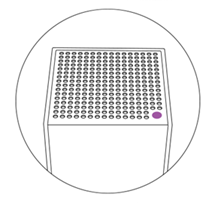
5. All your nodes should be in setup mode with a solid purple light.


If any nodes do not have a solid purple light, reset them by holding down the reset button for about 15 seconds, then wait until the light becomes solid purple.


An image of a router with solid purple light (Ready for setup))


6. Important - Read first - Press the Reset button on the bottom of the parent node that is connected to the modem five times within 5 seconds (do not hold).
 

An image of the MX, WHW, and MR series router buttons.


7. The light on the parent node will start blinking. The setup will begin, and the parent node will begin to scan for unconfigured nodes.


A parent router that is online
 

8. The router will begin to scan for unconfigured nodes. If you do not have any child nodes to add, go to the next step.
 

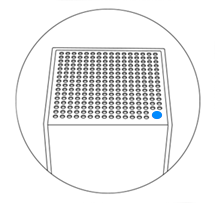
Once the child nodes have been detected, the light on the child nodes will also begin to blink. Wait for the child node's light to turn solid blue. This can take a few minutes. 


a child router that is successfully added to the network


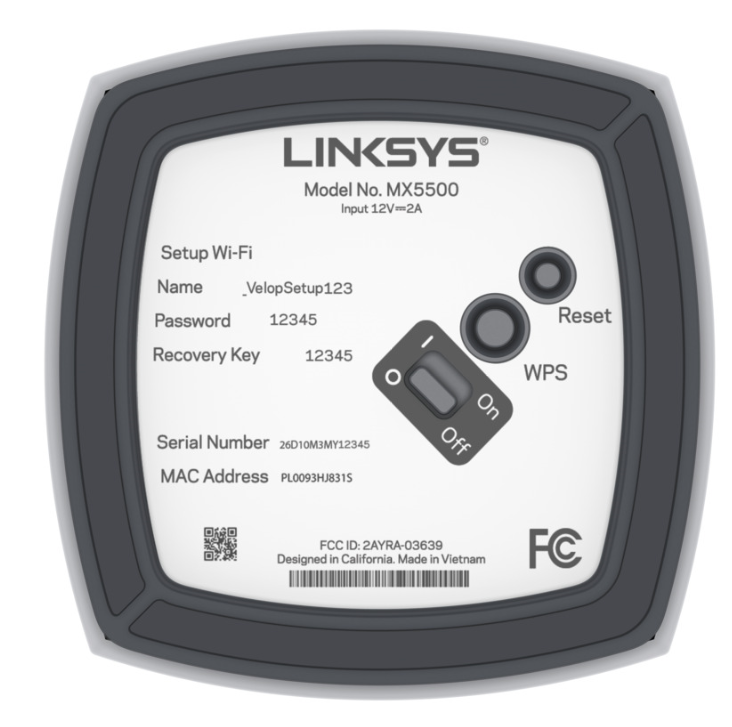
9. Once all your nodes have a solid blue light, your WiFi is ready to use. You can now move your child nodes and connect your WiFi devices to the default WiFi credentials located on the bottom of the parent router. 


An image of Setup Wi-Fi Name, Password, and recovery key


You can now log in to the Linksys app or the router's web interface to manage and customize your network settings. Learn more.


Before you begin:


  • You will need to use a web browser on your laptop or desktop computer.
  • Write down the default WiFi name, password, and recovery key printed on the parent node’s product label.
  • Parent node - It is the node connected to your modem.
  • Child node - It is another node used to extend your WiFi. The child node can be wireless or wired.


1. Gather all your equipment in the same area as your modem. After the child nodes are set up, you can relocate your child nodes as needed.


2. Remove any existing router.


a. I have a modem with a separate router.


      • Disconnect your existing router.
      • Power cycle your modem.
      • Wait until your modem has rebooted and go to the next step.


b. I have a WiFi router and modem combined in one device, or I do not have any existing routers in my home.


      • Go to the next step.


3. Connect your modem using an ethernet cable to the Internet port on the parent router and power it ON. 


An image of the MX series router


For Linksys WHW03 series, choose any of the ports as your Internet port (unless it has an Internet label). After setting up the router, this port will become your dedicated Internet port. 


An image of the WHW03 underneath.


An image of MR series router pointing where the modem and power adapter ports


4. If you are adding child nodes, power them near the parent router. The child nodes need to be near the parent router, no more than 10 ft, the closer the better. Do not plug any devices into the child nodes during setup.


An image of a child node pointing where to connect the power adapter


5. All your nodes should be in setup mode with a solid purple light.


If any nodes do not have a solid purple light, reset them by holding down the reset button for about 15 seconds, then wait until the light becomes solid purple.


A Purple light (Ready for setup)


6. Connect your computer to the default WiFi name of the parent router. The credentials are located on the product label.


Wi-Fi network “_VelopSetupD91” showing “No Internet, secured”


7. Open a desktop browser and go to "https://192.168.1.1" or use "myrouter.local".


If you get the following browser error, follow these instructions to bypass the message shown below.


Browser error "Your connection is not private"


8. Click on the mobile image to bypass the blocking page. If you don’t see this page, proceed to the next step.


An image of a Linksys App


9. If this is your first time setting up the router, you will need to create a new password. Click Reset password, enter the Recovery Key of the parent router when prompted, and create a new router password. Then click Sign in.


An image of a web interface login page


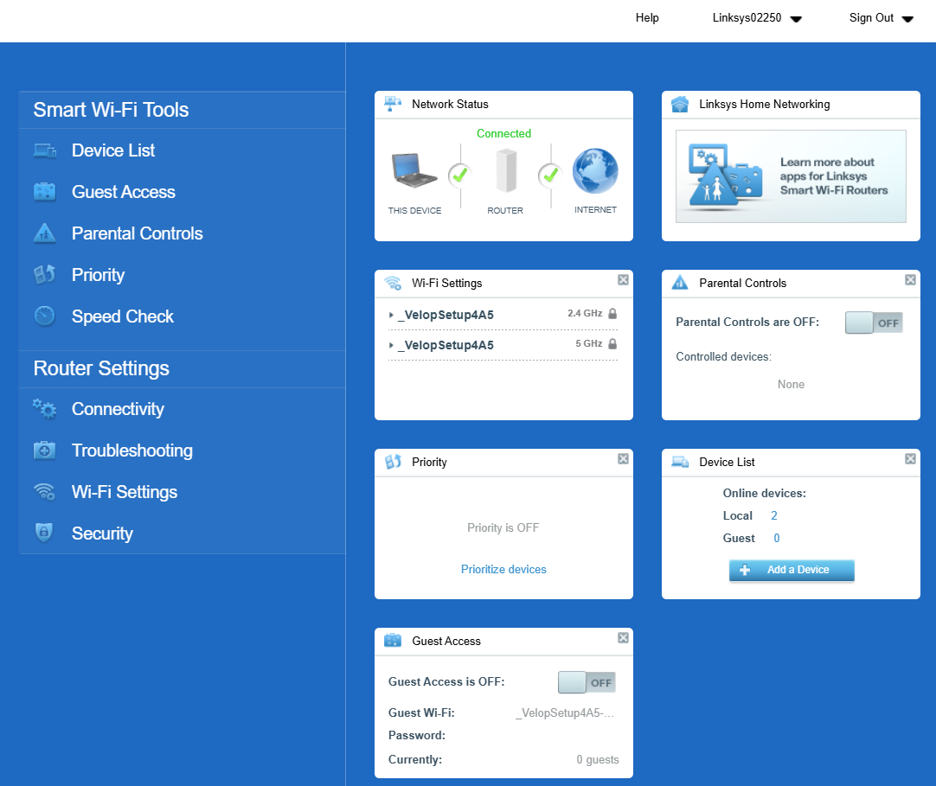
10. Once you create a new password, you will land on the dashboard.


Linksys Dashboard


11. Scroll to the bottom and click on the CA link. If you don’t see the CA link, proceed to the next step


An image pf CA link


12. Click on Connectivity then click on the CA Router Setup tab.


A Router settings menu


An image of CA router setup


13. Customize your WiFi name (SSID) and WiFi password (case sensitive), then click on Setup Node.


Write down your new settings. You will temporarily lose connection while the settings are being saved. Keep the page open. When you reconnect to the new WiFi, the setup will resume.


14. The light on top of the parent router will begin to flash. Once you see your new WiFi name broadcasting, connect to it to continue setup.


Wi-Fi network “HomeWiFi” showing “secured”


15. You will now see the Your Master Node is now Configured message.


16. Now check if your parent router is online. If the light on the parent router is solid blue and your router is online, you can go to the next step.


Parent router (Online and connected)


If the light is red this means the router did not detect an internet connection. Try the following:


  • Make sure that the modem is plugged into the Internet port on the router.
  • Power cycle your modem, and wait for it to reboot. Then check if the light on the router turns solid blue after a few minutes.
  • If you have an Internet type that requires manual settings, such as PPPoE or a Static IP, you will need to enter your Internet settings manually. In the same Connectivity page, click on the Internet Settings tab, click Edit, and choose PPPoE or your Internet connection type. Enter your PPPoE or other settings and click Apply. Wait for the light on the node to turn solid blue. Then come back to the CA Router Setup tab to add your child nodes. If you don’t see the CA Router Setup tab, repeat the step.


Internet settings connection type DHCP


The Network Status tile on the dashboard also displays the connection status. You may have to refresh the page to see an update.


Network status saying Connected


Now that your router is online, do you have child nodes to add?


a. Yes - Power on your child node and wait until the light is solid purple. Then, in the CA Router Setup tab, click on Add Wireless Child Nodes, and wait for the child node’s light to turn solid blue.


For wired nodes, connect your nodes to the network with an ethernet cable, and wait until the light is solid purple, then click on Add Wired Child Nodes. Once the child nodes have a solid blue light, click Ok.


b. No - Go to the next step.


An image of a router with a Purple Light


An image of a child node with Solid blue light


17. Once all your nodes have a solid blue light, your network is ready to use. Click Done Adding Child Nodes. 


CA router setup Done Adding Child Nodes button


18. Your network is now ready to use.


Make sure to write down your WiFi name, WiFi password, and the admin password (also known as the router password).

Was this support article helpful?
17 out of 38 found this helpful

Contact Us:
Call Us Access our list of global support numbers
Reddit Join and subscribe to our Official Reddit Community
Chat Us We are here to help you with all the questions you have

Linksys
Now
Support
scroll to top icon