


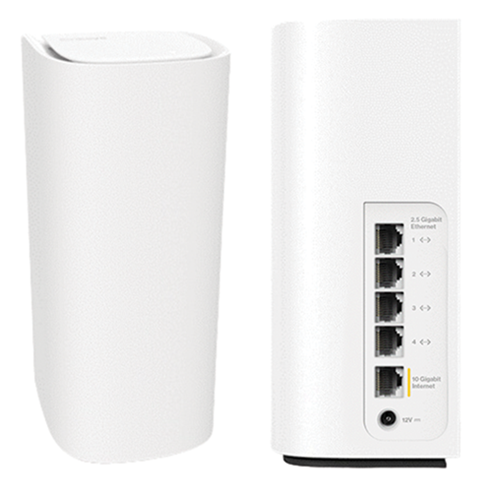
Say Hello to the Linksys LN1400PW-HK
It is a Cognitive™ Mesh Wi-Fi® 7 system that provides you with a fast and secure home network with Fortinet® cybersecurity built into the system for your home. Linksys Cognitive Mesh technology figures everything out for you by making continuous optimizations that improve your connectivity across all your devices.
- Linksys Velop Cognitive Mesh technology
- Tri-band WiFi 7 BE11000
- 2x2x2 Spatial Streams
- Safe Browsing
- Parental Controls
- Next-generation Orthogonal Frequency-Division Multiple Access (OFDMA) technology
- Supports 2.4 GHz, 5 GHz, and 6 GHz radio bands
- Linksys LN1400PW-HK supports TR069/TR181 and IPTV features
- Dimensions (L x W x H): 3.705 in x 3.705 in x 8.58 in
- Weight: 2.1649 lb
- Buttons and switch:
- Reset button
- Pair button
- Sliding power switch
- Ports:
- One internet port (10 Gbps)
- Four ethernet ports (2.5 Gbps)
- One power port (12V, 3A)
- For PCCW subscribers, a PCCW internet connection and an IPTV subscription for the IPTV feature
- The latest web browser version to configure the router settings
- Linksys LN1400PW-HK
- One CAT6 ethernet cable with a 10 G-capable sticker
- One power adapter per node (12V, 3A)
- Quick start guide
- Regulatory information
Setting up the Linksys LN1400PW-HK
To set up your Linksys router, follow these steps.
Click More for additional help.
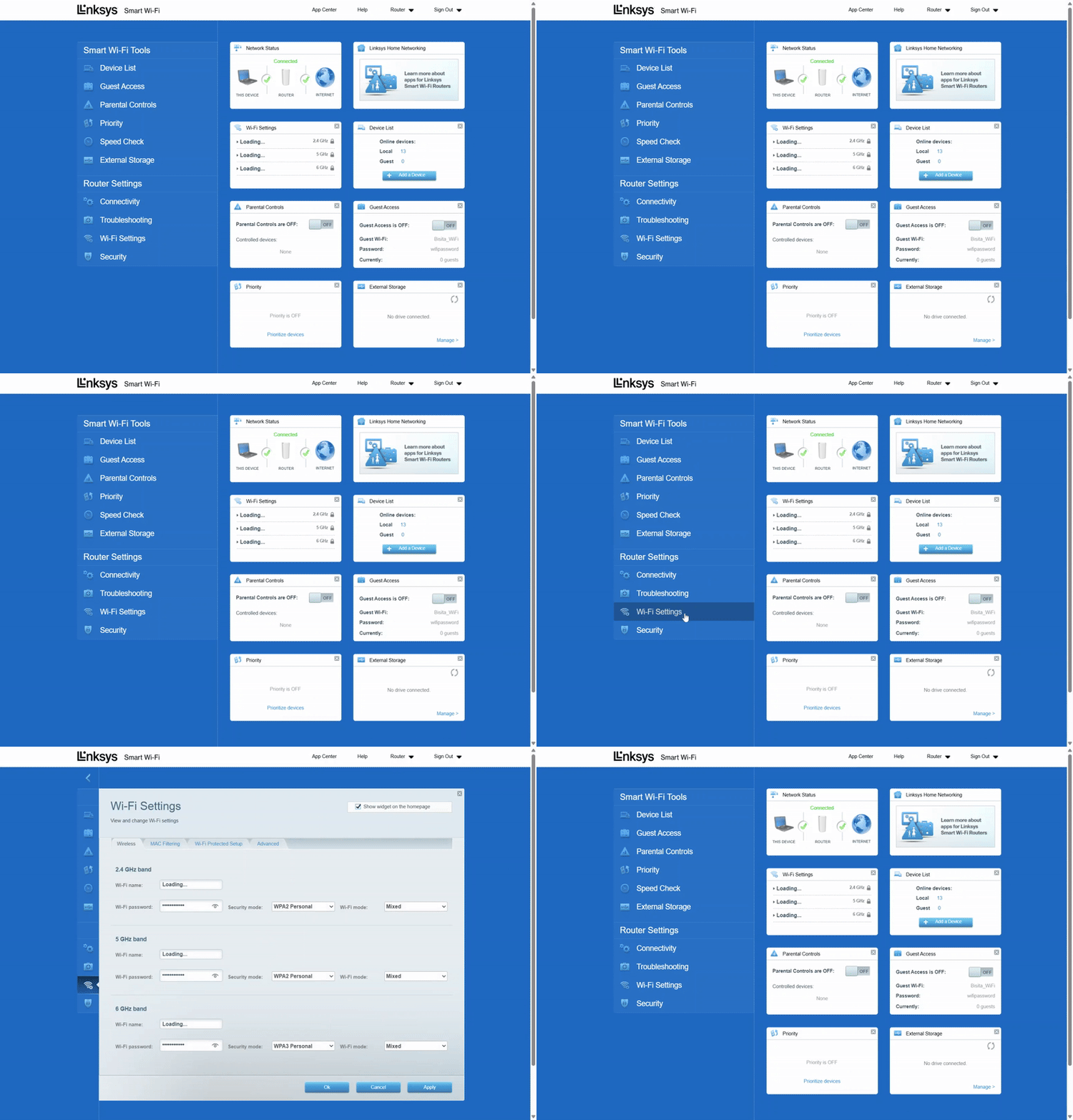
1. Log in to the web interface.
2. Click on Wi-Fi Settings.
3. Change your settings according to your preference, click Apply, and then click Ok.
You will temporarily lose your WiFi connection while the settings are being saved. If you’ve changed your WiFi name or password, you’ll need to reconnect using the updated credentials.
Resetting the Linksys LN1400PW-HK
1. Press and hold the Reset button at the bottom of the device.
You will see a red light in a fading pattern. When the fading pattern has stopped, which takes about 10 seconds, the light will turn OFF.
2. Once this happens, release the Reset button and wait for the node to boot up. When the light turns solid blue, this indicates that the node is ready to be set up again.
Select each category below to view the articles.

