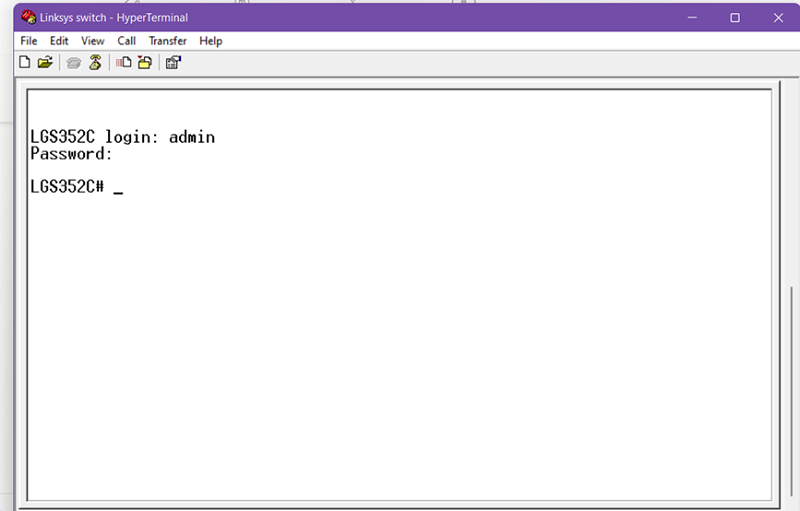
Accessing the Menu CLI using the console port on the Linksys Managed Switch for Business

This article will give you instructions on how to access the Menu Command-Line Interface (CLI) on the Linksys Managed Switch for Business.
Before you begin:
You will need a console cable (not included in the package). You use either of the following:
a. A serial cable DB9 to RJ45 RS232 with a USB to Serial (nine-pin) DB9 RS232 cable such as:
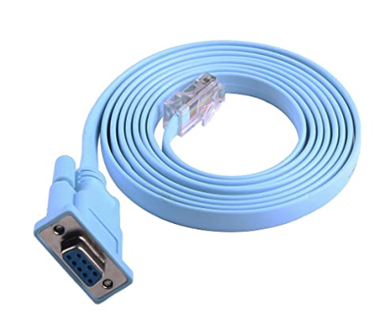
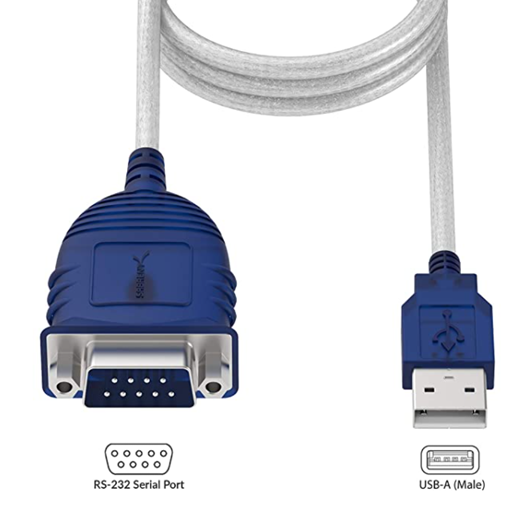
* This cable is not needed if the computer being used already has a serial port.
b. A USB Type A to RJ45 RS232 cable.
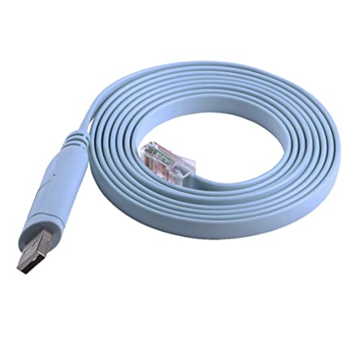
NOTE: Make sure to use the right COM port number. You can check in the Device Manager > Ports.
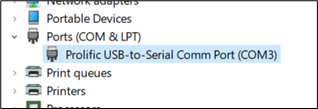
In the following example, we will use a Linksys LGS352C model using HyperTerminal.
1. Connect your computer to the Console port of the switch using a Console cable.
2. Start a connection using an application, such as Putty or HyperTerminal session on your computer, and enter the following baud rate settings:
- 115,200 bps
- 8 data bits
- No parity
- Stop bits – 1
NOTE: Make sure the correct COM port number is entered.
3. At the login prompt, enter your username and press [ENTER]. The default username is admin.
4. At the password prompt, enter your password and press [ENTER]. The default password is admin.
You have now accessed the switch.
NOTE: The “?” command helps to list available commands.