You are using an unsupported browser. Please update your browser to the latest version on or before July 31, 2020.
close
You are viewing the article in preview mode. It is not live at the moment.
> 特色产品 > LN1100 和 LN1200 > 如何手动更新您的Linksys LN1100固件
如何手动更新您的Linksys LN1100固件
print icon

建议保持自动 固件更新 开启状态,以便当固件更新可用时,您可以及时接收。 

不过,如果你需要手动更新固件,可以使用以下方法。 


隐藏固件链接
网页界面


隐藏固件链接

1. 下载Linksys LN1100固件 到你的电脑上。

2. 将计算机连接到Linksys LN1100网络。 
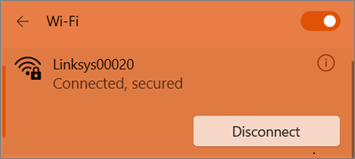
 
Windows Wi-Fi connection status showing a connected and secured Linksys network.
 

3. 打开网页浏览器,在地址栏输入“www.myrouter.info/fwupdate.html”。按键盘上的[回车]键继续


你也可以使用Linksys LN1100路由器的IP地址,比如“https://192.168.1.1/fwupdate.html”。

4. 提示时输入用户名和密码,然后点击登录


a. 未配置路由器 —— 如果路由器是出厂默认设置,用户名和密码都输入admin。

b. 配置路由器 —— 如果路由器已配置,使用admin作为用户名,密码与默认WiFi密码相同。如果你更改了路由器密码,请使用自定义密码。
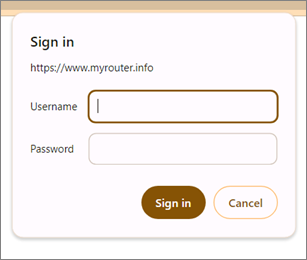
 
Linksys LN1100 login screen.

 
5.
管理员密码字段中输入您当前的路由器密码。无论您是否已自定义过路由器密码,该字段始终显示为admin。请务必输入正确的路由器密码。
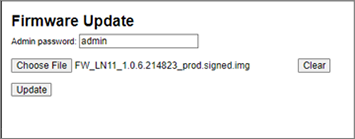
 

Linksys LN1100 Firmware Update screen.


6. 点击选择文件,选择之前下载的固件。点击更新继续。


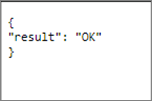
7. 等你收到确认后再说。 在这个过程中不要关闭路由器


Firmware update result showing OK.


8. 路由器上的状态灯会开始闪烁,等待灯光恢复为常亮白色或常亮蓝色,具体取决于之前的状态。 

一旦灯光恢复常亮,更新就完成了。


网页界面

1. 下载Linksys LN1100固件 到你的电脑上。

2. 将计算机连接到Linksys LN1100网络。
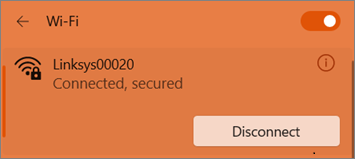
 

Windows Wi-Fi connection status showing a connected and secured Linksys network.


3. 打开浏览器,在地址栏输入“www.myrouter.info”或“myrouter.info”。按键盘上的[回车]键继续。

4. 用你的路由器密码登录。如果您已自定义密码或忘记了密码,请点击重置密码,并按照步骤更改路由器密码。

5.
点击屏幕底部的CA链接。

 
Bottom section of the web interface showing the CA link.


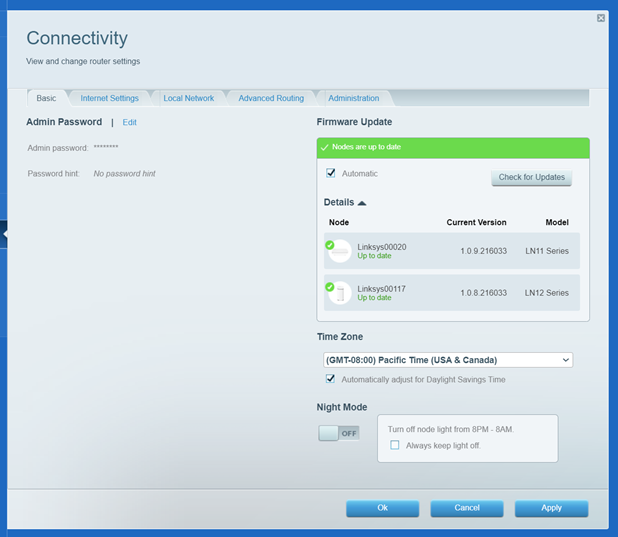
6. 点击连接>基础


7. 点击“选择文件”,选择之前下载的固件,然后点击“开始”。


The Firmware Update section highlighting the the Choose File option.

8. 
点击“”继续。
 
A pop-up reminder to expect temporary disconnection as the router reboots, followed by reconnection after the update.


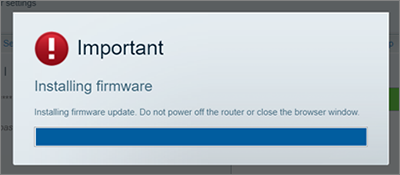
在这个过程中不要关闭路由器。


9. 点击确定,路由器重启。
 
A Firmware Update pop-up reminder not to turn OFF the router during this process.


10. 路由器状态灯开始闪烁,灯亮时表示更新完成。

这篇支持文章有用吗?
0 / 0 觉得这很有帮助

联系我们
致电我们  访问我们的全球支持电话号码列表
Reddit  加入并订阅我们的官方 Reddit 社区
与我们聊天  我们将为您解答所有问题
Linksys
Now
Support
滚动到顶部图标