


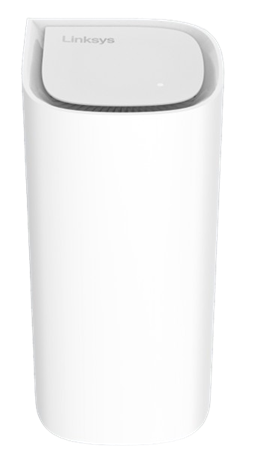
Built to transform your home network experience. Powered by cutting-edge Wi-Fi® 7 technology, it delivers blazing-fast speeds of up to 5 Gbps, ensuring smooth, uninterrupted connectivity for all your devices. Its sleek design and effortless setup combine performance with simplicity, making it an ideal solution for today’s high-demand households.
The Linksys SPNM60DU is for du™ ISP subscribers in the Middle East.
HARDWARE INFORMATION
Linksys Cognitive Mesh technology figures everything out for you by making continuous optimizations that improve your connectivity across all your devices.
- Output: 9V, 3A
- Input: 100-240V~50/60 Hz, 1.0A
SETUP AND INSTALLATION
Below are the requirements for setting up the node:
- An active du™ internet connection
- Latest versions of Google Chrome™, Firefox®, Microsoft Edge™, or Safari® (for Mac® or iPad®)
- Bring the child node closer to the parent router, if possible, and place it in the same room.
- Do you have the Instant-Privacy feature turned ON? If so, turn it OFF, try adding your child node again, and then turn it back ON once the setup is complete. Learn more.
- If you have the DFS feature turned ON, try turning it OFF first. Then, add the child node and turn the feature back ON. Learn more. To find the Dynamic Frequency Selection toggle, go to Incredible-WiFi > Advanced.
Below are the default settings of the router:
- The default IP address is 192.168.1.1.
- The default router password of an unconfigured router is admin.
- The default router password for a configured router is the parent router's default WiFi password.
- The default WiFi name is Linksysxxxxx, where xxxxx represents the last five characters of the node’s serial number.
- The default Guest WiFi name is Linksysxxxxx-guest.
SECURITY AND PRIVACY
The Linksys SPNM60DU supports the following settings:
- WPA2™/WPA3™ Mixed Personal
- WPA3 Personal Only
- WPA2 Personal (Default setting)
- Enhanced Open Only
- Open and Enhanced Open
- Open
To protect your family and block predetermined adult websites and illegal or malicious content, enable the Instant-Safety feature. This function will apply to all devices in your network. Follow these steps.
You will temporarily lose your WiFi connection while the change is being applied.
Instant-Privacy prevents new wireless devices from connecting to your WiFi. By default, this feature is OFF.
Before you enable this option, make sure that all devices that you want on the network have first connected to the WiFi.
Then you can turn the feature ON. If you need to add new devices, simply turn this feature OFF, connect the new devices to your WiFi, and then turn the Instant-Privacy feature back ON. Learn more.
ADVANCED TROUBLESHOOTING
To reset your router, press and hold the reset button for 15-20 seconds.
While holding the button, the router's light will display a fading red pattern. This pattern will stop after about 10 seconds, and the light will turn OFF. At this point, release the reset button and wait for the router to reboot. Wait for the light to turn solid blue, indicating that the node is ready to be set up.
If clients or child nodes are incorrectly displayed as wired or wireless, or if some nodes appear online when they are actually offline, start by refreshing the page.
If the issue persists, reboot the parent router that's connected to the modem. Wait for the network to come back online, then refresh the page again.

