You are using an unsupported browser. Please update your browser to the latest version on or before July 31, 2020.
close
You are viewing the article in preview mode. It is not live at the moment.
> 高级配置 > 使用MLO无线连接两台OpenWRT MBE70(LN6001)路由器
使用MLO无线连接两台OpenWRT MBE70(LN6001)路由器
print icon

本文提供了逐步说明,如何配置两台Linksys OpenWRT MBE70(LN6001)设备,使用多链路操作(MLO)建立无线连接。


如需进一步帮助,请联系OpenWRT社区寻求支持。


网络拓扑
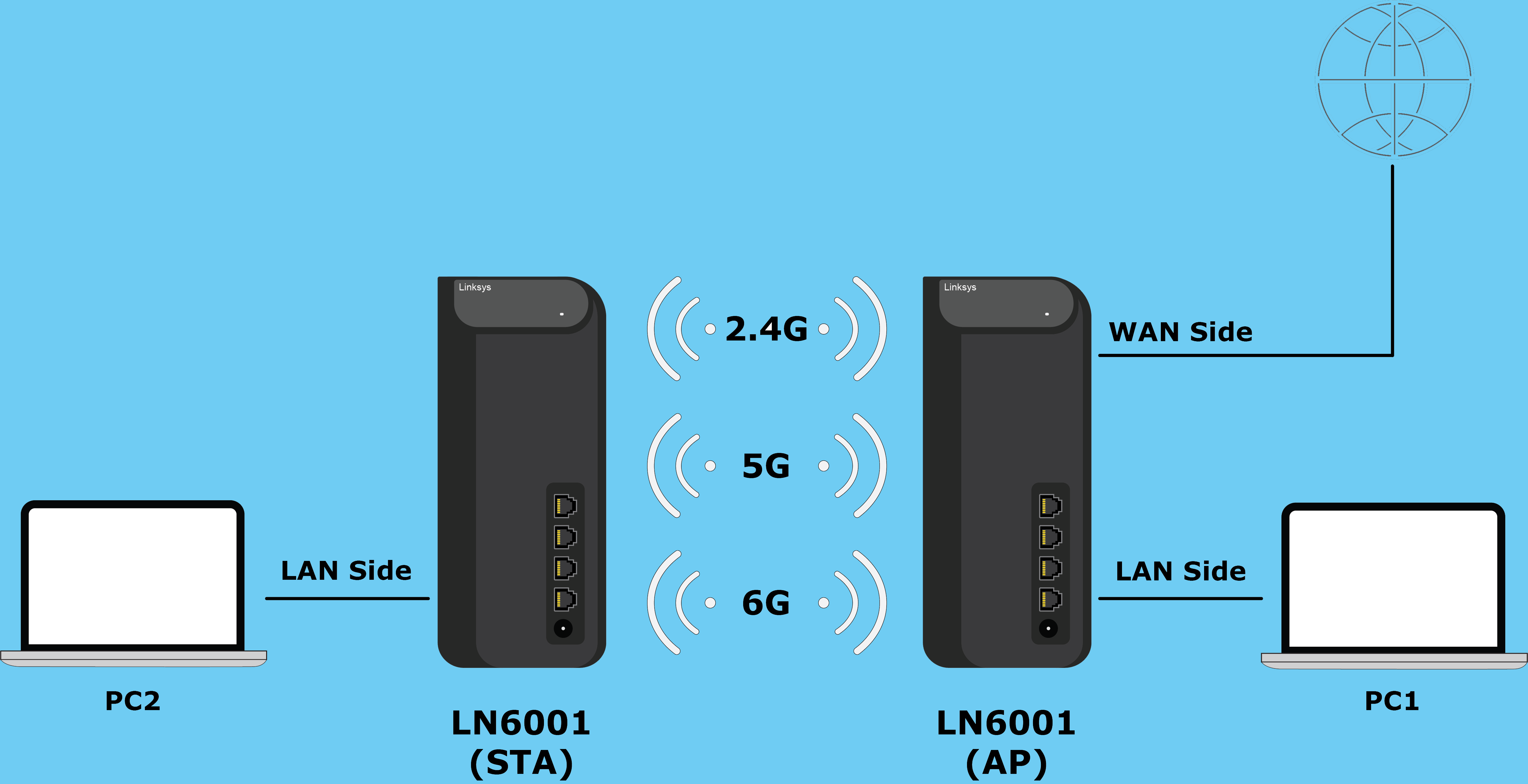
 

Network Topology


第一台路由器:在你的母 MBE70(AP)上执行以下设置。


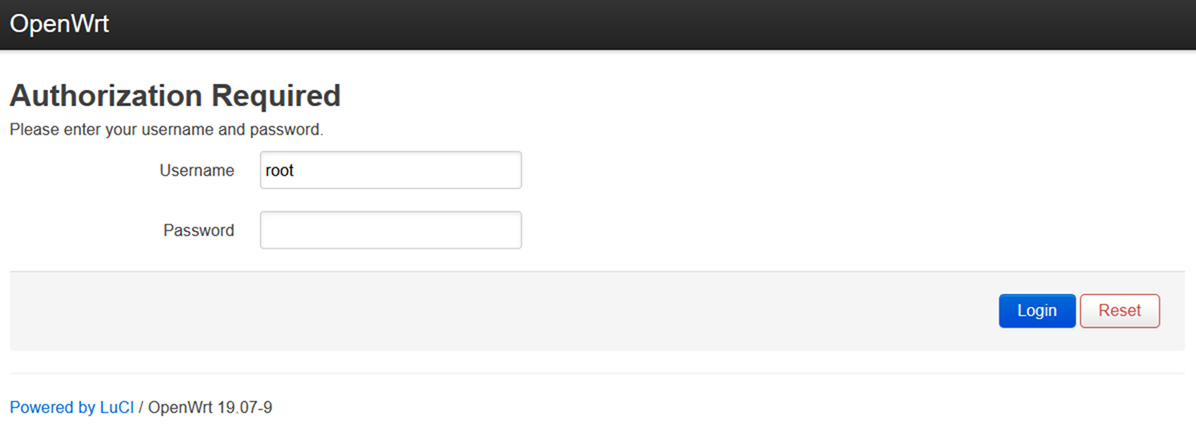
1. 登录路由器。默认用户名和密码分别是root默认WiFi密码


Router login screen
 
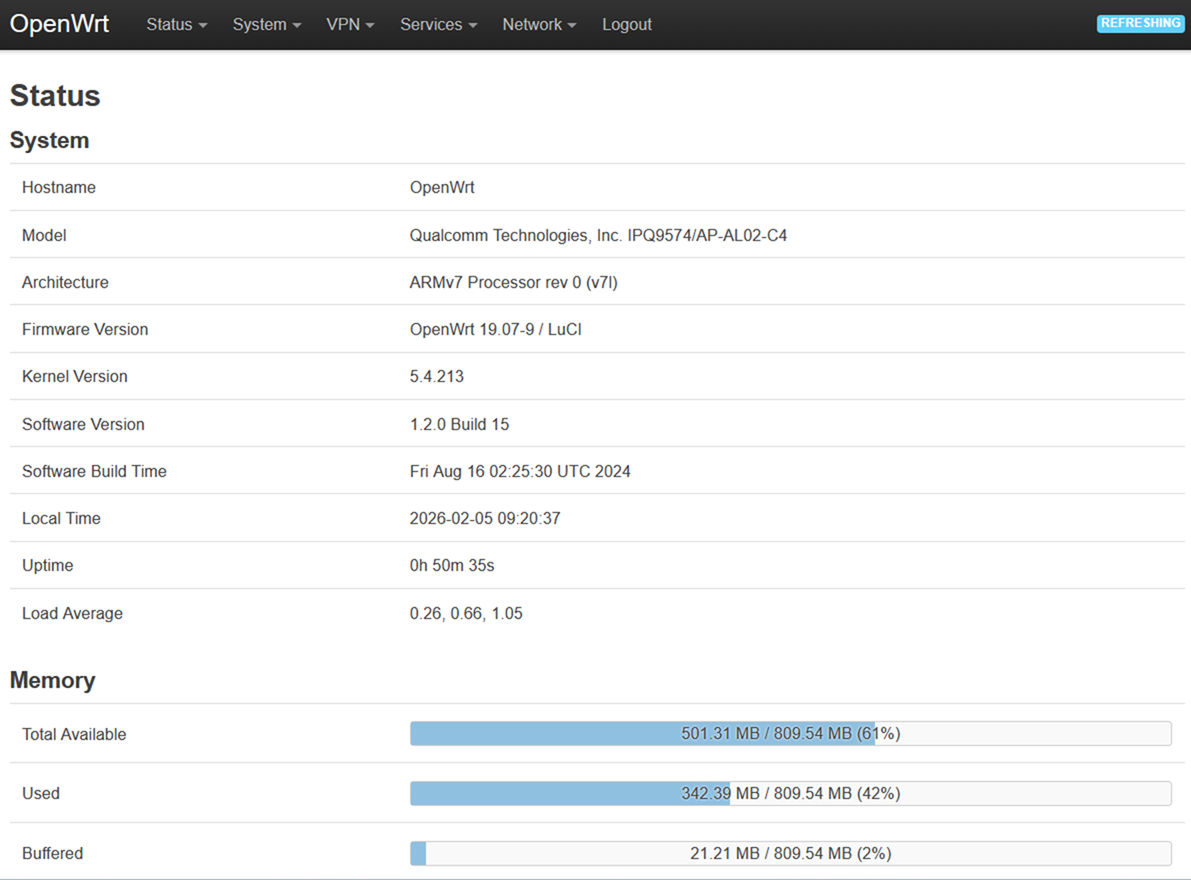
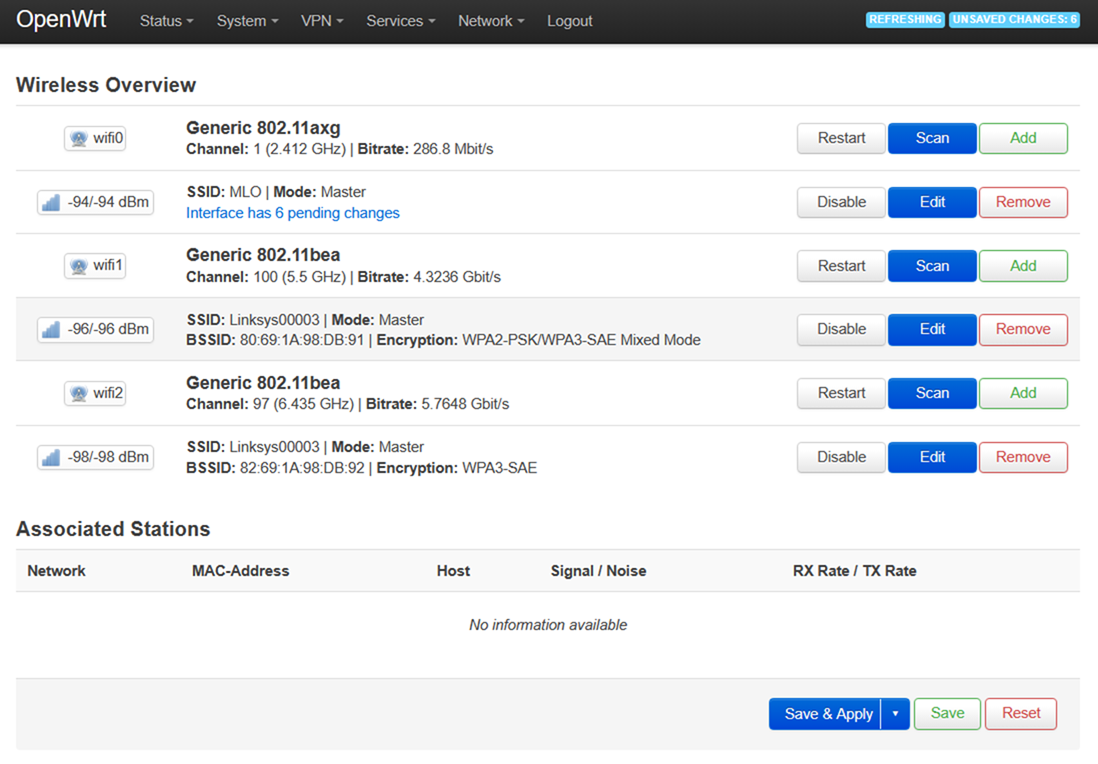
2. 进入网页界面后,进入网络>无线


Select the Network tab and then go to the Wireless sub-tab

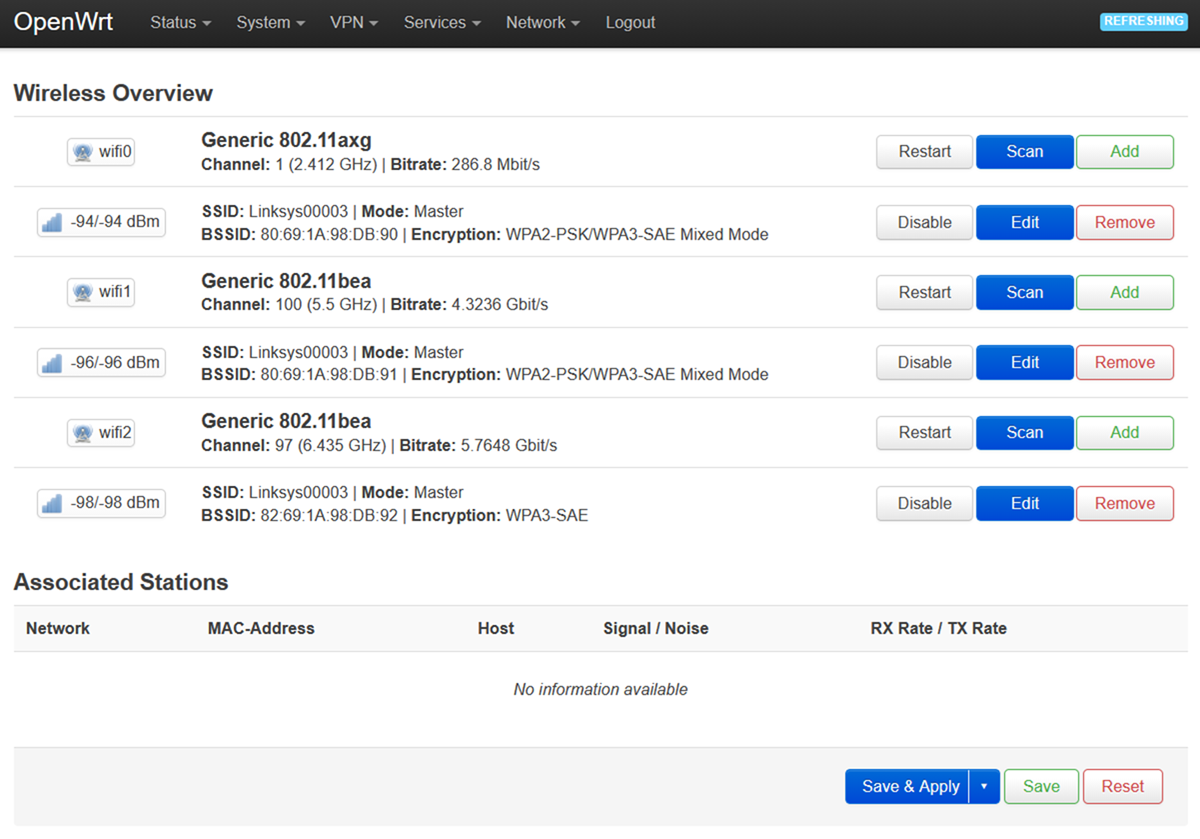
3. 点击编辑按钮,连接2.4 GHz接口(wifi0)。


Click Edit where it says "wifi0"

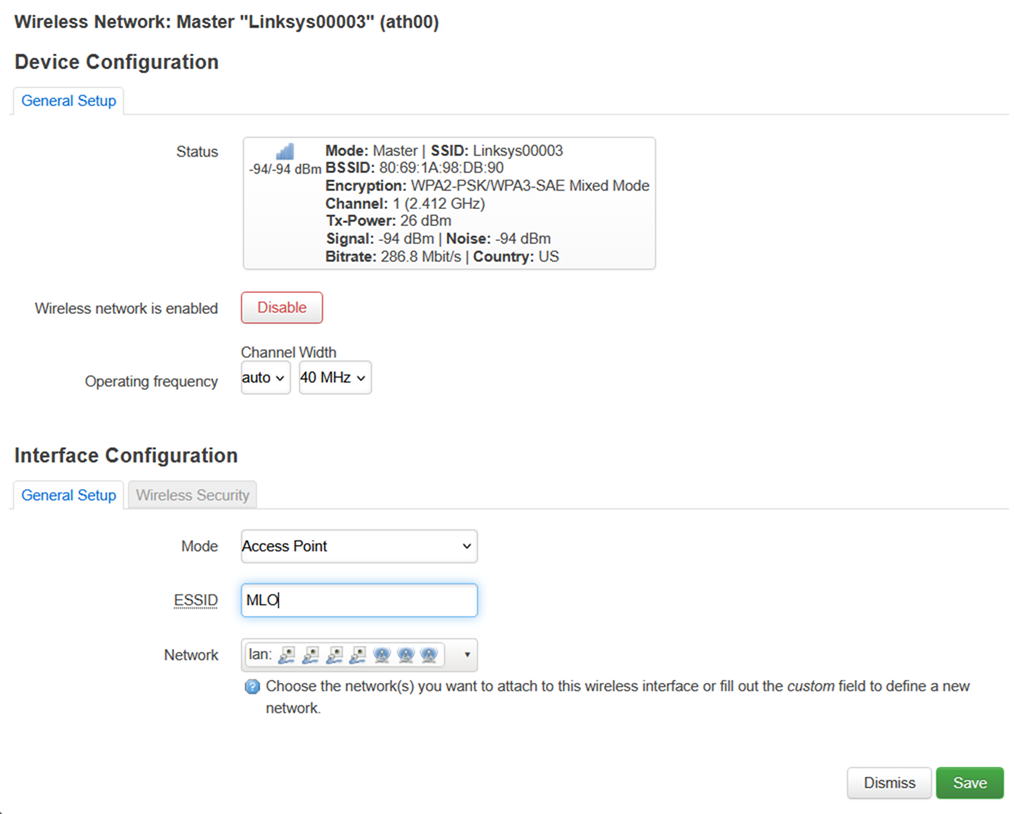
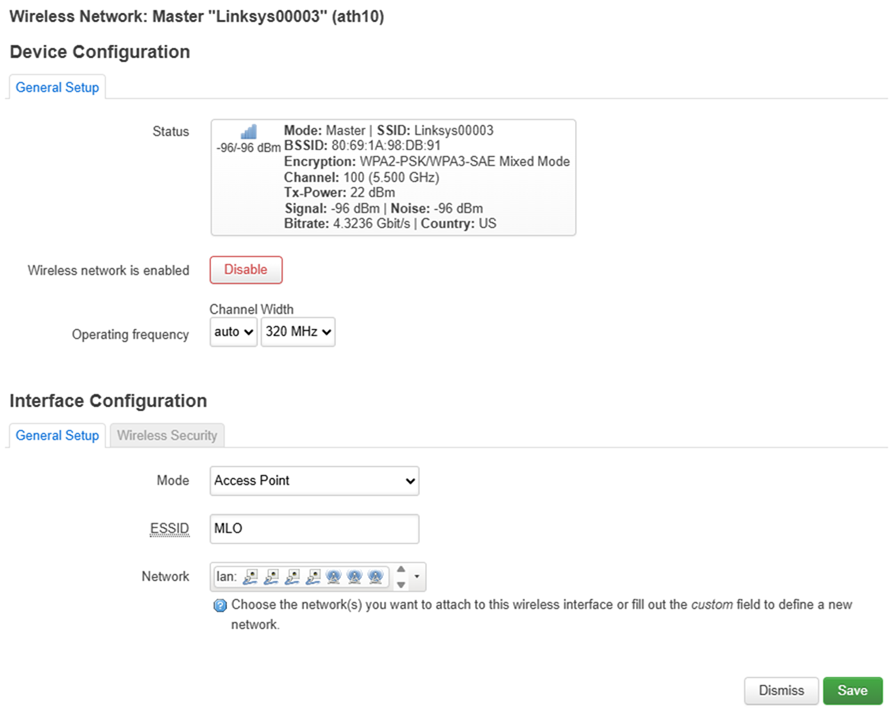
4. 在“接口配置”>“通用设置”中,将ESSID更改为MLO

Edit ESSID to "MLO"

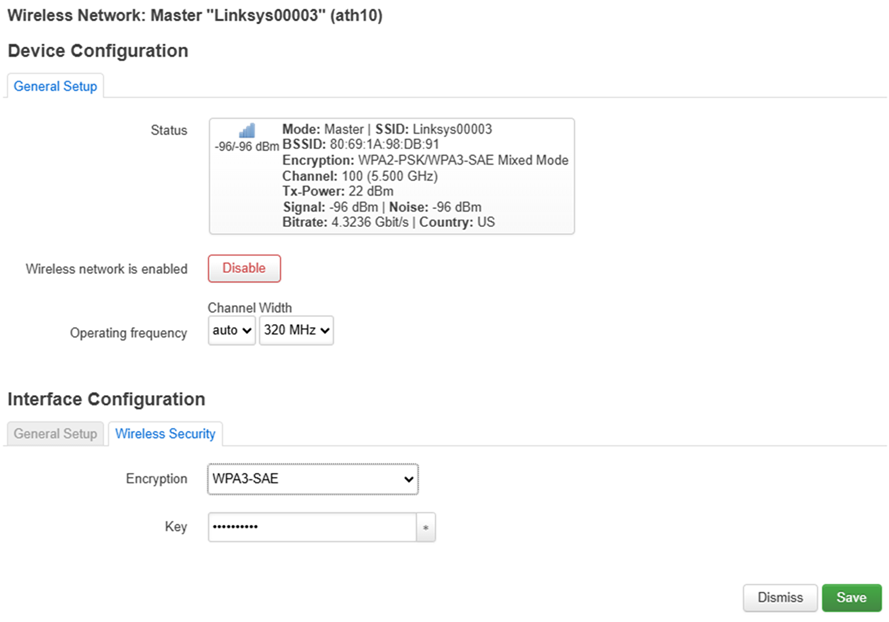
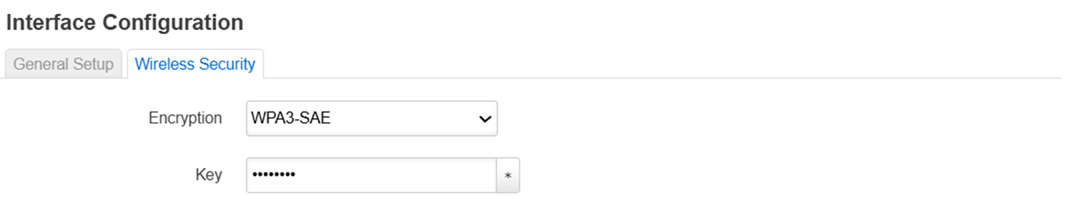
5. 在无线安全中,将加密改为WPA3-SAE,并自定义密钥(这将是你2.4 GHz频段的无线密码)。


点击保存继续。
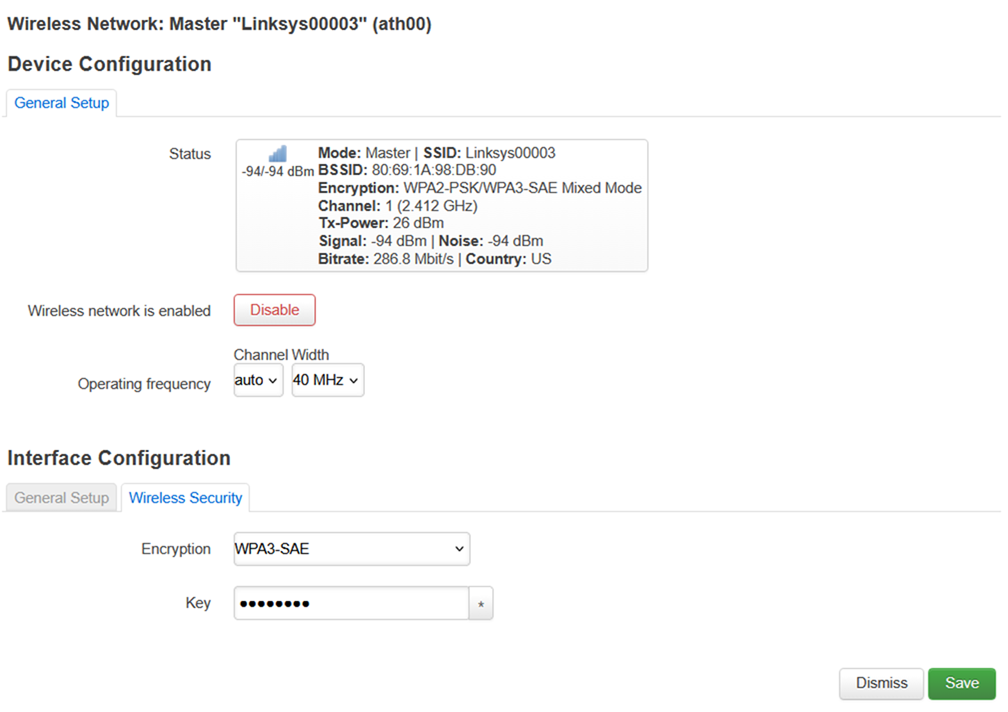
 

Go to "Wireless Security" and change the Encryption to WPA3-SAE


6. 您将被重新导向到无线概览页面。点击“保存并应用”。


Click the Save & Apply button at the bottom.


Changes successfully saved.


7. 对5 GHz接口(wifi1)执行同样的步骤。


Apply the same configuration to "wifi1" settings


wifi1 settings


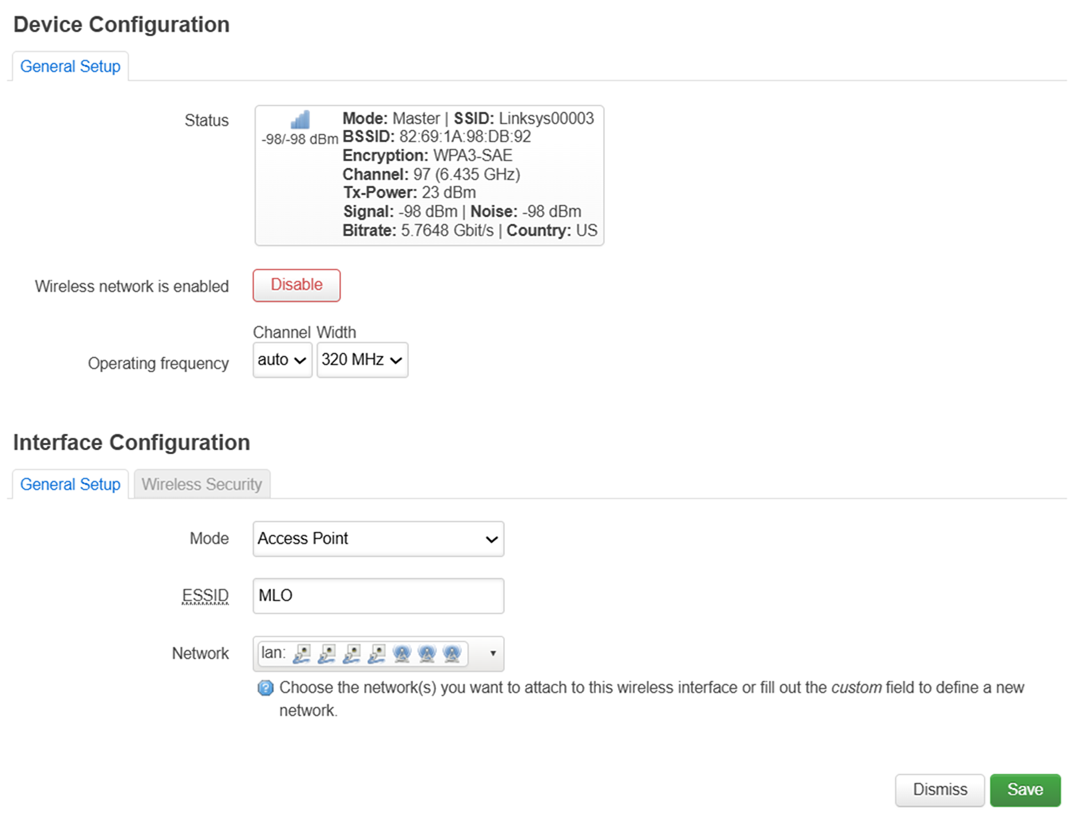
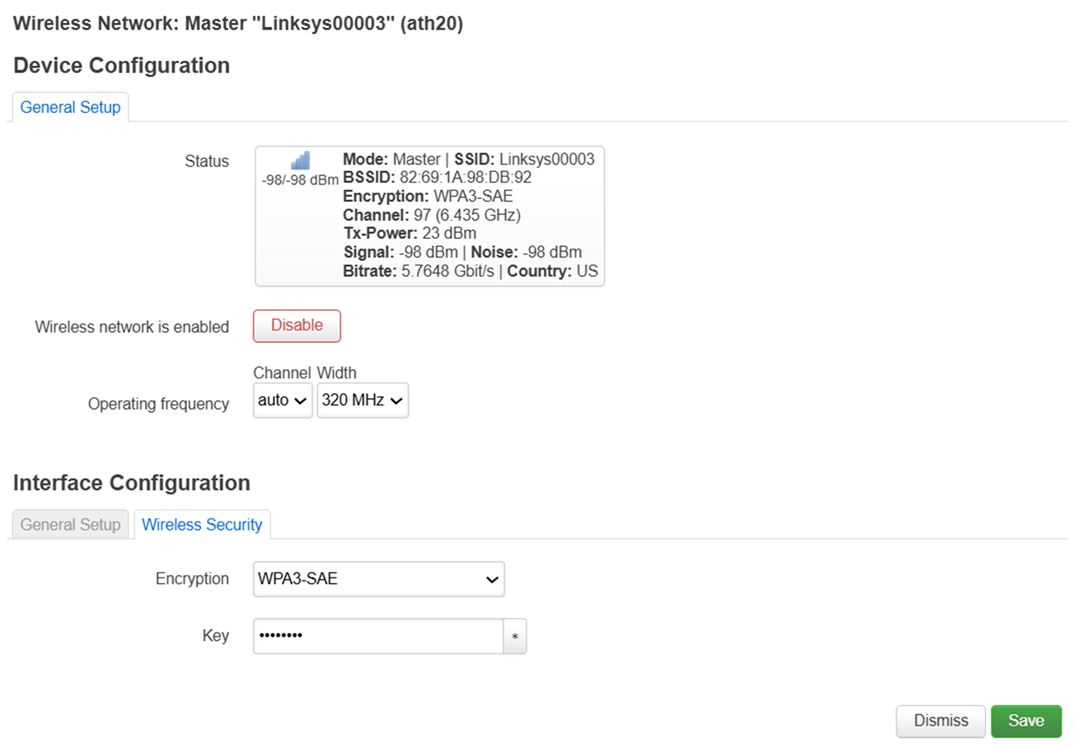
8. 对6 GHz接口(WiFi2)执行同样步骤。


Apply the same configuration to "wifi2" settings


wifi2 settings


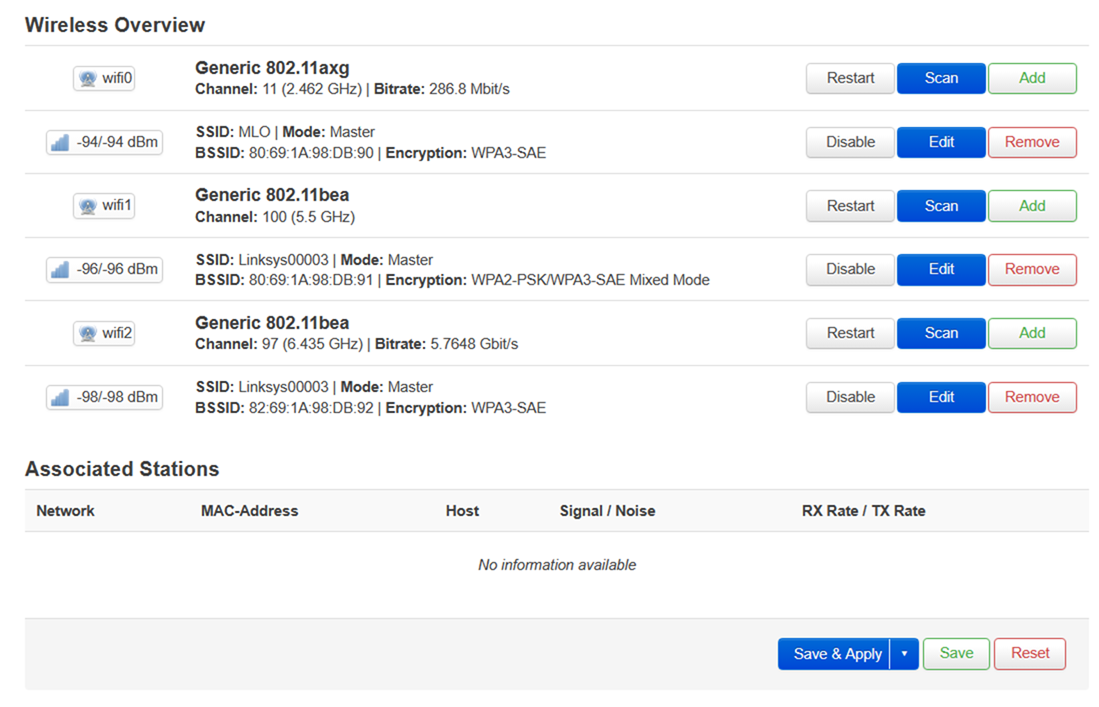
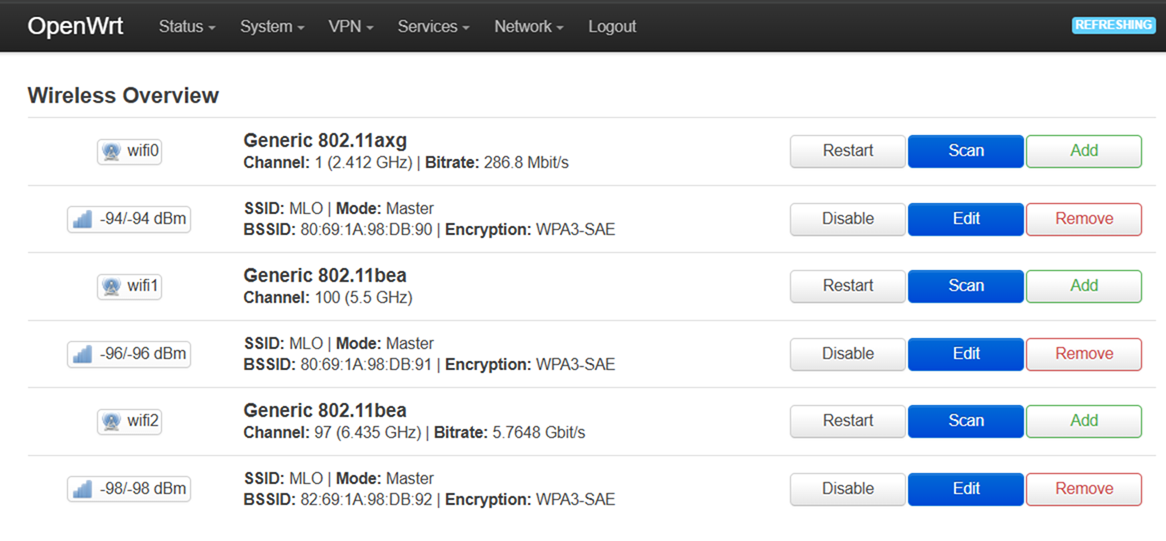
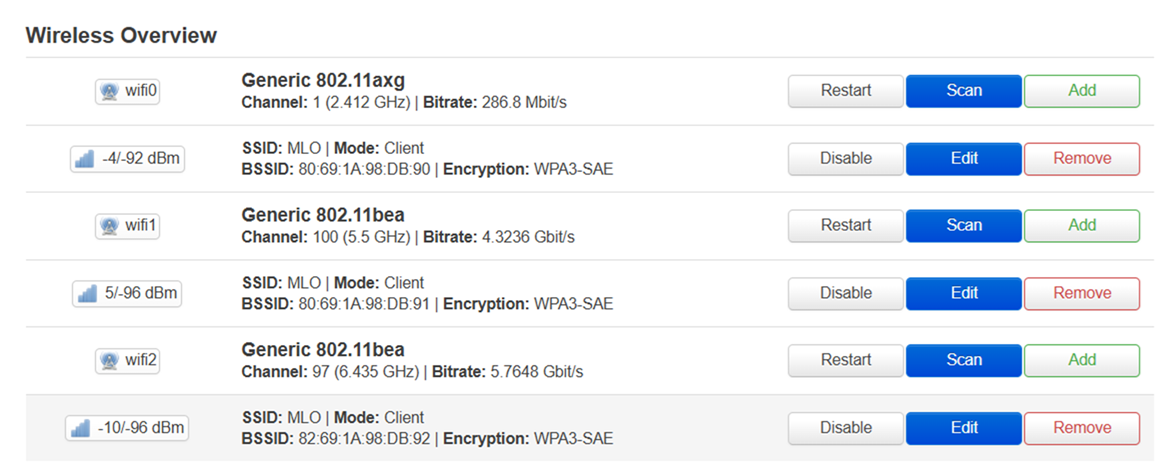
wifi0, wifi1, and wifi2 settings overview


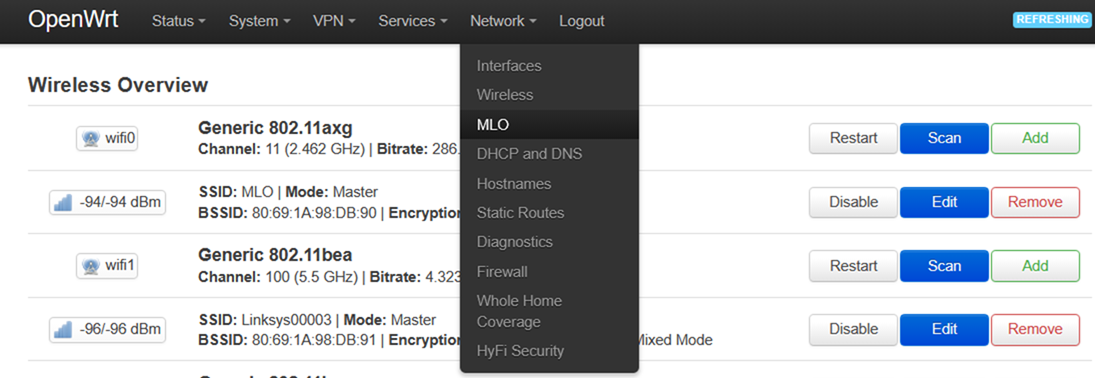
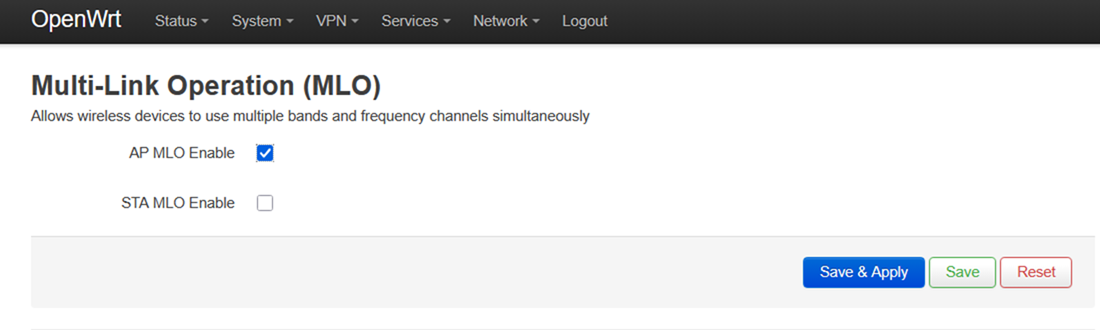
9. 访问MLO>网络  。


Go to the Network tab and then to the MLO sub-tab


10. 勾选AP MLO启用框,点击保存并应用


Check where it says "AP MLO Enable". Then click Save and Apply.
 

第二路由器:对子路由器 MBE70(STA)执行以下设置。


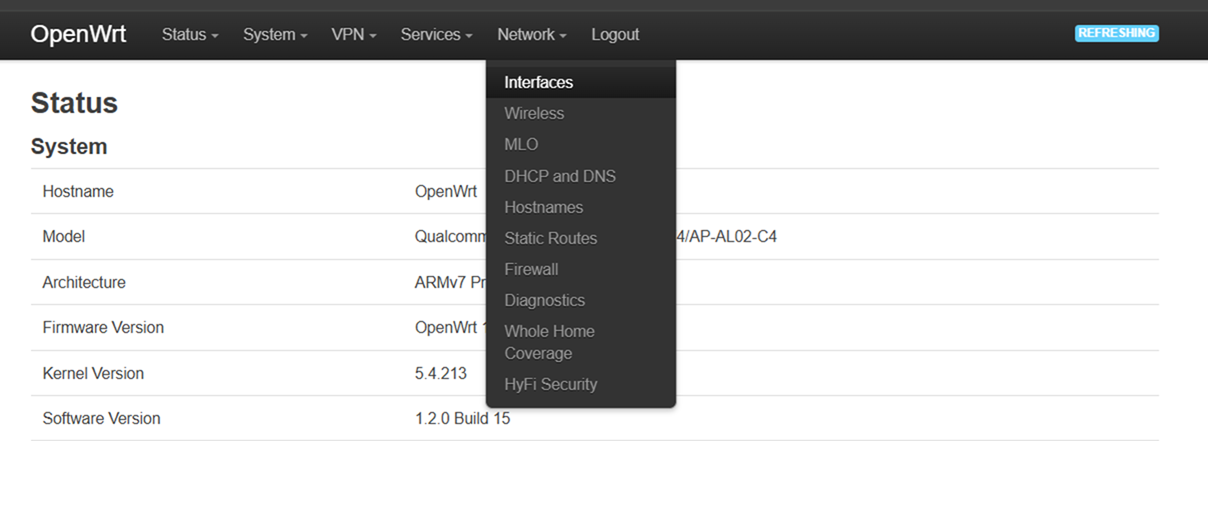
1. 登录备用路由器,然后进入网络>接口


Go to the Network tab, then click on the Interfaces sub-tab


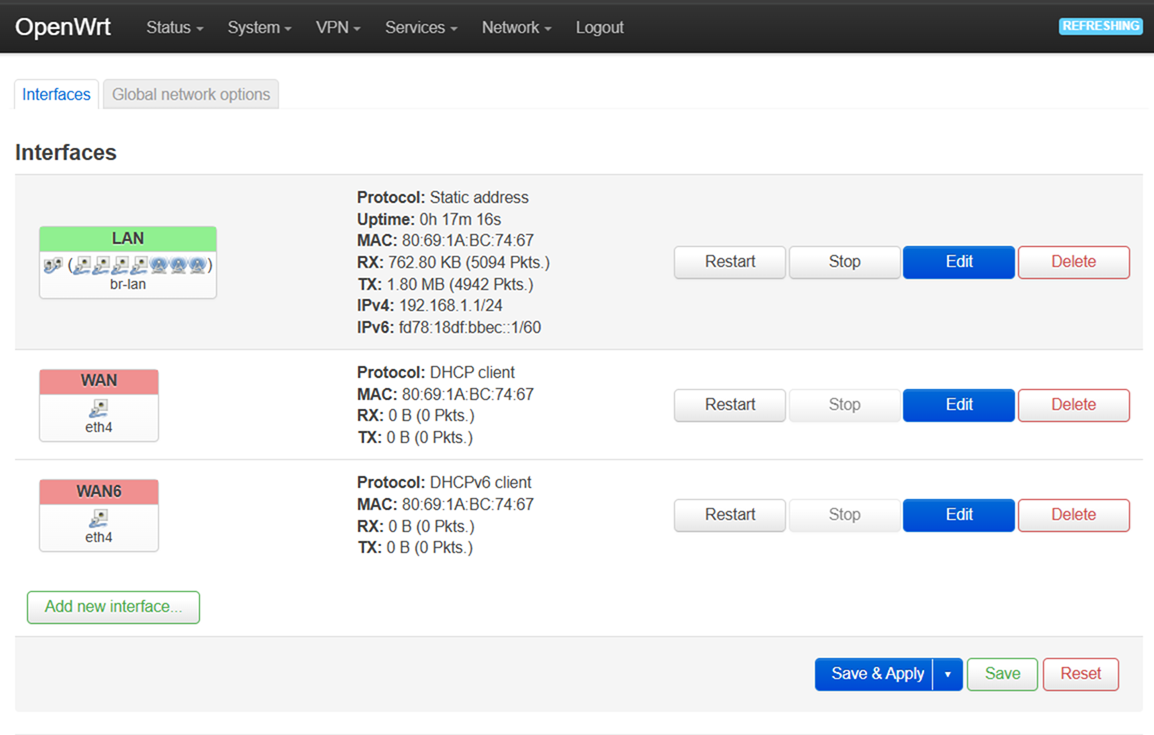
2.  在“接口”标签下,点击“编辑”按钮以选择局域网。

Click the Edit button where it says LAN.


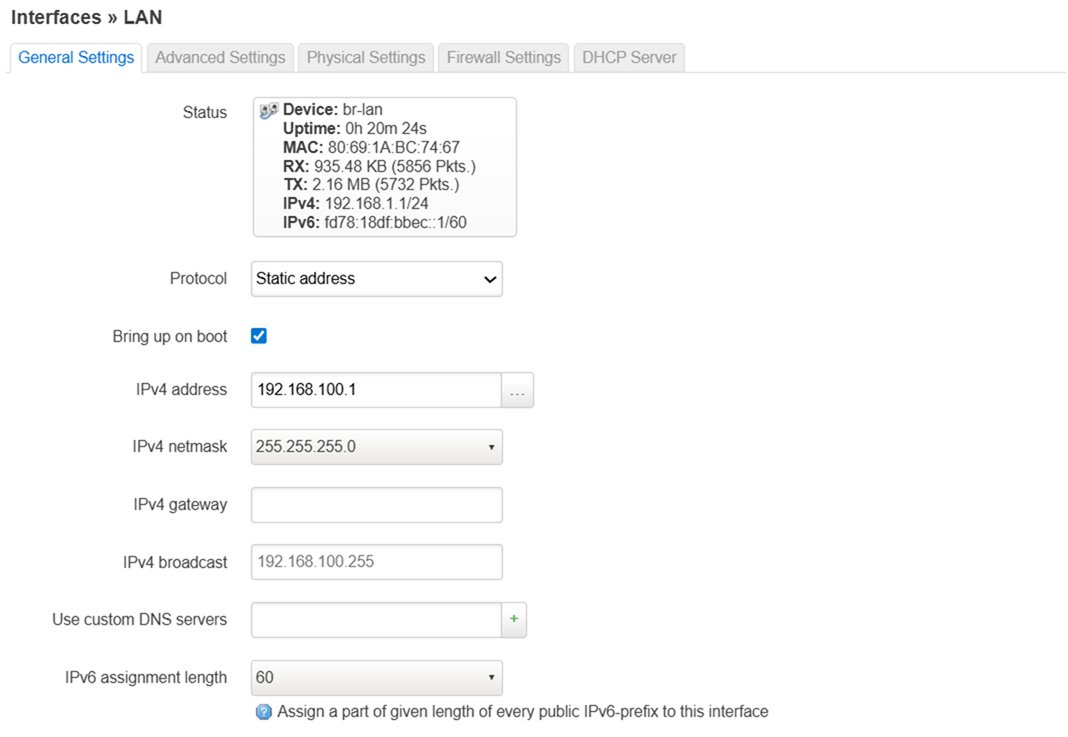
3. 将局域网 IPv4 地址从 192.168.1.1 更改为 192.168.100.1,并点击保存


Change the IP address then click Save. And then click on Save & Apply.


完成后点击“保存并应用”。


Change the IP address then click Save. And then click on Save & Apply.


4. 路由器保存设置后,使用新的IP地址192.168.100.1登录用户界面。


进入网络>无线>,然后点击扫描按钮,进入你的2.4 GHz接口。

 

Press the Scan button for 2.4 GHz


5. 找到MLO  SSID后点击加入网络按钮。


Click the Join Network button

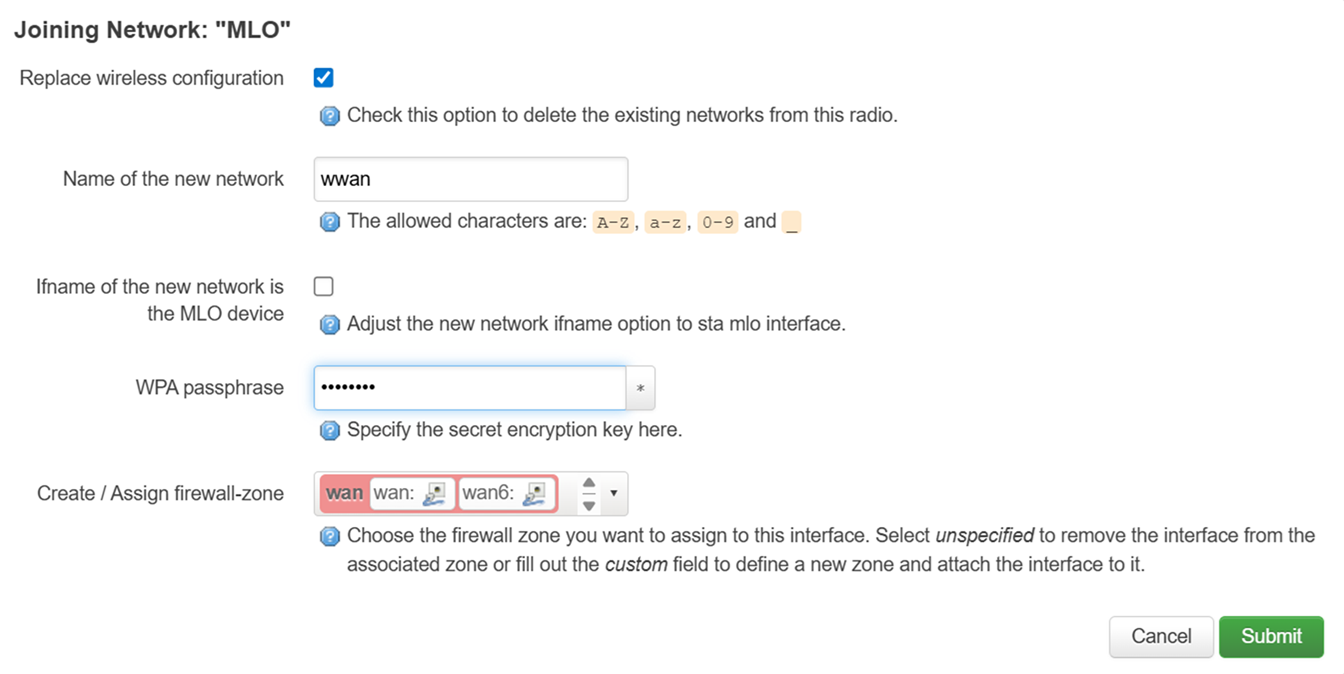
6. 确保选择替换无线配置并在WPA密码栏输入MLO SSID的WiFi密码。


完成后点击提交按钮。


Put the password in the WPA passphrase field and hit Submit

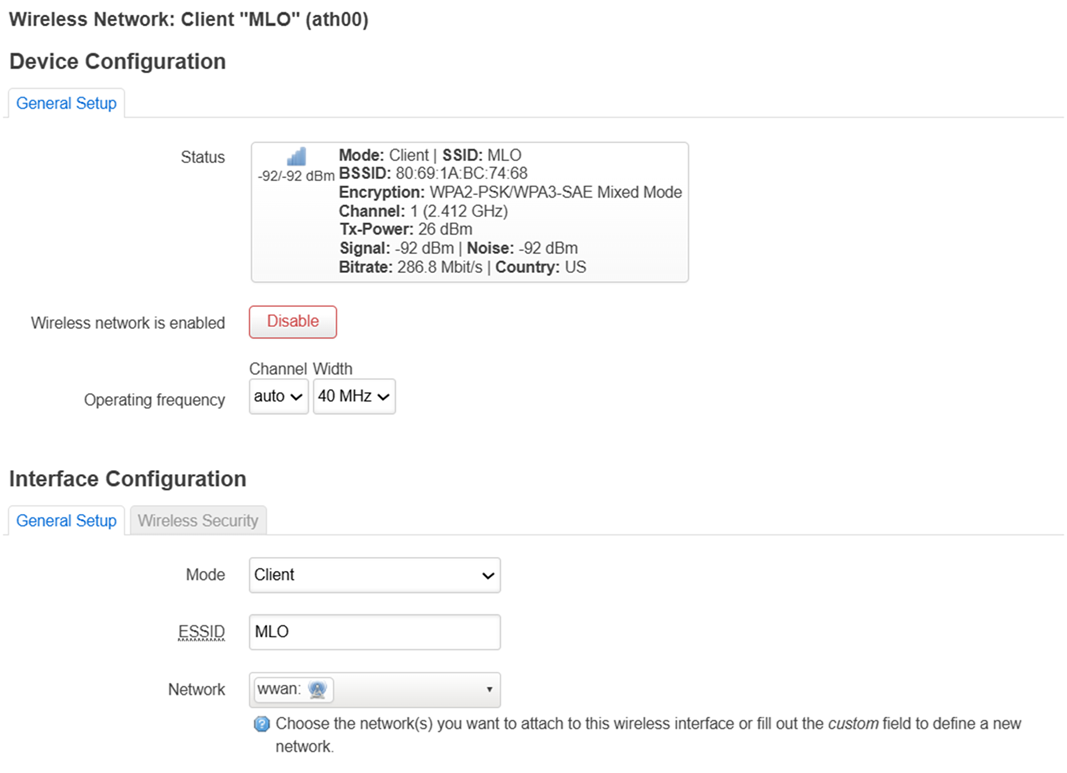
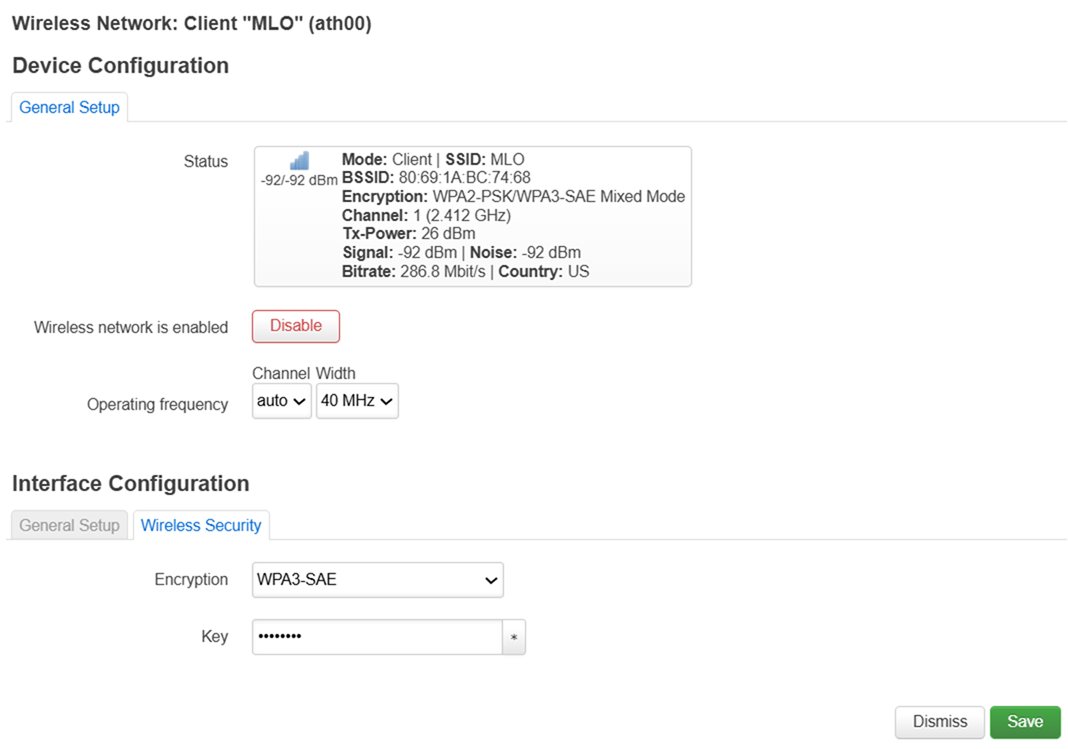
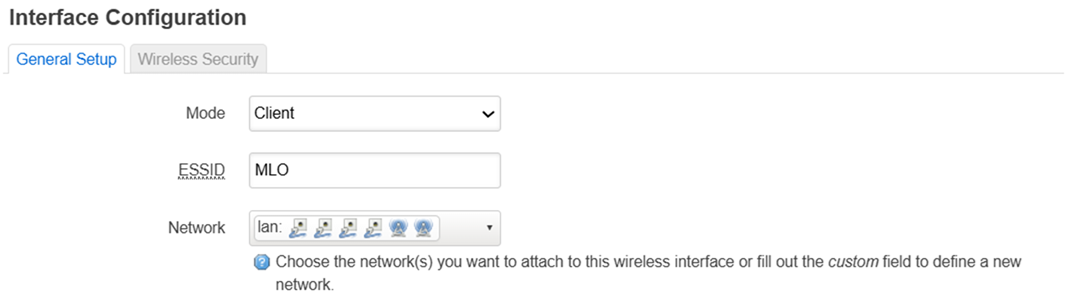
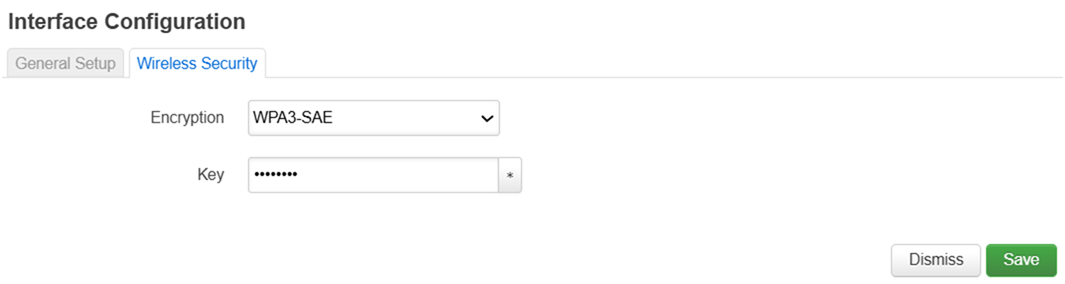
7. 将加密类型设置为WPA3-SAE,将密码更新为MLO SSID密码,将模式设置为客户端


Change the Mode to "Client".


Change the Encryption type to WPA3-SAE

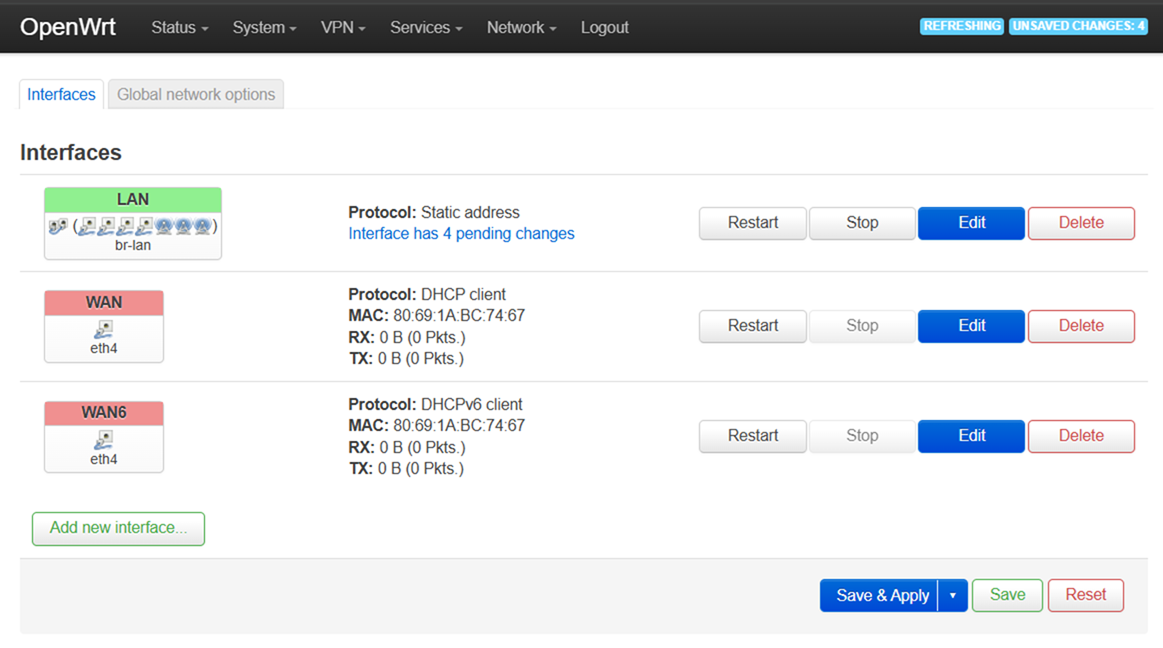
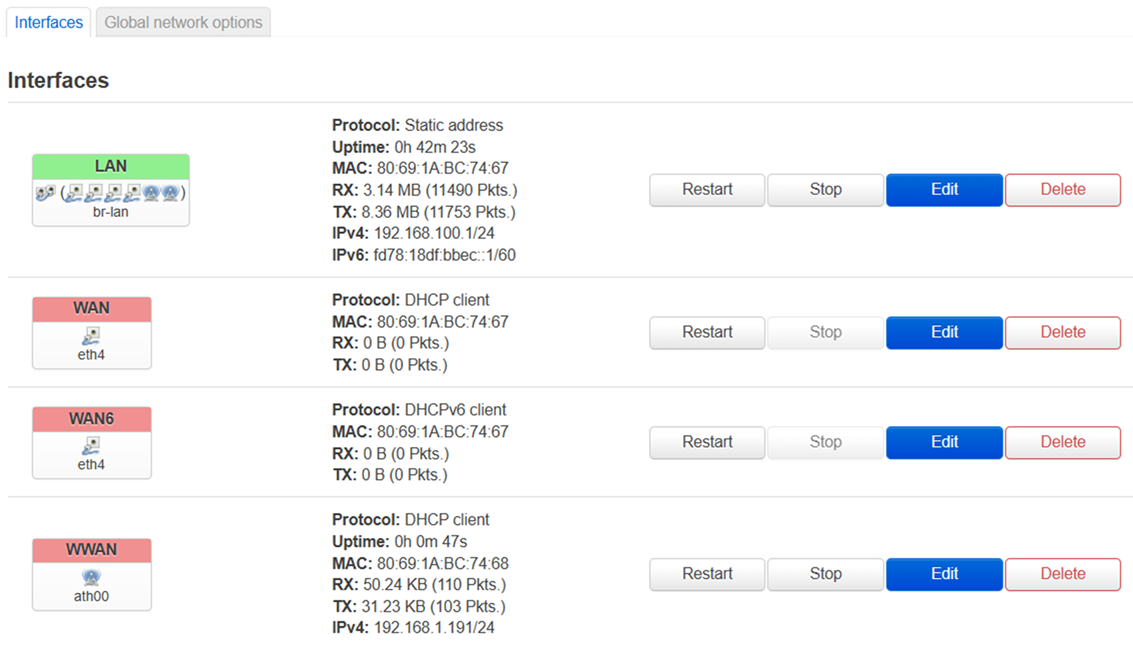
8. 进入网络>接口,你会看到新增了一个WWAN接口。


Interfaces overview. You will you will see that another WWAN interface has been added

9. 进入网络>无线,点击编辑按钮以切换5 GHz接口(wifi1)。


Click the Edit button where it says "wifi1"

10. 将ESSID改为MLO,  模式改为客户端,加密改为WPA3-SAE,密码改为与你父WiFi相同的密码。点击保存,然后点击保存并应用


Change the ESSID to MLO. Change the Mode to Client.


Change encryption to WPA3-SAE.


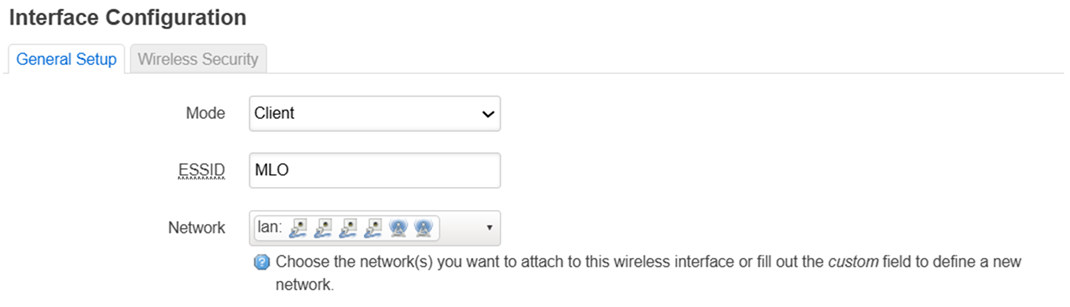
11. 在第10 步对6 GHz接口(WiFi2)执行同样步骤。


Perform the same steps on "wifi2"


Perform the same steps on "wifi2"


Perform the same steps on "wifi2"

12. 进入网络>无线,确保这三组无线信号已激活。


Go to Network and then Wireless. Check that the three radios are activated.

13. 进入网络>MLO,选择 STA MLO 启用。点击“保存并应用”。
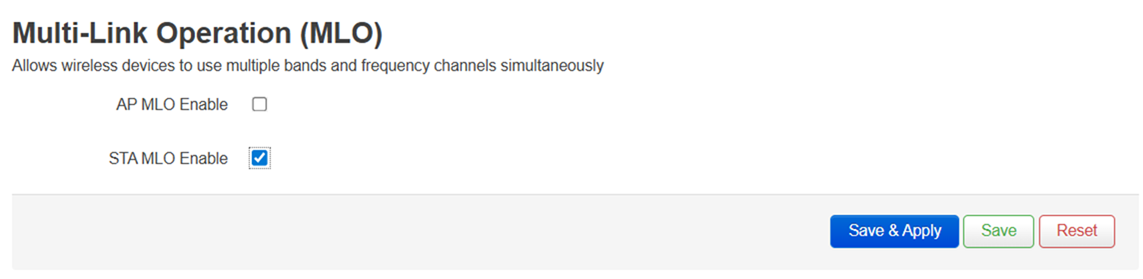
 

Check the STA MLO Enable box and click Save & Apply.

这篇支持文章有用吗?
0 / 0 觉得这很有帮助

联系我们
致电我们  访问我们的全球支持电话号码列表
Reddit  加入并订阅我们的官方 Reddit 社区
与我们聊天  我们将为您解答所有问题
Linksys
Now
Support
滚动到顶部图标