You are using an unsupported browser. Please update your browser to the latest version on or before July 31, 2020.
close
You are viewing the article in preview mode. It is not live at the moment.
ホーム > セットアップ・初期設定 > メッシュWiFiシステム > Alternative setup of the Linksys Pinnacle Mesh router using the Pair button setup
Alternative setup of the Linksys Pinnacle Mesh router using the Pair button setup
print icon

The Linksys Pinnacle Mesh router SPNM60 and SPNM62 models support Auto-Master, also known as an Auto Configuration Server (ACS). When a router is connected directly to your ISP's modem and detects an internet connection, it will automatically configure itself as the parent (master) router. The light will turn from solid blue to solid white once the configuration is complete.


However, if the light doesn’t turn solid white on its own, you may be in a scenario where Auto-Master is not supported. There is, therefore, an alternative method to set up your router using the Pair button. 


Before you begin:


  • To use the Pair button setup, you must have an automatic internet connection type (DHCP) from your ISP. If your ISP requires specific connection settings or you need to manually configure the router, follow these instructions.
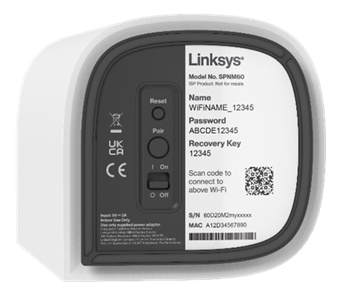
  • Write down the default WiFi name and password located on the bottom of the Linksys parent router.
  • Parent router - The parent router is the Linksys Mesh router that will be connected to your modem.
  • Child node - An additional Linksys Mesh node to extend your WiFi network.


1. Gather all your equipment in the same area as your modem.


2. Remove any existing router and power cycle your modem.


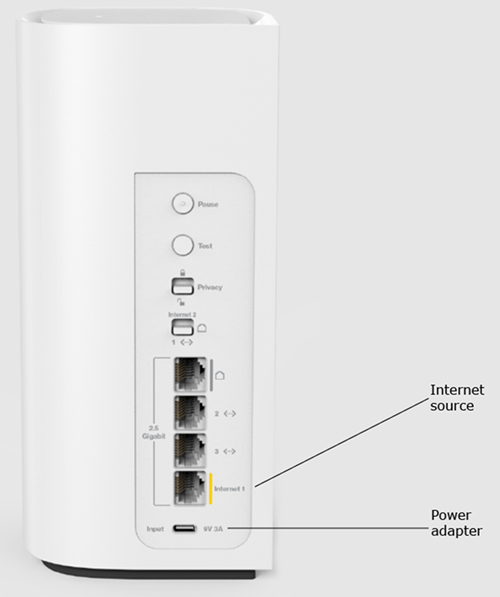
3. Connect an Ethernet cable from the internet source to the Internet port of your Linksys Pinnacle parent router.


4. Use the supplied power adapter and power ON the router.


Router showing where is the Internet and Power adapter ports


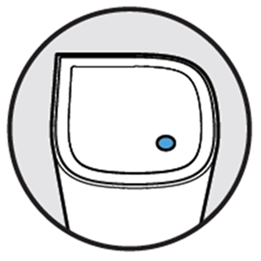
5. Wait until the light turns solid blue, which means it’s ready for setup.


Router with solid blue light

Solid blue-Ready for setup


If the light is red, hold down the reset button for about 15 seconds, then wait for it to become solid blue.


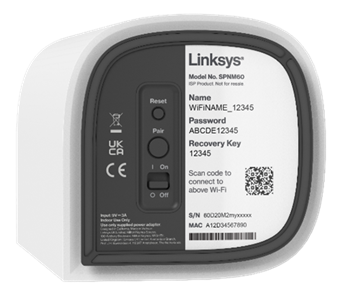
6. Once the light is solid blue, press the Pair button for at least 3 seconds on the bottom of the parent router.


Bottom of the router showing the Pair button


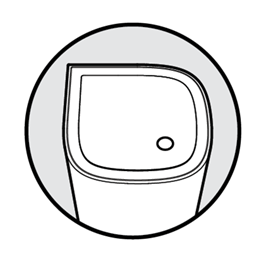
7. The light will begin blinking white. Once setup is complete, the light will turn solid white.


Router showing a white light

Solid white-Ready


8. Connect a computer or mobile device to Wi-Fi. The default Wi-Fi credentials are located on the bottom of the Linksys parent router; you can also scan the QR code to connect with a mobile device.


Bottom of the router showing the default credentials and QR code


9. Open a desktop web browser, enter www.myrouter.info or myrouter.info into the Address bar, and press [ENTER].


Alternatively, you can use the default IP address: https://192.168.1.1.


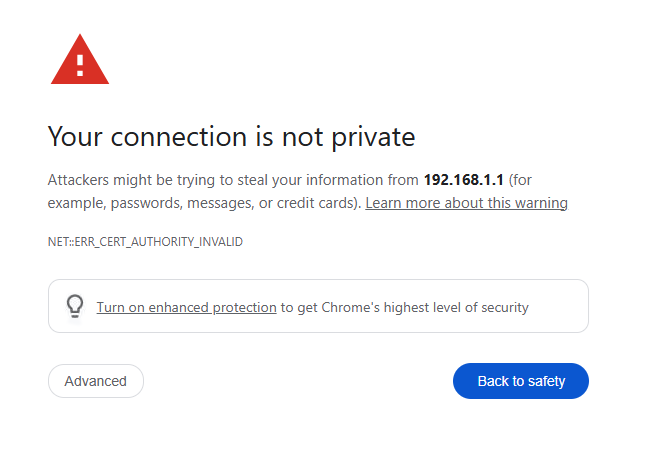
If a browser warning appears, follow these instructions to bypass it.

Browser error message


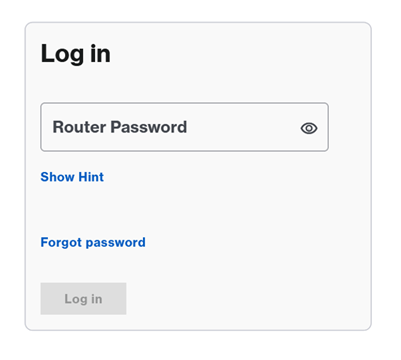
10. Enter your router’s password. The default password is the same as the default Wi-Fi password. After logging in, you can customize the router password by navigating to Menu > Instant-Admin.


Log in with the router password


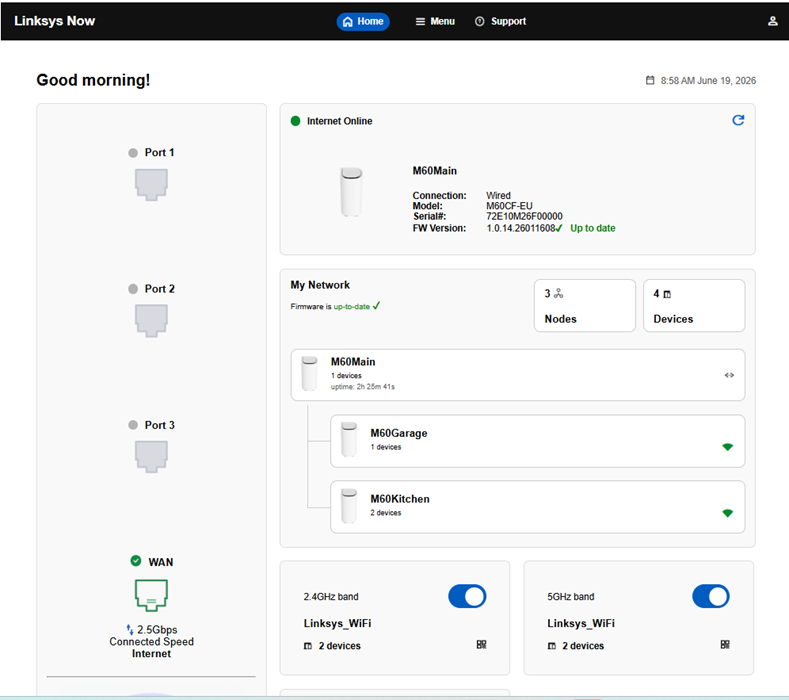
Once logged in, you will land on the Home page.


Linksys Now Home page


Find out more:


How to change the router password
How to add child nodes
How to configure WiFi settings


このサポート記事は役に立ちましたか?
0 のうち 0 がこれが役に立ったと感じています

Linksys製品カスタマーサポート
営業時間:午前9時~午後5時(月曜日~金曜日)
サポートダイアル 03-6851-4359
オンラインチャット 英語・日本語対応
Reddit コミュニティを検索

Linksys(リンクシス)は1988年に米国カリフォルニア州で生まれ、インターネット黎明期より世界中のネット環境を支え続けている老舗ネットワーク機器の専業メーカーです。世界中のインターネットプロバイダに製品供給を行っており、世界累計出荷台数は2億5千万台を超えています。私たちは、お客様のプライバシーを最優先し、インターネット通信における安全・安心を提供します。
Linksys
Now
Support
トップアイコンにスクロール