


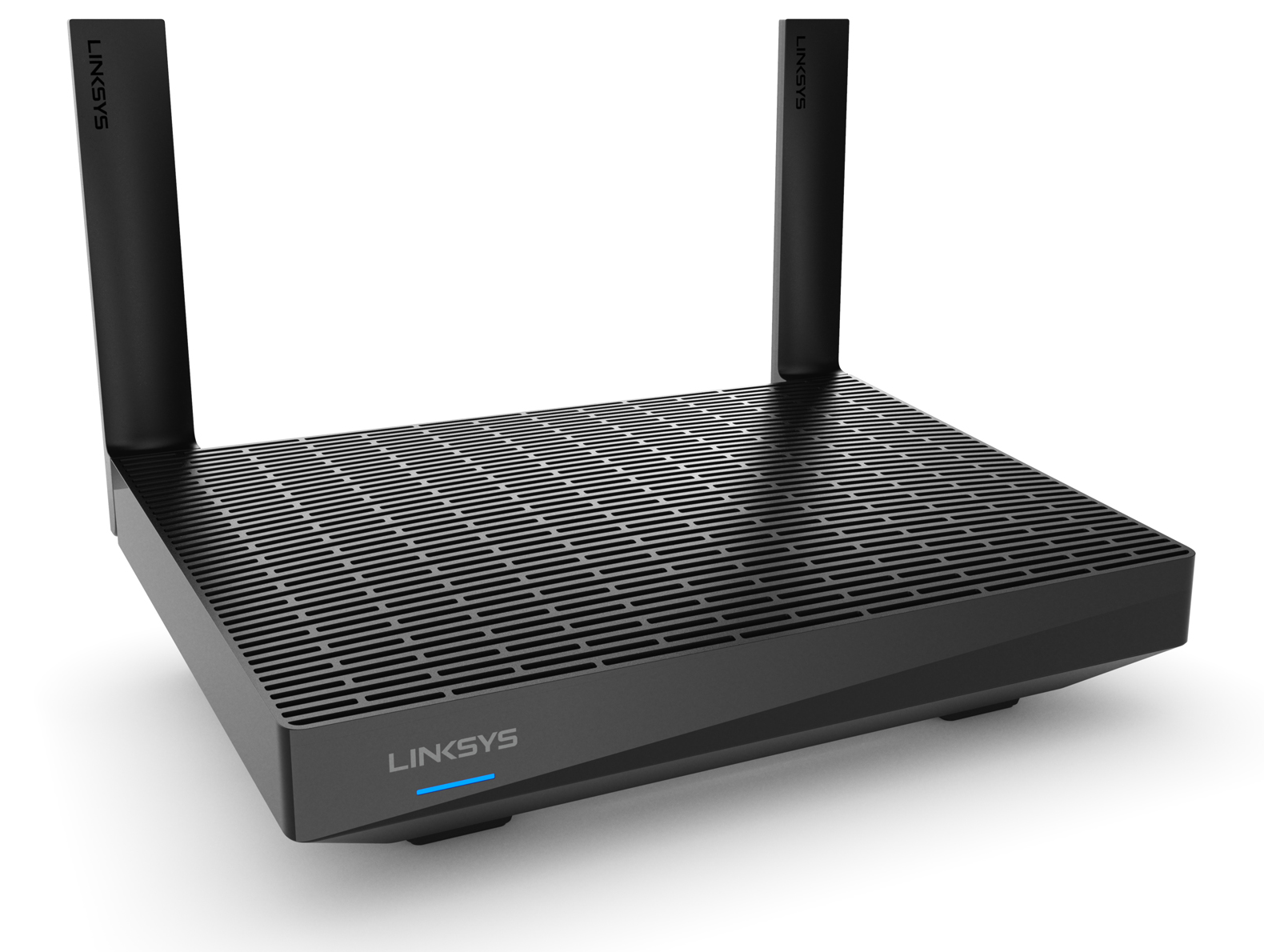
The Linksys MR20MS uses Intelligent Mesh™ and provides you with ultra-fast Wi-Fi® 6 technology to keep your connection going strong.
HARDWARE INFORMATION
The Linksys MR20MS has one USB 3.0 port for external storage devices only. This feature is only supported on the parent router. If you connect a USB drive to a router used as a child node, the drive will not be detected.
SETUP AND INSTALLATION
You can use the router's web interface to set it up.
Below are the requirements for setting up the Linksys MR20MS:
- An active internet connection
- A desktop computer to set up and manage the router settings
The router's default SSID is _LinksysSetupxxx, where the last three digits of the MAC address are represented by "xxx", with a random WiFi password (each router has its own password).
To add another router to the network, follow these instructions.
SECURITY AND PRIVACY
The router supports these security settings:
- WPA2™/WPA3™ Mixed Personal
- WPA3 Personal Only
- WPA2 Personal
- Enhanced Open Only
- Open and Enhanced Open
- Open
The router supports the free basic Parental Controls feature.
ADVANCED TROUBLESHOOTING
There are two ways to reset the router to factory defaults:
- Hardware reset – Press and hold the reset button until you see a fourth red light flash. Learn more.
- Software reset – Log in to your Linksys router's web interface. Under Router Settings, click Troubleshooting > Diagnostics, then click Reset under Factory reset.
By default, the Automatic Firmware Update feature on the router is enabled and will upgrade the firmware whenever a new version is available.
Yes. The router supports bridge mode. Learn more.
To access the storage device connected to your node, you need to first identify its IP address. Once identified, follow these instructions.
No. This is not supported.
To safely eject the hard drive from the router, simply click Eject in the External Storage section located on the router's web interface.
You can enable the Authentication option for the external storage device and enter the following information:
- Username – use a minimum of four and a maximum of 12 alphanumeric characters.
- Password – use a minimum of four and a maximum of 50 alphanumeric characters
The characters for the username and password must be alphanumeric or include valid characters like “_” or “-“.
The router supports NTFS, FAT32, FAT, and HFS+.
No. This is not supported.
Dynamic Frequency Selection (DFS) allows Linksys devices to operate in channels shared with radar that are typically much less congested than other 5 GHz channels. Reduced congestion means better performance and reliability for your network. Some Linksys Velop Mesh models use DFS to optimize your WiFi.
Not every Linksys router is equipped with DFS support. If your router does support DFS, you will be able to identify it in the router's web interface.
Only if your clients support DFS channels. If your clients do not support DFS channels, they can connect to the 2.4 GHz band instead.
If the router detects radar systems that use the same DFS channels, the router needs to disconnect and switch to a different DFS channel to avoid interference. If you experience frequent disconnections because of the proximity of radar systems, you can turn OFF the DFS feature by going to Wi-Fi Settings > Advanced Wi-Fi Settings > Dynamic Frequency Selection (DFS) and toggling the switch to turn it OFF.

