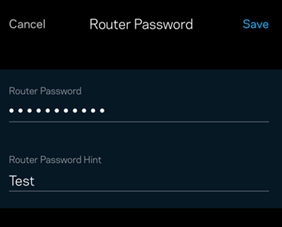
Modifying the router's administrative password is recommended to maintain your network's security and safeguard it against unauthorized entry. By utilizing the Linksys app, you can establish a personalized password for your router, ensuring that only you have administrative privileges over your network.
Before you begin, make sure your device has the most up-to-date version of the Linksys app installed.
To access the router’s settings through the web interface, click here.
1. Connect your mobile device to your router's WiFi, then open the Linksys app.
2. For iOS, tap Manage Your Wi-Fi. For Android™, tap Log in.
| iOS | Android |
 |
 |
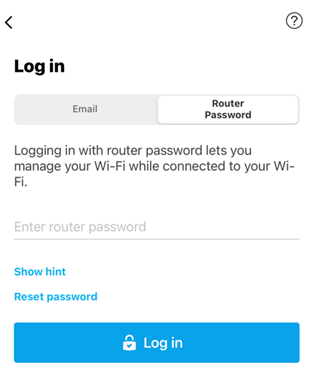
3. Log in using your Router Password.
Some routers use admin as the default password. If you have forgotten the password, tap on Reset password to recover it.
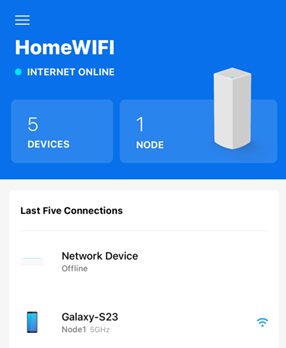
4. Tap the menu icon at the upper-left corner.
| iOS | Android |
 |
 |
5. Tap Network Administration.
| iOS | Android |
 |
 |
6. Tap on Change Router Password and Hint.

7. Tap the field under Router Password to enter your new personalized password. You can also add a hint to help you remember your password.
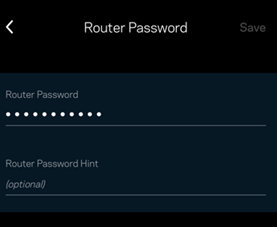
8. Tap Save to apply changes.